
1. Introduction
The Frigga M2D is a multi-use USB temperature data logger designed for reliable and accurate temperature monitoring across various applications. This device is capable of recording up to 14,400 readings and generating PDF and CSV reports directly upon connection to a computer, eliminating the need for specialized software for basic data retrieval. It is ideal for cold chain logistics, pharmaceutical storage, food refrigeration, and environmental testing.
This manual provides detailed instructions on the setup, operation, maintenance, and specifications of your Frigga M2D data logger.

Image 1.1: Frigga M2D Multi-Use Temperature Data Logger. This image shows the compact design of the data logger with its USB connector and LCD screen.
2. Product Components
Familiarize yourself with the key components of your Frigga M2D data logger:

Image 2.1: Frigga M2D Data Logger Components. This image labels the USB Cover, USB Connector, LED Indicator, LCD Screen, Stop Button, Start Button, and Bar Code Label on the device.
- USB Cover: Protects the USB connector when not in use.
- USB Connector: Used to connect the device to a computer for data download and configuration.
- LED Indicator: Provides visual feedback on device status, alarms, and recording activity.
- LCD Screen: Displays real-time temperature readings, alarm status, statistical data, and recording status.
- Stop Button: Press to stop the current recording session.
- Start Button: Press to initiate a new recording session.
- Bar Code Label: Contains product identification information.
3. Setup
The Frigga M2D data logger is designed for ease of use with minimal setup required for basic operation.
3.1 Initial Use
The device is pre-configured for immediate use. To begin recording, simply press the Start Button. No software installation is required for initial recording or report generation.
3.2 Advanced Configuration (Optional)
For advanced settings such as delayed start, logging intervals, temperature units, time zones, and custom alarm ranges, the complimentary Frigga Data Software is required. This software is compatible with Windows and Mac OS and can be downloaded from the official Frigga website.
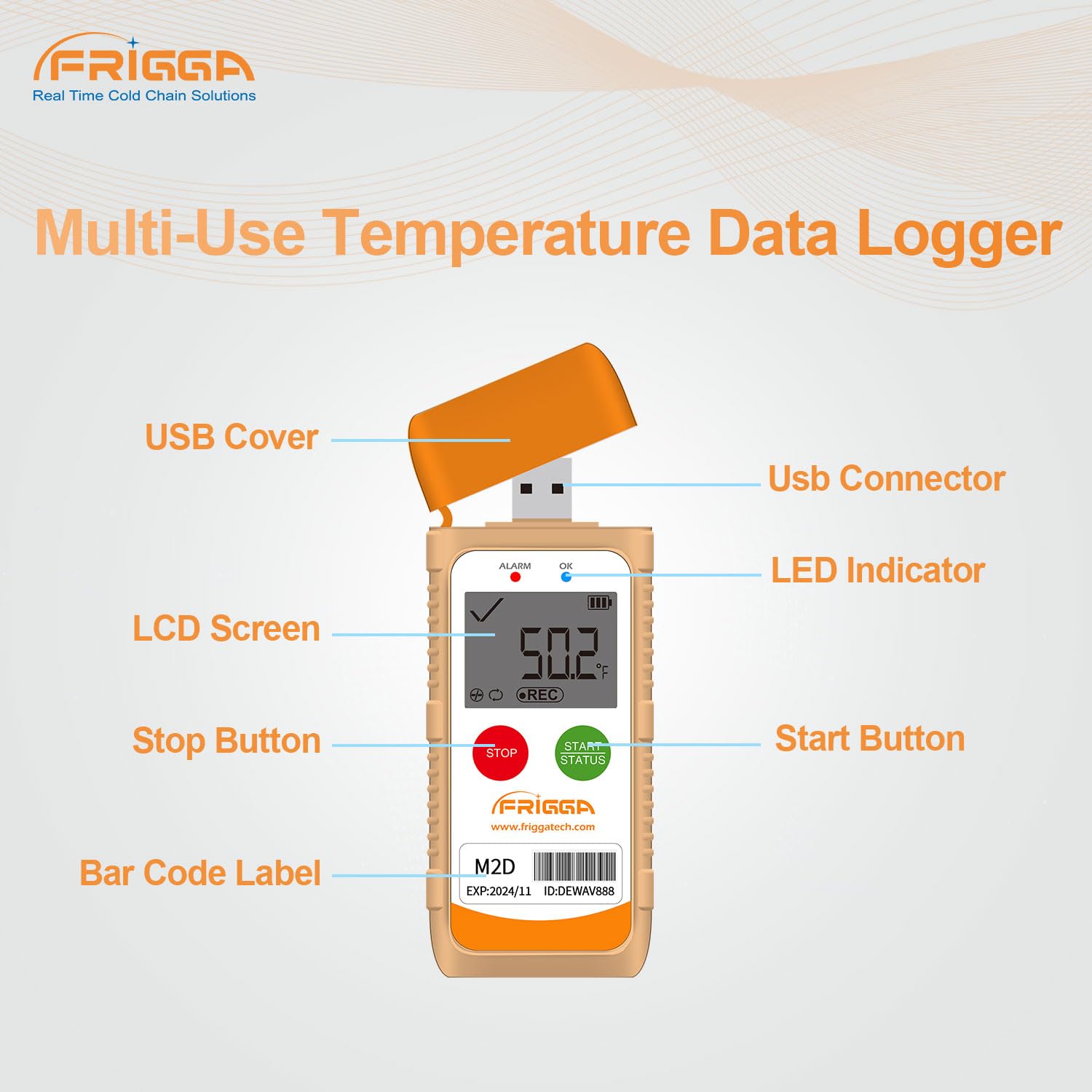
Image 3.1: Parameter Settable via Frigga Data Center. This image illustrates the user interface of the Frigga Data Software, showing various configurable parameters for the data logger.
4. Operating Instructions
4.1 Starting a Recording
- Ensure the device is powered on (if applicable, or has sufficient battery).
- Press and hold the Start Button for approximately 3 seconds until the 'REC' icon appears on the LCD screen and the LED indicator flashes, confirming that recording has begun.
4.2 Stopping a Recording
- During an active recording, press and hold the Stop Button for approximately 3 seconds until the 'REC' icon disappears from the LCD screen. The LED indicator will stop flashing, confirming that recording has ended.
4.3 LCD Display and Indicators
The LCD screen provides real-time information:
- Current Temperature: Displays the real-time temperature reading.
- Recording Status: 'REC' icon indicates active recording.
- Alarm Status: An alarm icon or flashing LED indicates if temperature thresholds have been exceeded.
- Battery Level: Indicates remaining battery life.
Fahrenheit/Celsius units can be switched directly on the device or via the Frigga Data Software.
4.4 LED Alarm Function
The LED indicator will flash to alert users if the recorded temperature goes beyond the pre-set upper or lower thresholds. This feature is crucial for applications requiring strict temperature stability.
5. Data Reporting
The Frigga M2D data logger automatically generates PDF and CSV reports, making data retrieval straightforward.
- Ensure the recording has been stopped (refer to Section 4.2).
- Remove the USB cover and plug the data logger into a standard USB port on any computer (Windows or Mac OS).
- The device will appear as a removable storage drive. Navigate to the drive.
- Locate and open the generated PDF or CSV report files. No special software or drivers are required for this process.

Image 5.1: Auto-generated PDF & CSV. This image demonstrates how the Frigga M2D data logger automatically generates PDF and CSV reports when connected to a computer, compatible with both Windows and Apple operating systems.
6. Frigga Data Software
For comprehensive data analysis and device configuration, utilize the Frigga Data Software.
6.1 Software Features
- Logging Conditions: Set delayed start, logging intervals, and recording duration.
- Temperature Units: Switch between Fahrenheit and Celsius.
- Time Zones: Adjust time settings for accurate data stamping.
- Alarm Ranges: Customize upper and lower temperature thresholds for alerts.
- Data Analysis: Provides charting, statistical analysis, and event marking capabilities.
- Export Options: Allows data to be exported to other applications such as Excel and PDF.
6.2 Software Download and Installation
The Frigga Data Software is available for download from the official Frigga website. Follow the on-screen instructions for installation on your Windows or Mac OS computer.
7. Maintenance
Proper maintenance ensures the longevity and accuracy of your Frigga M2D data logger.
7.1 Battery Replacement
The Frigga M2D is equipped with a CR2450 battery. When the battery level is low, replace it as follows:
- Locate the battery compartment on the back of the device.
- Use a suitable tool (e.g., a coin) to twist the battery cover counter-clockwise to open.
- Carefully remove the old CR2450 battery.
- Insert a new CR2450 battery with the positive (+) side facing up.
- Replace the battery cover and twist clockwise to secure it.

Image 7.1: How to replace the battery. This image provides a four-step visual guide on replacing the CR2450 battery in the Frigga M2D data logger.
7.2 Cleaning
Wipe the device clean with a soft, dry cloth. Avoid using abrasive cleaners or submerging the device in water.
8. Troubleshooting
If you encounter issues with your Frigga M2D data logger, refer to the following common problems and solutions:
- Device not starting recording: Ensure the battery has sufficient charge. Press and hold the Start button firmly for 3 seconds. If issues persist, connect to Frigga Data Software to check device status.
- No PDF/CSV report generated: Ensure the recording has been stopped before plugging into the USB port. Try connecting to a different USB port or computer.
- Inaccurate readings: Verify the device is placed in an appropriate environment for measurement. Check the calibration certificate for accuracy specifications. If suspected, perform a recalibration using the Frigga Data Software or contact support.
- LED alarm not functioning: Check the alarm settings via the Frigga Data Software to ensure thresholds are correctly configured and enabled.
For further assistance, please contact Frigga customer support.
9. Specifications
Detailed technical specifications for the Frigga M2D Multi-Use Temperature Data Logger:

Image 9.1: Product parameter. This image displays the key specifications of the Frigga M2D, including measurement range, accuracy range, and memory capacity.
| Feature | Specification |
|---|---|
| Measurement Range | -30°C ~ +70°C (-22°F ~ +158°F) |
| Accuracy Range | ±0.5°C (-20°C ~ +40°C); ±1°C for other ranges |
| Data Memory Capacity | 14,400 readings |
| Battery Type | CR2450 (Long-lasting battery life) |
| Connectivity | USB |
| Display Type | Digital LCD |
| Outer Material | Plastic |
| Special Features | Alarm, Fast Reading System, High Accuracy, Low Battery Indicator, IP65 Waterproof Grade, Temperature Calibration Report, Event Mark, Zero Data Loss |
| Report Generation | Auto-generated PDF & CSV |
| Software Compatibility | Windows & Mac OS (Frigga Data Software) |
10. Warranty and Support
Your Frigga M2D data logger comes with a warranty. Please refer to the warranty card included in your package for specific terms and conditions. You can scan the QR code on the warranty card to access the user manual online and export the calibration certificate by connecting the device to your computer.
For any technical issues, questions, or support, Frigga offers 24/7 Technician Support via Email. Please refer to the contact information provided on your warranty card or the official Frigga website.


