
ELECTROPRIME EDA006145301B
User Manual
ELECTROPRIME Compatible for ESCAM PT303 3MP HD WiFi IP Camera
Introduction
This manual provides detailed instructions for the setup, operation, and maintenance of your ELECTROPRIME Compatible for ESCAM PT303 3MP HD Motion Detection APP Control Pan & Tilt WiFi IP Camera. Please read this manual thoroughly before using the product to ensure proper functionality and safety.
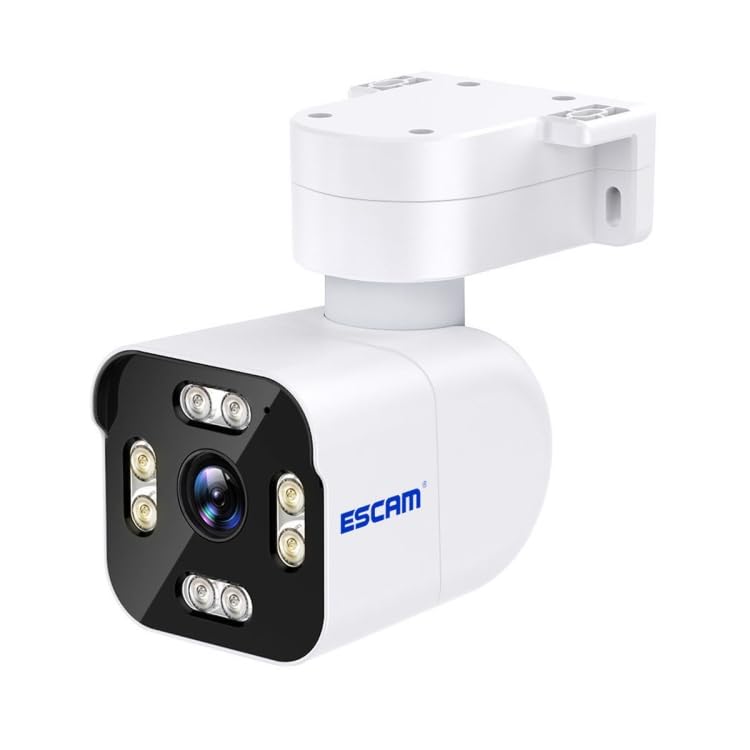
Image: The ELECTROPRIME Compatible for ESCAM PT303 3MP HD WiFi IP Camera, showing its white casing, lens, and mounting bracket.
Setup Guide
1. Unboxing and Initial Inspection
Carefully remove all components from the packaging. Verify that all items are present and undamaged. The package includes the camera unit and power adapter.
- Camera Unit
- Power Adapter (US Plug)
- Mounting Screws (if included)
2. Powering On the Camera
- Connect the power adapter to the camera's power input port.
- Plug the power adapter into a standard US electrical outlet.
- Wait for the camera to initialize. This may take a few moments, indicated by an LED status light.
3. App Installation and Connection
This camera supports control via a mobile application on Android and iOS devices.
- Download the recommended camera application from your device's app store (e.g., Google Play Store for Android, Apple App Store for iOS). Refer to the camera's packaging or a quick start guide for the specific app name.
- Open the app and create an account if prompted.
- Follow the in-app instructions to add a new device. This typically involves scanning a QR code on the camera or connecting to the camera's temporary Wi-Fi hotspot.
- Connect the camera to your home Wi-Fi network (2.4GHz band recommended for optimal performance).
4. Mounting the Camera
The camera features a dome form factor and can be mounted on a wall or ceiling. Ensure the mounting surface is stable and can support the camera's weight.
- Choose a suitable location that provides the desired viewing angle and is within range of your Wi-Fi network.
- Mark the drilling points using the camera's mounting bracket as a template.
- Drill pilot holes and insert wall anchors if necessary.
- Secure the mounting bracket to the surface using the provided screws.
- Attach the camera unit to the mounted bracket, ensuring it is securely fastened.
Operating Instructions
1. Live View and Pan/Tilt Control
Once connected, open the mobile application to access the live video feed from your camera.
- Tap on the camera feed to view it in full screen.
- Use the on-screen controls (typically a joystick or directional arrows) to pan (rotate horizontally) and tilt (rotate vertically) the camera lens to adjust the viewing area.
2. Motion Detection and Alerts
The camera features 3MP HD resolution and motion detection capabilities.
- Navigate to the camera settings within the app.
- Locate the "Motion Detection" or "Alarm Settings" section.
- Enable motion detection and configure sensitivity levels as needed.
- Set up alert notifications (e.g., push notifications to your phone, email alerts) to be informed when motion is detected.
3. Recording and Playback
The camera supports video recording, often to a local SD card (not included) or cloud storage (subscription may be required).
- Manual Recording: In the live view, look for a record button to manually start and stop video recording.
- Scheduled Recording: Access recording settings to set up continuous recording or schedule recording times.
- Event Recording: Motion-triggered recordings will automatically save clips when motion is detected.
- Playback: Go to the "Playback" or "History" section in the app to review recorded footage. Select the date and time to view specific events.
4. Infrared Night Vision
The camera is equipped with infrared light sources for clear vision in low-light or no-light conditions.
- Night vision typically activates automatically when ambient light levels drop.
- You may find an option in the app settings to manually toggle night vision or adjust its mode (e.g., auto, on, off).
Maintenance
- Cleaning: Regularly wipe the camera lens and body with a soft, dry cloth to remove dust and smudges. Do not use harsh chemicals or abrasive materials.
- Firmware Updates: Check the mobile application periodically for firmware updates. Keeping the camera's firmware updated ensures optimal performance, security, and access to new features. Follow the in-app instructions for any update process.
- Power Cycle: If the camera experiences connectivity issues or unusual behavior, try power cycling it by unplugging the power adapter for 10 seconds and then plugging it back in.
- Environmental Conditions: Ensure the camera is operated within its specified temperature and humidity ranges. Avoid direct exposure to extreme weather conditions if installed outdoors, unless explicitly rated for outdoor use.
Troubleshooting
| Problem | Possible Cause | Solution |
|---|---|---|
| Camera not powering on. | Power adapter not connected or faulty; power outlet not working. | Ensure power adapter is securely connected. Test the outlet with another device. Try a different power adapter if available. |
| Cannot connect camera to Wi-Fi. | Incorrect Wi-Fi password; camera too far from router; 5GHz Wi-Fi network used (camera supports 2.4GHz only). | Double-check Wi-Fi password. Move camera closer to the router. Ensure your router is broadcasting a 2.4GHz network and connect the camera to it. |
| Live view is blurry or dark. | Protective film on lens; dirty lens; insufficient lighting; night vision not active. | Remove any protective film from the lens. Clean the lens with a soft cloth. Ensure adequate lighting or check night vision settings in the app. |
| Motion detection alerts not received. | Motion detection disabled; sensitivity too low; app notifications blocked. | Enable motion detection in app settings. Increase sensitivity. Check phone's notification settings for the camera app. |
Product Specifications
| Feature | Detail |
|---|---|
| Model | EDA006145301B |
| Resolution | 3 Megapixels (3MP) |
| Connectivity | Wireless (Wi-Fi) |
| Pan & Tilt | Yes, APP Control |
| Motion Detection | Yes |
| Night Vision | Infrared Light Source Type |
| Operating System Compatibility | Android, iOS |
| Form Factor | Dome |
| Package Weight | 0.43 kg (0.96 lb) |
| Package Dimensions | 21cm x 15cm x 9cm (8.27in x 5.91in x 3.54in) |
Warranty Information
Please refer to the product packaging or the retailer's website for specific warranty terms and conditions. Typically, ELECTROPRIME products come with a limited warranty covering manufacturing defects from the date of purchase. Keep your purchase receipt as proof of purchase for warranty claims.
For warranty service, contact ELECTROPRIME customer support or the authorized dealer from whom you purchased the product.
Customer Support
If you encounter any issues not covered in this manual or require further assistance, please contact ELECTROPRIME customer support.
Contact Information:
- Refer to the product packaging or the official ELECTROPRIME website for the most up-to-date contact details, including phone numbers, email addresses, or online support portals.
- When contacting support, please have your product model number (EDA006145301B) and purchase information ready.
Ask a question about this manual
Ask about setup, troubleshooting, compatibility, parts, safety, or missing instructions. Manuals+ will review the question and use this page’s manual context to help answer it.