
1. Introduction
This manual provides detailed instructions for the safe and effective use of your PTHTECHUS 4G Kids Smart Watch, Model LT49. Please read this manual thoroughly before operating the device and retain it for future reference. This smartwatch is designed to provide communication and entertainment features for children aged 4-12.
2. What's in the Box
- PTHTECHUS 4G Kids Smart Watch (Model LT49)
- Charging Cable
- User Manual (this document)
- Watch Band

Image 2.1: The PTHTECHUS 4G Kids Smart Watch LT49, shown with its adjustable strap and a SpeedTalk Mobile SIM card, which is included for initial activation.
3. Product Overview
The PTHTECHUS 4G Kids Smart Watch LT49 features a high-definition touch screen and a durable design suitable for children. It integrates various functions to keep children connected and engaged.

Image 3.1: An overview of the smartwatch's features, including Pedometer, Alarm, Photo, Study Cards, Video, Audiobook, Camera, Player, Habit, Music, Calculator, Games, Setup, Timer, Wallpaper, Calendar, and Stopwatch.
3.1 Device Components

Image 3.2: A diagram highlighting key components of the smartwatch: HD Camera, SIM card slot, Mental Watch Case, Colorful Soft Band, SOS Button, and Power Button.
- HD Camera: Located at the top of the watch face, used for taking photos and videos.
- SIM Card Slot: Located on the side, for inserting a 4G Nano SIM card.
- SOS Button: A dedicated button for emergency calls.
- Power Button: Used to power on/off the device and wake/sleep the screen.
- Touch Screen: 1.69-inch HD display for navigation and interaction.
4. Setup Instructions
4.1 SIM Card Installation
The smartwatch requires a 4G Nano SIM card for calling and network features. A SpeedTalk Mobile SIM kit is included with the package.
- Ensure the watch is powered off.
- Locate the SIM card slot on the side of the watch.
- Carefully insert the 4G Nano SIM card into the slot in the correct orientation. Refer to the diagram on the watch or in the quick start guide for proper alignment.
- Close the SIM card slot cover securely.
4.2 SIM Card Activation
To enable calling and data features, the SpeedTalk Mobile SIM card must be activated.
- Visit the SpeedTalk Mobile website (www.activatespeedtalk.com) to activate your SIM card.
- Follow the on-screen instructions for activation. The package includes 30 minutes calling, 30MB data, and 30 SMS free for one week.
- Monthly service plans start at $5.00.

Image 4.1: Visual guide for SIM card insertion and activation details for SpeedTalk Mobile service.
4.3 Initial Power On and Basic Settings
- Press and hold the Power Button until the screen lights up.
- Follow the on-screen prompts to set the language, time, and date.
- Ensure the watch is connected to a 4G network (indicated by the network icon on the screen).
5. Operating Instructions
5.1 Two-Way Calling and SOS Function
Once the SIM card is active, the watch supports two-way calling with pre-set contacts.
- Making a Call: Navigate to the 'Contact' or 'Dial' app on the watch. Select a contact or dial a number directly.
- Receiving a Call: When a call comes in, tap the green answer icon on the screen.
- SOS Emergency Call: In an emergency, press and hold the SOS button for 3 seconds. The watch will automatically dial up to 3 pre-set emergency contacts and send a text message.
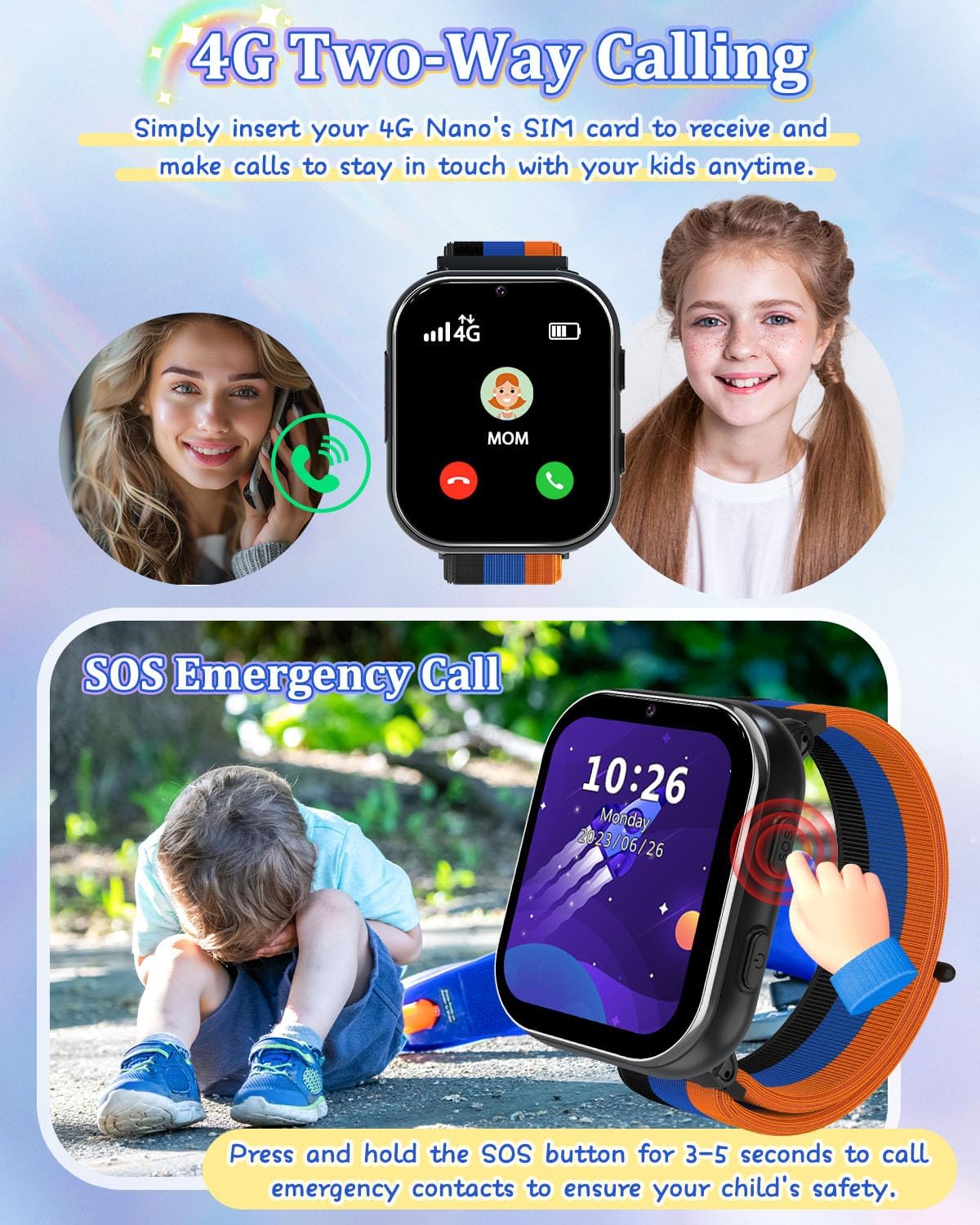
Image 5.1: Illustration of the two-way calling feature, showing a child receiving a call, and the SOS emergency call function being activated by pressing the side button.
5.2 Camera and Video Recording
The built-in HD camera allows children to capture photos and videos.
- Open the 'Camera' app to take photos.
- Open the 'Video' app to record videos.
- Photos and videos can be viewed in the 'Photos' or 'Player' app.

Image 5.2: The smartwatch camera in action, showing a child taking a photo and various fun filters that can be applied to images.
5.3 Music Player and Audiobooks
The watch supports MP3 music playback and includes pre-loaded audio stories.
- Music: Transfer MP3 files to the watch's internal storage via the charging cable. Access them through the 'Music' app.
- Audiobooks: Access pre-loaded audio stories via the 'AudioBook' app.

Image 5.3: A child listening to an audiobook on the smartwatch, with icons representing various story options.
5.4 Games and Learning Cards
The watch includes 8 puzzle games and learning cards for educational engagement.
- Games: Access the pre-installed games via the 'Games' app.
- Learning Cards: Utilize the 'Learn Card' app for interactive learning content.

Image 5.4: Children playing puzzle games and listening to music on the smartwatch, showcasing the entertainment features.

Image 5.5: A child interacting with the learning cards feature on the smartwatch, displaying various categories like animals, plants, food, and vehicles.
5.5 Habit Tracker and Alarm Clock
The watch includes a habit tracker and multiple alarm clock modes to help children develop routines.
- Habit Tracker: Set up daily habits like 'Get Up', 'Brush Your Teeth', 'Breakfast', 'Go to School', 'Homework', 'Dinner', 'Go to Bed' via the 'Habit' app.
- Alarm Clock: Configure alarms for various activities.

Image 5.6: The habit tracker interface showing 13 alarm clock modes to help children establish good daily routines.

Image 5.7: A visual representation of the habit tracking feature, illustrating various daily activities children can track.
5.6 Pedometer
The built-in pedometer tracks daily steps.
- Access the 'Pedometer' app to view step count.
5.7 Calculator and Calendar
Basic utility tools are available on the watch.
- Calculator: Use the 'Calculator' app for basic arithmetic.
- Calendar: View the current date and month via the 'Calendar' app.

Image 5.8: Overview of time tools including Calendar, Alarm clock, Stopwatch, and Timer, helping children manage their time.
5.8 Wallpaper Customization
Personalize the watch face with various wallpapers.
- Directly click on the screen to switch between available wallpapers.

Image 5.9: A selection of multiple wallpapers available for customizing the smartwatch display.
5.9 School Mode
To prevent distractions during school hours, activate School Mode.
- School Mode temporarily disables game functions.
- Refer to the 'Settings' menu on the watch for School Mode activation and scheduling.
5.10 Official Product Video
Video 5.1: An official product video from PTHTECHUS-US demonstrating the features of the Girls Smart Phone 4G Watch LT49, including wallpaper customization, SOS emergency calls, camera functions, and its suitability as a gift for children.
6. Maintenance
6.1 Battery Care
- The watch is equipped with a 700mAh Lithium Polymer battery.
- Use only the provided charging cable.
- Avoid extreme temperatures during charging and storage to prolong battery life.
- Do not attempt to replace the battery yourself. Contact support if battery issues arise.
6.2 Cleaning
- Wipe the watch screen and body with a soft, dry cloth.
- Avoid using harsh chemicals or abrasive materials.
- The watch is not waterproof; avoid submerging it in water.
7. Troubleshooting
7.1 Common Issues and Solutions
- Watch not powering on:
- Ensure the watch is fully charged. Connect it to the charging cable and a power source for at least 30 minutes.
- Press and hold the Power Button for 10-15 seconds to attempt a forced restart. - Cannot make/receive calls:
- Verify that the 4G Nano SIM card is correctly inserted and activated.
- Check for network signal strength on the watch screen.
- Ensure the SIM card has an active service plan.
- Confirm that the contact numbers are correctly saved in the 'Contact' app. - Screen unresponsive:
- Restart the watch by holding the Power Button.
- Ensure the screen is clean and dry. - Battery drains quickly:
- Reduce screen brightness.
- Close unused applications.
- Limit frequent use of power-intensive features like video recording.
- Ensure the watch is not in an area with poor network coverage, as this can increase battery consumption. - Games are disabled:
- Check if 'School Mode' is active. Deactivate it through the 'Settings' menu if games are desired.
8. Specifications
| Feature | Detail |
|---|---|
| Model Name | LT49 |
| Brand | PTHTECHUS |
| Screen Size | 1.69 Inches |
| Shape | Square |
| GPS | No GPS |
| Battery Cell Composition | Lithium Polymer |
| Connectivity Technology | USB |
| Battery Capacity | 700 Milliamp Hours |
| Special Features | Alarm Clock, Camera, Music Player, Phone Call, SOS Button |
| Memory Storage Capacity | 3.3 GB |
| Item Weight | 60 Grams (2.12 ounces) |
| Manufacturer | yangjiangshiyangdongquzhangtongjiayuankejico.LTD. |
| Date First Available | February 18, 2024 |
9. Warranty and Support
9.1 Warranty Information
PTHTECHUS is committed to providing high-quality products. For specific warranty details, please refer to the warranty card included with your product or contact PTHTECHUS customer support.
9.2 Customer Support
If you have any questions, encounter issues, or require assistance with your PTHTECHUS 4G Kids Smart Watch LT49, please contact PTHTECHUS customer support. Contact information can typically be found on the product packaging, the official PTHTECHUS website, or through your purchase platform.
You may also visit the PTHTECHUS Store on Amazon for additional resources and contact options.


