
1. Introduction
This manual provides instructions for the ALLIMITY replacement remote control, designed for various Formuler 4K Android IPTV Receiver models. This remote offers full functionality without the need for complex programming, providing a seamless user experience.
Key Features
- No programming or setup required for basic use.
- Full functionality, replicating your original remote control.
- Ergonomic design for comfortable handling.
- Lightweight construction.
- Offers extended transmission distance and stable remote performance.
2. Setup
2.1 Battery Installation
The remote control requires two AAA batteries (not included). To install, open the battery compartment cover on the back of the remote. Insert the batteries, ensuring correct polarity (+ and - terminals match the indicators inside the compartment). Close the cover securely.
2.2 Initial Use
Once batteries are installed, the remote is ready for immediate use with compatible Formuler devices. No additional pairing or programming is typically required for the main functions.
2.3 Programming TV or Source Keys (Optional)
This remote includes an optional learning function for the TV and SOURCE keys, allowing you to control basic functions of your television or other source devices. Follow these steps to program:
- Press and hold the TV or SOURCE key for 5 seconds. The LED indicator will change from blinking to solid, and the STB RCU will enter Learning Mode.
- Press the key on this remote control that you wish to program. The LED will begin blinking slowly.
- Aim your TV remote control towards the front of this remote control (distance less than 3cm). Press the corresponding button on the TV remote. If programming is successful, the LED on this remote will flash 3 times.
- Repeat steps 2-3 for other keys you wish to program.
- Exit Learning Mode by pressing any other button on this remote control. The LED will turn off.
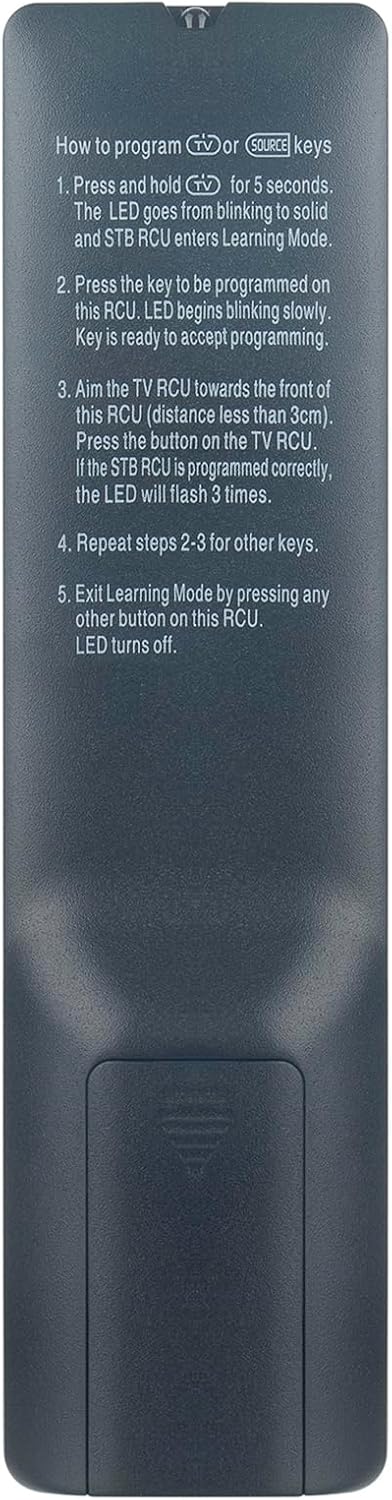
Image: Back of the remote control with programming instructions for TV/Source keys.
3. Operating Instructions
3.1 General Operation
Point the remote control directly at your Formuler IPTV receiver. Ensure there are no obstructions between the remote and the receiver for optimal performance. The maximum effective operating range is approximately 10 meters.
3.2 Button Functions
The remote control features a standard layout with various buttons for navigation, volume, channel selection, and media playback. Below is a general overview of common button categories:
- Power Button: Turns the device on or off.
- Navigation Pad (OK, Up, Down, Left, Right): Used for menu navigation and selection.
- Volume Up/Down: Adjusts audio volume.
- Channel Up/Down: Changes channels.
- Number Pad (0-9): For direct channel input or numerical selections.
- Menu/Info/Back/Exit: Accesses menus, displays information, returns to previous screens, or exits current functions.
- Media Playback Controls (Play/Pause, Stop, Rewind, Fast Forward): For controlling media content.
- Color Buttons (Red, Green, Yellow, Blue): Functionality varies depending on the application or menu within your Formuler device.

Image: Front view of the ALLIMITY replacement remote control, displaying all function buttons.
4. Maintenance
4.1 Battery Replacement
Replace batteries when the remote's response becomes inconsistent or stops working. Always use new AAA batteries and dispose of old batteries responsibly according to local regulations.
4.2 Cleaning
Wipe the remote control with a soft, dry cloth. Do not use liquid cleaners, solvents, or abrasive materials, as these can damage the remote's surface or internal components.
4.3 Storage
Store the remote in a cool, dry place away from direct sunlight and extreme temperatures. If storing for extended periods, remove the batteries to prevent leakage and potential damage to the remote.
5. Troubleshooting
5.1 Remote Not Responding
- Check Batteries: Ensure batteries are correctly inserted and have sufficient charge. Replace if necessary.
- Line of Sight: Verify there are no obstructions between the remote and the receiver. The remote uses infrared technology, requiring a clear path.
- Distance: Ensure you are within the effective operating range (up to 10 meters).
- Receiver Power: Confirm your Formuler device is powered on.
5.2 Buttons Not Working Correctly
- Clean Buttons: Dust or debris under buttons can cause issues. Gently clean around the buttons with a dry, soft cloth.
- Reset Remote: Remove batteries, press all buttons a few times to discharge any residual power, then reinsert batteries.
5.3 TV/Source Keys Not Controlling TV
- Re-program Keys: Follow the 'Programming TV or Source Keys' instructions in Section 2.3 to re-program the desired keys.
- Compatibility: Ensure your TV remote is compatible with the learning function. Some advanced remotes may not be fully compatible.
6. Specifications
| Feature | Description |
|---|---|
| Brand | ALLIMITY |
| Model Number | MM-Z10-SE-NP |
| Connectivity Technology | Infrared |
| Compatible Devices | Formuler Z11 Pro Max, Z10 SE, Z+ Plus Neo, Z+ Neo, Z Nano, Z+ |
| Special Features | Ergonomic design |
| Maximum Range | 10 Meters |
| Battery Type | AAA (not included) |
| Manufacturer | ALLIMITYMM |
| Country of Origin | China |
7. Warranty and Support
Specific warranty information for this ALLIMITY replacement remote control is not provided in the product details. For warranty claims or technical support, please contact your retailer or the manufacturer directly.
For further assistance, please refer to the official ALLIMITY website or contact their customer service channels.
