
1. Introduction
Thank you for choosing the XTRONS IA72CX7M Android 13 Car Radio GPS Navigation System. This manual provides detailed instructions for the installation, operation, and maintenance of your new device. Please read this manual thoroughly before using the product to ensure proper functionality and to prevent damage. This unit is specifically designed for Mazda CX7 models manufactured between 2007 and 2012.
2. Product Overview
The XTRONS IA72CX7M is a 2-DIN car multimedia system featuring a 7-inch HD capacitive touchscreen. It operates on Android 13 and is powered by an Octa-Core processor, offering advanced navigation, entertainment, and connectivity options for your vehicle.
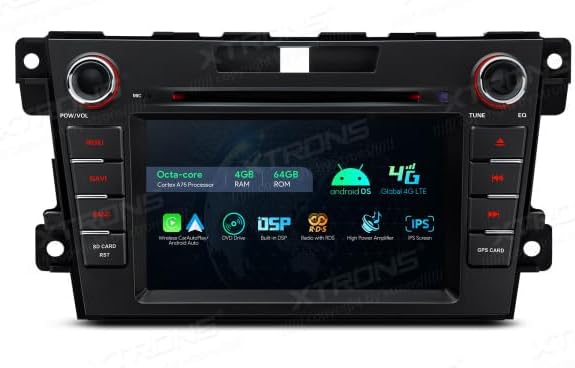
Figure 2.1: Front view of the XTRONS IA72CX7M head unit, showcasing its 7-inch display and control buttons.
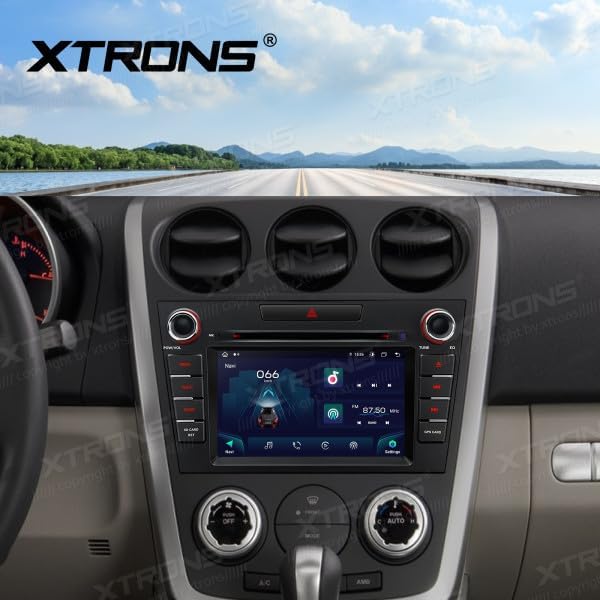
Figure 2.2: The XTRONS IA72CX7M unit seamlessly integrated into the dashboard of a Mazda CX7.
3. Key Features
- Operating System: Android 13
- Processor: Octa-Core Cortex A75
- Memory: 4GB RAM, 64GB ROM (expandable via USB/SD)
- Display: 7-inch HD Capacitive Touchscreen (1280x720 resolution)
- Connectivity: Built-in Wi-Fi, 4G (requires SIM card), Bluetooth AD2P
- Navigation: Integrated GPS, BDS, GLONASS support
- Smartphone Integration: Wireless Apple CarPlay, Wireless/Wired Android Auto, Screen Mirroring
- Multimedia: CD/DVD Player, USB input (up to 128GB), SD card slot (up to 64GB)
- Audio: Built-in DSP (Digital Sound Processor), 8-color LED audio system
- Additional Features: OBD2 diagnostic support, external microphone capability, DVR camera compatibility (optional), DAB+ audio support (DAB box not included), CANBUS steering wheel controls.

Figure 3.1: Visual representation of the core technical specifications and features of the XTRONS IA72CX7M.
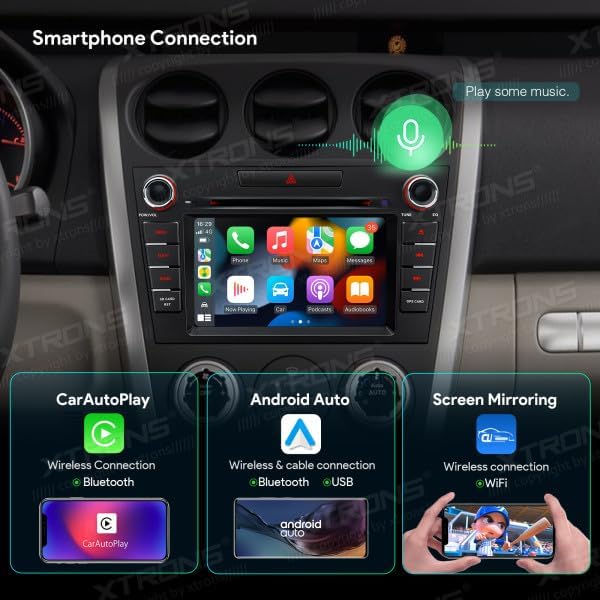
Figure 3.2: Overview of smartphone integration capabilities, including Apple CarPlay, Android Auto, and Screen Mirroring.
4. Setup and Installation
4.1. Pre-Installation Checklist
- Ensure the vehicle's ignition is off and the battery is disconnected.
- Verify all included accessories and cables are present.
- Consult a professional installer if you are unfamiliar with car audio system installation.
4.2. Installation Steps (General Guidance)
- Carefully remove the factory radio from your Mazda CX7 dashboard.
- Connect the main power harness, speaker wires, and other necessary cables to the corresponding ports on the XTRONS unit. Ensure secure connections.
- Connect the GPS antenna, Wi-Fi antenna, and 4G antenna (if applicable) and position them for optimal signal reception.
- If installing a reverse camera or DVR, connect their respective cables.
- Mount the XTRONS unit into the dashboard opening, ensuring it fits securely.
- Reconnect the vehicle battery and test the unit's functionality before fully reassembling the dashboard.
4.3. Wiring Diagram
Refer to the included wiring diagram for specific connections. Key connections typically include:
- Power: Constant 12V (Yellow), Accessory 12V (Red), Ground (Black).
- Speakers: Front Left (+/-), Front Right (+/-), Rear Left (+/-), Rear Right (+/-).
- CANBUS: For steering wheel controls and vehicle data integration.
- USB/SD: For external media and data transfer.
- Video/Audio Inputs/Outputs: For external devices like amplifiers, monitors, or cameras.
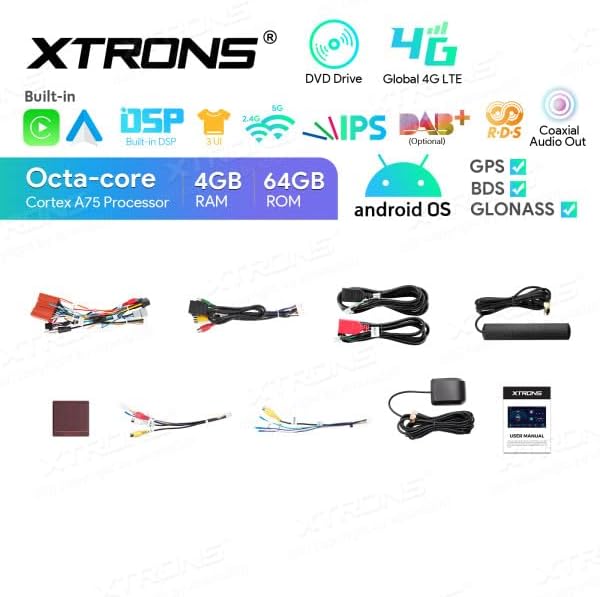
Figure 4.1: Included accessories and wiring harnesses for the XTRONS IA72CX7M.
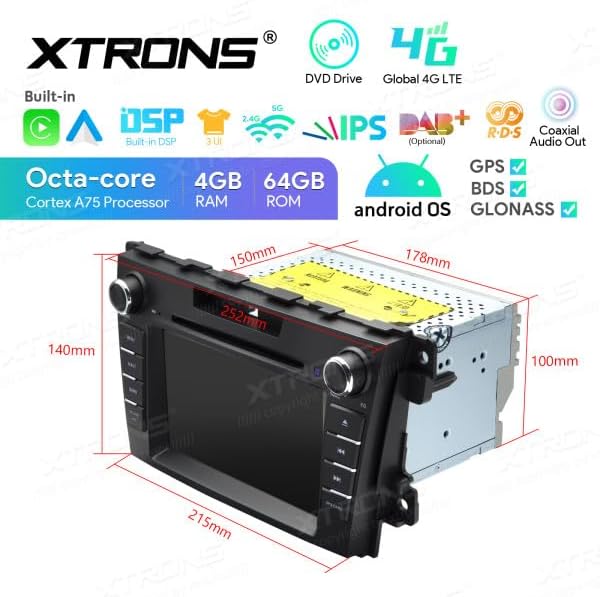
Figure 4.2: Dimensional measurements of the XTRONS IA72CX7M unit for installation planning.
5. Operating Instructions
5.1. Basic Operation
- Power On/Off: Press and hold the PWR/VOL knob to turn the unit on or off. A short press will mute/unmute the audio.
- Volume Control: Rotate the PWR/VOL knob to adjust the volume level.
- Main Menu: Tap the 'Home' icon on the screen or the physical 'MENU' button to access the main application interface.
5.2. Navigation
The unit comes with pre-installed GPS navigation software. To use:
- Ensure the GPS antenna is properly connected and positioned.
- Tap the 'Navi' icon on the main menu to launch the navigation application.
- Follow the on-screen prompts to enter your destination and start route guidance.

Figure 5.1: The unit's display showing the navigation application alongside radio information.
5.3. Multimedia Playback
- CD/DVD: Insert a disc into the slot. The unit will automatically detect and play the media.
- USB/SD: Insert a USB drive or SD card into the designated port/slot. Access media files via the 'Music' or 'Video' applications.
- Radio: Tap the 'Radio' icon. Use the 'TUNE' knob or on-screen controls to scan for stations.
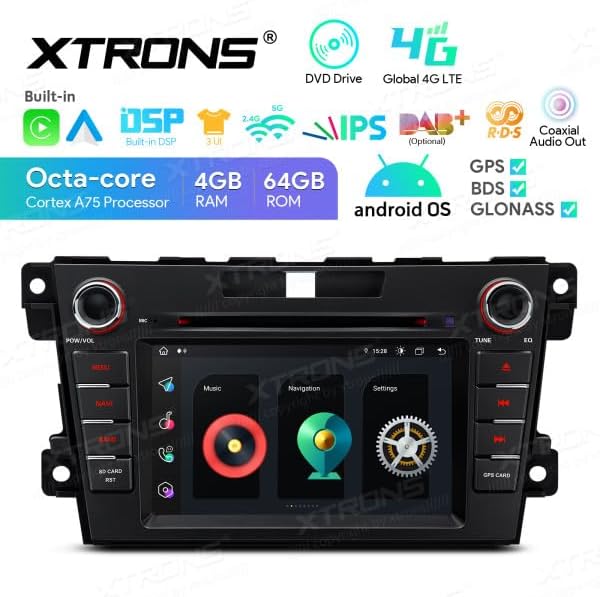
Figure 5.2: Main interface showing various applications for multimedia, navigation, and settings.
5.4. Connectivity
- Bluetooth: Go to 'Settings' > 'Bluetooth'. Enable Bluetooth, search for devices, and pair with your smartphone for hands-free calling and audio streaming.
- Wi-Fi: Go to 'Settings' > 'Wi-Fi'. Turn on Wi-Fi and connect to an available network.
- 4G: Insert a compatible SIM card into the designated slot. Enable mobile data in 'Settings' for internet access.
- CarPlay/Android Auto: Connect your smartphone via USB or wirelessly (if supported by your phone) to activate CarPlay or Android Auto. Follow on-screen prompts.
- Screen Mirroring: Use the dedicated 'Screen Mirroring' app to cast your smartphone's display to the unit.
6. Maintenance
- Screen Cleaning: Use a soft, lint-free cloth to gently wipe the touchscreen. Avoid abrasive cleaners or solvents.
- Software Updates: Periodically check the XTRONS official website for available software updates to ensure optimal performance and access to new features. Follow the provided instructions for updating.
- Disc Drive: Keep the CD/DVD slot free from dust and debris. Avoid inserting damaged or non-standard discs.
7. Troubleshooting
If you encounter issues with your XTRONS IA72CX7M unit, refer to the following common problems and solutions:
| Problem | Possible Cause | Solution |
|---|---|---|
| Unit does not power on. | Loose power connection, blown fuse, vehicle battery issue. | Check power wiring, inspect fuses, ensure vehicle battery is charged. |
| No sound from speakers. | Mute activated, incorrect wiring, amplifier issue. | Check volume and mute settings, verify speaker connections, test external amplifier if used. |
| GPS signal weak or unavailable. | GPS antenna improperly installed or obstructed. | Ensure GPS antenna has a clear view of the sky and is securely connected. |
| Bluetooth connection issues. | Bluetooth not enabled, device not discoverable, interference. | Ensure Bluetooth is enabled on both devices, make device discoverable, try re-pairing. |
| Touchscreen unresponsive. | Software glitch, screen damage. | Restart the unit. If issue persists, contact support. |
If the problem persists after attempting these solutions, please contact XTRONS customer support or consult a qualified technician.
8. Specifications
| Feature | Specification |
|---|---|
| Brand | XTRONS |
| Model | IA72CX7M |
| Operating System | Android 13 |
| Processor | Octa-Core Cortex A75 |
| RAM | 4 GB |
| ROM | 64 GB |
| Screen Size | 7 Inches |
| Screen Type | LCD LED Capacitive Touchscreen |
| Screen Resolution | 1280x720 |
| Connectivity Technology | Bluetooth, USB, Wi-Fi, 4G |
| Compatible Devices | Mobile Phone |
| Media Types | CD, DVD, USB, SD |
| Color | Black |
9. Warranty and Support
XTRONS products are covered by a manufacturer's warranty. Please refer to the warranty card included with your product or visit the official XTRONS website for detailed warranty terms and conditions. For technical support, troubleshooting assistance, or service inquiries, please contact XTRONS customer service through their official channels.


