
Introduction
This manual provides detailed instructions for the safe and efficient use of your GOODaaa PN-W22 Wireless Charger Power Bank and HW-AC01 PD 20W Charger Adapter. The PN-W22 power bank offers a large capacity for multiple device charges, while the HW-AC01 wall charger provides fast and efficient power delivery. Please read this manual thoroughly before use and retain it for future reference.
Product Features
- PN-W22 Solar Power Bank: Built-in 4 charging cables (1x Type-C, 1x iOS, 1x Micro USB output, 1x USB-A input) for convenient charging without extra cables.
- PN-W22 Solar Power Bank: Advanced wireless charging compatibility for all wireless-enabled devices.
- PN-W22 Solar Power Bank: Capable of charging up to 6 devices simultaneously via built-in cables, additional USB ports (1x iOS input, 1x USB A output, 1x USB C input/output), and wireless charging.
- HW-AC01 PD Wall Charger: 20W fast charging with a USB-C port supporting PD technology and a USB-A port supporting QC fast charging.
- HW-AC01 PD Wall Charger: Dual-port design (USB-A and USB-C) for charging two devices concurrently, eliminating the need for multiple adapters.
Setup
Initial Charging of the PN-W22 Power Bank
Before first use, fully charge the PN-W22 power bank. While it features solar charging, initial charging via a wall adapter is recommended for optimal performance.

Image: The PN-W22 power bank connected to a wall charger for initial charging.
- Connect the power bank to the HW-AC01 PD 20W Charger Adapter using a compatible cable (e.g., the built-in USB-A input cable or a USB-C cable).
- Plug the HW-AC01 adapter into a standard wall outlet.
- The indicator lights on the power bank will illuminate to show charging progress. Charge until all lights are solid, indicating a full charge.
Operating Instructions
Charging the PN-W22 Power Bank
Solar Charging
Place the power bank with its solar panel facing direct sunlight. A green indicator light will illuminate, confirming that solar charging is active. Solar charging is ideal for maintaining charge or emergency power, but it is slower than wall charging.
Wall Charging
Connect the power bank to a wall adapter (like the HW-AC01) using its built-in USB-A input cable or a USB-C cable. The indicator lights will show the charging status.
Charging Devices with PN-W22 Power Bank
Wired Charging with Built-in Cables
The PN-W22 power bank includes three built-in output cables (Type-C, iOS, Micro USB) and one USB-A input cable. Simply pull out the appropriate cable and connect it to your device. The power bank will automatically begin charging.

Image: The PN-W22 power bank demonstrating simultaneous charging of multiple devices using its integrated cables and additional ports.
Wired Charging with USB Ports
For devices not compatible with the built-in cables, use your own USB charging cable. Connect one end to the USB-A output port or the USB-C input/output port on the power bank, and the other end to your device.
Wireless Charging
Place your wireless-enabled device directly onto the wireless charging pad located on the power bank. Ensure the device is centered for optimal charging. The power bank will automatically detect and begin charging your device wirelessly.
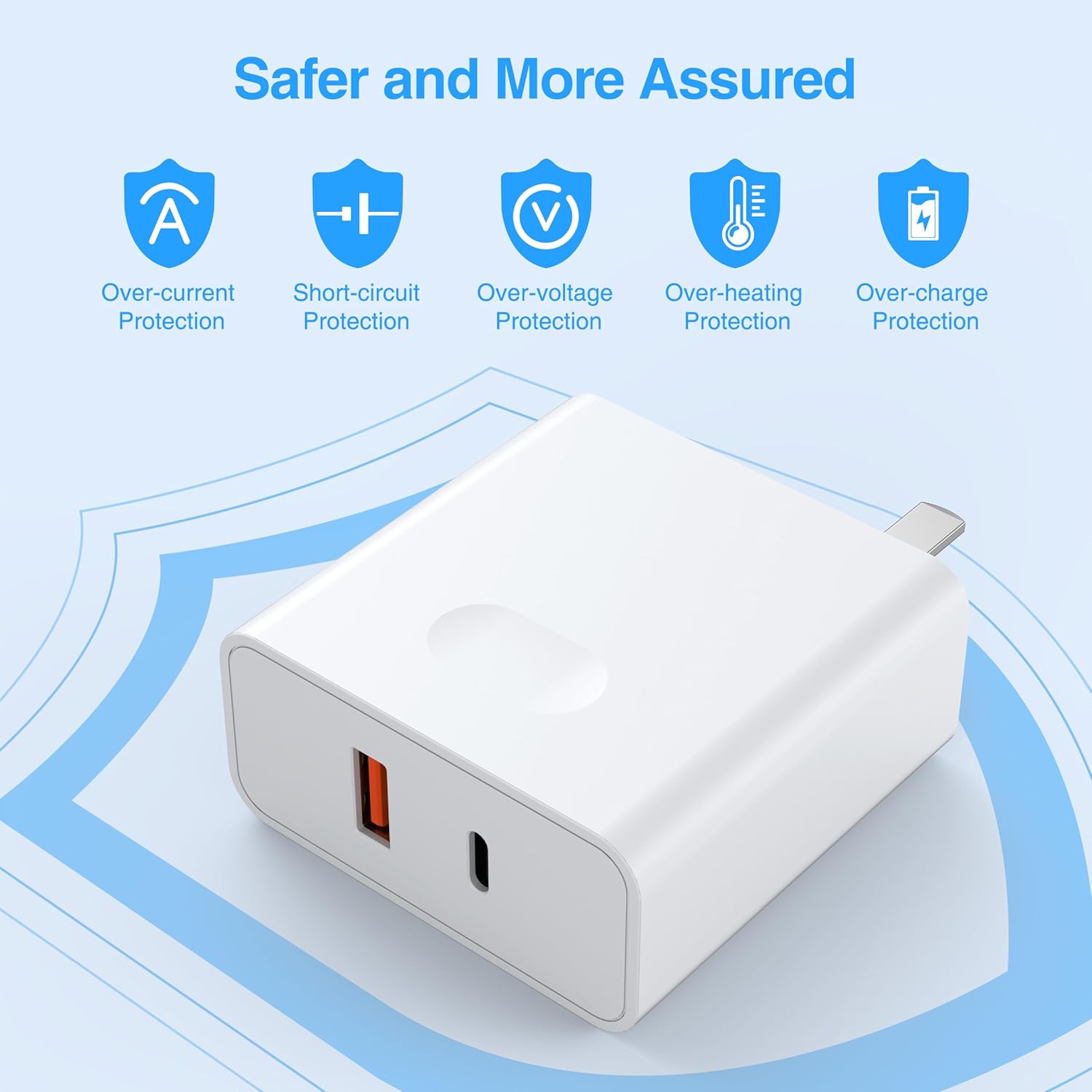
Image: A smartphone being charged wirelessly on the PN-W22 power bank's charging pad.
Using the HW-AC01 PD 20W Charger Adapter
The HW-AC01 adapter features both USB-A and USB-C ports for versatile charging. Plug the adapter into a wall outlet. Connect your device's charging cable to either the USB-A or USB-C port. For fast charging, use the USB-C port with a compatible PD cable and device, or the USB-A port with a compatible QC cable and device. The adapter can charge two devices simultaneously.

Image: The HW-AC01 PD 20W Charger Adapter connected to a wall outlet, charging two devices via its USB-A and USB-C ports.

Image: The HW-AC01 PD 20W Charger Adapter highlighting its multiple safety protection features.
Flashlight Operation (PN-W22 Power Bank)
To activate the built-in flashlight on the PN-W22 power bank, press and hold the power button for a few seconds. Repeat the action to turn off the flashlight.
Compatibility
The PN-W22 Power Bank and HW-AC01 Charger Adapter are designed for broad compatibility with various electronic devices. This includes, but is not limited to, iPhone series, Android series, iPad series, Android Tab series, and portable gaming consoles like the Nintendo Switch.

Image: Visual representation of the broad compatibility of GOODaaa charging products with various mobile devices and a power bank.
Maintenance
- Keep the devices away from water, moisture, and extreme temperatures.
- Avoid dropping or subjecting the devices to strong impacts.
- Clean the devices with a soft, dry cloth. Do not use harsh chemicals or abrasive materials.
- For the solar panel, ensure it is clean and free of dust or debris for efficient solar charging.
- Store the power bank in a cool, dry place when not in use.
Troubleshooting
- Device not charging: Ensure the power bank is sufficiently charged. Check all cable connections. For wireless charging, ensure your device is centered on the charging pad and is wireless-enabled.
- Slow charging: Verify that the cables and adapter used support fast charging if desired. Ensure the solar panel is exposed to direct sunlight for solar charging.
- Flashlight not turning on: The flashlight requires a long press (hold for a few seconds) of the power button to activate or deactivate, not a quick press.
- Power bank not charging: Check the wall adapter and cable used for charging the power bank. Ensure the wall outlet is functional.
Specifications
| Feature | Detail |
|---|---|
| Brand | GOODaaa |
| Model (Power Bank) | PN-W22 |
| Model (Wall Charger) | HW-AC01 |
| Connector Type | USB Type C, USB Type A, Micro USB, iOS (Lightning) |
| Special Features | Wireless Charging, Solar Powered, Built-in Cables, Flashlight |
| Power Source | Solar Powered, AC Wall Outlet |
| Wall Charger Output | Max 20W (PD/QC compatible) |
Warranty and Support
For warranty information or technical support, please refer to the product packaging or contact GOODaaa customer service directly. Keep your purchase receipt for warranty claims.


