
Cisco C8200-1N-4T
Cisco Catalyst 8200 Series Router User Manual
Model: C8200-1N-4T
Brand: Cisco
1. Introduction
This user manual provides comprehensive instructions for the installation, operation, maintenance, and troubleshooting of the Cisco C8200-1N-4T Catalyst 8200 4-Port Router. This high-performance, feature-rich device is designed for modern enterprise networks, offering robust connectivity and advanced security features.
Key features include:
- High-Performance Connectivity: Equipped with 4 Gigabit Ethernet ports for reliable and fast network communication.
- Advanced Security & Routing: Supports integrated security features and advanced routing capabilities, including SD-WAN.
- Cisco IOS XE Operating System: Ensures seamless integration with other Cisco devices and services.
- Scalable for Business Growth: Adaptable to expanding network needs with flexible configuration options.
- Ideal for Branch Office Deployments: Offers enterprise-grade routing and performance suitable for edge or branch office applications.
2. Safety Information
Please read all safety warnings and instructions before installing, operating, or servicing this equipment. Failure to follow these instructions could result in injury or damage to the product.
- Ensure proper grounding of the device.
- Do not operate the device near water or in excessively humid environments.
- Ensure adequate ventilation around the router to prevent overheating.
- Use only the power supply provided or specified by Cisco.
- Do not open the router casing; refer servicing to qualified personnel.
3. Package Contents
Verify that all items are present and in good condition. If any item is missing or damaged, contact your vendor.
- Cisco C8200-1N-4T Catalyst 8200 4-Port Router
- 2 x Gigabit Ethernet Cables
- WPS Button (if applicable, for initial setup or specific functions)
- Power Adapter/Cable (not explicitly listed but implied for a router)
- Rack-mount kit (if applicable, for rack installation)
4. Physical Overview
Familiarize yourself with the ports, indicators, and buttons on your Cisco C8200-1N-4T router.
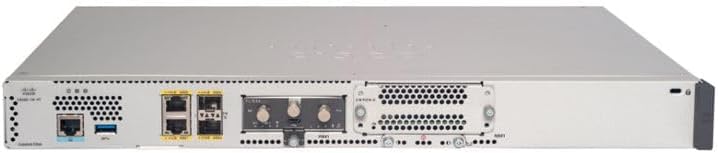
Figure 4.1: Rear Panel of Cisco C8200-1N-4T Router
This image displays the rear panel of the Cisco C8200-1N-4T router. From left to right, it features a console port (RJ45) and a USB 3.0 port, accompanied by status LEDs. Further to the right are two Gigabit Ethernet ports (RJ45) for network connections, followed by two SFP/SFP+ ports for fiber optic or high-speed copper connections. An empty slot for an expansion module is visible, along with the power input connector on the far right. Ventilation grilles are present across the panel.
4.1. Front Panel Indicators (Not visible in image, general description)
- System LED: Indicates system status (e.g., power on, boot status).
- Alarm LED: Indicates system alarms or errors.
- Power LED: Indicates power supply status.
4.2. Rear Panel Ports and Connectors
- Console Port (RJ45): Used for direct console access to the router's command-line interface (CLI) for initial configuration and troubleshooting.
- USB 3.0 Port: Provides connectivity for USB devices, such as storage or cellular modems.
- Gigabit Ethernet Ports (RJ45): Four ports for high-speed wired network connections to LAN devices or WAN.
- SFP/SFP+ Ports: Slots for Small Form-Factor Pluggable (SFP) or SFP+ modules, supporting fiber optic or high-speed copper connections.
- Expansion Module Slot: Allows for the installation of optional network interface modules to expand connectivity or functionality.
- Power Input: Connector for the external power adapter.
5. Setup
5.1. Unpacking and Inspection
- Carefully remove the router and all accessories from the packaging.
- Inspect the router for any signs of physical damage. Report any damage to your vendor immediately.
5.2. Site Preparation and Placement
- Choose a location that is cool, dry, and well-ventilated.
- Ensure the location is free from direct sunlight, heat sources, and excessive dust.
- If rack-mounting, ensure the rack is stable and properly grounded.
- Maintain adequate clearance around the router for airflow.
5.3. Connecting the Router
- Connect Power: Connect the power cable to the router's power input and then to a grounded electrical outlet. Do not power on the router yet.
- Connect Network Cables:
- For WAN connectivity, connect your internet service provider's modem or network device to one of the Gigabit Ethernet ports (e.g., GE0/0/0).
- For LAN connectivity, connect your local network devices (switches, computers) to the remaining Gigabit Ethernet ports.
- If using SFP/SFP+ modules, insert them into the respective slots and connect the appropriate fiber or copper cables.
- Initial Configuration Access (Optional): For initial setup via console, connect a console cable from your computer's serial port (or USB-to-serial adapter) to the router's Console port.
5.4. Powering On
Once all connections are secure, connect the power cable to the electrical outlet. The router will begin its boot sequence. Observe the system LEDs for boot status.
6. Operating the Router
6.1. Accessing the Router
- Command-Line Interface (CLI): Access via the Console port or SSH/Telnet over the network. This is the primary method for advanced configuration.
- Web User Interface (Web UI): If enabled, access via a web browser by entering the router's management IP address.
6.2. Basic Configuration
Refer to the Cisco IOS XE documentation for detailed configuration guides. Common initial configurations include:
- Setting hostname and domain name.
- Configuring IP addresses on interfaces.
- Setting up routing protocols (e.g., OSPF, EIGRP, BGP).
- Configuring security features (e.g., access control lists, firewall).
- Enabling SD-WAN capabilities for optimized network performance and security.
6.3. Powering Off
To power off the router, it is recommended to save the running configuration to startup configuration first (copy running-config startup-config in CLI). Then, disconnect the power cable from the electrical outlet.
7. Maintenance
7.1. Firmware Updates
Regularly check the Cisco support website for the latest IOS XE software updates. Keeping the firmware updated ensures optimal performance, security, and access to new features.
7.2. Cleaning
Use a soft, dry cloth to clean the exterior of the router. Do not use liquid or aerosol cleaners. Ensure ventilation openings are free from dust and obstructions.
7.3. Environmental Monitoring
Ensure the operating environment remains within the specified temperature and humidity ranges to prevent hardware degradation.
8. Troubleshooting
This section provides solutions to common issues you might encounter.
| Problem | Possible Cause | Solution |
|---|---|---|
| Router does not power on. | No power, faulty power cable, or power adapter. | Check power connections. Ensure the power outlet is functional. Try a different power cable or adapter if available. |
| No network connectivity. | Incorrect cable connection, incorrect IP configuration, or interface shutdown. | Verify all Ethernet cables are securely connected. Check interface status and IP configuration using CLI commands (e.g., show ip interface brief). Ensure interfaces are not administratively down. |
| Slow network performance. | Network congestion, misconfiguration, or hardware issue. | Check CPU and memory utilization (show processes cpu, show memory). Review QoS policies. Ensure proper routing is configured. |
| Cannot access CLI via Console. | Incorrect console cable, incorrect serial port settings. | Ensure you are using a compatible Cisco console cable. Verify serial port settings (e.g., 9600 baud, 8 data bits, no parity, 1 stop bit, no flow control). |
For more advanced troubleshooting, consult the Cisco documentation or contact Cisco Technical Assistance Center (TAC).
9. Specifications
The following table lists the technical specifications for the Cisco C8200-1N-4T Catalyst 8200 4-Port Router.
| Feature | Description |
|---|---|
| Model Number | C8200-1N-4T |
| Brand | Cisco |
| Connectivity Technology | Ethernet |
| Ports | 4 x Gigabit Ethernet, SFP/SFP+ slots, Console, USB 3.0 |
| Operating System | Cisco IOS XE |
| Recommended Uses | Business, Branch Office Deployments |
| Color | White |
| Antenna Type | Internal |
| Special Feature | WPS (Note: WPS is typically for Wi-Fi, which this router doesn't explicitly have. This might be a generic feature bullet from Amazon.) |
| Frequency Band Class | Single-Band (Note: This also typically applies to Wi-Fi. Given it's a wired router, this might refer to internal clocking or a miscategorization from the source.) |
| Compatible Devices | Personal Computer (for management) |
| Included Components | 2 x Gigabit Ethernet Cables, WPS Button |
10. Warranty and Support
10.1. Product Warranty
This product is a renewed item. Please refer to the specific warranty terms provided by the seller or Amazon Renewed at the time of purchase. Typically, renewed products come with a limited warranty covering defects in materials and workmanship for a specified period.
10.2. Technical Support
For technical assistance, configuration guidance, or troubleshooting beyond this manual, please refer to the official Cisco documentation available on their support website. You may also contact Cisco Technical Assistance Center (TAC) if you have an active support contract. For issues related to the renewed status of the product, contact your vendor.
Cisco Support Website: https://www.cisco.com/c/en/us/support/index.html
Related documentsC8200-1N-4T


Ask a question about this manual
Ask about setup, troubleshooting, compatibility, parts, safety, or missing instructions. Manuals+ will review the question and use this page’s manual context to help answer it.