
Introduction
The BoxWave AccuPoint Active Stylus is an electronic stylus designed for precise interaction with your touchscreen device. It features an ultra-fine tip for accurate input and a durable brushed aluminum construction. This stylus operates without the need for Bluetooth pairing, utilizing electronic pulses to interact with your screen.
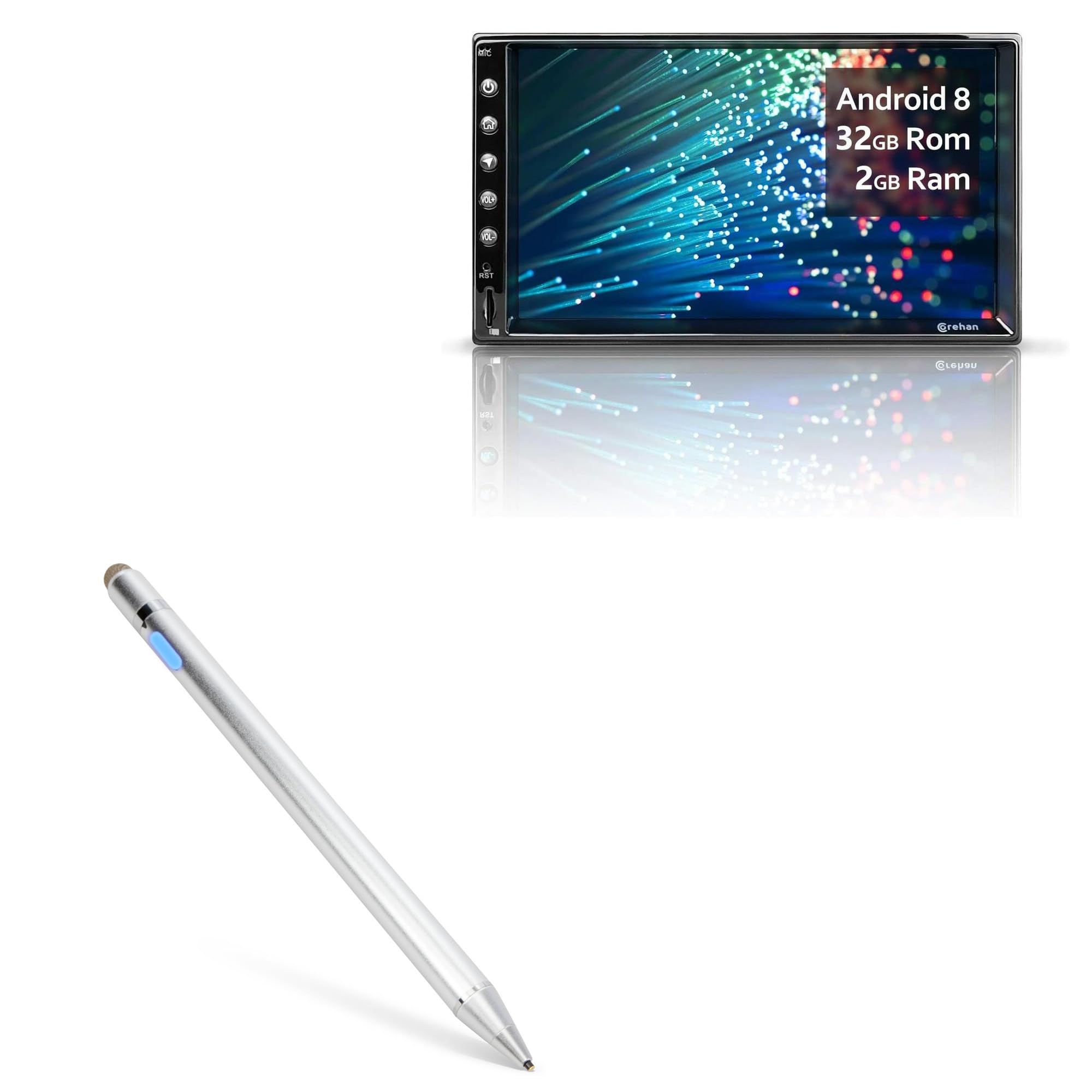
Image: The BoxWave AccuPoint Active Stylus in metallic silver, showcasing its sleek design.
Setup
Charging the Stylus
Before first use, fully charge the stylus. The stylus includes a built-in battery that provides approximately 12 hours of use on a full charge.
- Locate the MicroUSB charging port on the stylus.
- Connect the provided MicroUSB cable to the stylus charging port.
- Connect the other end of the MicroUSB cable to any standard USB power source (e.g., computer, wall adapter).
- The indicator light will illuminate red during charging and turn green when fully charged.

Image: Close-up of the stylus charging port with indicator lights showing charging status (red for charging, green for full charge).
Powering On/Off
To power on the stylus, press the button located on the barrel. The indicator light will turn blue. To power off, press the button again.

Image: Detailed view of the stylus features, including the built-in charging port, indicator light, 1.9mm extra fine tip, and FiberMesh tip. It also indicates no Bluetooth is required.
Operating Instructions
General Use
The AccuPoint Active Stylus does not require Bluetooth pairing. Simply turn it on and begin using it with your touchscreen device. The stylus emits quick electronic pulses to interact with the screen, allowing for natural writing and drawing positions.
- Fine Tip: Use the 1.9mm ultra-fine tip for precise tasks such as writing, drawing, and detailed navigation.
- FiberMesh Tip: The stylus also features a FiberMesh tip on the opposite end for broader strokes or general navigation, providing superior screen response.

Image: A hand holding the BoxWave AccuPoint Active Stylus, using its fine tip to interact with icons on a tablet screen.

Image: The BoxWave AccuPoint Active Stylus resting on a tablet screen, highlighting its higher accuracy and sensitivity.
Important Notes
- The AccuPoint Active Stylus does not support Palm Rejection. Ensure your hand does not touch the screen while using the stylus if palm rejection is desired.
- The stylus does not support Pressure Sensitivity.
Maintenance
Cleaning
To clean the stylus, gently wipe the barrel with a soft, dry cloth. Avoid using harsh chemicals or abrasive materials.
Charging
Recharge the stylus when the indicator light begins to flash or when you notice a decrease in performance. A MicroUSB cable is included for convenient charging.

Image: The BoxWave AccuPoint Active Stylus being charged via a MicroUSB cable connected to a laptop, illustrating convenient charging.
Troubleshooting
- Stylus not responding: Ensure the stylus is powered on (blue indicator light). If not, press the power button.
- Poor responsiveness: Check if the stylus battery is low. Recharge the stylus if the indicator light is red or flashing.
- Inaccurate input: Ensure the tip is clean and free of debris. The 1.9mm tip is designed for precision.
- Stylus not charging: Verify that the MicroUSB cable is securely connected to both the stylus and the power source. Try a different USB port or power adapter.
- Unintended marks on screen: Remember that the stylus does not support palm rejection. Avoid resting your hand on the screen while using the stylus.
Specifications
| Feature | Detail |
|---|---|
| Model Name | AccuPoint Active Stylus |
| Compatibility | Corehan CS-JD-AN-03 (2/16) and other compatible touchscreens |
| Tip Size | 1.9mm (Ultra Fine Tip) |
| Battery Life | Up to 12 hours of use |
| Charging Port | MicroUSB |
| Material | Brushed Aluminum |
| Weight | 1.3 ounces |
Warranty Information
For information regarding product warranty, please refer to the warranty card included with your purchase or visit the official BoxWave website. Standard warranty terms typically cover manufacturing defects for a specified period from the date of purchase.
Support
If you encounter any issues or have questions not covered in this manual, please contact BoxWave customer support. Contact details can typically be found on the product packaging or the official BoxWave website.
Online resources and FAQs may also be available on the BoxWave support page.