
1. Introduction
Thank you for choosing the MSI G274QPF Gaming Monitor. This 27-inch WQHD (2560 x 1440) monitor is designed to provide an immersive gaming experience with its Rapid IPS panel, 170Hz refresh rate, and 1ms GtG response time. It features G-Sync compatibility for tear-free gameplay, HDR 400 support for vibrant visuals, and versatile connectivity options including USB-C, HDMI, and DisplayPort. This manual will guide you through the setup, operation, maintenance, and troubleshooting of your new monitor.

Figure 1.1: Front view of the MSI G274QPF monitor, showcasing its slim bezels and the MSI logo at the bottom. Key features like "Rapid IPS", "170Hz", "1ms GTG", "Wide Color Gamut", "DisplayPort", "HDMI", "USB-C", and "HDR 400" are highlighted on the screen.
2. Safety Information
Please read all instructions carefully and retain them for future reference. Observe all warnings and instructions marked on the product.
- Power Source: Only operate this product from the type of power source indicated on the marking label. If you are not sure of the type of power supplied to your home, consult your dealer or local power company.
- Ventilation: Slots and openings in the cabinet are provided for ventilation. Do not block or cover these openings. Do not place the monitor on a bed, sofa, rug, or other similar surface unless proper ventilation is provided.
- Cleaning: Unplug the monitor from the wall outlet before cleaning. Do not use liquid cleaners or aerosol cleaners. Use a damp cloth for cleaning.
- Water and Moisture: Do not use this product near water, such as a bathtub, washbowl, kitchen sink, or laundry tub; in a wet basement; or near a swimming pool.
- Overloading: Do not overload wall outlets and extension cords as this can result in a risk of fire or electric shock.
- Servicing: Do not attempt to service this product yourself as opening or removing covers may expose you to dangerous voltage or other risks. Refer all servicing to qualified service personnel.
3. Package Contents
Please check the contents of your package. If any items are missing or damaged, contact your retailer immediately.
- MSI G274QPF Gaming Monitor
- Monitor Stand (Base and Neck)
- Power Cable
- HDMI Cable
- DisplayPort Cable
- USB-C Cable
- Screws for Stand Assembly
- Quick Start Guide
4. Setup
Follow these steps to assemble and connect your MSI G274QPF monitor.
4.1. Assembling the Stand
- Carefully remove the monitor and stand components from the packaging.
- Attach the stand neck to the monitor panel. Ensure it clicks securely into place or is fastened with the provided screws, depending on the model.
- Attach the stand base to the stand neck. Tighten the thumb screw or screws at the bottom of the base to secure it.

Figure 4.1: Rear-left angled view of the MSI G274QPF monitor, showing the back panel design and the sturdy stand assembly. This view helps in understanding how the stand connects to the monitor.
4.2. Connecting to a Computer
The MSI G274QPF monitor offers multiple input options. Choose the appropriate cable for your system.
- DisplayPort Connection: Connect one end of the DisplayPort cable to the DisplayPort output on your computer's graphics card and the other end to the DisplayPort input on the monitor. This connection supports the full 170Hz refresh rate and G-Sync.
- HDMI Connection: Connect one end of the HDMI cable to the HDMI output on your computer's graphics card and the other end to one of the HDMI inputs on the monitor.
- USB-C Connection: Connect one end of the USB-C cable to a compatible USB-C port on your computer (which supports DisplayPort Alternate Mode) and the other end to the USB-C input on the monitor. This connection can also provide power delivery to your device.
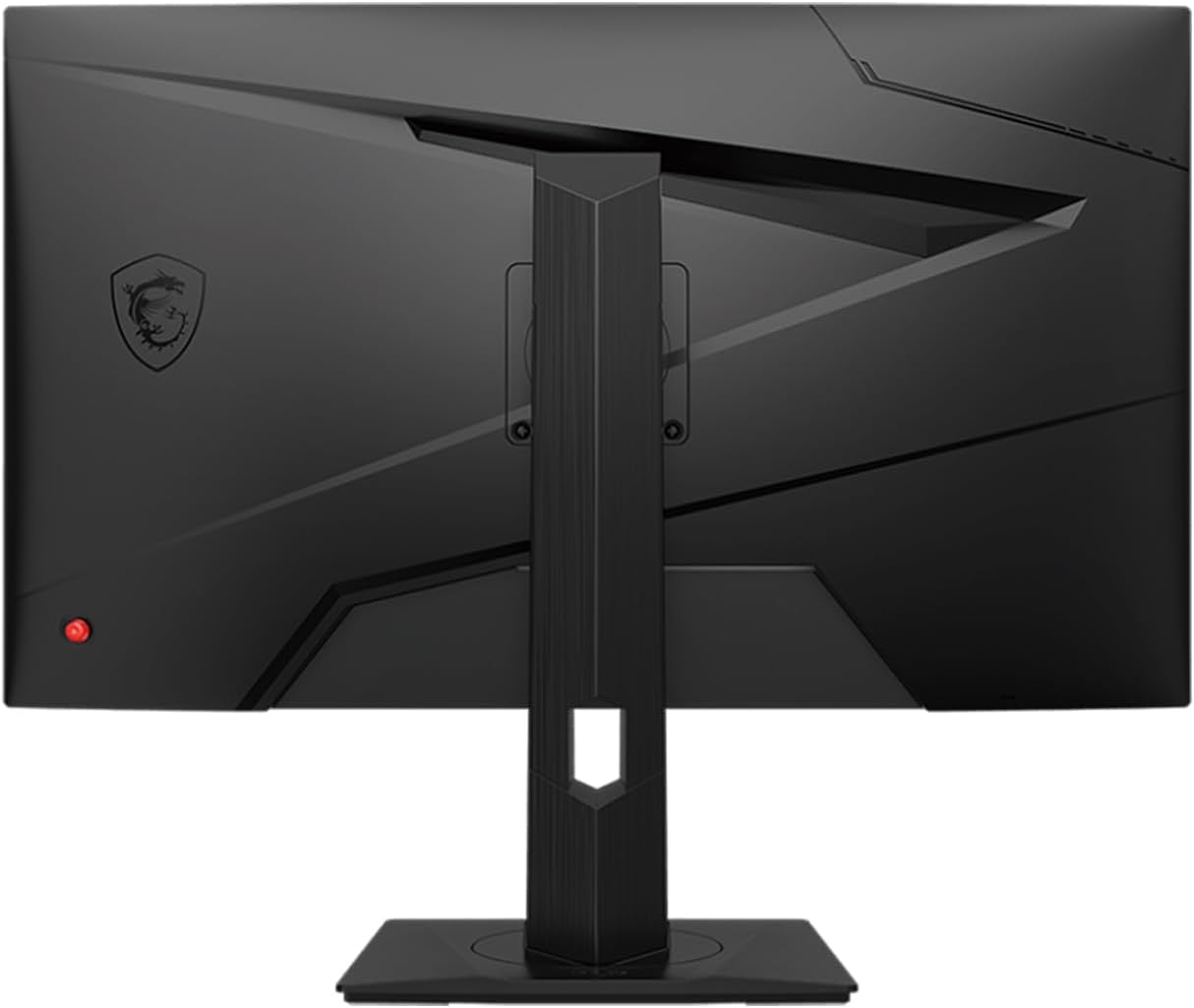
Figure 4.2: Direct rear view of the MSI G274QPF monitor, showing the central stand attachment point and the various input ports (HDMI, DisplayPort, USB-C) typically located near the bottom or side of the back panel. This view is crucial for identifying where to plug in cables.
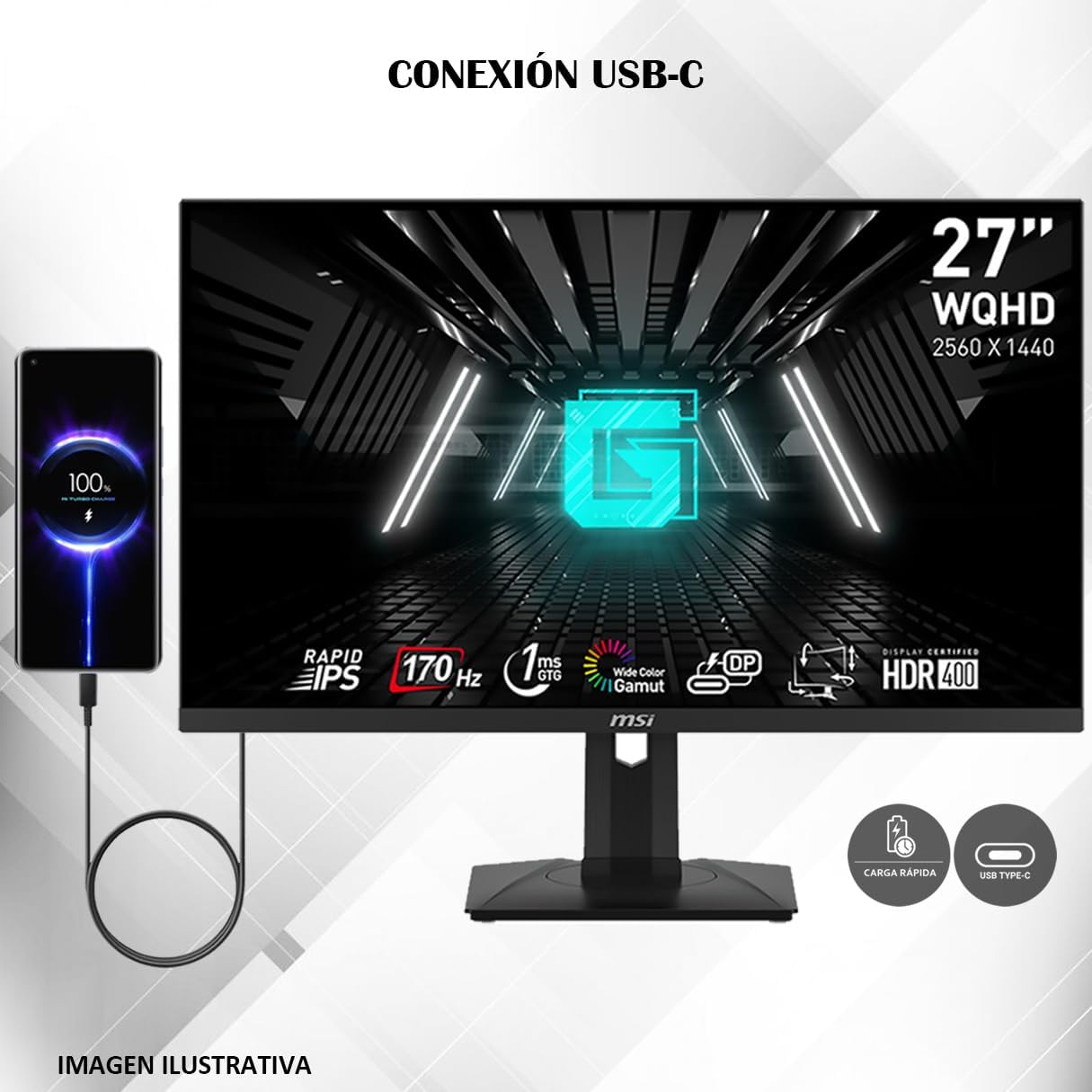
Figure 4.3: Front view of the MSI G274QPF monitor with a smartphone connected via USB-C, illustrating the monitor's USB-C connectivity and charging capability. The image emphasizes "USB-C Connection" and "Fast Charging", demonstrating a practical use case for the USB-C port.
4.3. Power Connection
Connect the power cable to the monitor's power input and then plug the other end into a grounded electrical outlet.
4.4. Initial Power On
Press the power button on the monitor (usually located on the back or bottom right) to turn it on. The monitor should automatically detect the active input source. If not, you may need to manually select the input using the OSD joystick/buttons.
5. Operating the Monitor
5.1. Power On/Off
To turn the monitor on, press the power button. To turn it off, press and hold the power button for a few seconds until the screen goes blank.
5.2. On-Screen Display (OSD) Menu
The monitor features an intuitive OSD menu for adjusting various settings. The OSD is typically controlled by a 5-way joystick button located on the back of the monitor.
- Press the joystick button to open the OSD menu.
- Move the joystick up/down/left/right to navigate through menu options.
- Press the joystick to confirm a selection.
- Move the joystick left to go back to the previous menu or exit the OSD.
5.3. Key OSD Settings
- Gaming: Adjust refresh rate, response time (OD), FreeSync/G-Sync compatibility, and gaming modes.
- Professional: Select display modes for different content types (e.g., sRGB, Movie, Office).
- Image: Control brightness, contrast, sharpness, and black tuner.
- Input Source: Manually select between DisplayPort, HDMI 1, HDMI 2, and USB-C inputs.
- PIP/PBP: Configure Picture-in-Picture or Picture-by-Picture modes (if supported).
- Navi Key: Customize quick access functions for joystick directions.
- Settings: Adjust OSD language, transparency, timeout, and reset to factory defaults.
5.4. Adjusting Monitor Position
The MSI G274QPF monitor stand allows for various adjustments to optimize your viewing comfort:
- Height Adjustment: Raise or lower the monitor to your preferred height.
- Tilt: Tilt the screen forwards or backwards to find the optimal viewing angle.
- Swivel: Rotate the monitor horizontally on its base.
- Pivot: Rotate the monitor vertically (portrait mode).
6. Maintenance
6.1. Cleaning the Monitor
- Always unplug the monitor from the power outlet before cleaning.
- Use a soft, lint-free cloth slightly dampened with water to clean the screen. Avoid using alcohol, solvents, or abrasive cleaners.
- For the monitor casing, use a soft, dry cloth.
- Do not spray cleaner directly onto the screen or casing.
6.2. Storage
If you plan to store the monitor for an extended period, disconnect all cables and store it in a cool, dry place, preferably in its original packaging to protect it from dust and physical damage.
7. Troubleshooting
If you encounter issues with your monitor, refer to the following common problems and solutions.
| Problem | Possible Solution |
|---|---|
| No image on screen |
|
| Image is blurry or distorted |
|
| Screen flickering |
|
| No sound (if external speakers connected to monitor) |
|
| Dead or stuck pixels |
|
8. Specifications
Below are the technical specifications for the MSI G274QPF Gaming Monitor.
| Feature | Specification |
|---|---|
| Screen Size | 27 Inches |
| Panel Type | Rapid IPS |
| Resolution | 2560 x 1440 (WQHD) |
| Aspect Ratio | 16:9 |
| Refresh Rate | 170Hz |
| Response Time | 1ms (GtG) |
| Brightness | 400 cd/m² (HDR 400) |
| Viewing Angle | 178° (H) / 178° (V) |
| Video Ports | 1x DisplayPort, 2x HDMI, 1x USB-C (DisplayPort Alt Mode) |
| USB Ports | 2x USB (Total USB Ports) |
| Adjustability | Tilt, Swivel, Height Adjustable, Pivot |
| VESA Mounting | Yes (with adapters) |
| Dimensions (W x H x D) | 2.75 x 24 x 14 inches (Monitor only, approximate) |
| Weight | 15 pounds (approximate) |
9. Warranty and Support
MSI provides a limited warranty for its products. Please refer to the warranty card included with your product or visit the official MSI website for detailed warranty terms and conditions specific to your region.
For technical support, driver downloads, or further assistance, please visit the official MSI support website or contact MSI customer service. Have your monitor's model number (G274QPF) and serial number ready when contacting support.
MSI Official Website: www.msi.com


