
Introduction
This manual provides essential information for the safe and efficient operation of your Retoo Android TV Box TX6. Please read this manual thoroughly before using the device and retain it for future reference.
Safety Information
- Ensure the device is placed on a stable, flat surface to prevent falls.
- Do not expose the device to water, moisture, or extreme temperatures.
- Use only the provided power adapter. Using unauthorized adapters may damage the device and void the warranty.
- Avoid blocking ventilation openings to prevent overheating.
- Do not attempt to open or repair the device yourself. Refer all servicing to qualified personnel.
- Keep the device away from strong magnetic fields.
Package Contents
Verify that all items are present in the box:
- Retoo Android TV Box TX6
- Remote Control
- Power Adapter
- HDMI Cable
- User Manual

Image: The Retoo Android TV Box TX6, its remote control, power adapter, and HDMI cable, representing the complete package contents.
Product Overview
The Retoo Android TV Box TX6 is a multimedia streaming client designed to enhance your television viewing experience. It features a compact design with various ports for connectivity.

Image: A detailed view of the Retoo Android TV Box TX6, showing the external antenna, USB port, and front display.
Key Features:
- Processor: Quad-Core AllWinner H6
- Memory: 4GB RAM, 32GB ROM
- Video Output: 4K Resolution, HDR support, H.265 Codec
- Connectivity: HDMI, USB 3.0, Ethernet, 2.4GHz Wi-Fi, Miracast
- Supported Services: Netflix, YouTube

Image: The underside of the TV Box, highlighting its ventilation design and regulatory markings.
Setup
Follow these steps to set up your Retoo Android TV Box TX6:
- Connect to TV: Connect one end of the HDMI cable to the HDMI port on the TV Box and the other end to an available HDMI input on your television.
- Connect Power: Plug the power adapter into the DC IN port on the TV Box, then plug the adapter into a wall outlet.
- Power On: The device should power on automatically. If not, press the power button on the remote control.
- Select Input: On your TV, select the correct HDMI input source using your TV's remote control.
- Initial Setup: Follow the on-screen instructions to complete the initial setup, including language selection, network connection (Wi-Fi or Ethernet), and Google account login.
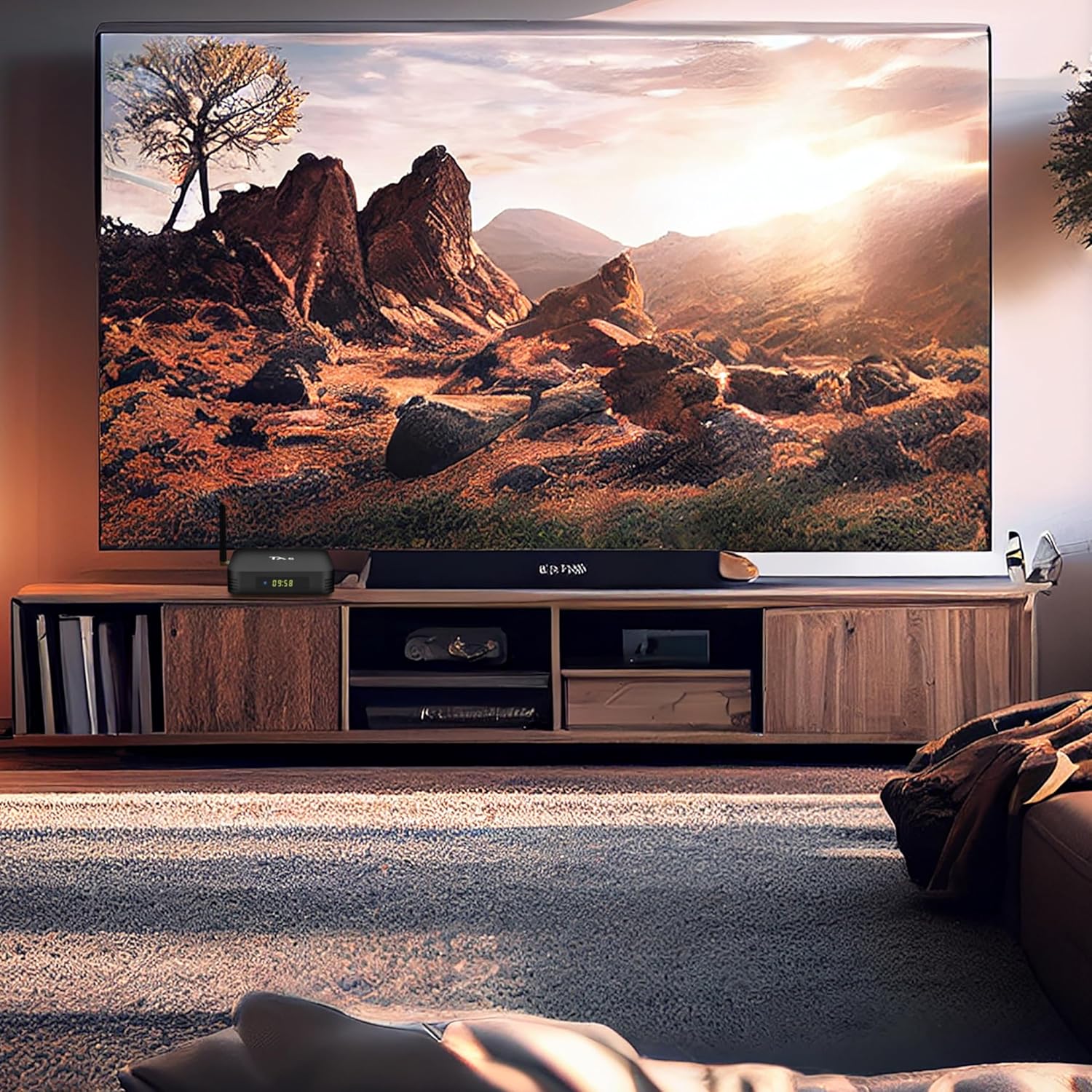
Image: The TV Box positioned near a large television, illustrating a typical setup for home entertainment.
Network Connection:
- Wi-Fi: Navigate to Settings > Network > Wi-Fi, select your network, and enter the password.
- Ethernet: Connect an Ethernet cable from your router to the LAN port on the TV Box. The connection will be established automatically.
Operating Instructions
Using the Remote Control:
The included remote control allows you to navigate the interface and control media playback.

Image: The Android TV Box alongside its dedicated remote control, showing the layout of buttons.
- Power Button: Turns the device on or off.
- Navigation Buttons (Up/Down/Left/Right): Move cursor or selection.
- OK Button: Confirms selection.
- Back Button: Returns to the previous screen.
- Home Button: Returns to the main home screen.
- Volume Buttons: Adjusts audio volume.
- Number Buttons: For direct input or channel selection (if applicable).
Accessing Applications:
From the home screen, you can access pre-installed applications like Netflix and YouTube, or download new apps from the Google Play Store.

Image: Two individuals enjoying streaming content on a television, with the TV Box visible in the foreground.
Miracast Functionality:
The device supports Miracast for screen mirroring from compatible smartphones or tablets to your TV. To use Miracast:
- Ensure your mobile device supports Miracast.
- On the TV Box, open the Miracast application (if available, or find it in settings).
- On your mobile device, enable screen mirroring/casting and select the TV Box from the list of available devices.

Image: A user mirroring their smartphone screen to a television, demonstrating the Miracast feature of the TV Box.
Maintenance
- Cleaning: Use a soft, dry cloth to clean the device. Do not use liquid cleaners or aerosols.
- Storage: If not in use for an extended period, disconnect the power adapter and store the device in a cool, dry place.
- Software Updates: Periodically check for system updates in the device settings to ensure optimal performance and security.
Troubleshooting
| Problem | Possible Cause | Solution |
|---|---|---|
| No power | Power adapter not connected or faulty. | Ensure the power adapter is securely connected to the device and a working power outlet. Try a different outlet. |
| No picture on TV | Incorrect HDMI input selected or faulty HDMI cable. | Verify the TV is on the correct HDMI input. Check HDMI cable connections. Try a different HDMI cable. |
| No internet connection | Wi-Fi not connected or Ethernet cable loose. | Check Wi-Fi settings and password. Ensure Ethernet cable is securely connected to both the device and router. Restart your router. |
| Remote control not working | Batteries are low or depleted. Obstruction between remote and device. | Replace batteries in the remote control. Ensure a clear line of sight to the TV Box. |
| Applications freezing or slow performance | Too many applications running in the background or insufficient storage. | Close unused applications. Clear cache for problematic apps. Consider uninstalling unnecessary apps to free up storage. Restart the device. |
Specifications
| Model Number | E128-1 |
| Brand | Retoo |
| RAM | 4 GB |
| Storage (ROM) | 32 GB |
| Processor | Quad-Core AllWinner H6 |
| Video Output Resolution | 4K |
| Video Codec | H.265 |
| Special Features | Miracast, HDR |
| Connectivity | Ethernet, HDMI, USB, 2.4GHz Wi-Fi |
| Compatible Devices | Television |
| Supported Internet Services | Netflix, YouTube |
| Dimensions (L x W x H) | 10L x 10W x 1.8H centimeters |
| Color | Black |
| Country of Origin | China |
Warranty and Support
Information regarding spare parts availability and guaranteed software updates is not available for this product.
For any issues or support inquiries, please refer to the retailer or your point of purchase.

