Introduction
The Garett Kids Essa 4G Smartwatch is designed to provide safety and well-being for children through advanced features and a robust design. This smartwatch allows parents to stay connected with their children, track their location, and monitor their activity, offering peace of mind for modern families.
Setup
1. Unboxing and Initial Inspection
Carefully remove all components from the packaging. Ensure the smartwatch, charging cable, and any included documentation are present. Inspect the device for any visible damage.
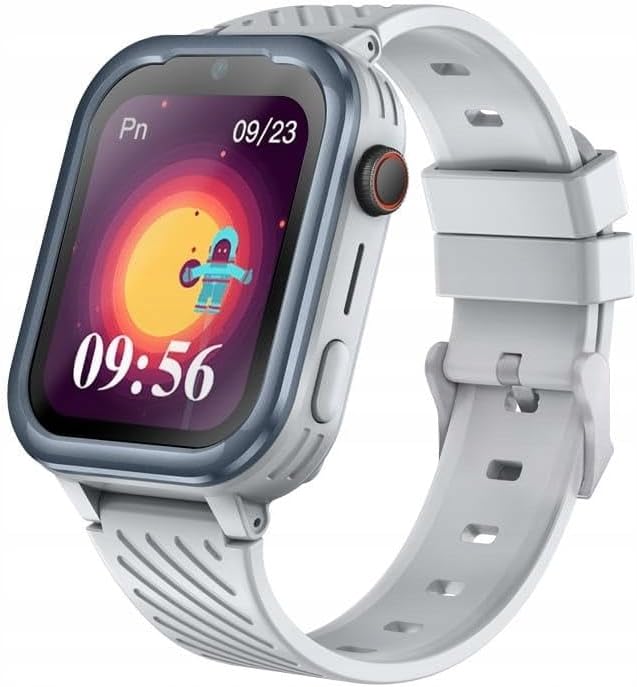
Image: Front view of the Garett ESSA 4G Kids Smartwatch in grey, displaying the time and a colorful background.
2. Charging the Smartwatch
Before first use, fully charge the smartwatch. Connect the magnetic charging cable to the charging port on the back of the watch and plug the USB end into a compatible USB power adapter (not included) or a computer USB port. The charging indicator will appear on the screen.
3. SIM Card Installation
The Garett ESSA 4G Smartwatch requires a Nano-SIM card for 4G connectivity. Locate the SIM card slot, usually on the side or back of the watch. Carefully insert the Nano-SIM card with the gold contacts facing down, ensuring it clicks into place. Refer to the diagram below for proper orientation.
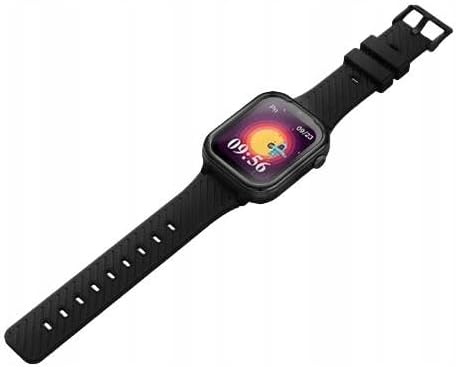
Image: Side view of the Garett ESSA 4G Kids Smartwatch in black, showing the watch face and the strap extending.
4. Initial Power On
Press and hold the power button (typically on the side of the watch) for a few seconds until the screen lights up and the Garett logo appears.
5. Pairing with the Dedicated Application
To utilize all features, download the dedicated Garett application on your smartphone. Scan the QR code provided in the watch's settings or manual, or search for "Garett" in your app store. Follow the in-app instructions to pair the smartwatch with your phone. This step is crucial for GPS tracking, communication, and remote management.
Operating Instructions
1. Basic Navigation
The smartwatch features a touch-sensitive screen. Swipe left, right, up, or down to navigate through menus and access different functions. Tap an icon to select it. The side button typically serves as a back button or to return to the home screen.
2. Making and Receiving Calls
Once a SIM card is installed and the watch is connected to the network, your child can make and receive calls from pre-approved contacts. Access the "Phone" or "Contacts" application on the watch to initiate a call. Incoming calls will display the caller ID on the screen.
3. GPS Tracking and Safe Zones
Through the dedicated smartphone application, parents can view the real-time location of the smartwatch. You can also set up "safe zones" (geofences) on a map. If the watch enters or exits these predefined areas, you will receive an instant notification on your smartphone.
4. SOS Function
In case of an emergency, the child can press and hold the SOS button (refer to the watch diagram for location). This will automatically dial pre-set emergency contacts and send their location information. Ensure emergency contacts are properly configured in the companion app.
5. Activity and Health Monitoring
- Pedometer: Tracks the number of steps taken throughout the day.
- Heart Rate Monitor: Measures the child's heart rate. This feature is for informational purposes and not for medical diagnosis.
- Sleep Monitor: Records sleep patterns, including duration and quality.
- Hydration Reminder: Can be set to remind the child to drink water at regular intervals.
6. Educational and Entertainment Features
The smartwatch may include pre-installed educational games and features designed to stimulate creativity and learning. Access these through the main menu.
Maintenance
1. Cleaning the Smartwatch
Wipe the watch screen and body with a soft, dry, lint-free cloth. For stubborn smudges, slightly dampen the cloth with water. Avoid using harsh chemicals, abrasive cleaners, or solvents, as these can damage the device.
2. Water Resistance (IP67)
The Garett ESSA 4G Smartwatch is rated IP67, meaning it is protected from dust ingress and can withstand immersion in water up to 1 meter for up to 30 minutes. It is suitable for splashes, rain, and brief immersion. However, it is not recommended for swimming, showering, or prolonged water exposure, especially in hot water or saltwater, as this can compromise the seals.
3. Battery Care
To prolong battery life, avoid exposing the watch to extreme temperatures. Charge the watch regularly and avoid letting the battery completely drain for extended periods. Use only the provided charging cable.
4. Software Updates
Periodically check for software updates through the dedicated smartphone application. Updates can improve performance, add new features, and enhance security. Follow the on-screen instructions for any available updates.
Troubleshooting
| Problem | Possible Cause | Solution |
|---|---|---|
| Watch does not turn on. | Low battery; device frozen. | Charge the watch for at least 30 minutes. If still unresponsive, perform a forced restart by holding the power button for 10-15 seconds. |
| No network signal (4G). | SIM card not inserted correctly; no active plan; poor network coverage. | Reinsert the SIM card. Verify the SIM card has an active data plan. Move to an area with better network coverage. |
| GPS location is inaccurate. | Weak GPS signal; indoor use; interference. | Ensure the watch is outdoors with a clear view of the sky. Allow time for the GPS to acquire satellites. |
| Cannot pair with smartphone app. | Bluetooth off; incorrect pairing steps; app issues. | Ensure Bluetooth is enabled on your phone. Restart both the watch and the phone. Reinstall the app if necessary. |
Specifications
| Brand | Garett Electronics |
| Model Name | ESSA_4G_GRA |
| Color | Grey |
| Operating System | Android |
| Screen Size | 1.83 Inches |
| Connectivity Technology | 4G, Bluetooth |
| Special Features | Timer, Heart Rate Monitor |
| Compatible Devices | Smartphone |
| Battery Composition | Lithium-polymer |
| GPS | Integrated GPS |
| Water Resistance Rating | IP67 |
Warranty and Support
For detailed warranty information, please refer to the warranty card included with your product or visit the official Garett Electronics website. Warranty terms may vary by region and retailer.
For technical support, troubleshooting beyond this manual, or inquiries about spare parts, please contact Garett Electronics customer service or the retailer from whom you purchased the product. Information regarding software update guarantees and spare parts availability was not provided at the time of this manual's creation.
You can often find support resources, FAQs, and contact details on the manufacturer's official website: www.garett.com (example link, replace with actual if known).


