
Introduction
This manual provides detailed instructions for the Ceybo OEM RC813 FMB1 Voice Remote Control. This remote is designed to operate various TCL QLED Smart TV models, offering convenient control and voice assistant functionality. Please read this manual thoroughly to ensure proper setup and operation of your remote control.

Image: The Ceybo RC813 FMB1 Voice Remote Control, showcasing its layout and design.
Setup Instructions
1. Battery Installation
The Ceybo RC813 FMB1 remote control requires two (2) AAA batteries (not included) for operation. Follow these steps to install the batteries:
- Locate the battery compartment cover on the back of the remote control.
- Slide the cover downwards or press the latch (if present) to open the compartment.
- Insert two AAA batteries, ensuring the positive (+) and negative (-) terminals align correctly with the markings inside the compartment.
- Replace the battery compartment cover by sliding it back into place until it clicks securely.

Image: Rear view of the Ceybo RC813 FMB1 remote control with the battery compartment open, showing where to insert two AAA batteries.
2. Pairing the Remote Control
To enable full functionality, including voice control, the remote must be paired with your TCL QLED Smart TV. Ensure your TV is powered on before proceeding.
- Point the remote control towards your TCL Smart TV.
- Press and hold the "OK" button and the "Home" button simultaneously for approximately 2 seconds.
- Release the buttons once an on-screen message indicates that the pairing process has begun or is complete.
- If pairing is successful, you should be able to navigate your TV's menu and use voice commands.
3. Compatibility
This remote control is compatible with a wide range of TCL QLED Smart TV models, including but not limited to:
- Google TV 65Q750G, 55Q750G, 75Q750G, 50Q750G, 43Q750G, 58Q750G
- 65QM850G, 55QM850G, 75QM850G, 58QM850G
- And many other compatible TCL QLED Smart TV models.
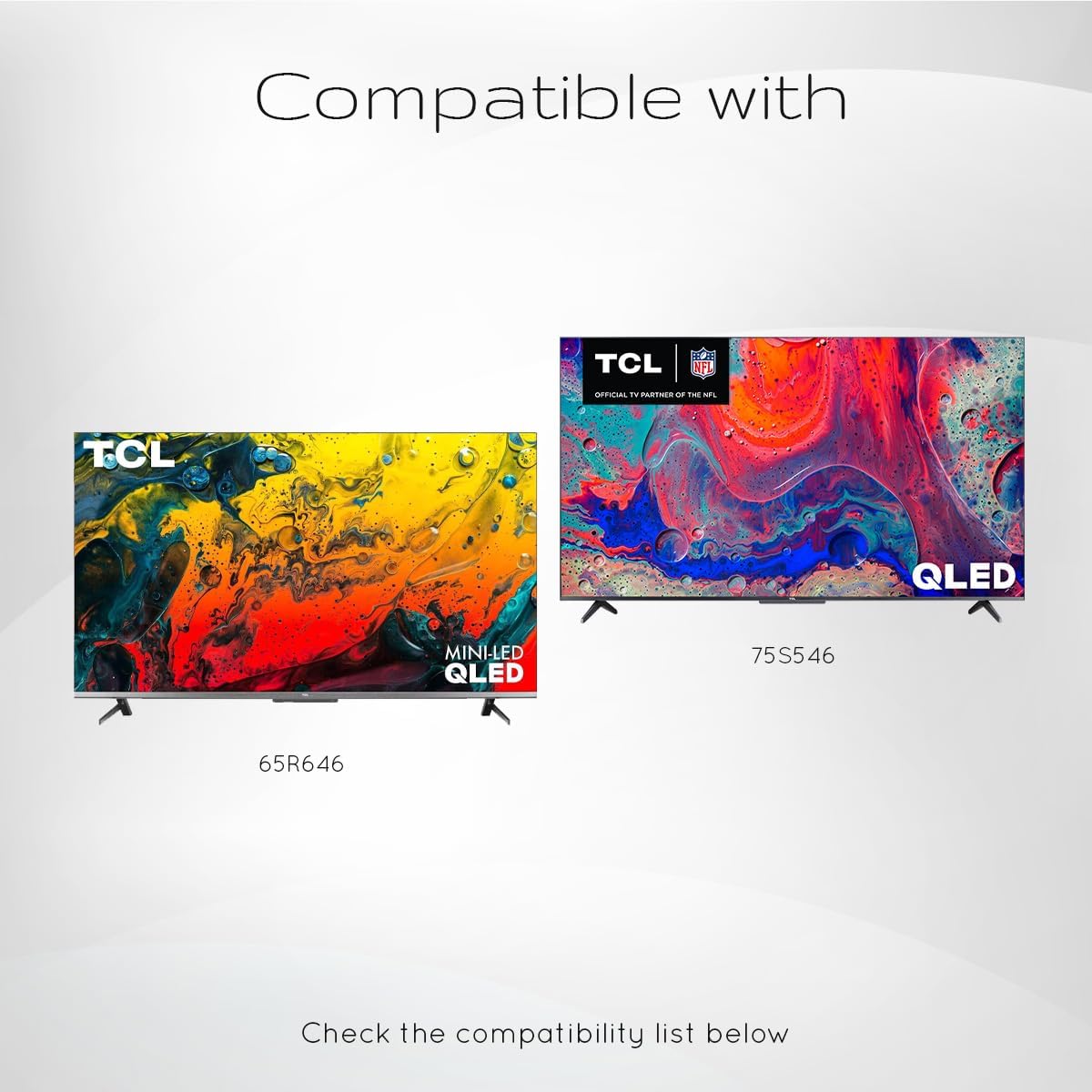
Image: Visual representation indicating compatibility with TCL QLED and Mini-LED QLED televisions, showing models like 65R646 and 75S546 as examples.
Operating Instructions
Once paired, your Ceybo RC813 FMB1 remote control provides intuitive control over your TCL Smart TV. Below are the primary functions:
Basic Functions
- Power Button: Turns the TV on or off.
- Navigation Pad (Up/Down/Left/Right/OK): Used to navigate menus, select items, and confirm choices.
- Volume Up/Down: Adjusts the TV's volume level.
- Channel Up/Down: Changes TV channels.
- Back Button: Returns to the previous screen or menu.
- Home Button: Accesses the TV's main home screen or smart TV interface.
- Settings Button: Opens the TV's settings menu.
Shortcut Buttons
The remote features dedicated shortcut buttons for quick access to popular streaming services and TCL functions:
- Netflix: Launches the Netflix application.
- Prime Video: Launches the Amazon Prime Video application.
- YouTube: Launches the YouTube application.
- TCL Channel: Accesses the TCL Channel content.
- TCL Home: Opens the TCL Home interface.
- Apple TV: Launches the Apple TV application.
Voice Assistant Functionality
The remote includes a dedicated button for Google Assistant, allowing you to control your TV and search for content using voice commands.
- Google Assistant Button: Press this button and speak clearly into the remote's microphone to issue commands or search for content.
- Ensure the remote is paired for voice functionality to work.
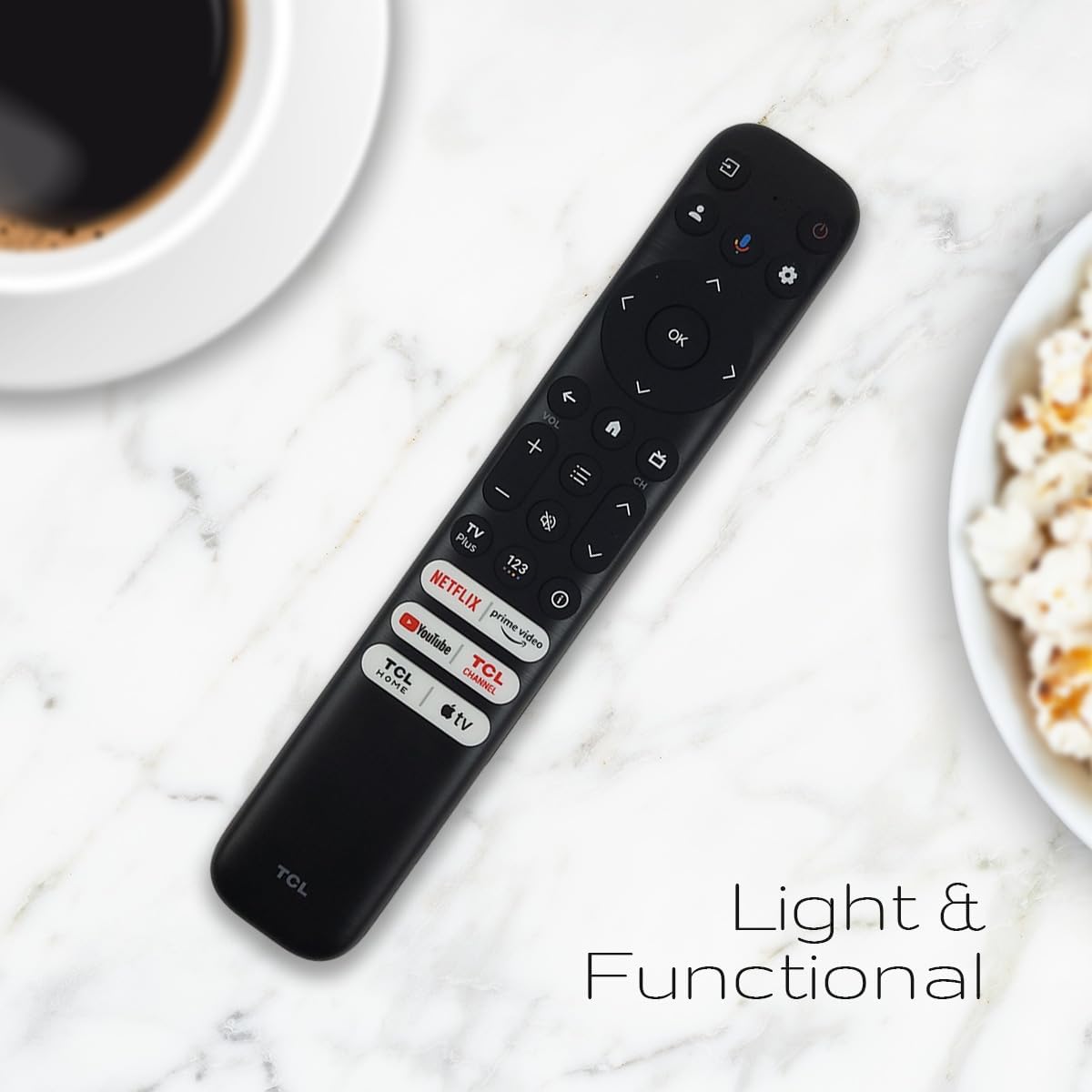
Image: The Ceybo RC813 FMB1 remote control positioned on a surface, illustrating its compact and functional design for everyday use.
Maintenance
Battery Replacement
When the remote control's performance degrades or it stops responding, it is likely time to replace the batteries. Follow the battery installation steps outlined in the "Setup Instructions" section.
- Always replace both AAA batteries at the same time.
- Do not mix old and new batteries, or different types of batteries.
- Dispose of used batteries responsibly according to local regulations.
Cleaning
To clean the remote control, use a soft, dry cloth. Do not use liquid cleaners, sprays, or abrasive materials, as these can damage the remote's surface or internal components.
Troubleshooting
| Problem | Possible Cause | Solution |
|---|---|---|
| Remote not responding to TV. | Low or dead batteries. Remote not paired. Obstruction between remote and TV. | Replace batteries. Re-pair the remote (see "Pairing the Remote Control" section). Ensure a clear line of sight to the TV's IR receiver. |
| Voice Assistant not working. | Remote not paired correctly for voice functions. Internet connection issue on TV. | Ensure the remote is properly paired. Check your TV's internet connection. |
| No backlight on remote buttons. | This model does not feature a backlight. | This is a characteristic of the remote and not a malfunction. |
| Shortcut buttons not launching apps. | TV not connected to internet. App not installed or updated. | Check TV's internet connection. Ensure the respective app is installed and up-to-date on your TCL Smart TV. |
Specifications
- Model: RC813 FMB1
- Brand: Ceybo
- Compatible Devices: TCL QLED Smart Televisions
- Special Feature: Voice Search (Google Assistant)
- Power Source: 2 x AAA Batteries (not included)
- Color: Black
- Approximate Dimensions: 8.11 x 1.73 x 0.67 inches (20.6 x 4.4 x 1.7 cm)
- Approximate Item Weight: 2.39 ounces (67.7 grams)
Warranty and Support
For warranty information or technical support regarding your Ceybo RC813 FMB1 Voice Remote Control, please refer to the documentation provided with your purchase or contact the retailer/manufacturer directly. As this is a renewed product, specific warranty terms may vary. Please consult the Amazon Renewed Guarantee for details on returns and replacements.
For general inquiries or further assistance, please visit the Ceybo official website or contact their customer service.