
OrCam ORCAM MYEYE 3 PRO US
OrCam MyEye 3 Pro User Manual
Model: ORCAM MYEYE 3 PRO US
Introduction
The OrCam MyEye 3 Pro is an advanced wearable assistive technology designed to enhance independence for individuals with visual impairments. This device attaches to your eyeglasses and uses artificial intelligence to read text, recognize faces, identify products, and more, providing audio feedback in real-time.
Product Overview
The OrCam MyEye 3 Pro is a compact, lightweight device that integrates seamlessly with most eyeglasses. It features a smart camera, built-in speaker, and intuitive controls.
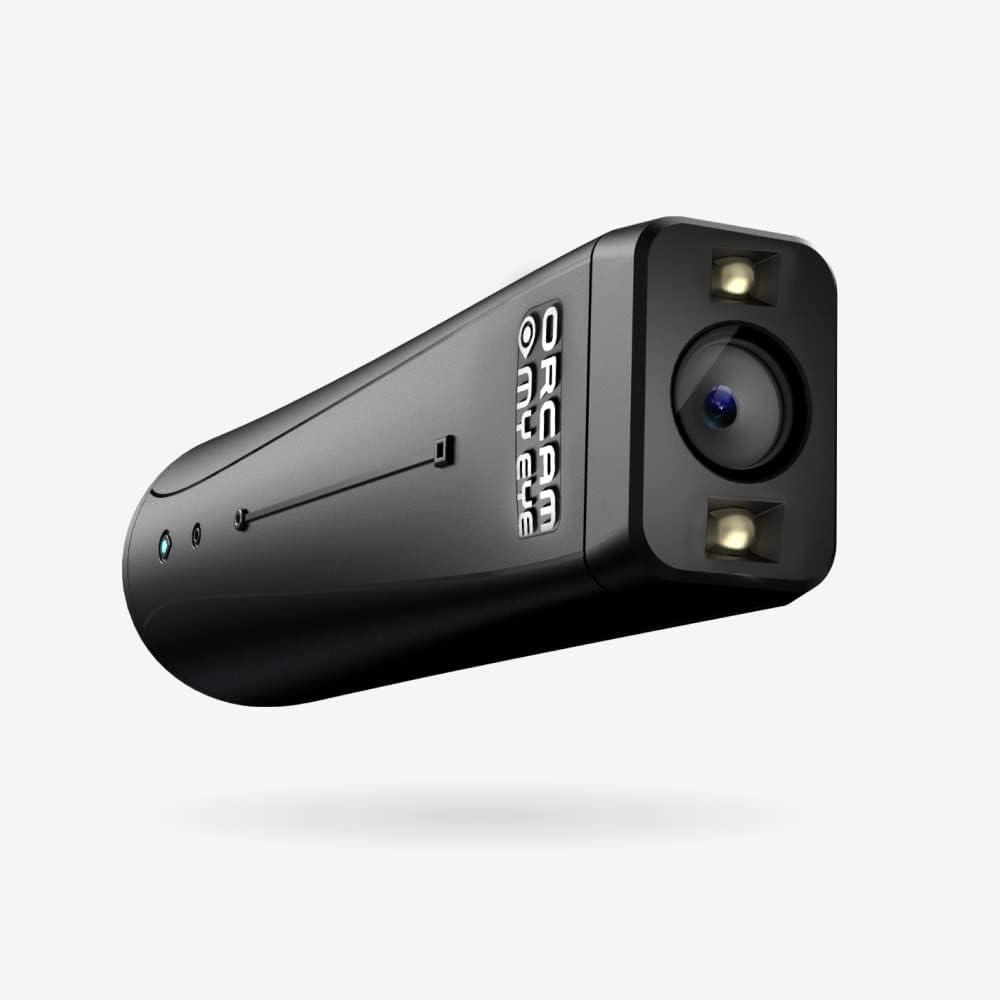
Image: The OrCam MyEye 3 Pro device, a compact black unit with a camera lens and two small lights at one end, and the OrCam logo on its side.

Image: A diagram of the OrCam MyEye 3 Pro highlighting its components: a smart camera, LEDs for illumination in dim light, a touch or swipe area for operation, and a built-in HD mini speaker.
Key Features:
- Real-Time Text Reading: Reads printed and digital text from various surfaces.
- Facial Recognition: Identifies pre-programmed faces.
- Object Identification: Recognizes everyday objects and products.
- Intuitive Operation: Controlled via hand gestures or voice commands.
- Multilingual Support: Operates in various languages.
- Offline Functionality: Does not require an internet connection for core features.
- Long Battery Life: Designed for extended daily use.
What's in the Box
Your OrCam MyEye 3 Pro package typically includes:
- OrCam MyEye 3 Pro device
- Charging cable and power adapter
- Mounting clips for eyeglasses
- Portable charging case (may vary by package)
- User manual (this document)
- Battery (included within the device)

Image: The OrCam MyEye 3 Pro device shown alongside a charging stand and a small, round external speaker, illustrating typical accessories.
Setup
- Initial Charging: Before first use, fully charge your OrCam MyEye 3 Pro. Connect the device to the charging cable and power adapter. A full charge typically takes a few hours. The indicator light will change to show charging status.
- Attaching to Eyeglasses:
- Select the appropriate magnetic clip for your eyeglasses frame.
- Attach the clip securely to the arm of your glasses, ensuring it does not obstruct your vision.
- Gently attach the OrCam MyEye 3 Pro device to the magnetic clip. Ensure the camera lens is facing forward and slightly below your eye level for optimal performance.

Image: The OrCam MyEye 3 Pro device magnetically attached to the arm of a pair of white eyeglasses, demonstrating how it integrates with eyewear.
- Powering On/Off: Press and hold the main button on the device for a few seconds until you hear an audible cue or see the indicator light illuminate. Repeat to power off.
- Language Selection: Upon first use, you may be prompted to select your preferred language. Follow the audio instructions or refer to the voice command section for language settings.
Operating Instructions
The OrCam MyEye 3 Pro can be operated using simple hand gestures or voice commands.
1. Text Reading
To read text, point your finger at the text you wish to read, or simply look at it. The device will capture the image and read the text aloud through its built-in speaker or a connected earbud.
- Reading a Document: Point your finger at the beginning of the text. The device will scan and read.
- Reading a Screen: Position your head to face the screen (computer, phone, TV). The device will detect and read the visible text.
- Stopping/Pausing: A simple hand gesture (e.g., closing your hand) or a voice command can pause or stop the reading.

Image: A woman wearing eyeglasses with the OrCam MyEye 3 Pro attached, reading a book. This illustrates the device's text reading capability.
2. Facial Recognition
The device can learn and recognize faces of people you frequently interact with. Once a face is learned, the device will announce the person's name when they enter your field of view.
- Learning a Face: Follow the device's audio prompts to capture an image of a person's face and assign a name.
- Recognition: When a learned face is detected, the device will provide an audio announcement.
3. Product Identification
The OrCam MyEye 3 Pro can identify various products, helping you distinguish between items in a store or at home.
- Scanning a Product: Point your finger at the product's barcode or label. The device will attempt to identify the product and provide information.

Image: A man wearing the OrCam MyEye 3 Pro device while shopping in a grocery store, holding an apple. This demonstrates the product identification feature in a real-world setting.
4. Voice Commands
Activate voice commands by saying "Hey OrCam" followed by your command. Examples include:
- "Read text"
- "What time is it?"
- "Identify product"
- "Tell me the color"
- "Stop reading"
Refer to the full voice command list in the OrCam online tutorials for a comprehensive guide.
Maintenance
- Cleaning: Gently wipe the device, especially the camera lens, with a soft, dry, lint-free cloth. Do not use liquid cleaners or abrasive materials.
- Battery Care: Charge the device regularly. Avoid fully depleting the battery frequently to prolong its lifespan. Store in a cool, dry place when not in use for extended periods.
- Storage: When not in use, store the OrCam MyEye 3 Pro in its protective case to prevent damage.
Troubleshooting
| Issue | Possible Solution |
|---|---|
| Device not powering on | Ensure the device is fully charged. Press and hold the power button for several seconds. |
| Text not being read | Check that the camera lens is clean and unobstructed. Ensure adequate lighting. Point directly at the text. |
| Voice commands not responding | Speak clearly and directly towards the device's microphone. Ensure you are using the correct activation phrase ("Hey OrCam"). Check for background noise. |
| Device not recognizing faces/products | Ensure the face/product has been previously learned. Position the item clearly in the camera's view. |
For further assistance, refer to the OrCam online tutorials or contact customer support.
Specifications
| Feature | Detail |
|---|---|
| Brand | OrCam |
| Model Number | ORCAM MYEYE 3 PRO US |
| Color | Black |
| Item Weight | 8 ounces |
| Product Dimensions | 10 x 5 x 2 inches |
| Batteries | 1 Lithium Ion battery (included) |
| Lens Material | Polycarbonate |
| Handle Material | Plastic |
| Special Features | Image Sensor |
| Connectivity | USB (for charging/data transfer) |
Support and Warranty
OrCam provides comprehensive support for its products. Your purchase includes free access to OrCam's online tutorials and customer service.
- Online Tutorials: Access detailed guides and video demonstrations on the official OrCam website to maximize your device's capabilities.
- Customer Service: For technical assistance, troubleshooting, or warranty inquiries, please contact OrCam customer support. Contact details can typically be found on the OrCam website or in your product packaging.
- Warranty Information: Specific warranty terms and conditions are provided with your product documentation. Please retain your proof of purchase for warranty claims.
Related documentsORCAM MYEYE 3 PRO US


Ask a question about this manual
Ask about setup, troubleshooting, compatibility, parts, safety, or missing instructions. Manuals+ will review the question and use this page’s manual context to help answer it.