
1. Product Overview
The Imou Camera Bulb (Model: IPC-S6DP-3M0WEB-E27) is an innovative security solution combining a high-resolution camera with a standard light bulb form factor. Designed for outdoor use, this device offers advanced monitoring capabilities including full-color night vision, AI-powered human and vehicle detection, and two-way audio communication, all accessible wirelessly via Wi-Fi.

Figure 1.1: Front view of the Imou Camera Bulb, showcasing its integrated camera and bulb design.
Key features include:
- 3MP High-Resolution Video: Captures clear and detailed footage.
- 2.8mm Fixed Lens: Provides a wide field of view.
- Full Color Night Vision: Ensures clear, colorful images even in low light conditions.
- AI Human & Vehicle Detection: Intelligently identifies human and vehicle shapes, reducing false alarms.
- Two-Way Talk: Built-in microphone and speaker for real-time communication.
- Wireless Connectivity: Easy setup and connection via Wi-Fi.
- Outdoor Use: Durable design suitable for outdoor environments.

Figure 1.2: The Imou Camera Bulb installed in an outdoor fixture, illustrating its functionality and key features like 3MP/5MP video, AI detection, and two-way talk.
2. Package Contents
Please check the package for the following items:
- Imou Camera Bulb (IPC-S6DP-3M0WEB-E27)
- Quick Start Guide
- Mounting Screws (if applicable for specific installations)
3. Setup and Installation
Follow these steps to set up your Imou Camera Bulb:
3.1 Physical Installation
- Power Off: Ensure the power to the light fixture is turned off at the circuit breaker before installation.
- Screw In: Carefully screw the Imou Camera Bulb into a standard E27 light bulb socket. Ensure it is securely tightened.
- Adjust Angle: Once installed, you may adjust the camera's viewing angle by rotating the spherical camera body.
- Power On: Restore power to the light fixture. The camera bulb will power on and initiate its startup sequence.
3.2 App Setup and Wi-Fi Connection
- Download App: Download the official Imou Life app from your smartphone's app store (iOS App Store or Google Play Store).
- Create Account: Open the Imou Life app and create a new account or log in to an existing one.
- Add Device: Tap the "+" icon in the app to add a new device. Select "Camera" and follow the on-screen instructions.
- Scan QR Code: Scan the QR code located on the camera bulb or its packaging.
- Connect to Wi-Fi: Follow the app prompts to connect the camera bulb to your 2.4GHz Wi-Fi network. Ensure your Wi-Fi password is correct.
- Device Initialization: Wait for the camera to connect and initialize. Once connected, you will see the live view in the app.
4. Operating Instructions
Once your Imou Camera Bulb is set up, you can access its features via the Imou Life app:
- Live View: Tap on the device in the app to view the live video feed from your camera.
- Recording: The camera supports continuous recording or event-triggered recording (e.g., motion detection). Recordings are stored on a microSD card (not included) or via cloud storage (subscription may be required).
- Two-Way Talk: Use the microphone icon in the live view to speak through the camera's speaker and the speaker icon to hear audio from the camera's microphone.
- Motion Detection & Alerts: Configure motion detection zones and sensitivity settings. Receive instant notifications on your phone when motion is detected.
- AI Human & Vehicle Detection: Enable this feature in the app settings to receive more accurate alerts, distinguishing between humans/vehicles and other moving objects.
- Full Color Night Vision: The camera automatically switches to full-color night vision in low-light conditions, providing clear, colorful images.
- Light Control: Control the bulb's light function (on/off, schedule) directly from the app.
5. Maintenance
Regular maintenance ensures optimal performance and longevity of your camera bulb:
- Cleaning: Gently wipe the camera lens and bulb surface with a soft, dry cloth. Do not use harsh chemicals or abrasive materials. Ensure power is off before cleaning.
- Firmware Updates: Periodically check for and install firmware updates via the Imou Life app. Updates often include performance improvements and security enhancements.
- Storage Management: If using a microSD card, regularly check its status in the app. Format the card periodically to maintain performance.
- Network Stability: Ensure your Wi-Fi network is stable and strong in the camera's location for uninterrupted operation.
6. Troubleshooting
If you encounter issues with your Imou Camera Bulb, refer to the following common problems and solutions:
| Problem | Possible Cause | Solution |
|---|---|---|
| Camera not connecting to Wi-Fi | Incorrect Wi-Fi password, weak signal, 5GHz network used. | Double-check password. Move camera closer to router. Ensure you are connecting to a 2.4GHz network. Restart camera and router. |
| No live view | Camera offline, network issue, app issue. | Check camera's power and Wi-Fi connection. Restart the app. Ensure your phone has internet access. |
| Poor image quality | Dirty lens, insufficient lighting, network bandwidth. | Clean the lens. Ensure adequate lighting. Check network speed. |
| No motion detection alerts | Detection settings incorrect, app notifications disabled. | Verify motion detection settings in the app. Check phone notification settings for the Imou Life app. |
7. Specifications
Detailed technical specifications for the Imou Camera Bulb (IPC-S6DP-3M0WEB-E27):
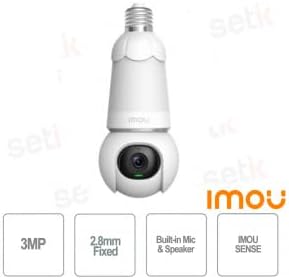
Figure 7.1: Imou Camera Bulb highlighting key specifications such as 3MP resolution, 2.8mm fixed lens, built-in mic & speaker, and IMOU SENSE technology.
| Feature | Detail |
|---|---|
| Model | IPC-S6DP-3M0WEB-E27 |
| Manufacturer | Imou |
| Resolution | 3 Megapixels |
| Lens | 2.8mm Fixed |
| Audio | Built-in Microphone & Speaker (Two-Way Talk) |
| Night Vision | Full Color IR Sense |
| Detection Technology | IMOU SENSE (AI Human & Vehicle Detection) |
| Connectivity | Wireless (Wi-Fi, 2.4GHz) |
| Usage Environment | Outdoor |
| Power Supply | E27 Bulb Socket |
| First Available Date | 12 February 2024 |
8. Warranty and Support
For warranty information and technical support, please refer to the official Imou website or contact their customer service. Keep your purchase receipt as proof of purchase for warranty claims.
For further assistance, visit: www.imoulife.com


