
Introduction
This manual provides essential information for the safe and efficient use of your HP 15 Professional Slim High-Performance Laptop. Please read these instructions carefully before using your device. Keep this manual for future reference.
1. Initial Setup
1.1 Unboxing and Connecting Power
Carefully remove the laptop and all accessories from the packaging. Connect the provided AC adapter to the laptop's power port and then to a power outlet. It is recommended to fully charge the battery before first use.

Image: The HP 15 laptop shown from the front, with the power adapter connected to the side. This illustrates the initial connection for charging.
1.2 First Boot and Operating System Setup
Press the power button to turn on the laptop. Follow the on-screen instructions to complete the Windows 11 Home operating system setup. This includes selecting your region, connecting to a Wi-Fi network, and creating a user account.

Image: The HP 15 laptop open, displaying the Windows 11 desktop interface, indicating successful operating system initialization.
2. Operating Your Laptop
2.1 Power On/Off and Sleep Mode
- Power On: Press the power button located on the keyboard deck.
- Power Off: Click the Start button, then Power, and select "Shut down."
- Sleep Mode: Close the lid or click the Start button, then Power, and select "Sleep."
2.2 Keyboard and Touchpad
The laptop features a full-size island-style QWERTY keyboard and a multi-touch touchpad. Use the touchpad for navigation and gestures. Refer to Windows 11 settings for touchpad customization.
2.3 Connectivity
Your HP 15 laptop offers various connectivity options:
- Wi-Fi: Supports Realtek Killer Wi-Fi 6 (802.11ax) for high-speed wireless internet access.
- Bluetooth: Integrated Bluetooth 5.3 for connecting wireless peripherals like headphones and mice.
- USB Ports:
- Two (2) USB 3.2 Gen 1.0 Type-A ports (5 Gbps signaling rate).
- One (1) USB 3.2 Gen 1.0 Type-C port (5 Gbps signaling rate, data transfer only; charging or external monitors not supported).
- HDMI: One (1) HDMI v1.4b output port for connecting to external displays.
- Audio Jack: One (1) headphone/microphone combo port.
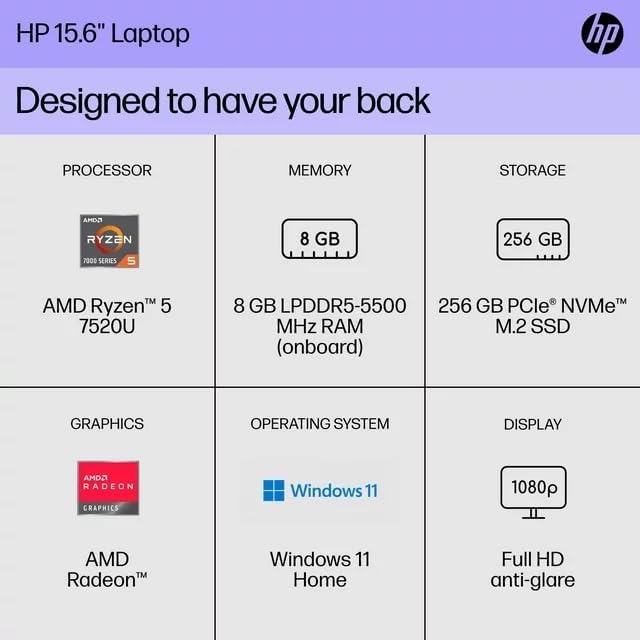
Image: A side view of the HP 15 laptop, highlighting the various input/output ports for external device connectivity.
2.4 Audio and Camera
- Audio: Equipped with dual speakers for audio output and HD Audio support.
- Camera: Features an HP True Vision 720p HD camera with integrated dual array digital microphones, suitable for video calls and online meetings.

Image: The HP 15 laptop displaying a video conference call, demonstrating the use of the integrated camera and microphone.
3. Maintenance and Care
3.1 Cleaning Your Laptop
- Screen: Use a soft, lint-free cloth lightly dampened with water or a screen cleaner. Do not spray liquid directly onto the screen.
- Keyboard and Chassis: Use a soft, dry cloth. For stubborn dirt, a slightly damp cloth can be used, ensuring no moisture enters openings.
- Vents: Periodically check and gently clean the ventilation openings to prevent dust buildup, which can affect cooling.
3.2 Battery Care
To maximize battery lifespan, avoid extreme temperatures and prolonged full discharge or full charge states. For long-term storage, charge the battery to approximately 50%.
3.3 Software Updates
Regularly check for and install Windows updates and HP driver updates to ensure optimal performance, security, and compatibility. Access Windows Update via Settings > Windows Update.
3.4 Environmental Considerations
This laptop is built with recycled materials, including ocean-bound plastic. Please dispose of the device and its components responsibly at the end of its life cycle, following local regulations for electronic waste.
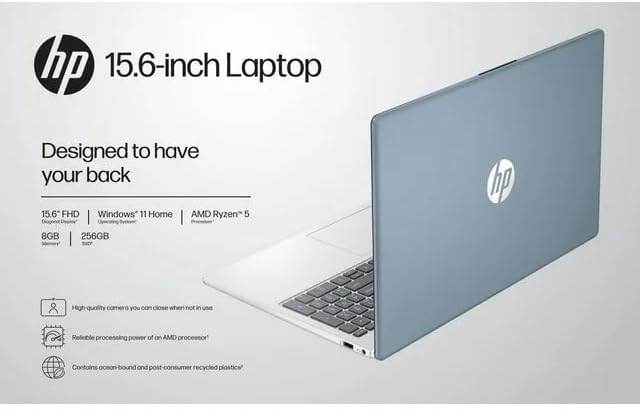
Image: The HP 15 laptop shown from the rear, illustrating its design and potential ventilation areas for maintenance.
4. Troubleshooting Common Issues
This section addresses common problems you might encounter. For more complex issues, refer to the HP support website.
4.1 No Power or Laptop Not Turning On
- Ensure the AC adapter is securely connected to both the laptop and a working power outlet.
- Verify the power outlet is functional by plugging in another device.
- Try a different power outlet.
- If the battery is completely drained, allow it to charge for at least 30 minutes before attempting to power on.
4.2 Display Issues
- Blank Screen: Connect an external monitor via HDMI to check if the issue is with the laptop's display or the graphics output.
- Dim Display: Adjust screen brightness using the function keys (usually F2/F3 or similar icons) or through Windows display settings.
- Incorrect Resolution: Adjust the display resolution in Windows Settings > System > Display.
4.3 Wi-Fi or Bluetooth Connectivity Problems
- Ensure Wi-Fi and Bluetooth are enabled in Windows Settings > Network & internet or Devices > Bluetooth & devices.
- Restart your router/modem for Wi-Fi issues.
- Update wireless drivers through HP Support Assistant or Device Manager.
- Forget and reconnect to the Wi-Fi network or re-pair the Bluetooth device.
4.4 Audio Not Working
- Check volume levels in Windows and ensure speakers are not muted.
- Verify that the correct audio output device is selected in Windows Sound settings.
- Update audio drivers.
- Test with headphones to determine if the issue is with the internal speakers or the audio output.
5. Product Specifications
The following are the technical specifications for the HP 15 Professional Slim High-Performance Laptop (Model 15):
| Feature | Detail |
|---|---|
| Model Name | HP 15 |
| Processor | AMD Ryzen 5 7520U (up to 4.3 GHz max boost, 4 cores, 8 threads) |
| Graphics | AMD Radeon Graphics (Integrated) |
| Memory (RAM) | 8GB DDR4 SDRAM |
| Storage | 256GB PCIe NVMe M.2 SSD |
| Display | 15.6-inch diagonal, Full HD (1920 x 1080), micro-edge, anti-glare, 250 nits, 45% NTSC |
| Operating System | Windows 11 Home |
| Wireless Connectivity | Realtek Killer Wi-Fi 6 (2x2), Bluetooth 5.3 |
| Ports |
|
| Camera | HP True Vision 720p HD camera with integrated dual array digital microphones |
| Audio | Dual speakers, HD Audio |
| Keyboard | Full-size island-style QWERTY keyboard |
| Power Device | AC Adapter |
| UPC | 196337455771 |
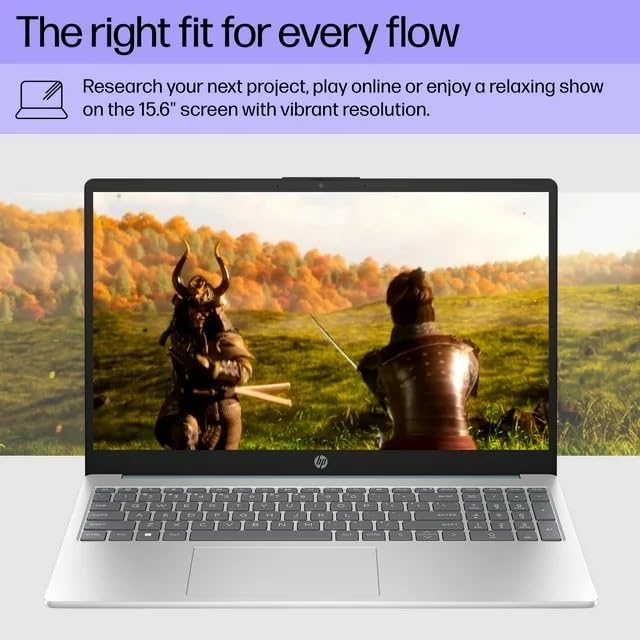
Image: A visual representation of the HP 15 laptop, complementing the detailed specifications listed.
6. Warranty Information
This HP 15 laptop is a renewed product and comes with a 90-day limited warranty. This warranty covers defects in materials and workmanship under normal use. For specific terms and conditions, please refer to the warranty documentation included with your product or contact HP support.
7. Customer Support
For further assistance, technical support, or to download updated drivers and software, please visit the official HP support website. You can typically find support resources by searching for "HP Support" and your specific model number (HP 15) on their website.
Online Resources: https://support.hp.com


