
1. Introduction
Thank you for choosing the XTRONS IA92MTVLS Car Stereo. This manual provides detailed instructions for the installation, operation, and maintenance of your new multimedia navigation system. Please read this manual thoroughly before using the device to ensure proper functionality and to prevent damage. Keep this manual for future reference.
2. Product Overview
The XTRONS IA92MTVLS is an advanced car stereo system designed for select Volkswagen models, including Golf, Passat, Polo, and Tiguan. It features a 9-inch touchscreen display, an Android operating system (version 12 or higher), integrated GPS navigation, wireless CarPlay, Android Auto, and Wi-Fi connectivity. This unit offers a comprehensive in-car entertainment and navigation experience.
Key Features:
- 9-inch HD Touchscreen Display
- Android Operating System (Android 12/13)
- Octa-core Cortex A75 Processor
- 4GB RAM, 64GB ROM
- Built-in GPS/BDS/GLONASS Navigation
- Wireless Apple CarPlay & Android Auto
- Wi-Fi Connectivity
- Built-in DSP (Digital Sound Processor)
- Support for 4G LTE (Global)

Image 2.1: Overview of the XTRONS IA92MTVLS car stereo highlighting its core features including Octa-core processor, RAM, ROM, Android 13, 4G, DSP, IPS screen, DAB+, and GPS capabilities.
3. Setup and Installation
Professional installation is highly recommended for this car stereo system. Incorrect installation can lead to damage to the unit or your vehicle's electrical system. Ensure the vehicle's battery is disconnected before beginning installation.
3.1 Package Contents
Verify that all components are present in the package:
- XTRONS IA92MTVLS Head Unit
- Power Harness
- GPS Antenna
- USB Cables
- RCA Cables
- User Manual (this document)
- Other accessories as specified by the manufacturer

Image 3.1: A visual representation of the various wiring harnesses, GPS antenna, USB cables, and other accessories included with the XTRONS IA92MTVLS unit.
3.2 Dimensions
Before installation, confirm that the unit's dimensions are compatible with your vehicle's dashboard opening.
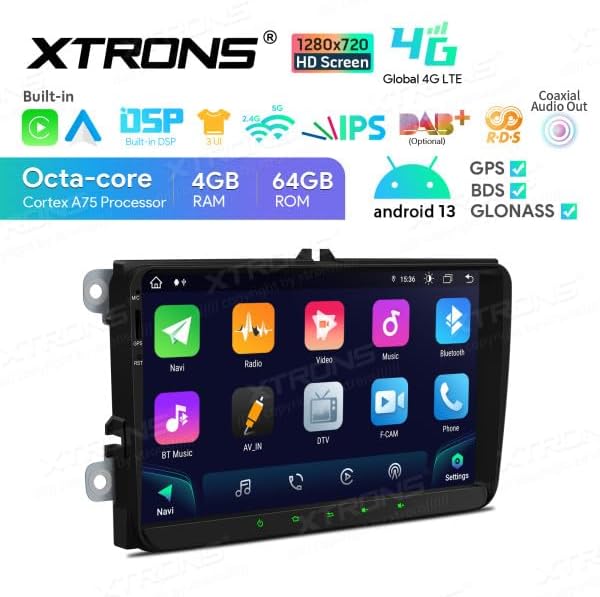
Image 3.2: Diagram showing the physical dimensions of the XTRONS IA92MTVLS head unit, including width, height, and depth measurements.
3.3 Wiring Connections
Connect the power harness, speaker wires, GPS antenna, and any other peripheral cables according to the wiring diagram provided with your unit. Ensure all connections are secure to prevent intermittent issues.
3.4 Mounting
Mount the head unit securely into the dashboard. Ensure it is flush and stable. Reconnect the vehicle's battery once all connections are made and the unit is mounted.
4. Operating Instructions
The XTRONS IA92MTVLS features an intuitive touchscreen interface. Power on the unit by starting your vehicle or pressing the power button (if available).

Image 4.1: The main display of the XTRONS IA92MTVLS showing the navigation interface on the left and radio controls on the right, with quick access icons at the bottom.
4.1 Main Menu Navigation
The main menu provides access to all primary functions. Tap on the desired icon to launch applications such as Navigation, Radio, Music, Video, Bluetooth, and Settings.

Image 4.2: The main application menu of the car stereo, displaying icons for Navigation, Radio, Video, Music, Bluetooth, AV IN, DTV, F-CAM, Phone, and Settings.
4.2 Navigation
Tap the 'Navi' icon to access the pre-installed GPS navigation software. Ensure the GPS antenna is properly installed and has a clear view of the sky for optimal signal reception.
4.3 Radio
Select the 'Radio' icon to access the FM/AM tuner. You can scan for stations, save presets, and adjust settings.
4.4 Bluetooth
Use the 'Bluetooth' function to pair your smartphone for hands-free calling and audio streaming. Go to Settings > Bluetooth to enable and pair devices.
4.5 Smartphone Connection (CarPlay / Android Auto / Screen Mirroring)
The unit supports various smartphone integration methods:
- Wireless CarPlay: Connect your iPhone wirelessly via Bluetooth for access to iOS apps, navigation, and music.
- Android Auto: Connect your Android phone via USB or wirelessly via Bluetooth for Android Auto features.
- Screen Mirroring: Mirror your smartphone's screen to the head unit via Wi-Fi.

Image 4.3: A visual guide demonstrating the three primary smartphone connection methods: Wireless CarPlay (via Bluetooth), Android Auto (via Bluetooth/USB), and Screen Mirroring (via Wi-Fi).
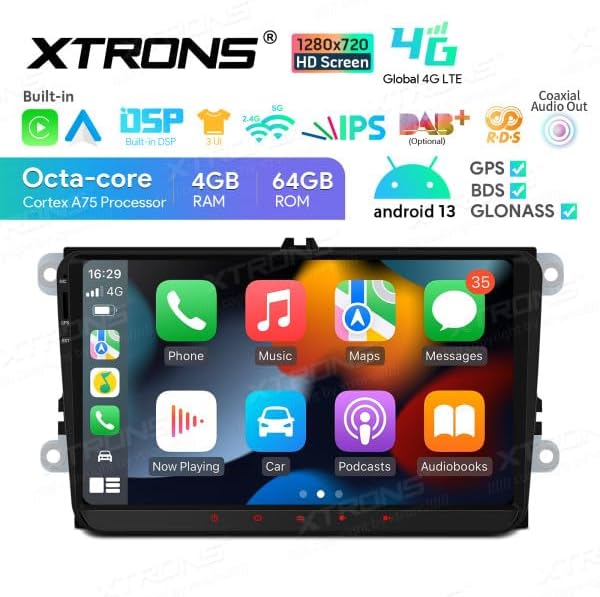
Image 4.4: The Apple CarPlay interface displayed on the XTRONS IA92MTVLS screen, showing common iOS applications like Phone, Music, Maps, and Messages.
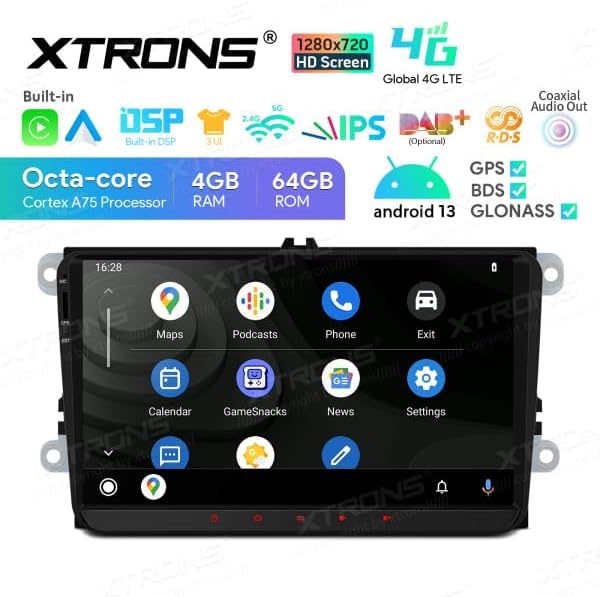
Image 4.5: The Android Auto interface displayed on the XTRONS IA92MTVLS screen, featuring applications such as Maps, Podcasts, Phone, and Settings.
4.6 Settings
Access the 'Settings' menu to customize various aspects of the unit, including display, sound, network, system information, and more.
5. Maintenance
5.1 Cleaning the Screen
To clean the touchscreen, gently wipe it with a soft, lint-free cloth. For stubborn smudges, slightly dampen the cloth with water or a screen-safe cleaning solution. Avoid using harsh chemicals or abrasive materials, as these can damage the screen.
5.2 Software Updates
Periodically check the XTRONS official website or contact customer support for available software updates. Keeping your unit's software up-to-date can improve performance and add new features.
6. Troubleshooting
If you encounter issues with your XTRONS IA92MTVLS unit, refer to the following common problems and solutions:
- No Power:
Check all power connections. Ensure the vehicle's ignition is on. Verify the fuse in the power harness. - No Sound:
Check speaker connections. Ensure the volume is not muted or set to zero. Verify audio output settings. - GPS Signal Loss:
Ensure the GPS antenna is properly connected and mounted in a location with a clear view of the sky. Move the vehicle to an open area if in a covered or obstructed location. - Bluetooth/Wi-Fi Connectivity Issues:
Ensure Bluetooth/Wi-Fi is enabled on both the head unit and your smartphone. Try restarting both devices. Forget and re-pair devices if necessary. - Touchscreen Unresponsive:
Perform a soft reset of the unit (refer to the device's reset button location, usually a small pinhole). If the issue persists, contact support.
For persistent issues not covered here, please contact XTRONS customer support.
7. Specifications
| Feature | Specification |
|---|---|
| Brand | XTRONS |
| Model Name | IA92MTVLS |
| Screen Size | 9 Inches |
| Display Type | LCD, Capacitive Touchscreen |
| Operating System | Android 12 (or higher) |
| Processor | Octa-core Cortex A75 |
| RAM | 4GB |
| ROM | 64GB |
| Connectivity | Wi-Fi, Bluetooth, 4G LTE (Global) |
| Navigation Type | GPS, BDS, GLONASS (Street Map) |
| Compatible Devices | Smartphone (CarPlay, Android Auto) |
| Mounting Type | Dashboard or Panel Mount |
8. Warranty and Support
For warranty information, please refer to the documentation included with your purchase or visit the official XTRONS website. If you require technical assistance or have questions regarding your IA92MTVLS unit, please contact XTRONS customer support through their official channels. Provide your model number (IA92MTVLS) and purchase details when seeking support.


