
GENBOLT GB212K
GENBOLT 2.5K WiFi Security Camera Outdoor User Manual
Model: GB212K
Introduction
This user manual provides comprehensive instructions for the installation, operation, and maintenance of your GENBOLT 2.5K WiFi Security Camera Outdoor (Model GB212K). This advanced security camera features a 180-degree ultra-wide angle panoramic view, 2.5K (4MP) resolution, intelligent human, vehicle, and pet detection, enhanced color night vision, two-way audio communication, and is rated IP66 for outdoor weather resistance. It supports both DC power and Power over Ethernet (PoE) for flexible installation.
Please read this manual thoroughly before using the product to ensure proper setup and optimal performance. Keep this manual for future reference.

This image displays the GENBOLT GB212K security camera, highlighting its unique design and the expansive 180-degree panoramic view captured and displayed on a smartphone screen.
Product Overview and Components
Familiarize yourself with the camera's components and the items included in the package.

This diagram illustrates the various parts of the GENBOLT GB212K camera and the items included in the package, such as the camera unit, user manual, network cable, power adapter, waterproof kit, and mounting screws.
Package Contents:
- GENBOLT GB212K Security Camera
- User Manual
- Network Cable
- Power Adapter
- Waterproof Kit
- Mounting Screws
Camera Features:
- 5dBi Dual Antenna: For stable wireless communication.
- HD Dual Lens: Captures a wide field of view for panoramic stitching.
- Floodlight: Provides illumination for color night vision and active deterrence.
- Manual Adjustable Bracket: Allows for flexible positioning (270° rotate, 90° tilt).
- Speaker: For two-way audio and siren functionality.
- MicroCard Slot: Supports local storage via Micro SD card (up to 128GB, not included).
- PoE Port: Power over Ethernet for simplified wiring.
- Power Input: DC 12V power connection.
- RESET Button: For factory reset.
Setup
1. Initial Setup and App Download
- Download the App: Search for "GENBOLT CAM" or "GENBOLT PRO" in your smartphone's app store (iOS or Android) and install it.
- Power On: Connect the camera to power using the provided power adapter or via a PoE switch/injector if using Power over Ethernet.
- Network Connection:
- Wi-Fi Connection: Follow the in-app instructions to connect the camera to your 2.4GHz or 5GHz Wi-Fi network. Ensure your router is within range.
- Wired (PoE) Connection: Connect the camera to a PoE switch or NVR using an Ethernet cable. This provides both power and data.
- Add Camera to App: Open the app, register an account if you haven't already, and follow the prompts to add your new camera. Scan the QR code on the camera if prompted.

This graphic explains the camera's support for both 2.4GHz and 5GHz Wi-Fi bands, allowing for flexible network connectivity based on range and speed requirements.

This image demonstrates the camera's Power over Ethernet (PoE) capability, which simplifies installation by allowing both power and data transmission through a single Ethernet cable.
2. Physical Installation
The camera is designed for wall mounting. Choose a location that provides the desired viewing angle and is within range of your Wi-Fi network or wired connection point.
- Mark Drilling Points: Use the mounting template (if provided) or the camera's base to mark the screw holes on the wall.
- Drill Holes: Drill pilot holes at the marked locations. Insert wall anchors if mounting on masonry or drywall.
- Mount the Camera: Secure the camera's bracket to the wall using the provided screws.
- Adjust Angle: Loosen the adjustment screws on the bracket to rotate the camera horizontally (up to 270°) and tilt it vertically (up to 90°) for optimal coverage. Tighten the screws once the desired angle is achieved.
This diagram highlights the camera's adjustable mounting bracket, allowing for 270 degrees of horizontal rotation and 90 degrees of vertical tilt to achieve optimal viewing angles.
Important: Ensure the camera is securely mounted to prevent accidental falls. For outdoor installations, use the waterproof kit to protect cable connections.
Operating the Camera
1. Live View and Recording
- Access Live Feed: Open the GENBOLT app and select your camera to view the live video stream.
- Panoramic View: The dual-lens system automatically stitches two images to create a seamless 180-degree panoramic view, eliminating blind spots.

This image visually explains the camera's 180-degree panoramic capability, showing how its dual lenses capture a broad field of view by seamlessly stitching two images together.
- Recording: The camera supports continuous recording, scheduled recording, and motion-triggered recording. Recordings can be stored on a Micro SD card (up to 128GB, purchased separately) or an NVR/NAS system via ONVIF protocol.
- Playback: Access recorded footage through the app's playback function, filtering by date and time.
2. Smart Detection Features
The camera utilizes advanced AI algorithms to accurately detect and differentiate between various types of motion, reducing false alarms.
- Humanoid Detection: Alerts you only when a human figure is detected.
- Vehicle Detection: Notifies you when a vehicle enters the detection zone.
- Pet Detection: Identifies pet movement, useful for monitoring specific areas.
- Customizable Detection Zones: Set specific areas within the camera's view where motion detection should be active.
- Alerts: Receive real-time push notifications to your smartphone and/or email alerts with snapshots when motion is detected.

This image demonstrates the camera's intelligent detection capabilities, highlighting how it accurately identifies and distinguishes between human and vehicle motion, triggering specific alerts.
3. Night Vision and Illumination
- Enhanced Color Night Vision: With an F1.6 aperture, the camera provides clear, full-color images even in low-light conditions, up to 20 meters (66 feet).
- Floodlight: The integrated floodlight can be configured to activate upon motion detection, providing illumination and acting as a deterrent.

This visual comparison illustrates the effectiveness of the camera's enhanced color night vision, providing clear, full-color images even in low-light conditions, compared to standard night vision.
4. Two-Way Audio and Siren
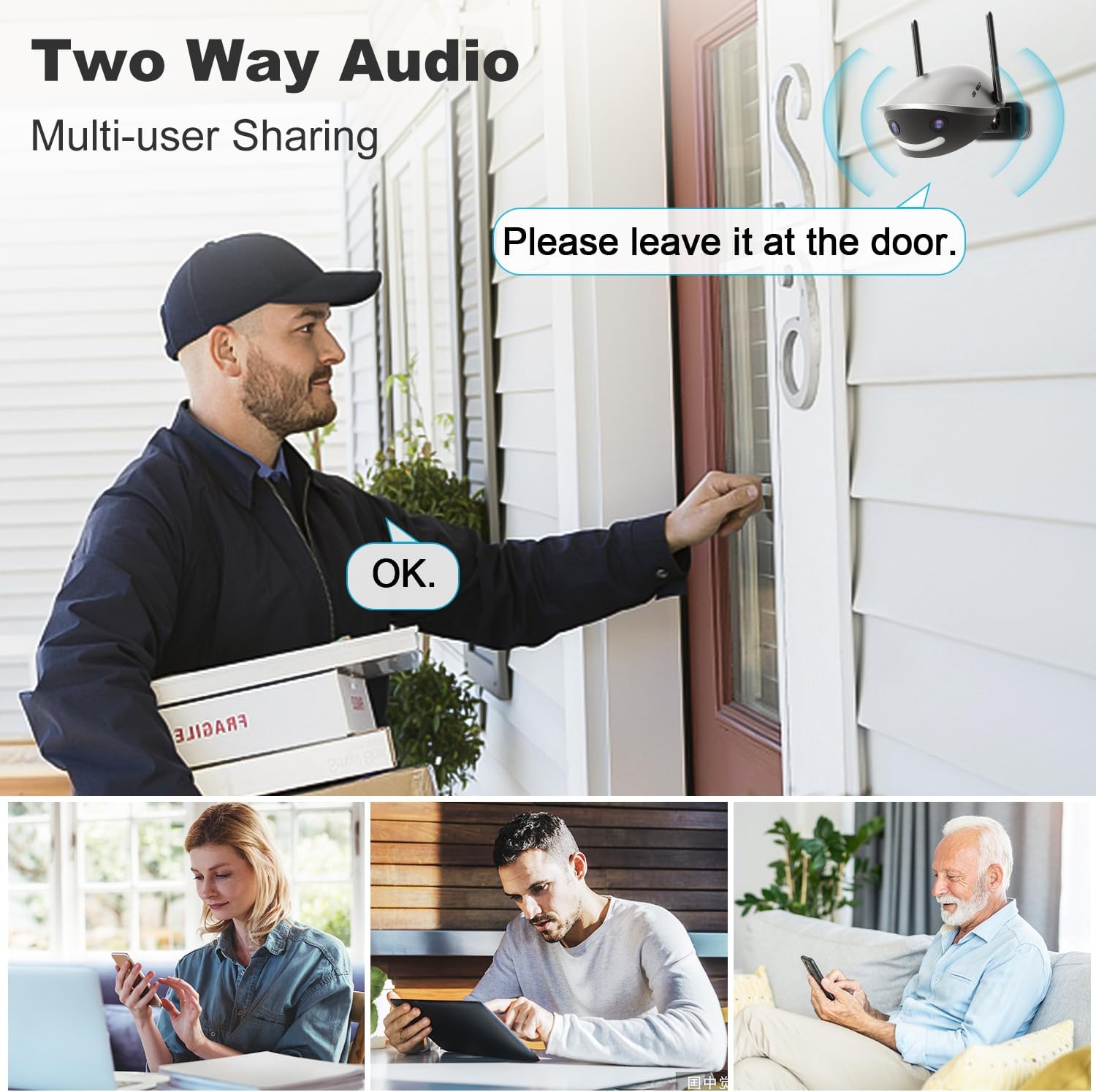
- Two-Way Audio: Use the built-in microphone and speaker to communicate with individuals near the camera from your smartphone.
- Customizable Siren: Activate a loud siren or a customized voice message (e.g., barking sound) to deter intruders.

This image demonstrates the camera's two-way audio functionality, enabling real-time communication with individuals near the camera and allowing multiple users to access the audio feed.
Maintenance
- Cleaning: Regularly clean the camera lens with a soft, damp cloth to ensure clear image quality. Do not use harsh chemicals or abrasive materials.
- Firmware Updates: Check the GENBOLT app periodically for available firmware updates. Keeping the firmware updated ensures optimal performance, security, and access to new features. Follow the in-app instructions for updating.
- Cable Inspection: Periodically inspect all cables and connections for any signs of wear or damage, especially for outdoor installations. Ensure waterproof seals are intact.
- Power Cycle: If the camera experiences issues, try power cycling it by disconnecting and reconnecting the power source.
Troubleshooting
| Problem | Possible Cause | Solution |
|---|---|---|
| Camera offline/Cannot connect to Wi-Fi | Incorrect Wi-Fi password; Camera too far from router; Router issues; Incorrect Wi-Fi band selected. | Verify Wi-Fi password. Move camera closer to router or use a Wi-Fi extender. Restart router. Ensure you are connecting to a 2.4GHz or 5GHz network as supported. Try wired (PoE) connection if available. |
| Poor image quality | Dirty lens; Insufficient lighting; Network bandwidth issues. | Clean the camera lens. Ensure adequate lighting for optimal night vision. Check network speed and reduce other network traffic if necessary. |
| Motion detection not working or too many false alarms | Incorrect sensitivity settings; Detection zone not configured; Environmental factors (e.g., swaying trees, strong light changes). | Adjust motion detection sensitivity in the app. Configure specific detection zones. Utilize Human/Vehicle/Pet detection to filter out irrelevant motion. |
| Two-way audio issues | Microphone/speaker blocked; App volume too low; Network latency. | Ensure microphone and speaker are clear of obstructions. Check app volume settings. Verify stable network connection. |
| SD card not recording | SD card full or corrupted; Incorrect recording settings; SD card not inserted correctly. | Format the SD card via the app. Check recording schedule and settings. Reinsert the SD card. Replace if corrupted. |
If you encounter issues not listed here or require further assistance, please refer to the official GENBOLT support resources or contact their customer service.
Specifications
| Feature | Detail |
|---|---|
| Model | GB212K |
| Video Capture Resolution | 2.5K (2304x1440p) |
| Viewing Angle | 180 Degrees (Panoramic) |
| Wireless Communication Technology | 2.4/5GHz Dual Wi-Fi |
| Connectivity Technology | Wired (PoE) & Wireless |
| Night Vision Range | Up to 20m (66 Feet) |
| Frame Rate | 15 frames per second |
| Power Source | Corded Electric (DC 12V) / Power over Ethernet (PoE) |
| Material | Acrylonitrile Butadiene Styrene (ABS) |
| Indoor/Outdoor Usage | Outdoor (IP66 Waterproof) |
| Storage | Micro SD (up to 128GB), NVR/NAS (ONVIF) |
| Special Features | 180° 2.5K Panoramic View, Humanoid/Vehicle/Pet Intelligent Detection, Color Night Vision, Two-Way Audio, Active Siren & Light Defense, Supports 24/7 Recording |
| Dimensions (L x W x H) | 17.75 x 7.59 x 6.32 cm |
| Weight | 780 g |
Warranty and Support
GENBOLT provides customer support for their products. For warranty information, technical assistance, or any product-related inquiries, please contact GENBOLT customer service directly through their official website or the contact information provided in your product packaging.
Always ensure you are using official GENBOLT resources for support to guarantee accurate and reliable assistance.
Related documentsGB212K


Ask a question about this manual
Ask about setup, troubleshooting, compatibility, parts, safety, or missing instructions. Manuals+ will review the question and use this page’s manual context to help answer it.