
1. Introduction
This manual provides detailed instructions for the Nilox MOUSB3013 USB Ergonomic Mouse. It covers setup, operation, maintenance, and troubleshooting to ensure optimal performance and user comfort. The Nilox MOUSB3013 is a black, wired USB mouse designed with an ergonomic shape for comfortable use.

Image 1.1: The Nilox MOUSB3013 ergonomic mouse, showcasing its design and primary controls.
2. Package Contents
Please verify that all items are present in the package:
- Nilox MOUSB3013 USB Ergonomic Mouse
- User Manual (this document)
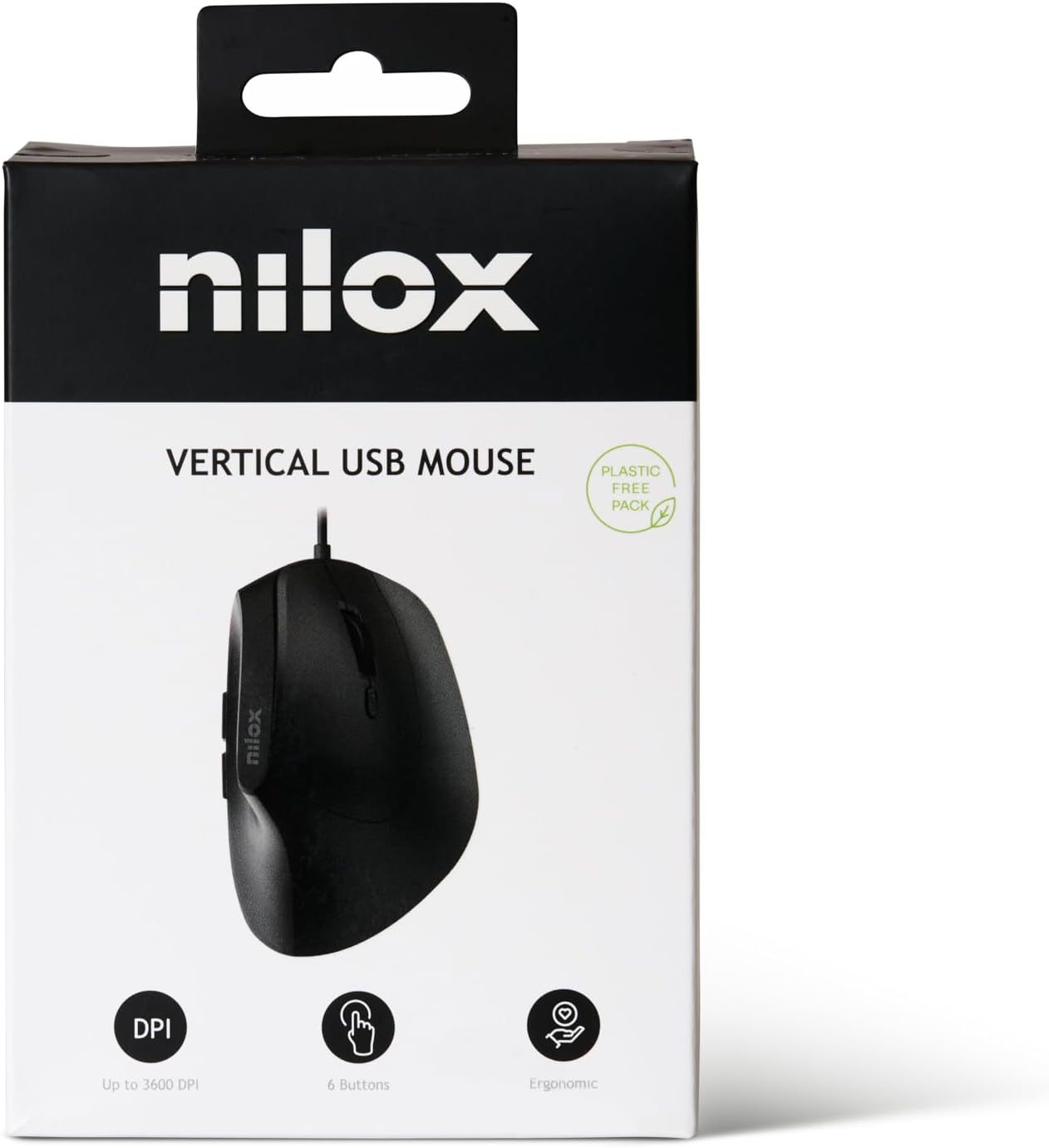
Image 2.1: The Nilox MOUSB3013 mouse packaging, highlighting its features.
3. Setup Instructions
The Nilox MOUSB3013 mouse is designed for plug-and-play functionality, requiring no additional software installation for basic operation.
- Connect the USB Cable: Locate an available USB port on your computer. Insert the USB connector of the Nilox MOUSB3013 mouse firmly into the USB port.
- System Recognition: Your operating system (Windows, macOS, Linux) will automatically detect and install the necessary drivers. This process usually takes a few seconds.
- Begin Use: Once the system indicates that the device is ready, you can begin using your mouse.

Image 3.1: The underside of the Nilox MOUSB3013 mouse, illustrating the optical sensor.
4. Operating the Mouse
The Nilox MOUSB3013 features an ergonomic design for comfortable hand positioning and includes 6 buttons for enhanced functionality.
4.1 Button Functions
- Left Click Button: Primary button for selecting items, opening files, and executing commands.
- Right Click Button: Secondary button for accessing context menus and special functions.
- Scroll Wheel: Used for scrolling through documents and web pages. It can also function as a middle click button.
- DPI Adjustment Button: Located near the scroll wheel, this button allows you to cycle through different DPI (Dots Per Inch) sensitivity settings to adjust cursor speed.
- Side Buttons (2): Typically configured as "Forward" and "Back" buttons for web browsing and file navigation. These functions may be customizable via operating system settings or third-party software.

Image 4.1: Top view of the mouse, highlighting the main buttons and scroll wheel.
4.2 Ergonomic Design
The vertical orientation of the Nilox MOUSB3013 is designed to promote a more natural hand and wrist posture, reducing strain during prolonged use. This ergonomic feature aims to enhance comfort and prevent repetitive strain injuries.
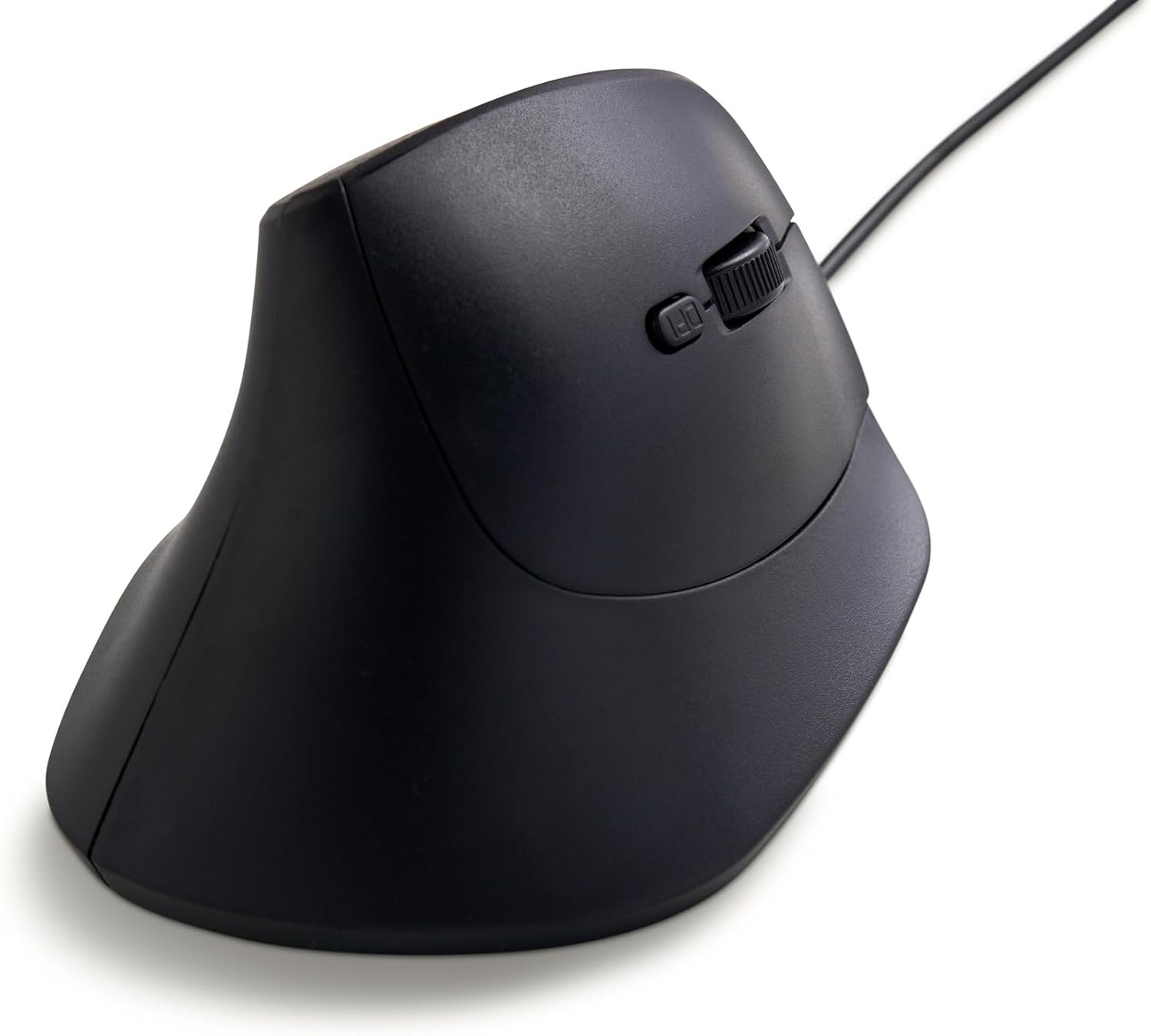
Image 4.2: Side profile of the Nilox MOUSB3013, illustrating its ergonomic vertical design.
5. Maintenance and Care
Proper maintenance ensures the longevity and optimal performance of your Nilox MOUSB3013 mouse.
- Cleaning: Use a soft, dry, lint-free cloth to wipe the surface of the mouse. For stubborn dirt, slightly dampen the cloth with water or a mild, non-abrasive cleaner. Avoid using harsh chemicals or abrasive materials.
- Sensor Care: Keep the optical sensor on the underside of the mouse clean and free from dust or debris to ensure accurate tracking.
- Storage: When not in use, store the mouse in a clean, dry environment away from extreme temperatures and direct sunlight.
6. Troubleshooting
If you encounter issues with your Nilox MOUSB3013 mouse, please refer to the following common solutions:
| Problem | Solution |
|---|---|
| Mouse is not responding. |
|
| Cursor movement is erratic or jumpy. |
|
| Buttons are not functioning correctly. |
|
7. Technical Specifications
| Brand | Nilox |
| Model Number | MOUSB3013 (S77103754) |
| Connectivity Technology | USB (Wired) |
| Movement Detection Technology | Optical |
| Special Feature | Ergonomic Design |
| Number of Buttons | 6 |
| Color | Black |
| Operating System Compatibility | Windows, macOS, Linux |
| Product Dimensions (LxWxH) | 6.75 x 4.94 x 3.51 inches (approx. 17.1 x 12.5 x 8.9 cm) |
| Item Weight | 14.1 ounces (approx. 400 grams) |
8. Warranty and Support
For information regarding the product warranty, please refer to the warranty card included with your purchase or visit the official Nilox website. For technical support or further assistance, please contact Nilox customer service through their official channels.
Official Nilox Website: www.nilox.com

