
Introduction
This manual provides essential information for setting up, operating, maintaining, and troubleshooting your MSI Thin 15 B13VE-1802IN gaming laptop. Please read this manual thoroughly before using your device to ensure optimal performance and longevity.
1. Setup
1.1 Unpacking the Laptop
Carefully remove all components from the packaging. Ensure the following items are present:
- MSI Thin 15 B13VE-1802IN Laptop
- Power Adapter
- Battery (if not pre-installed)
- Documentation (this manual, warranty card)
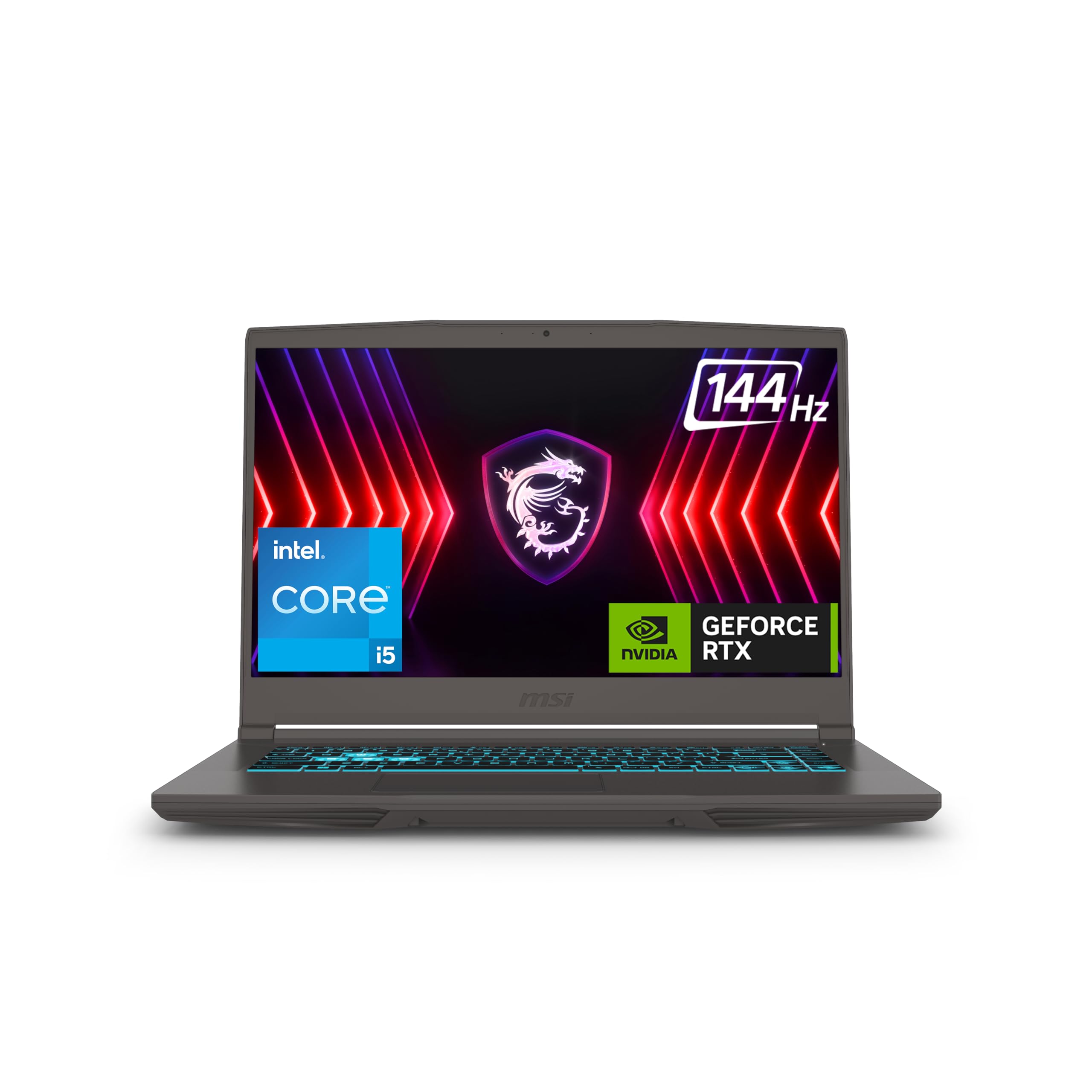
Image: MSI Thin 15 laptop, showing the overall design from a top-down perspective.
1.2 Connecting the Power Adapter
- Connect the AC adapter to the power jack on the laptop.
- Plug the power cord into an electrical outlet.
- Allow the battery to charge fully before initial use.

Image: Side view of the MSI Thin 15 laptop, illustrating the various ports including the power input, USB, and HDMI connections.
1.3 Initial Power On
Press the power button located on the keyboard deck to turn on the laptop. Follow the on-screen instructions to complete the Windows 11 Home setup process.
2. Operating Instructions
2.1 Keyboard and Touchpad
The laptop features a single backlit keyboard and a precision touchpad. Refer to the MSI support website for detailed information on keyboard shortcuts and touchpad gestures.

Image: Close-up view of the MSI Thin 15 laptop's backlit keyboard and touchpad, highlighting the layout and design.
2.2 Display Settings
The 40cm FHD (1920x1080) 144Hz IPS-Level display provides a smooth visual experience. You can adjust display settings through Windows settings or the NVIDIA Control Panel for optimal gaming and productivity.

Image: The MSI Thin 15 laptop display showcasing a 144Hz refresh rate, indicating smooth motion for gaming.
2.3 Connecting External Devices
The laptop supports various external devices via its ports:
- USB 3.2 Gen1 Type-A: For standard USB peripherals.
- USB 3.2 Gen2 Type-C (with DP and PD charging): For high-speed data transfer, display output, and power delivery.
- HDMI (4K @ 30Hz): For connecting to external monitors or TVs.
Image: Side view of the MSI Thin 15 laptop, illustrating the various ports including the power input, USB, and HDMI connections.
3. Maintenance
3.1 Cleaning the Laptop
- Use a soft, lint-free cloth to clean the screen and chassis.
- Avoid using harsh chemicals or abrasive materials.
- For stubborn marks, dampen the cloth slightly with water or a screen cleaner.
3.2 Battery Care
- Avoid fully discharging the battery frequently.
- Store the laptop in a cool, dry place if not used for extended periods.
- For optimal battery health, keep the battery charge between 20% and 80%.
3.3 Software Updates
Regularly update Windows 11 Home, graphics drivers (NVIDIA GeForce RTX 4050), and MSI Center software to ensure system stability, security, and performance.

Image: Underside view of the MSI Thin 15 laptop, showing the ventilation grilles for the Cooler Boost thermal solution.
4. Troubleshooting
| Problem | Possible Cause | Solution |
|---|---|---|
| Laptop does not power on. | No power, discharged battery, faulty power adapter. | Ensure power adapter is securely connected and plugged into a working outlet. Check battery charge. |
| Screen is blank. | Display settings, external monitor connected, system crash. | Press Fn + F2 to toggle display output. Disconnect external monitors. Perform a hard reset (hold power button for 15 seconds). |
| System performance is slow. | Too many background applications, outdated drivers, insufficient storage. | Close unnecessary applications. Update drivers. Free up disk space on the 1TB NVMe SSD. |
| Keyboard backlight not working. | Backlight disabled, software issue. | Press Fn + F8 (or similar key combination) to adjust backlight brightness. Check MSI Center settings. |
For further assistance, please refer to the MSI Support website or contact customer service.
5. Specifications
| Feature | Detail |
|---|---|
| Model Name | Thin 15 B13VE-1802IN |
| Processor | 13th Generation Intel Core i5-13420H (Up To 4.6GHz) |
| Operating System | Windows 11 Home |
| Display | 40cm (15.6-inch) FHD (1920x1080), 144Hz, 45% NTSC, IPS-Level |
| Graphics | NVIDIA GeForce RTX 4050, GDDR6 6GB |
| Memory | 16GB DDR4 RAM (Max 64GB, 3200 MHz) |
| Storage | 1TB NVMe PCIe Gen4x4 SSD |
| Ports | 3x Type-A USB 3.2 Gen1, 1x Type-C (USB 3.2 Gen2 / DP) with PD charging, 1x HDMI (4K @ 30Hz) |
| Wireless Connectivity | 802.11ax Wi-Fi 6, Bluetooth v5.3 |
| Camera | HD type (30fps@720p) |
| Keyboard | Single Backlit Keyboard (Blue) |
| Battery | Lithium Polymer, 52.4 Watt Hours |
| Weight | 1.86 Kg |
| Dimensions (L x W x Thickness) | 35.9L x 25.4W x 2.1Th Centimeters |
6. Warranty & Support
6.1 Warranty Information
Your MSI Thin 15 B13VE-1802IN laptop comes with a 2-year On-Site warranty. This warranty covers manufacturing defects. It does not cover physical damage, burn damage, or liquid damage. On-Site service eligibility may vary by region.
For detailed warranty terms and conditions, please visit the official MSI India Website support page.

Image: MSI warranty information graphic, detailing 2 years brand warranty and support contact options.
6.2 Customer Support
If you require technical assistance or have questions regarding your laptop, you can contact MSI support through the following channels:
- Online Support: Visit in.msi.com/support/nb
- Phone Support: +91-22-4912 5588 (9 AM to 5 PM)
- Email Support: indiaservicenb@msi.com
- Service Centers: More than 80 centers across India.


