
Introduction
The iBall Palmz is a versatile wireless mouse offering dual connectivity options: 2.4 GHz wireless via a mini USB receiver and Bluetooth. Designed for comfort and efficiency, it features silent clicks and an ergonomic form factor, making it suitable for various computing environments including PCs, Macs, and laptops.
Key Features
- Dual Connectivity: Seamlessly switch between 2.4 GHz wireless (via USB receiver) and Bluetooth.
- Silent Clicks: Enjoy a quiet working environment with specially designed silent click buttons.
- Ergonomic Design: Contoured shape with a fibre finish provides a comfortable grip for extended use.
- Nano USB Receiver: Compact receiver that can be stored inside the mouse for portability.
- Power Saving Mode: Automatic power-saving function extends battery life when not in use.
- Three Buttons: Standard left, right, and scroll wheel buttons for essential navigation.
- Optical Tracking: Precise and smooth cursor control.
Package Contents
- iBall Palmz Wireless + Bluetooth Mouse
- Nano USB Receiver
- User Manual (this document)
Note: Batteries are not included and must be purchased separately.
Setup Instructions
1. Insert Battery
Locate the battery compartment on the underside of the mouse. Open the cover and insert one AA battery (not included), ensuring correct polarity (+/-). Close the battery compartment cover securely.
2. Connect via 2.4 GHz Wireless
- Remove the Nano USB receiver from its storage slot on the underside of the mouse.
- Plug the Nano USB receiver into an available USB port on your computer (PC, Mac, or laptop).
- The computer should automatically detect and install the necessary drivers.
- Turn on the mouse using the power switch located on the underside. The mouse is now ready for use.

Image: iBall Palmz mouse showing the Nano USB receiver. The receiver is a small USB dongle that plugs into your computer for 2.4 GHz wireless connectivity.
3. Connect via Bluetooth
- Ensure the mouse is powered on.
- Press and hold the Bluetooth pairing button (usually located on the underside of the mouse) until the indicator light starts blinking, indicating it's in pairing mode.
- On your computer or device, open Bluetooth settings.
- Search for new devices and select "iBall Palmz" from the list.
- Follow any on-screen prompts to complete the pairing process. The indicator light on the mouse will become solid when successfully paired.
Operating Instructions
The iBall Palmz mouse offers standard mouse functionalities with the added benefit of silent clicks.
- Left Click: Primary button for selecting items, opening files, and interacting with software.
- Right Click: Secondary button for accessing context menus and additional options.
- Scroll Wheel: Roll up or down to navigate through documents and web pages. The scroll wheel also functions as a middle click button.

Image: Top view of the iBall Palmz mouse, highlighting its ergonomic shape and button layout. The mouse features a scroll wheel and two main click buttons.
The mouse has a working range of up to 10 meters, providing flexibility in your workspace.

Image: iBall Palmz mouse with an indication of its 10-meter working range. This illustrates the wireless freedom provided by the device.
Maintenance
- Cleaning: Use a soft, dry cloth to clean the mouse. Avoid using harsh chemicals or abrasive materials.
- Battery Replacement: Replace the AA battery when the mouse performance degrades or the indicator light signals low battery.
- Power Saving: The mouse automatically enters a power-saving mode when idle. To conserve battery life further, turn off the mouse using the power switch when not in use for extended periods.
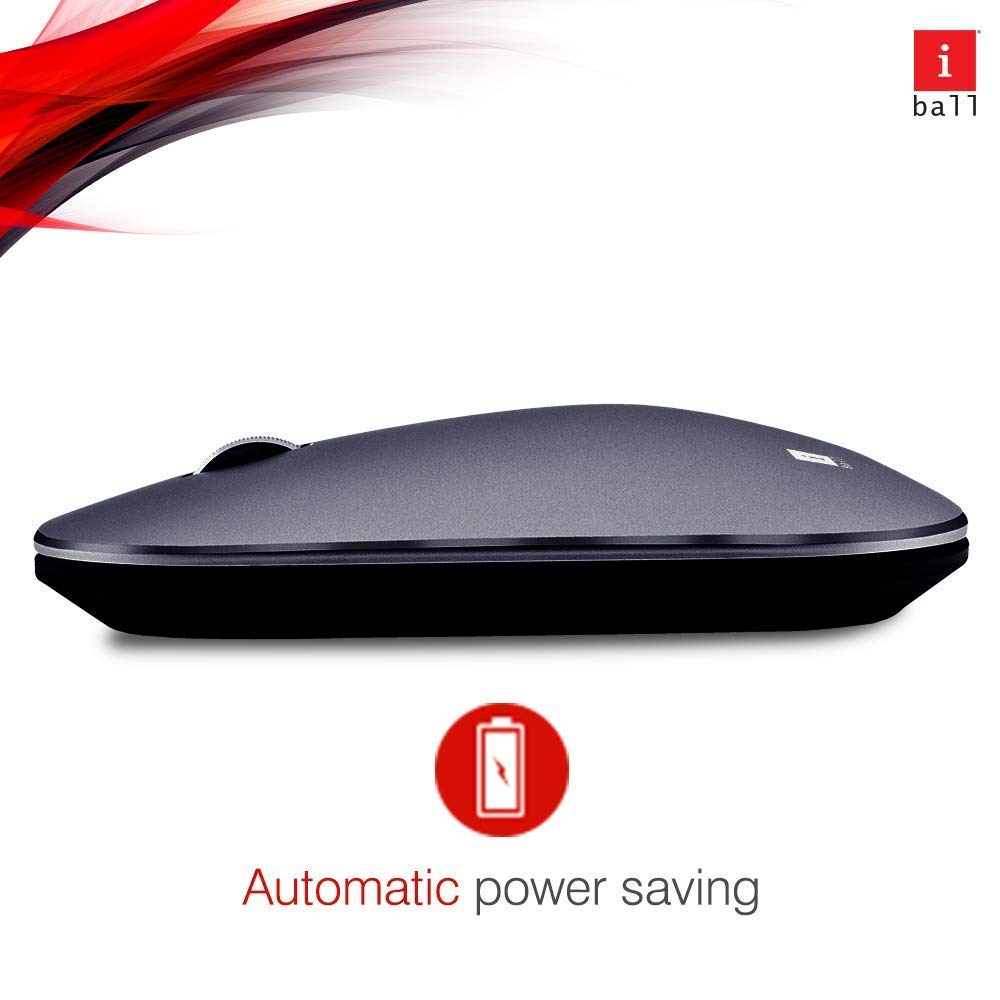
Image: iBall Palmz mouse illustrating its automatic power-saving feature. This function helps extend battery life by entering a low-power state when idle.
Troubleshooting
| Problem | Solution |
|---|---|
| Mouse is unresponsive (2.4 GHz) |
|
| Mouse is unresponsive (Bluetooth) |
|
| Cursor movement is erratic |
|
Specifications
| Model Name | Palmz |
| Connectivity Technology | 2.4 GHz Wireless, Bluetooth |
| Movement Detection | Optical |
| Number of Buttons | 3 (Left, Right, Scroll Wheel/Middle Click) |
| Special Features | Silent Clicks, Lightweight, Automatic Power Saving |
| Compatible Devices | Desktop, Laptop, Tablet, Smart Phone |
| Hardware Platform | Linux, Mac |
| Operating System Support | Linux, Windows 7, Windows XP (and newer versions) |
| Item Weight | 250 g |
| Color | Grey |
| Batteries Required | Yes (1x AA, not included) |
Warranty and Support
This iBall Palmz mouse comes with a 3-Year Warranty from the date of purchase. Please retain your proof of purchase for warranty claims.
For technical support or warranty inquiries, please contact the manufacturer or your retailer. Contact information can typically be found on the product packaging or the manufacturer's official website.