
1. Introduction
This manual provides comprehensive instructions for the installation, operation, and maintenance of your Taffio CH7102-F3 Android Car Radio GPS CarPlay System. This system is specifically designed for Mazda 3 vehicles, models BM and BN, manufactured between 2013 and 2019. It integrates advanced navigation, communication, and entertainment features into your vehicle's dashboard, enhancing your driving experience with modern multimedia capabilities.
Please read this manual thoroughly before installation and use to ensure proper functionality and to prevent damage to the unit or your vehicle. Keep this manual for future reference.
2. Safety Information
- Professional Installation Recommended: Due to the complexity of car electrical systems, professional installation is highly recommended to avoid damage to the unit or vehicle.
- Power Disconnection: Always disconnect the vehicle's battery before performing any electrical work to prevent short circuits or electrical shock.
- Wiring: Ensure all wiring connections are secure and properly insulated to prevent electrical hazards. Do not modify the wiring harness unless specifically instructed.
- Driving Safety: Do not operate the system in a way that distracts you from driving. Always prioritize road safety.
- Ventilation: Ensure the unit has adequate ventilation and is not obstructed by other components.
- Cleaning: Use a soft, dry cloth for cleaning the screen and unit. Avoid abrasive cleaners or solvents.
3. Package Contents
Before beginning installation, verify that all components listed below are present in your package. If any items are missing or damaged, please contact your vendor.

Figure 3.1: Overview of all components included in the delivery. This includes the Android Display, Main Unit, Frame, Power Cable, LVDS cable, Speaker Cables, USB Cable, Mic Cable, Aux Adapter, Screws, Display Cable, GPS Antenna, and 4G Antenna.
- Android Display (10.25-inch touchscreen)
- Main Unit (Processor box)
- Vehicle-specific Frame
- Power Cable Harness
- LVDS Cable
- Speaker Cables
- USB Cable(s)
- Microphone Cable
- Aux Adapter
- Mounting Screws
- Display Cable
- GPS Antenna
- 4G Antenna
4. Setup and Installation
The Taffio CH7102-F3 system is designed for a plug-and-play installation, requiring no modifications, restrictions, or coding of the original vehicle system. The original system's functions, including radio, controller, steering wheel controls, and vehicle settings, are fully preserved and supported.
4.1 Installation Overview
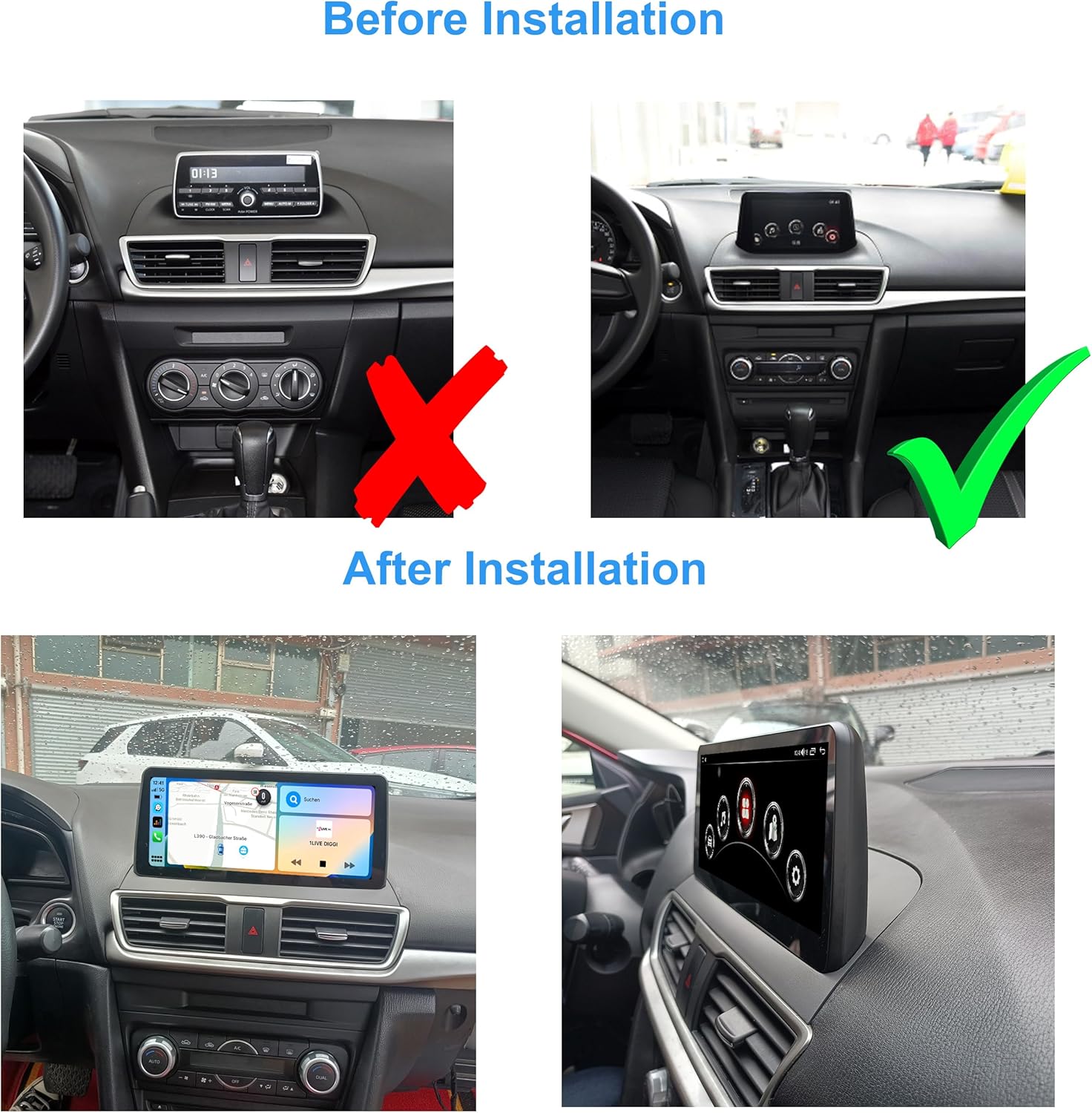
Figure 4.1: Visual comparison of the Mazda 3 dashboard before and after the Taffio Android display installation. The original small display is replaced with the larger 10.25-inch Android unit.
The installation involves replacing the original display with the new 10.25-inch Android display and connecting the main unit and associated cables. The process is designed to be straightforward, primarily involving connecting the display and the main connection cable.
4.2 Connection Diagram
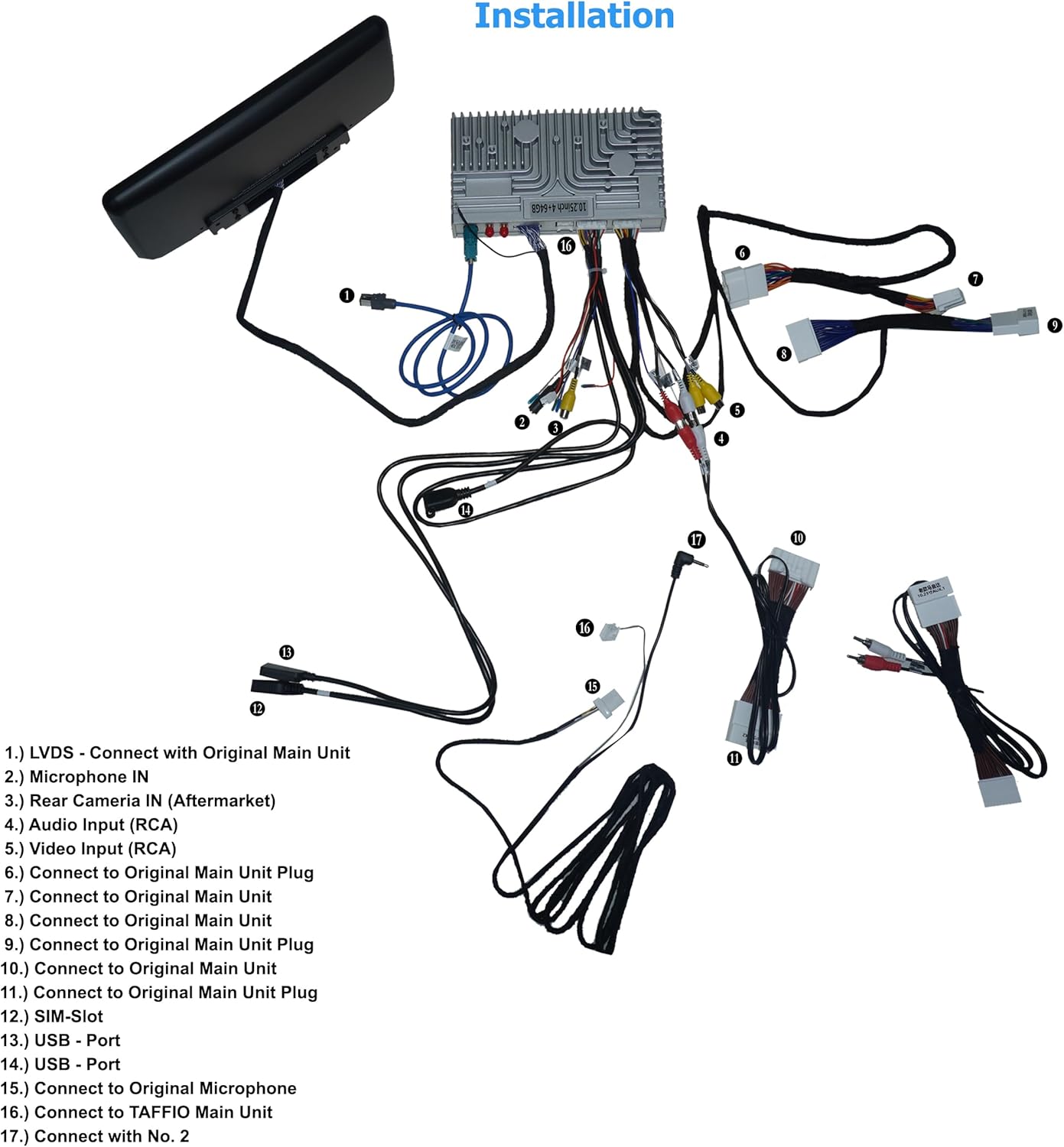
Figure 4.2: Detailed wiring diagram illustrating how to connect the Taffio CH7102-F3 components. Key connections include LVDS to the original main unit, microphone input, rear camera input, audio/video inputs, USB ports, SIM slot, and antennas.
Refer to the diagram above for specific connection points. The numbered points correspond to the following:
- LVDS: Connect with Original Main Unit.
- Microphone IN: Input for external microphone.
- Rear Camera IN (Aftermarket): Connect aftermarket rear view camera.
- Audio Input (RCA): For external audio sources.
- Video Input (RCA): For external video sources.
- Connect to Original Main Unit Plug: Main power and data connection.
- Connect to Original Main Unit: Additional data connection.
- Connect to Original Main Unit: Additional data connection.
- Connect to Original Main Unit Plug: Main power and data connection.
- Connect to Original Main Unit Plug: Main power and data connection.
- Connect to Original Main Unit Plug: Main power and data connection.
- SIM-Slot: Insert 3G/4G SIM card for mobile data.
- USB - Port: Connect USB devices.
- USB - Port: Connect USB devices.
- Connect to Original Microphone: If applicable, connect to the vehicle's original microphone.
- Connect to TAFFIO Main Unit: Connect the display to the main processing unit.
- Connect with No. 2: Specific connection point as per diagram.
5. Operating Instructions
The Taffio CH7102-F3 operates on Android 12, providing a familiar and intuitive user interface. The 10.25-inch capacitive multi-touch screen allows for easy navigation through menus and applications.
5.1 System Interface

Figure 5.1: Main home screen of the Android system, displaying various application icons.

Figure 5.2: Secondary home screen with additional application icons, including vehicle settings.

Figure 5.3: Third home screen displaying connectivity and utility applications.
Swipe left or right on the screen to navigate between different home screens. Tap on an icon to launch the corresponding application. The system supports multi-touch gestures for zooming and scrolling.
5.2 CarPlay and Android Auto
The unit features integrated CarPlay and Android Auto functionality, allowing seamless integration with your smartphone without the need for additional adapters.
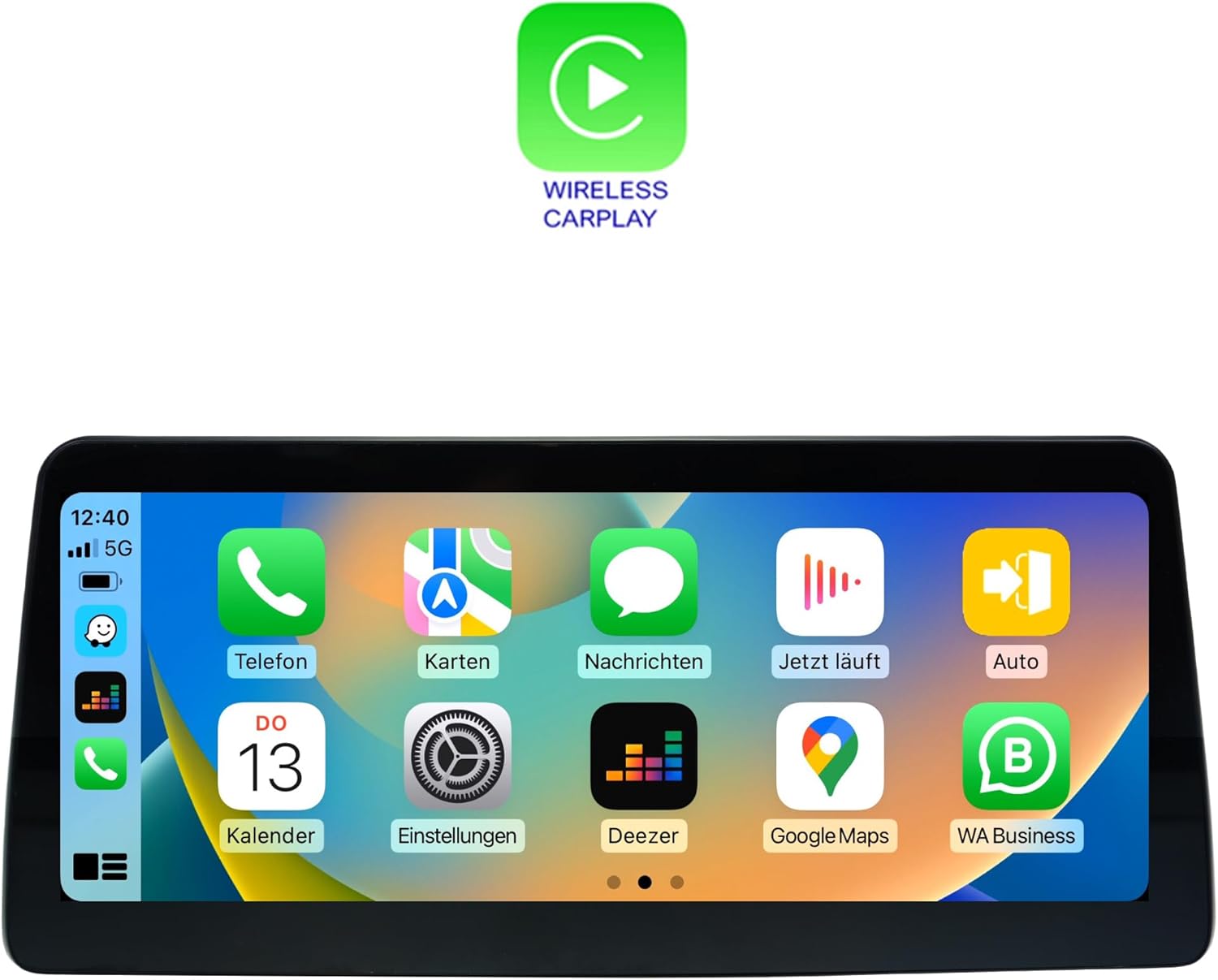
Figure 5.4: Wireless CarPlay interface, mirroring your iPhone's essential apps.

Figure 5.5: Android Auto interface, providing access to Android apps optimized for driving.
To use CarPlay or Android Auto, connect your compatible smartphone via USB or wirelessly (if supported by your phone and the unit). Follow the on-screen prompts to establish the connection. Once connected, you can access navigation, music, messages, and other apps directly from the unit's display.
5.3 Navigation (GPS)
The unit includes an integrated GPS receiver with high sensitivity and accuracy. It comes with 3D map material and free lifetime updates. To use navigation, launch the 'Navi' or 'Maps' application from the home screen. Ensure the GPS antenna is properly installed and has a clear view of the sky for optimal signal reception.
5.4 Connectivity (Wi-Fi, Bluetooth, 4G LTE)
- Wi-Fi: Connect to Wi-Fi hotspots or your smartphone's hotspot for internet access. Go to Settings > Network & Internet > Wi-Fi to configure.
- Bluetooth 5.0: Pair your smartphone for hands-free calling and audio streaming. Go to Settings > Connected devices > Pair new device.
- 3G/4G LTE: Insert a SIM card into the dedicated slot for faster navigation and streaming capabilities. Ensure the 4G antenna is connected.
5.5 Multimedia Playback
The system supports various audio and video formats:
- Video Formats: 1080p, H264, AVI, RMVB, FLV, MKV.
- Audio Formats: MP3, WMA, FLAC, APE, AAC.
Play media from USB drives, internal storage, or streaming apps. The unit also supports DVR functions via USB 2.0 & AV/CVBS.
5.6 Rear Camera Connection
The unit supports connection to a rear view camera. It features an automatic switching function when the vehicle is put into reverse gear, displaying the camera feed on the screen.
6. Specifications
| Feature | Specification |
|---|---|
| Model Number | CH7102-F3 |
| Operating System | Android 12 |
| CPU | 8-core (Cortex A75 x 2 @ 1.80 GHz, Cortex A55 x 6 @ 1.80 GHz) |
| RAM | 4 GB |
| Internal Storage | 64 GB |
| GPU | Mali-G52 |
| Display Size | 10.25 inches LCD |
| Display Resolution | 1920 x 1080 |
| Touch Technology | Capacitive Multi-touch |
| Connectivity | Bluetooth 5.0, Wi-Fi, USB, Ethernet, 3G/4G LTE (SIM slot) |
| Modem | X11 LTE (Max 390 Mbit/s download, 150 Mbit/s upload) |
| GPS Receiver | Integrated, high sensitivity and accuracy |
| Car Integration | Built-in CarPlay, Android Auto |
| Supported Video Formats | 1080p, H264, AVI, RMVB, FLV, MKV |
| Supported Audio Formats | MP3, WMA, FLAC, APE, AAC |
| DVR Support | USB 2.0 & AV/CVBS |
| Rear Camera Input | Yes, with automatic switching |
| Weight | 3 Kilograms |
| Mounting Type | Dashboard Mount |
7. Maintenance
7.1 Cleaning
To clean the display screen, use a soft, lint-free cloth. For stubborn smudges, slightly dampen the cloth with water or a screen-safe cleaning solution. Avoid using harsh chemicals, abrasive cleaners, or solvents, as these can damage the screen coating or plastic components.
7.2 Software Updates
Periodically check for software updates to ensure optimal performance and access to new features. Updates can typically be found through the system's settings menu under 'System' or 'About device'. Ensure a stable internet connection (Wi-Fi or 4G) during the update process and do not power off the unit.
7.3 General Care
- Avoid exposing the unit to extreme temperatures or direct sunlight for prolonged periods.
- Do not place heavy objects on the unit or apply excessive force to the screen.
- Keep liquids away from the unit to prevent electrical damage.
8. Troubleshooting
This section addresses common issues you might encounter with your Taffio CH7102-F3 system. If you experience a problem not listed here, or if the suggested solutions do not resolve the issue, please contact customer support.
| Problem | Possible Cause | Solution |
|---|---|---|
| Unit does not power on | Loose power connection, blown fuse, vehicle battery issue. | Check all power cable connections. Verify vehicle's fuse box and battery. Consult a professional installer. |
| No sound | Volume too low, incorrect audio source selected, speaker cable issue. | Increase volume. Ensure correct audio output is selected (e.g., AUX). Check speaker cable connections. |
| GPS signal lost or inaccurate | GPS antenna obstructed, antenna not connected, poor satellite coverage. | Ensure GPS antenna is properly installed and has a clear view of the sky. Check antenna connection. Move to an open area. |
| CarPlay/Android Auto not connecting | Incorrect USB cable, phone settings, software incompatibility. | Use a high-quality USB data cable. Ensure CarPlay/Android Auto is enabled on your phone. Restart both phone and unit. |
| Touchscreen unresponsive | System freeze, physical damage. | Perform a soft reset (refer to system settings for reset option). If issue persists, contact support. |
| Original vehicle functions not working | Incorrect wiring, system conflict. | Double-check all connections to the original main unit. Ensure the system is correctly configured to switch between original and Android modes. |
9. Warranty and Support
9.1 Warranty Information
Please refer to the warranty card included with your product for specific warranty terms and conditions. Typically, products come with a limited warranty covering manufacturing defects for a specified period from the date of purchase. Keep your proof of purchase for warranty claims.
9.2 Customer Support
For technical assistance, troubleshooting, or warranty inquiries, please contact your retailer or the manufacturer's customer support. Have your product model number (CH7102-F3) and purchase details ready when contacting support.
Manufacturer: Real Media GmbH & Co. KG


