
1. Introduction
Welcome to the user manual for your MSI Stealth 14 AI Studio A1VGG-054IN laptop. This document provides essential information for setting up, operating, maintaining, and troubleshooting your new device. The MSI Stealth 14 AI Studio is a high-performance laptop designed for gaming, content creation, and demanding professional tasks, featuring an Intel Core Ultra 7 155H processor, NVIDIA GeForce RTX 4070 graphics, a vibrant 2.8K OLED 120Hz display, and advanced AI capabilities.
2. Package Contents
Please verify that all items listed below are included in your package:
- MSI Stealth 14 AI Studio Laptop
- Battery
- Power Adapter
- MSI Bag
3. Product Overview
Familiarize yourself with the components and features of your MSI Stealth 14 AI Studio laptop.
3.1. Laptop Exterior
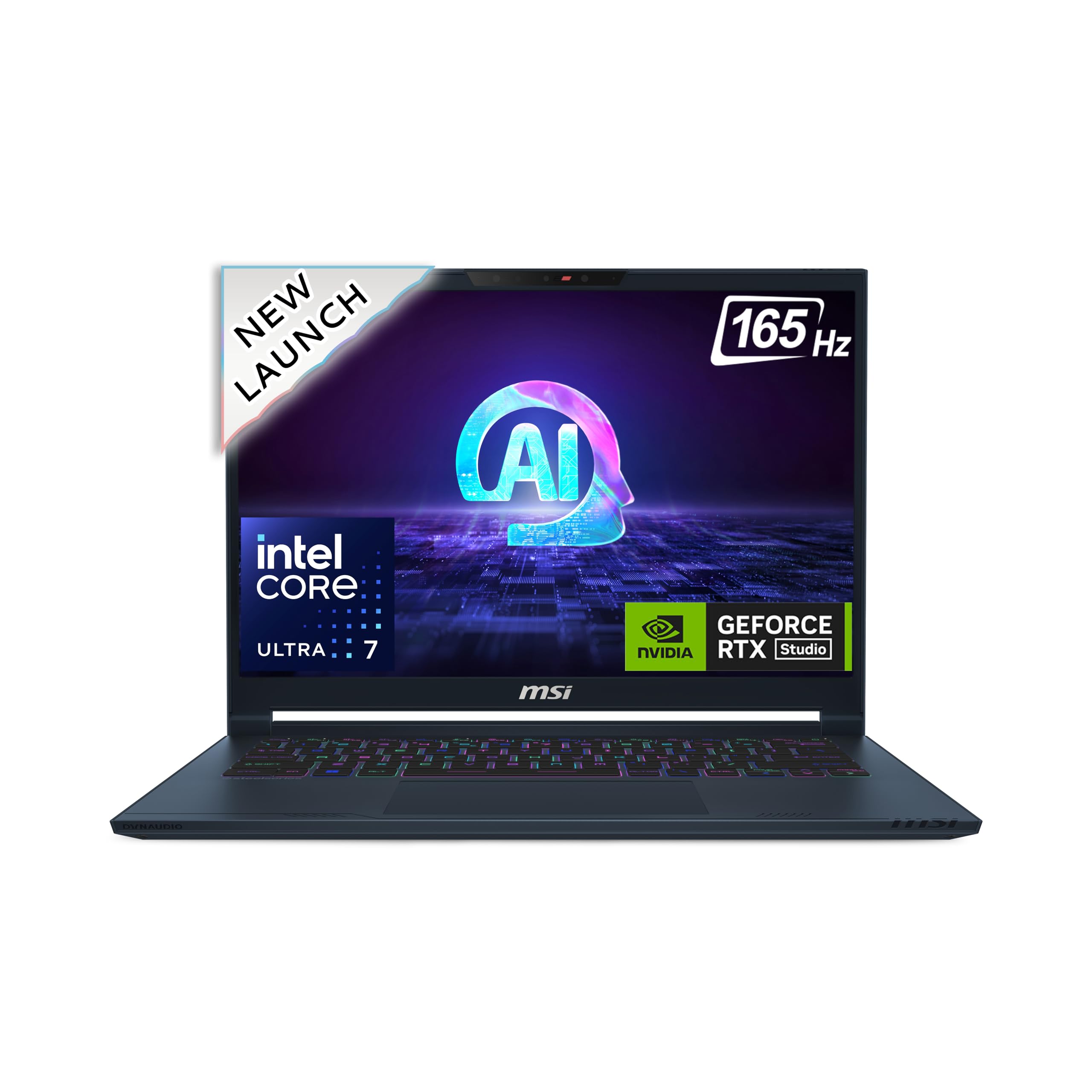
Figure 3.1: Top view of the MSI Stealth 14 AI Studio laptop, closed, showcasing its sleek design.

Figure 3.2: Side view of the laptop, illustrating its thin profile and various connectivity ports.
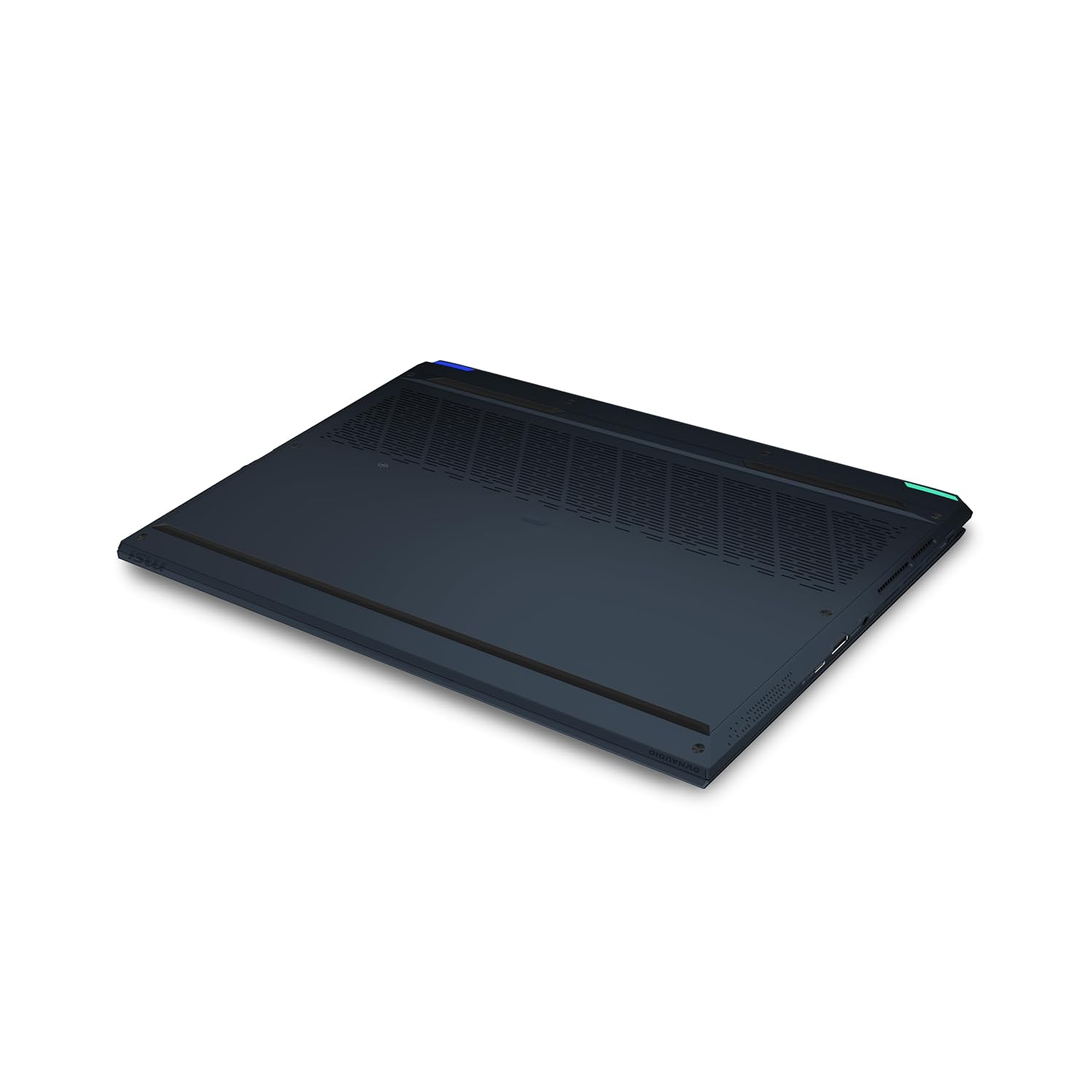
Figure 3.3: Bottom view of the laptop, showing ventilation grilles for cooling.
3.2. Key Features
- Processor: 1st Generation Intel Core Ultra 7 155H with built-in AI capabilities for enhanced performance.
- Graphics: NVIDIA GeForce RTX 4070 with 8GB GDDR6, optimized for gaming and creative applications.
- Display: 36cm (14-inch) 2.8K (2880x1800) OLED display with a 120Hz refresh rate and 100% DCI-P3 color gamut.
- Memory: 32GB DDR5 Dual Channel RAM for smooth multitasking.
- Storage: 1TB NVMe PCIe Gen4x4 SSD for fast boot times and application loading.
- Operating System: Pre-loaded Windows 11 Home.
- Cooling: Advanced Vapor Chamber Cooler design for efficient heat dissipation.
- Connectivity: Wi-Fi 7 (802.11be) and Bluetooth v5.4 for high-speed wireless connections.
- Audio: Dynaudio speakers with Nahimic by SteelSeries audio enhancement and Hi-Res Audio support.
- Keyboard: Gaming keyboard by SteelSeries with Per-Key RGB lighting.
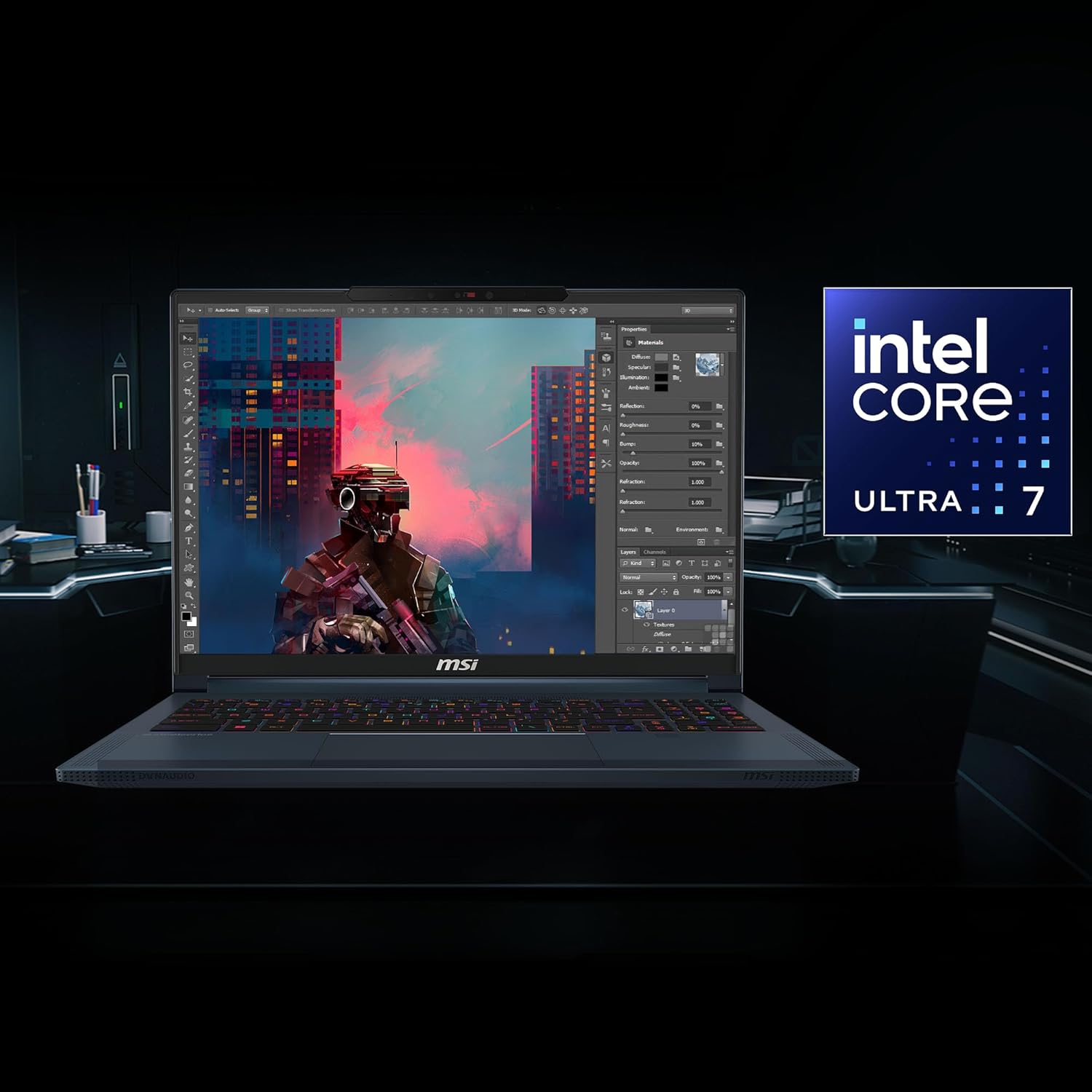
Figure 3.4: The laptop display highlighting the Intel Core Ultra 7 processor, indicating its powerful computing capabilities.
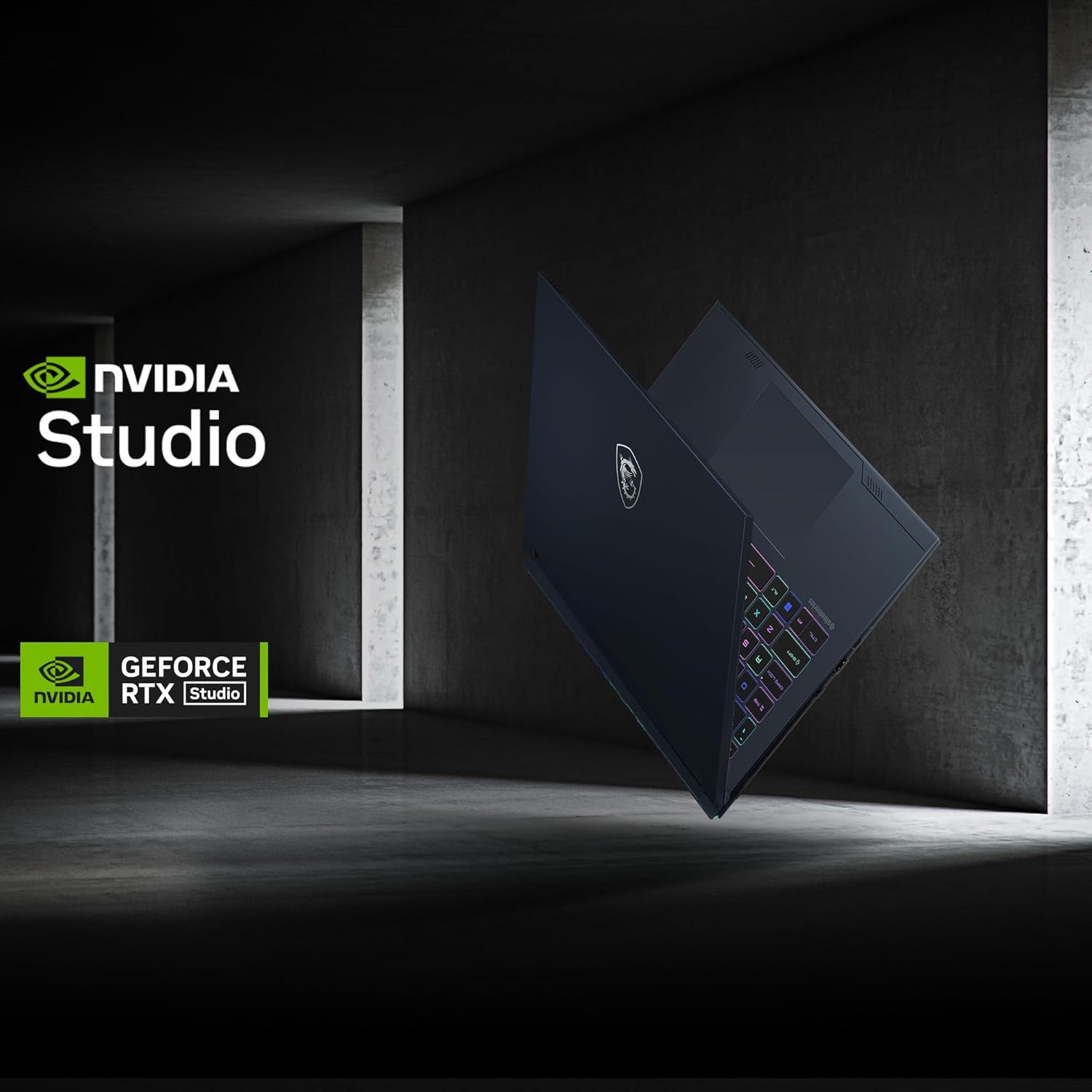
Figure 3.5: The laptop showcasing NVIDIA Studio and GeForce RTX branding, emphasizing its graphics performance for creative work and gaming.

Figure 3.6: The laptop display featuring the MSI AI Engine logo, indicating integrated artificial intelligence for optimized performance.
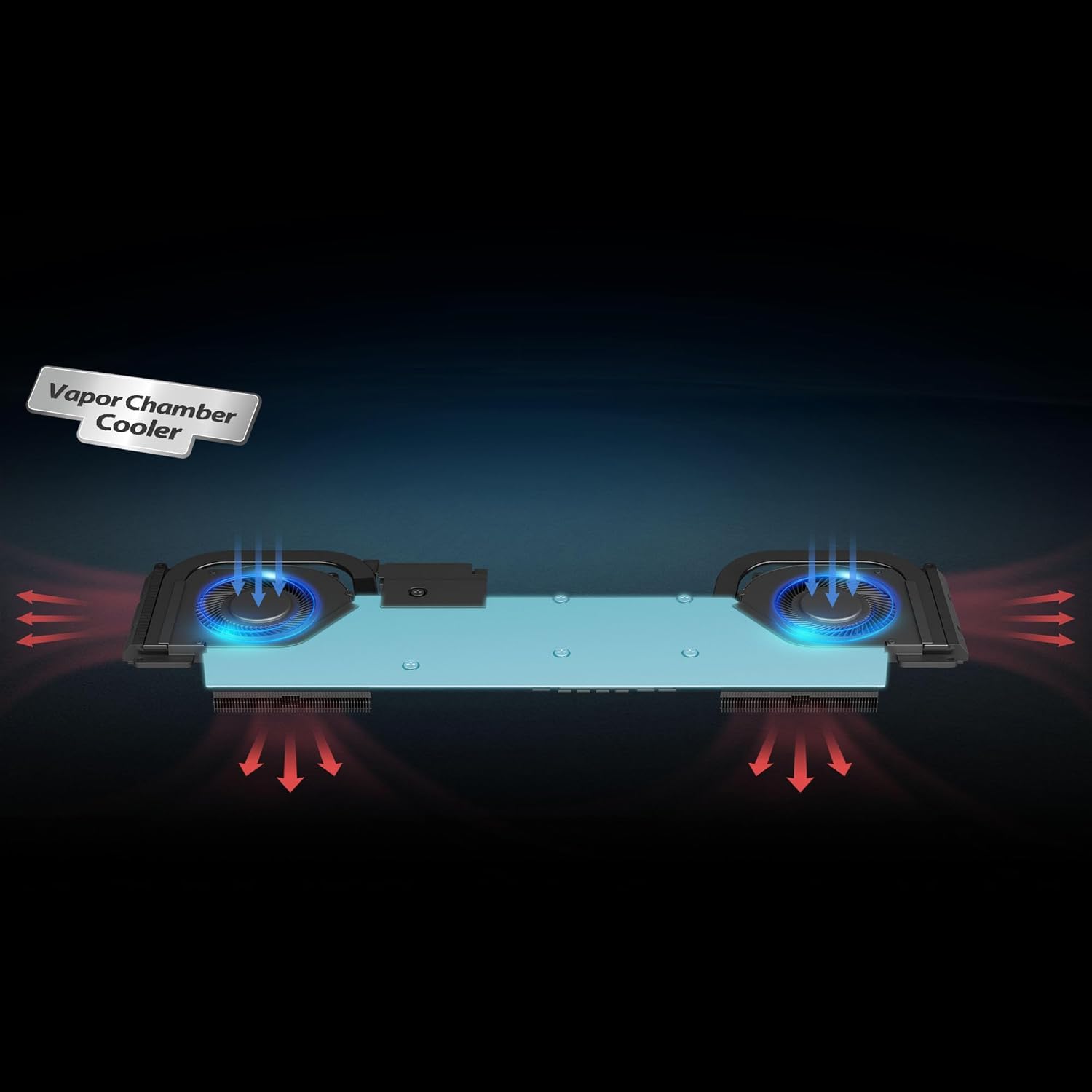
Figure 3.7: An illustration of the Vapor Chamber Cooler technology, demonstrating its heat dissipation mechanism.

Figure 3.8: Visual representation of Wi-Fi 7 technology, highlighting advanced wireless connectivity.

Figure 3.9: The laptop displaying audio features such as Dynaudio, Nahimic by SteelSeries, and Hi-Res Audio for an immersive sound experience.

Figure 3.10: The laptop's keyboard, featuring SteelSeries Per-Key RGB lighting, designed for gaming and customization.

Figure 3.11: Detailed side views of the laptop, illustrating the placement and types of various ports including USB, HDMI, and Thunderbolt 4.

Figure 3.12: The laptop's security and convenience features, including a webcam shutter, IR camera, and support for Windows Hello facial recognition.

Figure 3.13: An illustration of DDR5 RAM, highlighting the advanced memory technology used in the laptop.
4. Setup
4.1. Initial Power-On
- Unpack the laptop and all accessories from the box.
- Connect the power adapter to the laptop's charging port and then plug it into a power outlet.
- Open the laptop lid. The system may power on automatically, or you may need to press the power button.
- Follow the on-screen instructions to complete the Windows 11 Home setup, including language, region, network connection, and user account creation.
4.2. Connecting Peripherals
- USB Devices: Connect USB mice, keyboards, external drives, or other peripherals to the available USB-A or USB-C ports.
- External Display: Use the HDMI or Thunderbolt 4 (DisplayPort compatible) port to connect an external monitor.
- Audio Devices: Plug headphones or external speakers into the audio jack.
- Network: Connect to a Wi-Fi 7 network for high-speed internet access.
5. Operating Instructions
5.1. Power Management
- Power On: Press the power button located on the keyboard.
- Shut Down: Click the Windows Start button, then Power > Shut down.
- Sleep Mode: Close the laptop lid or click the Windows Start button, then Power > Sleep.
- Restart: Click the Windows Start button, then Power > Restart.
5.2. Keyboard Functions
The SteelSeries Per-Key RGB keyboard offers various functions:
- Function Keys (Fn): Hold down the Fn key and press the corresponding F-key (F1-F12) for special functions like adjusting brightness, volume, or toggling Wi-Fi.
- Per-Key RGB: Customize keyboard backlighting using the pre-installed MSI Center software or SteelSeries GG software.
5.3. Display Settings
- Brightness: Adjust screen brightness using the Fn + F4/F5 keys or through Windows Display settings.
- Resolution: The native resolution is 2880 x 1800. You can adjust scaling in Windows Display settings for optimal viewing.
- Refresh Rate: The OLED display supports up to 120Hz. Ensure this is set correctly in Windows Display settings for the smoothest experience.
6. Maintenance
6.1. Cleaning
- Screen: Use a soft, lint-free cloth lightly dampened with water or a screen-cleaning solution. Do not spray liquid directly onto the screen.
- Keyboard and Chassis: Use a soft, dry cloth. For stubborn dirt, a slightly damp cloth can be used. Avoid harsh chemicals.
- Vents: Periodically clean the ventilation grilles with compressed air to prevent dust buildup, which can affect cooling performance.
6.2. Software Updates
- Windows Updates: Regularly check for and install Windows updates to ensure system stability and security.
- Driver Updates: Use MSI Center or visit the MSI support website to update drivers for graphics, chipset, and other components.
- BIOS Updates: Only update the BIOS if necessary and follow MSI's instructions carefully. Incorrect BIOS updates can cause system instability.
7. Troubleshooting
This section addresses common issues you might encounter with your laptop.
| Issue | Possible Solution |
|---|---|
| Laptop does not power on / No display | Ensure the power adapter is securely connected and the power outlet is functional. Try holding the power button for 15-20 seconds to perform a hard reset. If the screen is cracked, contact support. |
| System overheating | Ensure ventilation grilles are clear of obstructions. Clean dust from vents. Use the MSI Center software to monitor temperatures and adjust fan profiles. Ensure the laptop is on a hard, flat surface. |
| Defective touchpad / unresponsive | Check if the touchpad is accidentally disabled (often via an Fn key combination). Update touchpad drivers from the MSI website. If the issue persists, contact MSI support. |
| Poor battery life | Adjust power settings in Windows to a more power-efficient mode. Reduce screen brightness. Close unnecessary background applications. Ensure all drivers are up to date. |
| Wi-Fi connection issues | Restart your router and modem. Ensure Wi-Fi is enabled on the laptop. Update wireless drivers. Try connecting to a different Wi-Fi network to isolate the issue. |
8. Specifications
Detailed technical specifications for the MSI Stealth 14 AI Studio A1VGG-054IN.
| Feature | Detail |
|---|---|
| Brand | MSI |
| Model Name | Stealth 14 AI Studio |
| Model Number | A1VGG-054IN |
| Screen Size | 36 Centimetres (14-inch) |
| Display Type | OLED |
| Maximum Display Resolution | 2880 x 1800 pixels (2.8K) |
| Processor Type | Intel Core Ultra 7 155H (1st Generation) |
| Processor Speed | Up to 4.8 GHz |
| Graphics Co-Processor | NVIDIA GeForce RTX 4070 |
| Graphics RAM Size | 8 GB GDDR6 |
| RAM Memory Installed Size | 32 GB DDR5 |
| RAM Memory Technology | DDR5 |
| Memory Speed | 5600 MHz |
| Hard Disk Size | 1 TB NVMe PCIe Gen4x4 SSD |
| Operating System | Windows 11 Home |
| Wireless Technology | Wi-Fi 7 (802.11be), Bluetooth v5.4 |
| Item Weight | 1.7 Kilograms |
| Item Dimensions (L x W x Thickness) | 31.5L x 24.6W x 2.1Th Centimeters |
| Battery Cell Type | Lithium Polymer (72 Watt Hours) |
| Webcam Capability | Yes (Front Camera) |
| Audio Output Type | Headphones, Speakers |
9. Warranty and Support
9.1. Warranty Information
Your MSI Stealth 14 AI Studio A1VGG-054IN comes with a 2 Year Carry-in warranty. By default, the unit comes with a two-years base domestic warranty from the unit shipped date. This can be corrected by contacting MSI.
To validate your warranty or for self-service, please visit: https://in.msi.com/support/nb

Figure 9.1: MSI Warranty and Support contact details.
9.2. Contact Support
For any queries regarding warranty or technical support, you can reach MSI through the following channels:
- Visit Us: More than 80 service centers all over India.
- Call Us: +91-22-4912 5588 (9 AM to 5 PM)
- Mail Us: indiaservicenb@msi.com
Manufacturer Contact Information: MICRO-STAR INTERNATIONAL CO., LTD No.88, East Qianjin Road Kunshan City Jiangsu China, MSI
Importer Contact Information: Micro-Star International Co., Ltd. No. 88 East Qianjin Road, Kunshan City, Jiangsu, China


