
FKU GS200
GameStop GS200 RGB Gaming Mechanical Keyboard User Manual
Model: GS200 | Brand: FKU
1. Introduction
Thank you for choosing the GameStop GS200 RGB Gaming Mechanical Keyboard. This manual provides detailed instructions for setting up, operating, maintaining, and troubleshooting your new keyboard. Please read this manual thoroughly before using the product to ensure optimal performance and longevity.
2. Package Contents
Please verify that all items listed below are present in your package:
- GameStop GS200 RGB Gaming Mechanical Keyboard
- Integrated USB Cable (1.8m)
- User Manual (this document)

Figure 2.1: GameStop GS200 RGB Gaming Mechanical Keyboard. This image shows the full keyboard with its integrated USB cable, providing a complete view of the product.
3. Setup
3.1 System Requirements
- Operating System: Windows 10 or later
- Compatible Devices: Laptop or Desktop PC with an available USB-A port
3.2 Connecting the Keyboard
- Locate an available USB-A port on your computer.
- Plug the USB-A connector of the keyboard's integrated cable into the USB-A port on your computer.
- The operating system will automatically detect and install the necessary drivers. This process may take a few moments.
- Once the drivers are installed, the keyboard's RGB lighting will illuminate, indicating it is ready for use.
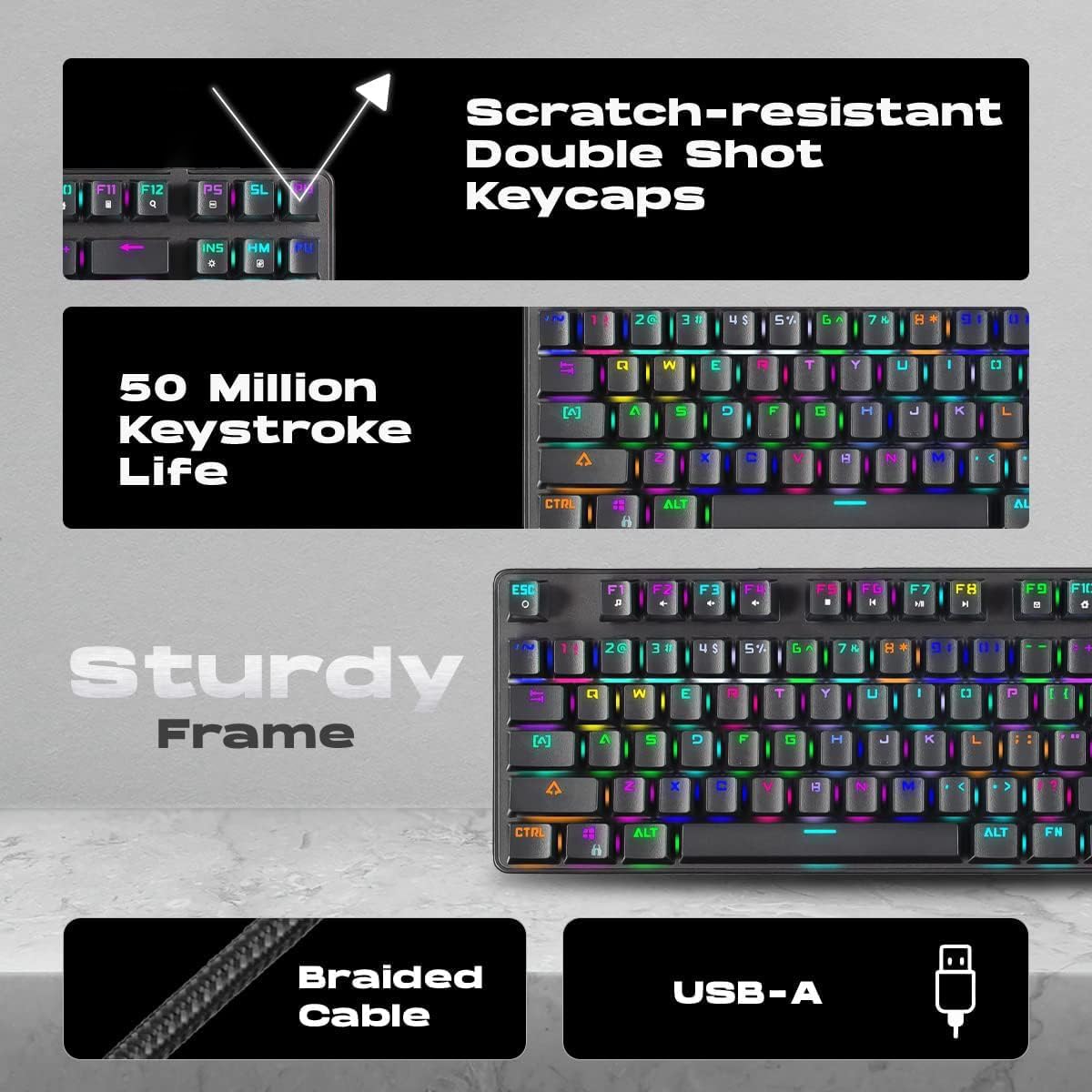
Figure 3.1: Keyboard features highlighting the USB-A connector and braided cable. This image illustrates the durable braided cable and the USB-A connector used for connecting the keyboard to a computer.
4. Operation
4.1 Key Features
- 87-Key Layout (TKL): Compact Tenkeyless design for improved ergonomics and desk space.
- Outemu Brown Mechanical Switches: Provide responsive tactile feedback with a quiet click, suitable for both typing and gaming.
- Full RGB Lighting: Customizable backlighting with multiple modes and effects.
- 1000Hz Polling Rate: Ensures rapid response times for keystrokes, minimizing input lag.
- Anti-Ghosting: Allows multiple keys to be pressed simultaneously without conflict, crucial for gaming.
- Durable Construction: Features scratch-resistant double shot keycaps and a sturdy frame for long-term use.
- Adjustable Height: Ergonomically built with adjustable feet for comfortable typing angles.
- Long Lifespan: Switches rated for 50 million keystrokes.

Figure 4.1: Close-up view of the GameStop GS200 keyboard keys, showcasing the RGB backlighting and keycap legends.

Figure 4.2: Illustration emphasizing the 1000 Hz Polling Rate of the keyboard, indicating quick response with minimal lag.

Figure 4.3: Image demonstrating the anti-ghosting capability of the keyboard, allowing multiple keys to work simultaneously at high speed.

Figure 4.4: View of the keyboard illustrating its ergonomically built adjustable height for all-round comfort.
4.2 Function Keys and Multimedia Controls
The GameStop GS200 keyboard includes dedicated function keys (F1-F12) that can be combined with the Fn key for multimedia and system controls.
| Key Combination | Function |
|---|---|
| Fn + F1 | My Computer |
| Fn + F2 | Search |
| Fn + F3 | Calculator |
| Fn + F4 | Media Player |
| Fn + F5 | Previous Track |
| Fn + F6 | Next Track |
| Fn + F7 | Play/Pause |
| Fn + F8 | Stop |
| Fn + F9 | Mute |
| Fn + F10 | Volume Down |
| Fn + F11 | Volume Up |
| Fn + F12 | Lock Keyboard |
| Fn + Win | Lock/Unlock Windows Key |
4.3 RGB Lighting Control
The keyboard features multiple RGB customizable settings and 8 superb LED modes. Specific key combinations are used to cycle through lighting effects and adjust brightness.
- Fn + INS: Cycle through different lighting modes.
- Fn + HOME: Adjust lighting color (if applicable to mode).
- Fn + PGUP: Increase brightness.
- Fn + PGDN: Decrease brightness.
- Fn + DEL: Adjust lighting speed.
- Fn + END: Custom lighting mode save/load.

Figure 4.5: Angled view of the keyboard, showcasing the vibrant RGB lighting effects across the keys.

Figure 4.6: Front view of the GameStop GS200 keyboard, highlighting its compact design and illuminated keys.
5. Maintenance
5.1 Cleaning the Keyboard
Regular cleaning helps maintain the keyboard's appearance and functionality.
- Disconnect the keyboard from your computer before cleaning.
- Use a soft, lint-free cloth slightly dampened with water or a mild cleaning solution to wipe the keycaps and chassis. Avoid excessive moisture.
- For dust and debris between keys, use compressed air or a small brush.
- Do not use harsh chemicals, abrasive cleaners, or solvents as they may damage the keyboard's surface or keycap legends.
- Ensure the keyboard is completely dry before reconnecting it to your computer.
5.2 Storage
When not in use for extended periods, store the keyboard in a cool, dry place away from direct sunlight and extreme temperatures.
6. Troubleshooting
If you encounter issues with your GameStop GS200 keyboard, please refer to the following common problems and solutions:
| Problem | Possible Cause | Solution |
|---|---|---|
| Keyboard not responding | Loose USB connection, driver issue, or faulty USB port. |
|
| RGB lighting not working or stuck | Lighting mode setting, software conflict, or power issue. |
|
| Certain keys not registering | Debris under keycap, switch malfunction, or anti-ghosting issue. |
|
| Windows key is disabled | Windows key lock activated. |
|
7. Specifications
| Feature | Detail |
|---|---|
| Brand | FKU |
| Model | GS200 |
| Keyboard Type | Mechanical Gaming Keyboard |
| Switch Type | Outemu Brown Mechanical Switches |
| Key Count | 87 Keys (Tenkeyless) |
| Polling Rate | 1000Hz |
| Backlighting | Full RGB, Customizable |
| Connectivity | Wired USB-A |
| Cable Length | 1.8 meters |
| Compatible OS | Windows 10 |
| Product Dimensions (LxWxH) | 10 x 6 x 5 cm |
| Item Weight | 900 g |
| Keycap Type | Scratch-resistant Double Shot Keycaps |
| Keystroke Lifespan | 50 million keystrokes |
8. Warranty and Support
8.1 Warranty Information
This product is covered by a standard manufacturer's warranty. For specific warranty terms and conditions, please refer to the warranty card included with your purchase or contact FKU customer support. Keep your proof of purchase for warranty claims.
8.2 Customer Support
For technical assistance, troubleshooting, or general inquiries regarding your GameStop GS200 keyboard, please contact FKU customer support.
- Manufacturer: ARHAMCOM
- Contact Information: Refer to the product packaging or the official FKU website for the most current contact details.
Ask a question about this manual
Ask about setup, troubleshooting, compatibility, parts, safety, or missing instructions. Manuals+ will review the question and use this page’s manual context to help answer it.