1. Introduction
Thank you for choosing the JCL JCL32RWHD Smart TV. This manual provides essential information for setting up, operating, and maintaining your new 32-inch HD Ready television with webOS TV 8.1. Please read this manual thoroughly before using the product to ensure safe and correct operation.
The JCL JCL32RWHD features a 32-inch HD Ready 720p display, integrated webOS TV 8.1 for smart functionality, and a versatile DVB +T/T2/C/S/S2 tuner for various broadcast standards. Connectivity options include Wi-Fi, Ethernet, multiple HDMI ports, and USB ports.

Image 1.1: Front view of the JCL JCL32RWHD Smart TV, showcasing its webOS TV interface with various apps and features.
2. Safety Information
Please observe the following safety precautions to prevent fire, electric shock, or injury:
- Do not expose the TV to rain or moisture.
- Do not open the TV casing; refer all servicing to qualified personnel.
- Ensure proper ventilation around the TV. Do not block ventilation openings.
- Place the TV on a stable, level surface to prevent it from falling.
- Unplug the TV during lightning storms or when unused for long periods.
- Keep small parts and batteries out of reach of children.
3. Package Contents
Verify that all items are present in the box:
- JCL JCL32RWHD Smart TV Unit
- Remote Control
- Power Cable
- TV Stand (2 pieces) and Screws
- User Manual (this document)
4. Setup
4.1 Attaching the TV Stand
- Carefully place the TV face-down on a soft, clean surface to prevent screen damage.
- Align each stand piece with the corresponding slots on the bottom of the TV.
- Secure the stands using the provided screws.
4.2 Wall Mounting (Optional)
The JCL JCL32RWHD TV supports VESA wall mounting. Refer to your wall mount kit's instructions for proper installation. Ensure the VESA pattern and screw size are compatible with your TV model.
4.3 Connecting Power
Plug the power cable into the TV's power input, then into a wall outlet. Ensure the power outlet is easily accessible.
5. Connections
The JCL JCL32RWHD TV offers various input and output ports for connecting external devices.

Image 5.1: Rear view of the JCL JCL32RWHD Smart TV, illustrating the layout of its various connection ports.
5.1 HDMI Ports
Connect high-definition devices such as Blu-ray players, game consoles, or set-top boxes using HDMI cables. This TV features three HDMI ports, with HDMI 2 supporting ARC (Audio Return Channel).
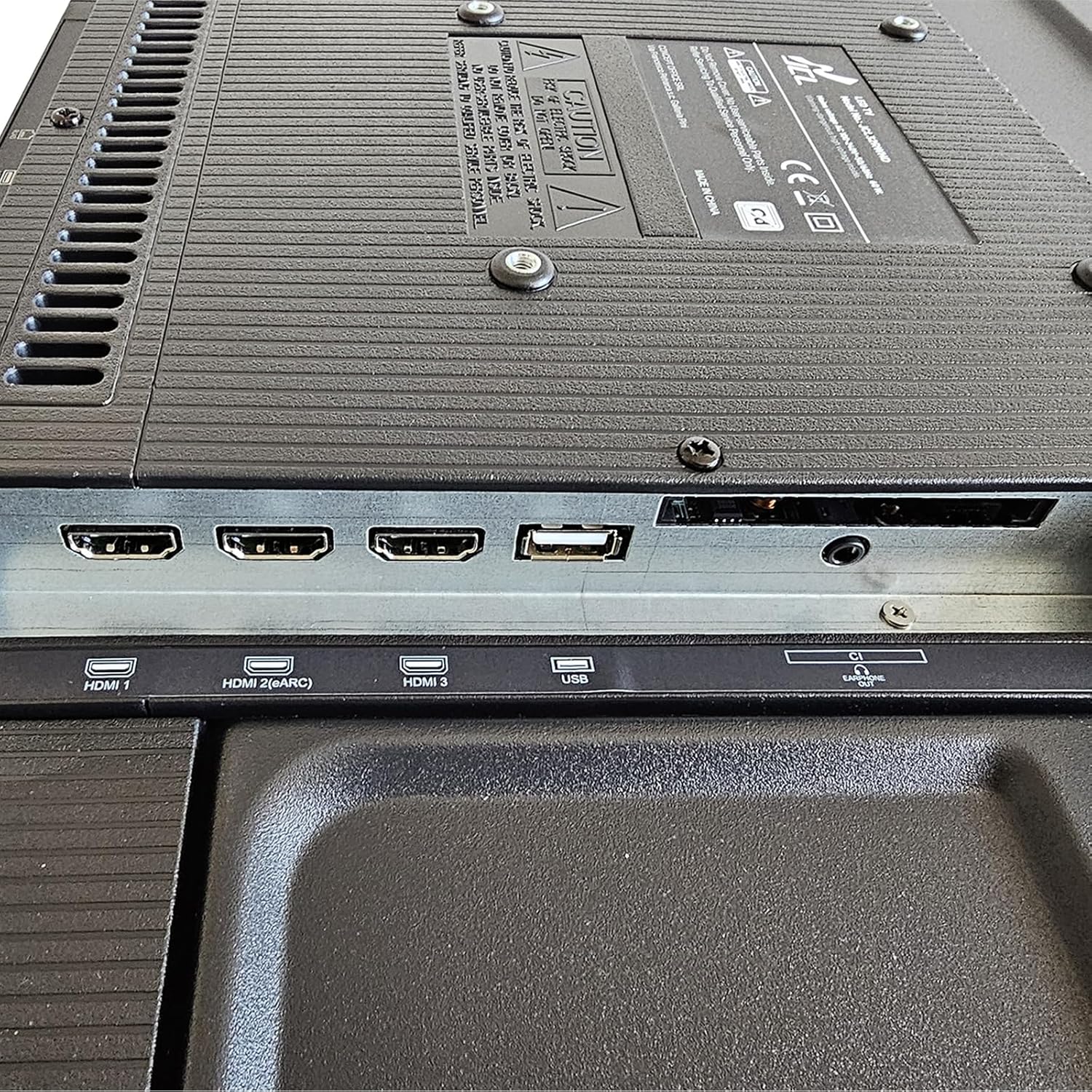
Image 5.2: Detailed view of the HDMI 1, HDMI 2 (ARC), HDMI 3, and USB ports located on the rear of the television.
5.2 USB Ports
Connect USB storage devices to play media files (photos, music, videos) or for software updates. The TV has two USB ports.
5.3 Network Connections
- RJ45 (Ethernet): Connect an Ethernet cable for a stable wired internet connection.
- Wi-Fi: Connect wirelessly to your home network for internet access and smart features.
5.4 Audio/Video Inputs and Outputs

Image 5.3: Close-up of the RJ45, USB 1, Optical Out, CVBS 1, Audio L/R, S2, and T2 antenna input ports.
- Optical Out: For connecting to a soundbar or home theater system with an optical audio input.
- CVBS (Composite Video) & Audio L/R: For connecting older devices using RCA cables.
- Headphone Output: For connecting headphones.
5.5 Antenna Inputs
- T2 (DVB-T/T2/C): For connecting a terrestrial or cable antenna.
- S2 (DVB-S/S2): For connecting a satellite dish.
6. Operating the TV
6.1 Remote Control Overview
Familiarize yourself with the remote control buttons for easy navigation.

Image 6.1: The JCL Smart TV remote control, featuring dedicated buttons for power, input selection, volume, channel control, navigation, and quick access to streaming services like Netflix and Prime Video.
- Power Button: Turns the TV on/off.
- Number Buttons: Select channels directly.
- Volume Up/Down: Adjusts the volume.
- Channel Up/Down: Changes channels.
- Navigation Pad (Up/Down/Left/Right/OK): Navigates menus and selects options.
- Back: Returns to the previous screen.
- Home: Accesses the webOS TV Home Dashboard.
- Netflix/Prime Video: Direct access buttons for streaming services.
6.2 Initial Setup
Upon first power-on, the TV will guide you through an initial setup wizard:
- Language Selection: Choose your preferred language.
- Network Setup: Connect to your Wi-Fi network or a wired Ethernet connection.
- Channel Scan: Scan for available digital and analog channels based on your antenna connection.
- Time and Date: Set the correct time zone and date.
6.3 webOS TV 8.1 Smart Features
The webOS TV 8.1 operating system provides a user-friendly interface for accessing various smart features:
- Home Dashboard: A central hub for managing connected devices and smart home appliances.
- App List: Access hundreds of downloadable applications, including popular streaming services like Netflix, YouTube, and Disney+.
- TV Guide: View broadcast schedules and program information.
- Input Selection: Easily switch between different input sources (HDMI, AV, Tuner).
7. Maintenance
7.1 Cleaning the TV
- Always unplug the TV before cleaning.
- Use a soft, dry cloth to wipe the screen and cabinet.
- For stubborn marks, lightly dampen the cloth with water or a mild, non-abrasive screen cleaner.
- Never spray cleaner directly onto the screen.
7.2 Software Updates
Periodically check for software updates through the TV's settings menu to ensure optimal performance and access to the latest features.
8. Troubleshooting
If you encounter issues with your TV, refer to the following common solutions:
| Problem | Possible Solution |
|---|---|
| No power | Check if the power cable is securely connected to both the TV and the wall outlet. Ensure the outlet is working. |
| No picture, but sound is present | Verify the correct input source is selected. Check cable connections (HDMI, AV). |
| No sound, but picture is present | Check volume level and mute status. Ensure external audio devices are properly connected and selected. |
| Remote control not working | Replace batteries. Ensure there are no obstructions between the remote and the TV's IR sensor. |
| Cannot connect to Wi-Fi | Check your router and modem. Re-enter the Wi-Fi password. Try restarting the TV and router. |
9. Specifications
Key technical specifications for the JCL JCL32RWHD Smart TV:
- Screen Size: 32 Inches
- Display Technology: LCD
- Resolution: 720p (HD Ready)
- Refresh Rate: 60 Hz
- Aspect Ratio: 16:9
- Operating System: webOS TV 8.1
- Connectivity: Wi-Fi, Ethernet (RJ45)
- Ports: 3x HDMI (1x ARC), 2x USB, Optical Out, CVBS, Audio L/R, Headphone Out
- Tuners: DVB-T/T2/C/S/S2
- Special Feature: Flat Screen
- Product Dimensions: 0.19D x 7.2W x 4.23H meters (approximate)
9.1 Energy Efficiency
The JCL JCL32RWHD Smart TV has an energy efficiency rating of E.

Image 9.1: EU Energy Label for the JCL JCL32RWHD, indicating an 'E' energy class and 24 kWh/1000h energy consumption.
For more details, scan the QR code on the label or visit: https://eprel.ec.europa.eu/qr/1858741
10. Warranty and Support
For warranty information and technical support, please refer to the warranty card included with your product or contact JCL customer service through their official website. Keep your purchase receipt as proof of purchase.


