
1. Introduction
This manual provides comprehensive instructions for the setup, operation, and maintenance of your Lecoo WS208 Wireless Mouse. Please read this manual carefully before using the product to ensure proper function and longevity. Keep this manual for future reference.
2. Product Overview
The Lecoo WS208 is a wireless optical mouse designed for comfort and efficiency. It features a 1200 DPI sensor for precise tracking and a silent click mechanism for a quiet user experience.
Key Features:
- 1200 DPI Optical Sensor: Provides accurate and responsive cursor control.
- 3-Button Design: Standard left, right, and scroll wheel buttons for essential functions.
- Silent Click: Reduces click noise for a quieter working environment.
- Wireless Connectivity: Operates via a 2.4GHz USB receiver, offering a range of up to 10 meters.
- Ergonomic and Compact Design: Lightweight (54g) and shaped for comfortable use over extended periods.
- Long Battery Life: Powered by one AA battery, providing up to 6 months of usage depending on conditions.
- Universal Compatibility: Supports Windows XP/7/8/10/11, Mac OS X 10.4+, Linux Kernel 2.6+, and Android devices.
Package Contents:
- Lecoo WS208 Wireless Mouse
- USB Mini Receiver
- User Manual
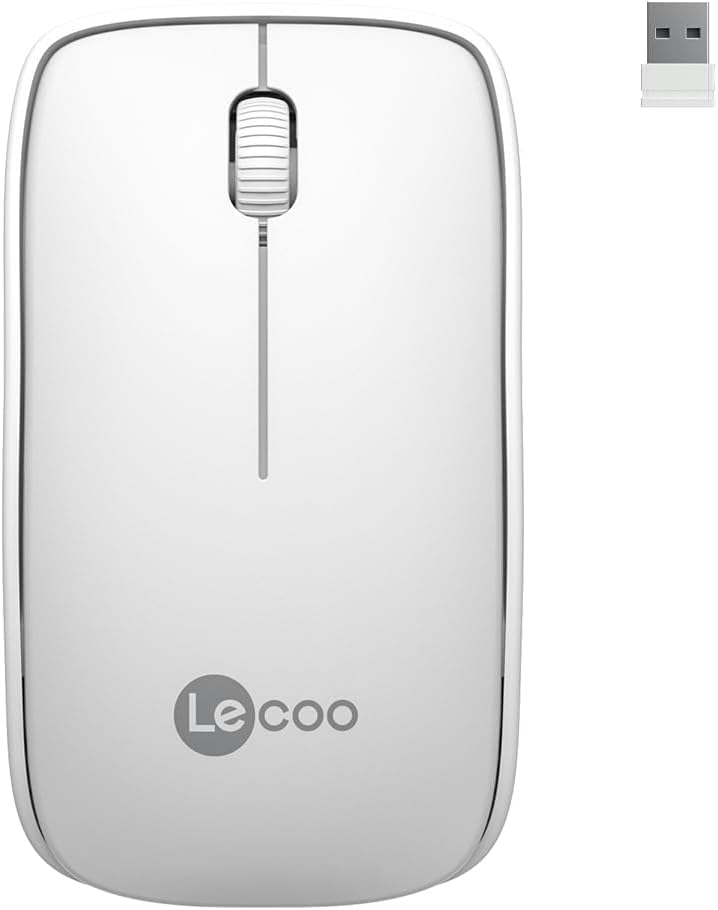
Image: Lecoo WS208 Wireless Mouse and its USB receiver.

Image: Diagram illustrating the components of the Lecoo WS208 mouse. Key features include the scroll wheel, left and right buttons, optical sensor, and USB dongle storage slot.
3. Setup
3.1 Battery Installation
- Locate the battery compartment cover on the bottom of the mouse.
- Gently slide or lift the cover to open the compartment.
- Insert one AA battery (not included) into the compartment, ensuring the positive (+) and negative (-) terminals align correctly with the indicators.
- Replace the battery compartment cover until it clicks securely into place.
3.2 Connecting the USB Receiver
- Remove the USB mini receiver from its storage slot, usually located inside the battery compartment or on the bottom of the mouse.
- Plug the USB receiver into an available USB port on your computer (PC, Mac, Laptop) or compatible device.
- Your operating system should automatically detect and install the necessary drivers. This may take a few moments.
3.3 Powering On the Mouse
After installing the battery and plugging in the receiver, the mouse should automatically power on. Some models may have a power switch on the bottom; ensure it is in the 'ON' position if present.
4. Operating Instructions
4.1 Basic Functions
- Left Button: Primary click function (e.g., select items, open links).
- Right Button: Secondary click function (e.g., open context menus).
- Scroll Wheel: Scroll up or down through documents and web pages. The scroll wheel also functions as a middle button when pressed.
4.2 DPI Sensitivity
The Lecoo WS208 operates at a fixed 1200 DPI (Dots Per Inch) sensitivity, providing a balanced speed and precision for most daily tasks. No manual DPI adjustment is available on this model.
4.3 Operating Range
The mouse maintains a stable connection within a 10-meter range from the USB receiver. Performance may vary depending on environmental factors and obstacles.

Image: Icons representing universal compatibility with Android, Apple (macOS), Windows, Linux, and ChromeOS.
5. Maintenance
5.1 Cleaning
- Ensure the mouse is powered off before cleaning.
- Use a soft, dry, lint-free cloth to wipe the surface of the mouse.
- For stubborn dirt, slightly dampen the cloth with water or a mild, non-abrasive cleaner. Avoid excessive moisture.
- Do not use harsh chemicals, solvents, or abrasive materials, as these can damage the mouse's finish.
5.2 Battery Replacement
When the mouse's performance degrades or it stops responding, it may be time to replace the AA battery. Follow the battery installation steps in Section 3.1.
6. Troubleshooting
Common Issues and Solutions:
- Mouse not responding:
- Ensure the battery is correctly installed and has sufficient charge. Replace if necessary.
- Verify the USB receiver is securely plugged into a working USB port. Try a different USB port.
- Ensure the mouse is within the 10-meter operating range of the receiver.
- Restart your computer.
- Erratic or jumpy cursor movement:
- Clean the optical sensor on the bottom of the mouse with a soft, dry cloth.
- Ensure you are using the mouse on a suitable surface. Avoid highly reflective or transparent surfaces.
- Check for interference from other wireless devices.
- Connection issues:
- Unplug and re-plug the USB receiver.
- Move the mouse closer to the USB receiver.
7. Specifications
| Brand | Lecoo |
| Model | WS208 |
| Connectivity Technology | Wireless (2.4GHz USB Receiver) |
| Movement Detection | Optical |
| DPI Sensitivity | 1200 DPI |
| Number of Buttons | 3 (Left, Right, Scroll Wheel/Middle) |
| Operating Range | Up to 10 meters |
| Battery Type | 1 x AA Battery (not included) |
| Battery Life | Up to 6 months (depending on usage) |
| Dimensions (L x W x H) | 95mm x 54mm x 31mm |
| Weight | 54g (mouse only) |
| Compatibility | Windows XP/7/8/10/11, Mac OS X 10.4+, Linux Kernel 2.6+, Android |

Image: Visual representation of the Lecoo WS208 mouse dimensions (95mm length, 54mm width, 31mm height) and weight (54g).
8. Warranty and Support
Lecoo products are designed for reliability and performance. For warranty information or technical support, please refer to the warranty card included with your product or visit the official Lecoo website. Keep your purchase receipt as proof of purchase for warranty claims.