
1. Introduction
This manual provides essential information for the safe and efficient operation of your TIBURN 65-inch 4K UHD Smart Board, Model TB-Inspur 65. This interactive touchscreen display is designed for various environments, including offices, classrooms, and conference rooms, offering advanced features for collaboration and presentation.
Please read this manual thoroughly before using the product and retain it for future reference.
2. Safety Information
Observe the following safety precautions to prevent damage to the product or injury to yourself and others:
- Installation: Ensure the device is securely mounted to a wall using the provided wall mount kit. Professional installation is recommended. Do not attempt to install on unstable surfaces.
- Power Supply: Use only the specified power adapter and connect to a grounded outlet. Avoid overloading power strips.
- Ventilation: Do not block ventilation openings. Ensure adequate space around the device for proper airflow.
- Liquid Exposure: Keep the device away from water and other liquids. Do not operate with wet hands.
- Cleaning: Disconnect power before cleaning. Use a soft, dry cloth. Avoid abrasive cleaners or solvents.
- Handling: The device is heavy. Exercise caution when moving or positioning to prevent injury.
- Repairs: Do not attempt to repair the device yourself. Refer all servicing to qualified personnel.
3. Package Contents
Verify that all items are present in the package:
- TIBURN Smart Board (65-inch)
- Wall Mounting Kit
- Remote Control
- Styluses (Quantity may vary)
- Related Connecting Cables (e.g., Power Cable, HDMI)
- User Manual (This document)
Note: A mobile stand is NOT included with this model and must be purchased separately if desired.
4. Setup
4.1 Wall Mounting
The TIBURN Smart Board is designed for wall mounting. Follow these steps for secure installation:
- Select Location: Choose a sturdy wall capable of supporting the weight of the Smart Board (approximately 87.8 pounds). Ensure there is a power outlet nearby.
- Install Wall Mount: Refer to the separate wall mounting kit instructions for detailed steps on attaching the bracket to the wall. Use appropriate tools and ensure the mount is level and securely fastened.
- Attach Smart Board: With assistance, carefully lift the Smart Board and attach it to the installed wall mount bracket. Ensure it clicks securely into place.

Image: The TIBURN 65-inch Smart Board displayed mounted on a wall, illustrating a typical installation scenario in a professional environment.
4.2 Initial Power-On and Network Connection
- Connect Power: Plug the power cable into the Smart Board and then into a grounded electrical outlet.
- Power On: Press the power button, usually located on the side or bottom bezel of the display. The TIBURN logo will appear, followed by the Android operating system interface.
- Wi-Fi Connection:
- Navigate to "Settings" on the home screen.
- Select "Network & Internet" or "Wi-Fi".
- Choose your desired Wi-Fi network from the list and enter the password if prompted.
- The Smart Board supports both 2.4GHz and 5GHz Wi-Fi bands for stable connectivity.
- Initial Setup: Follow the on-screen prompts to complete the initial setup, including language selection, time zone, and Google account login (optional, for app store access).
5. Operating Instructions
5.1 Touchscreen Interaction and Stylus Use
The TIBURN Smart Board features a highly responsive touchscreen with 20 touch points, allowing for intuitive interaction and multi-user collaboration.
- Basic Gestures: Use single-finger taps for selection, two-finger pinch for zoom, and swipes for navigation.
- Dual-Tip Stylus: The included stylus is designed for natural writing and drawing. It features two tips: a fine tip for thinner strokes and a thick tip for highlighting. The stylus supports different stroke colors and thicknesses based on the tip used and software settings. It also has a built-in Hall Magnetic sensor to auto-start the brush application when picked from its dock.

Image: The TIBURN dual-tip stylus, highlighting its design for natural writing and drawing, with examples of its use.

Image: Two users simultaneously interacting with the Smart Board during a brainstorming session, demonstrating its multi-touch capabilities.
5.2 Whiteboard Functionality
The integrated digital whiteboard software provides a seamless writing experience with an 8-millisecond response time and 2mm writing accuracy.
- Writing and Drawing: Use the stylus or your finger to write, draw, and annotate directly on the screen.
- Tools: Access various tools such as pens, highlighters, erasers, shapes, and text input from the on-screen toolbar.
- Saving and Sharing: Save your whiteboard sessions as images or PDFs and share them via email, cloud storage, or network drives.
5.3 Screen Casting and Sharing
The Smart Board supports multi-device screen casting, allowing simultaneous projection and annotation from up to four devices.
- Supported Devices: Compatible with iPhone, iPad, Android devices, tablets, laptops, and desktops.
- Connection Methods: Connect wirelessly via Wi-Fi or through HDMI for wired connections.
- Initiating Casting: Use the "Screen Transmiss" or similar application on the Smart Board to initiate a casting session. Follow the on-screen instructions to connect your external device.

Image: Demonstrates multi-device screen casting, with a laptop, tablet, and smartphone displaying content on the Smart Board.
5.4 Video Conferencing
Equipped with a professional conference-level auto-framing AI camera and an 8-meter sound pickup matrix, the Smart Board facilitates real-time remote video conferencing.
- Auto-Framing Camera: The 102° super wide-angle camera features intelligent framing technology, UHD face detection, and intelligent zooming to adjust the frame based on the number of people in the venue, providing an ideal view.
- 8-Array Microphones: The sound source positioning microphone array ensures clear audio capture up to 8 meters, enhancing communication during meetings.
- Compatibility: Fully compatible with popular third-party video conferencing applications such as Zoom, Google Meet, Microsoft Teams, and Webex. Download and install these applications from the Google Play Store.

Image: Visual representation of the Smart Board's auto-framing camera and sound source location capabilities.
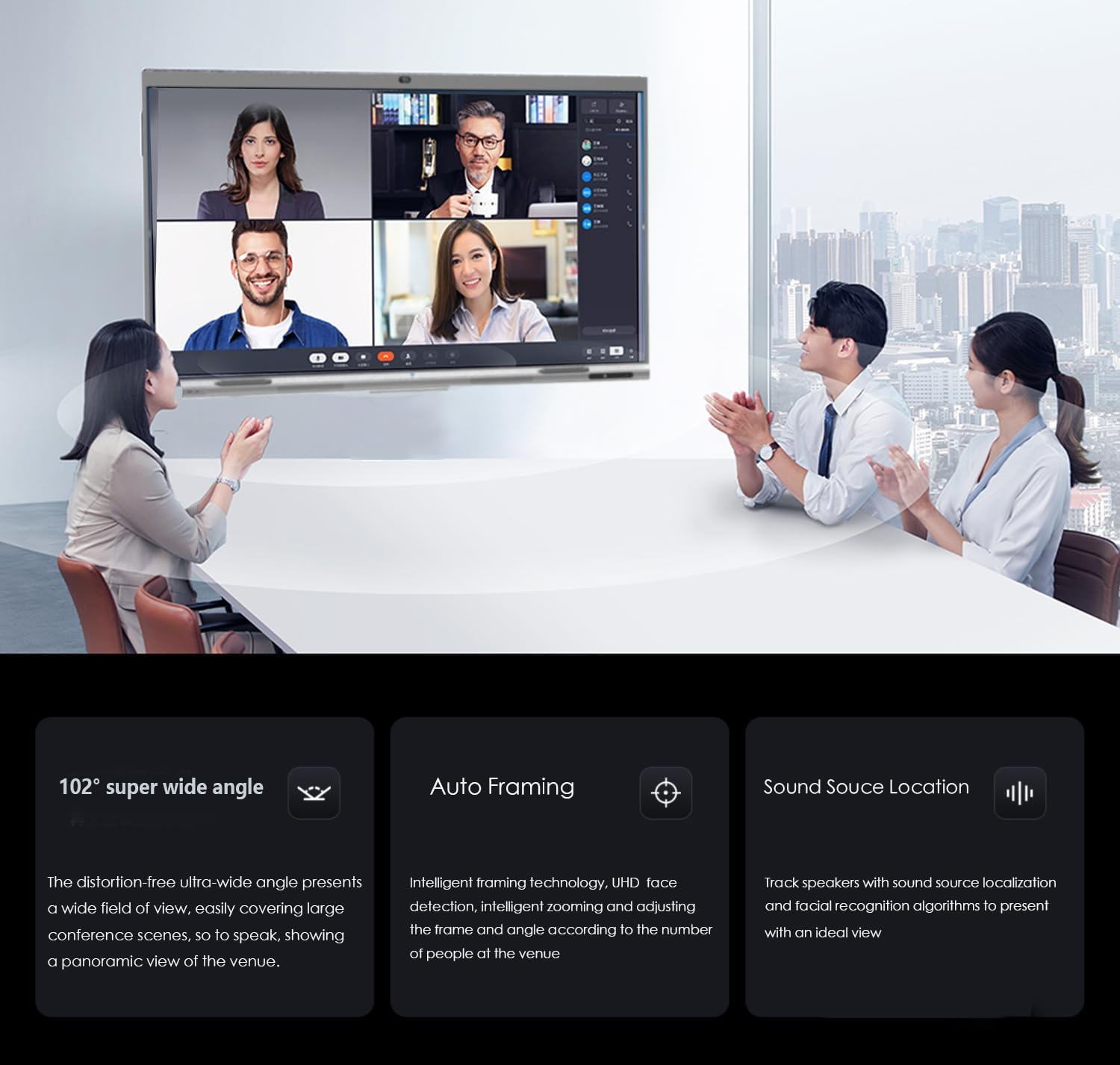
Image: Close-up of the integrated audio-visual components, including seam speakers, 8-array microphone, and EPTZ camera.
5.5 Open App Ecosystem and NFC Features
Running on Android 13 OS, the TIBURN Smart Board provides an open ecosystem, allowing access to a wide range of applications.
- Google Play Store: Download and install applications for education, work, entertainment, and more directly from the Google Play Store.
- NFC Login Portal: Utilize NFC for secure login to the system using a TIBURN Smart Badge or other NFC-compatible smartphones. This can be integrated with conference reservation management systems.
- Quick Connect Bluetooth Accessories: NFC-compatible devices can quickly connect Bluetooth accessories.
- NFC Tag with App Shortcut: Assign specific app shortcuts to NFC tags for quick access by simply swiping the NFC card.
Image: Demonstrates the NFC key features, including login, quick Bluetooth connection, and app shortcuts.
6. Features Overview
The TIBURN Smart Board integrates multiple functionalities into a single device:
- Advanced Hardware: Equipped with an 8-core CPU/GPU and Android 13 OS for high performance.
- Integrated Components: Combines a large display, conference AI camera, 8-array microphones, Hall Magnetic sensor, and NFC technology.
- Display Technology: Features a 4K soft light screen, anti-glare screen, and optical anti-blue light technology to reduce eye strain and improve readability. Industrial-grade lamination technology minimizes light refraction.
- Versatile Solution: Functions as a projector, interactive whiteboard, computer, TV, kiosk, and audio system.

Image: Illustrates the advanced screen technologies, including 4K soft light, anti-glare, and optical anti-blue light.

Image: The Smart Board displaying professional image editing software, showcasing its high-level hardware configuration for demanding tasks.
7. Maintenance
- Cleaning the Screen: Gently wipe the screen with a soft, lint-free cloth. For stubborn marks, slightly dampen the cloth with water or a screen-safe cleaning solution. Avoid spraying liquids directly onto the screen.
- Cleaning the Casing: Use a soft, dry cloth to clean the exterior casing.
- Software Updates: Regularly check for and install system updates to ensure optimal performance and security. Updates can usually be found in the "Settings" menu under "About Device" or "System Update".
- Storage: If storing the device for an extended period, ensure it is powered off and disconnected from the power supply. Store in a cool, dry place.
8. Troubleshooting
If you encounter issues with your TIBURN Smart Board, refer to the following common solutions:
| Problem | Possible Cause | Solution |
|---|---|---|
| No Power | Power cable disconnected; Power outlet faulty; Device not turned on. | Check power cable connection; Test outlet with another device; Press the power button firmly. |
| No Display | Device in standby mode; Input source incorrect; Display settings issue. | Press any key on the remote or touch the screen; Verify correct input source; Restart the device. |
| Touchscreen Unresponsive | Software glitch; Screen dirty; Calibration issue. | Restart the device; Clean the screen thoroughly; Check for system updates. |
| Wi-Fi Connection Issues | Incorrect password; Router issues; Signal interference. | Re-enter Wi-Fi password; Restart your router; Move closer to the router or reduce interference. |
| Camera/Microphone Not Working | App permissions; Hardware issue; Software conflict. | Check app permissions in settings; Ensure no physical obstruction; Restart the device or application. |
For further assistance, please contact TIBURN customer support.
9. Specifications
| Feature | Detail |
|---|---|
| Brand | TIBURN |
| Model Number | TB-Inspur 65 |
| Screen Size | 65 inches |
| Resolution | 4K UHD |
| Operating System | Android 13 |
| Processor | 8-core CPU/GPU |
| Touch Points | 20 |
| Response Time | 8 milliseconds |
| Writing Accuracy | Within 2 mm |
| Camera | Auto-framing AI Camera, 102° Super Wide Angle |
| Microphone | 8-array, 8-meter sound pickup range |
| Connectivity | Wi-Fi (2.4GHz/5GHz), HDMI, NFC |
| Material | Alloy Steel |
| Color | White |
| Item Weight | 87.8 pounds |
| Product Dimensions | 58.2 x 58.2 x 36.6 inches (Note: These dimensions may include packaging or a separately sold stand. Actual display dimensions may vary.) |
| Mounting Type | Wall Mount (Mobile Stand NOT included) |
10. Warranty and Support
TIBURN products are manufactured to high-quality standards. For information regarding warranty coverage, please refer to the warranty card included with your product or visit the official TIBURN website.
For technical support, troubleshooting assistance, or service inquiries, please contact TIBURN customer support through the contact information provided on the official website or your purchase documentation.
Online Resources: For additional guides, FAQs, and software downloads, please visit the TIBURN support page.