
podofo W203/W209/W463 Series
Podofo Android 13 Car Stereo User Manual
Model: W203/W209/W463 Series
Brand: Podofo
1. Introduction and Overview
This manual provides detailed instructions for the installation, operation, and maintenance of your new Podofo Android 13 Car Stereo. This intelligent car radio system is designed for specific Mercedes-Benz models, offering advanced features such as wireless Carplay, Android Auto, GPS navigation, FM/RDS radio, Bluetooth connectivity, and support for a rearview camera.

Image 1.1: Podofo Android 13 Car Stereo with included rearview camera, microphone, and smartphone displaying Carplay/Android Auto.
Key features include:
- Wireless Carplay & Android Auto: Seamless integration with your smartphone for navigation, calls, messages, and music.
- Android 13 System: Latest Android operating system for smooth performance and access to various applications.
- FM/RDS Radio: High-quality radio reception with station information display.
- Bluetooth 4.0: Hands-free calling and audio streaming.
- Rearview Camera Support: Automatic display of rearview image for safer parking.
- Mirror Link: Screen projection for iOS/Android devices.
2. Setup and Installation
2.1 Unpacking and Package Contents
Carefully unpack all components and verify that all items listed below are present. If any items are missing or damaged, please contact customer support.

Image 2.1: Detailed view of the packing list, including the head unit, power cable, radio antenna, USB cable, Canbus, GPS antenna, RCA cable, rear camera input cable, microphone, and rear camera.
Standard package contents:
- Podofo Android Car Stereo Unit
- Power Cable
- Radio Antenna
- USB Cable
- Canbus Decoder
- GPS Antenna
- RCA Cable
- Rear Camera Input Cable
- External Microphone
- Rear Camera (if included in package)
2.2 Vehicle Compatibility Check
This car stereo is specifically designed for certain Mercedes-Benz models. Please ensure your vehicle's model and year are listed below for compatibility.

Image 2.2: Diagram showing applicable Mercedes-Benz models, including CLK-C209/W209, C-W203, A-W168, G-W463, Viano, Vito, and Vaneo.
Applicable Models:
- Mercedes-Benz CLK-C209/W209 (1998-2004)
- Mercedes-Benz C-W203 (2000-2005)
- Mercedes-Benz A-W168 (1998-2002)
- Mercedes-Benz G-W463 (1998-2004)
- Mercedes-Benz Viano (2004-2006)
- Mercedes-Benz Vito (2004-2006)
- Mercedes-Benz Vaneo (2002-2005)
- Mercedes-Benz SLK/W170 (1996-2002)
2.3 Wiring Instructions
Proper wiring is crucial for the correct functioning of the car stereo. Refer to the diagram below for detailed connections. If you are unsure about any wiring steps, it is highly recommended to seek professional installation.

Image 2.3: Comprehensive wiring diagram showing connections for microphone, CVBS in, video out, subwoofer, video in, AUX R/L in, audio R/L out, and AMP control. Also shows connections for power, USB, RCA, camera input, and GPS antenna.
Key connections:
- MIC: Connect the external microphone for clear hands-free calls.
- CVBS IN 1: Composite Video Blanking and Sync input.
- VIDEO OUT: Video output for external displays.
- SUBWOOFER: Output for a dedicated subwoofer.
- VIDEO IN: Video input for external video sources.
- AUX R IN / AUX L IN: Auxiliary audio inputs (Right/Left).
- AUDIO OUT R / AUDIO OUT L: Audio outputs (Right/Left).
- AMP CONT: Amplifier control wire.
- Power Cable: Connect to vehicle's power harness.
- USB Cable: For data transfer and charging.
- RCA Cable: For various audio/video connections.
- Camera Input: Dedicated input for the rearview camera.
- GPS Antenna: Connect for navigation functionality.
2.4 Installation Steps
The installation process involves removing the original car stereo and integrating the new Podofo unit. Due to the complexity and specific wiring requirements for Mercedes-Benz vehicles, professional installation is highly recommended to avoid damage to the unit or your vehicle's electrical system.

Image 2.4: Comparison showing the car's dashboard before and after the installation of the Podofo car stereo, highlighting the integrated look.
General steps (consult a professional or vehicle-specific guides for detailed instructions):
- Disconnect the vehicle's battery.
- Carefully remove the original car stereo unit and trim panels.
- Connect the Podofo unit's wiring harness to the vehicle's harness, ensuring all connections are secure according to the wiring diagram.
- Install the GPS antenna in a location with a clear view of the sky.
- Route and connect the rearview camera cable (if installing).
- Mount the Podofo unit securely into the dashboard.
- Reconnect the vehicle's battery and test the unit's functionality before reassembling all trim panels.
3. Operating Instructions
3.1 Basic Operation
- Power On/Off: The unit will typically power on automatically with the vehicle's ignition. Press and hold the power button (if available) for manual control.
- Volume Control: Use the physical knobs or on-screen controls to adjust the volume.
- Navigation: Use the 'NAVI' button or touch the navigation icon on the screen to access GPS.
- Radio: Use the 'RADIO' button or touch the radio icon to access FM/RDS.
- Music: Use the 'MUSIC' button or touch the music icon to access media playback.
- Home: Use the 'HOME' button to return to the main menu.
- Back: Use the 'BACK' button to go back to the previous screen.
3.2 Android 13 System Overview
The unit runs on the Android 13 operating system, providing a familiar and intuitive user interface. You can download and install various applications from the pre-installed app store or via APK files.

Image 3.1: Visual representation of the Android 13 system's core components and the seamless integration of Wireless Carplay and Android Auto, highlighting wired/wireless connection options.
3.3 Wireless Carplay and Android Auto
Connect your iPhone or Android smartphone wirelessly or via USB to access Carplay or Android Auto. This allows you to use voice control, access mobile applications, phonebook, and internet features directly from the car stereo.
- Connection: Enable Bluetooth and Wi-Fi on your phone. On the car stereo, navigate to the Carplay/Android Auto app and follow the on-screen instructions to pair your device.
- Features: Access navigation (Apple Maps, Google Maps, Waze), make calls, send messages, play music, and use voice assistants (Siri, Google Assistant).
3.4 GPS Navigation
The unit supports offline and online GPS navigation. You can download maps for offline use or connect to Wi-Fi for real-time traffic updates and online mapping services.
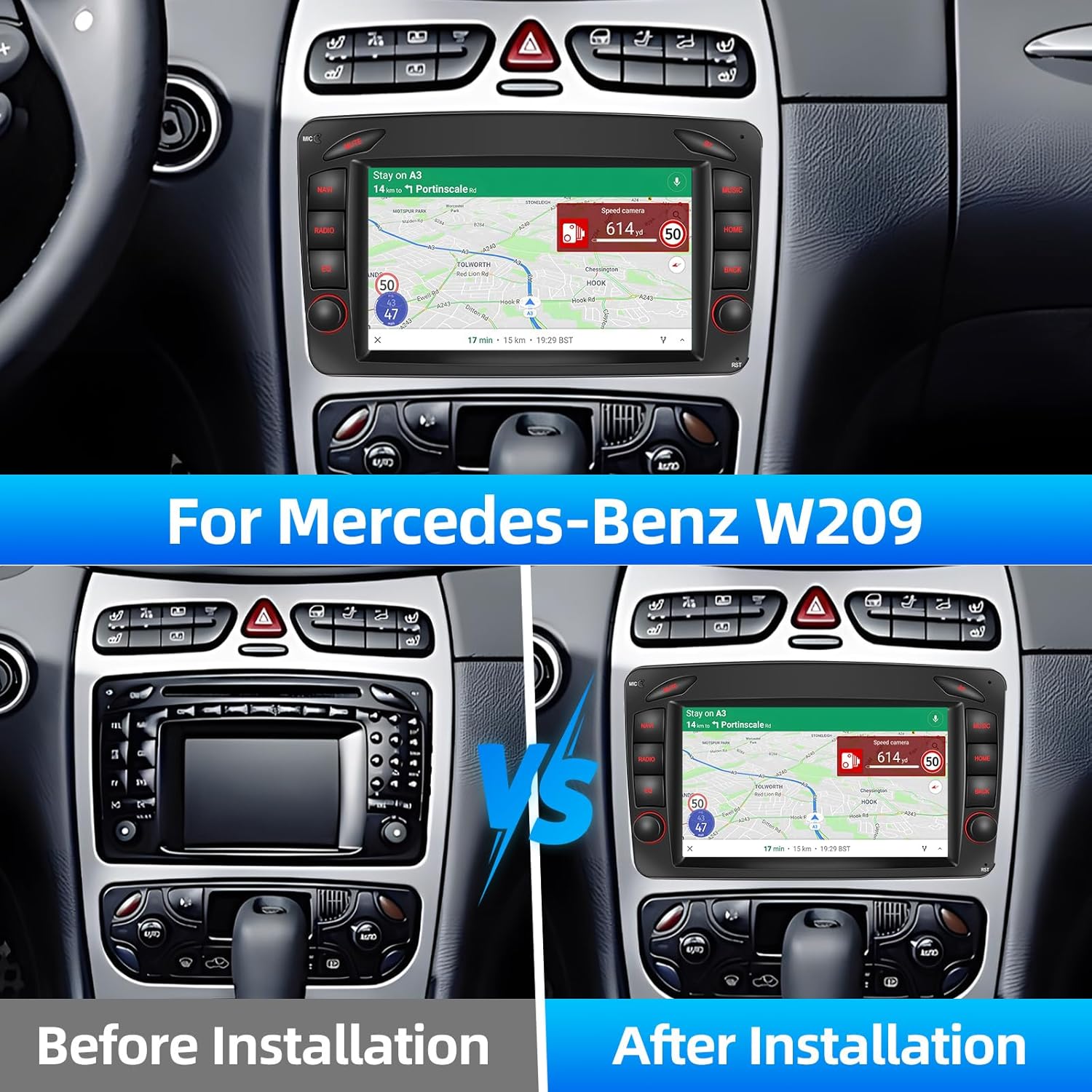
Image 3.2: Screenshots demonstrating the GPS navigation interface with route information and the Wi-Fi connection screen for connecting to mobile hotspots.
- Map Download: Use the pre-installed navigation app to download regional maps.
- Route Planning: Enter your destination and the system will calculate the optimal route.
- Voice Guidance: Follow turn-by-turn voice instructions.
3.5 FM/RDS Radio
Enjoy your favorite radio stations with clear sound quality. The RDS (Radio Data System) feature displays station names, program content, and other information.
- Tuning: Use the scan function to automatically find and save stations, or manually tune to frequencies.
- Presets: Save your preferred stations for quick access.
3.6 Bluetooth & Microphone
Connect your smartphone via Bluetooth for hands-free calling and audio streaming. The included external microphone ensures clear voice transmission during calls.
- Pairing: Enable Bluetooth on your phone and search for the car stereo. Select the device and confirm the pairing code.
- Hands-free Calls: Make and receive calls directly from the car stereo interface. The phonebook can be automatically loaded.
- Audio Streaming: Play music from your phone through the car's speakers.
3.7 Mirror Link
Mirror Link allows you to project your smartphone's screen onto the car stereo display via a USB connection. This feature supports both iOS and Android systems.
- Connection: Connect your smartphone to the car stereo via a USB cable.
- Activation: Follow the on-screen prompts to enable screen mirroring.
3.8 Rear Camera Input
The unit supports HD rearview camera input, automatically displaying the rear view image when the vehicle is in reverse gear. This includes night vision capabilities for improved visibility.
4. Maintenance
To ensure the longevity and optimal performance of your Podofo car stereo, follow these maintenance guidelines:
- Screen Cleaning: Use a soft, lint-free cloth to gently wipe the screen. For stubborn smudges, slightly dampen the cloth with a screen cleaner solution (do not spray directly onto the screen). Avoid abrasive materials or harsh chemicals.
- Software Updates: Periodically check for software updates provided by Podofo. Updates can improve performance, add new features, and fix bugs. Follow the instructions provided with the update package carefully.
- Environmental Conditions: Avoid exposing the unit to extreme temperatures, direct sunlight for prolonged periods, or excessive moisture.
- Cable Connections: Periodically check all cable connections to ensure they are secure and free from damage.
5. Troubleshooting
If you encounter issues with your car stereo, refer to the following common problems and solutions. If the problem persists, please contact customer support.
| Problem | Possible Cause | Solution |
|---|---|---|
| Unit does not power on. | Loose power connection, blown fuse, vehicle battery issue. | Check power cable connections. Inspect vehicle's fuse box for blown fuses. Ensure vehicle battery is charged. |
| No sound from speakers. | Speaker wires disconnected, volume too low, incorrect audio source selected. | Verify speaker wire connections. Increase volume. Select the correct audio input (e.g., Radio, Bluetooth, USB). |
| GPS signal is weak or inaccurate. | GPS antenna not properly installed, obstructed view of sky. | Ensure GPS antenna is installed in a location with a clear view of the sky (e.g., dashboard, under windshield). |
| Bluetooth connection issues. | Phone's Bluetooth off, unit not in pairing mode, interference. | Ensure Bluetooth is enabled on both devices. Put the unit in pairing mode. Try unpairing and re-pairing the device. |
| Rearview camera not displaying. | Camera cable loose, camera faulty, incorrect input selected. | Check the rearview camera input cable connection. Ensure the vehicle is in reverse gear. |
6. Specifications
Detailed technical specifications for the Podofo Android 13 Car Stereo:
| Feature | Specification |
|---|---|
| Brand | podofo |
| Operating System | Android 13 |
| Connectivity Technology | Wi-Fi, Bluetooth |
| Compatible Devices | Smartphone |
| Special Features | Wireless Carplay, Android Auto, Mirror Link, FM/RDS Radio, GPS Navigation, Rearview Camera Support |
| Audio Output Mode | Internal and Bluetooth |
| Surround Sound Channel Configuration | 5.1 |
| Video Encoding | H.264 or H.265 |
| Connector Type | USB Type A |
| Total HDMI Ports | 1 |
7. Warranty and Support
Your Podofo Android 13 Car Stereo comes with a standard manufacturer's warranty. Please refer to the warranty card included in your package for specific terms and conditions.
For technical support, troubleshooting assistance, or warranty claims, please contact Podofo customer service through the retailer where you purchased the product or visit the official Podofo website for contact information.
Please have your product model number (W203/W209/W463 Series) and purchase details ready when contacting support.
Related Documents - W203/W209/W463 Series
 |
Podofo Car Multimedia Player User Manual User instructions for the Podofo Car Multimedia Player, covering Bluetooth setup, Apple CarPlay, Android Auto, FM transmission, and troubleshooting. |
 |
CarPlay and Android Auto Car Stereo User Manual Comprehensive user manual for a car stereo system supporting Apple CarPlay, Android Auto, MirrorLink, Bluetooth, and various media playback options. Includes installation, operation, and troubleshooting guides. |
 |
Android Car Stereo with Apple CarPlay & Android Auto User Manual Comprehensive user manual for the Android Car Stereo, detailing installation, wiring, features like Apple CarPlay and Android Auto, troubleshooting, and specifications. Learn how to connect your smartphone, use navigation, and manage settings for an enhanced driving experience. |
 |
Podofo Car Stereo User Guide: Features and Operation Comprehensive user guide for the Podofo Car Stereo, detailing features like Apple CarPlay, Android Auto, Bluetooth, FM radio, USB/SD playback, and phone linking. Includes operation instructions and troubleshooting tips. |
 |
Telescopic Screen CarPlay Manual - Installation and Troubleshooting Guide Comprehensive manual for the Telescopic Screen CarPlay MP5 Player, covering installation, features, functions, and troubleshooting for seamless integration with your vehicle and smartphone. |
 |
Podofo 7010B 2 DIN Autorádio – Detailní Návod k Použití Detailní uživatelský manuál pro autorádio Podofo 7010B 2 DIN, pokrývající instalaci, funkce jako Bluetooth, MirrorLink, handsfree, přehrávání médií a řešení problémů. |
Ask a question about this manual
Ask about setup, troubleshooting, compatibility, parts, safety, or missing instructions. Manuals+ will review the question and use this page’s manual context to help answer it.