
RECCAZR Wireless Keyboard and Mouse Combo
RECCAZR Wireless Keyboard and Mouse Combo User Manual
Model: Wireless Keyboard and Mouse Combo
1. Introduction
Thank you for choosing the RECCAZR Wireless Keyboard and Mouse Combo. This manual provides detailed instructions for setting up, operating, and maintaining your new wireless peripheral set. This combo offers a stable 2.4GHz wireless connection, ergonomic design for comfort, and adjustable features for enhanced productivity.

Image 1.1: The RECCAZR Wireless Keyboard and Mouse Combo, including the full-sized keyboard, ergonomic mouse, and detachable wrist rest.
2. Package Contents
- Wireless Keyboard
- Wireless Mouse
- USB Nano Receiver (shared for both devices)
- Detachable Wrist Rest
- User Manual
Note: AA batteries are not included and must be purchased separately. Please check the battery compartments for the exact quantity required for each device.
3. Setup Instructions
- Install Batteries: Open the battery compartments on the underside of both the keyboard and the mouse. Insert the required AA batteries, ensuring correct polarity.
- Locate USB Receiver: The USB nano receiver is typically stored in the battery compartment of the mouse for convenience during transport. Remove the receiver.
- Connect to Computer: Plug the USB nano receiver into an available USB port on your computer or laptop.
- Power On Devices: Turn on the power switch located on the underside of both the keyboard and the mouse. The devices should automatically connect to your computer. No additional software or drivers are required.

Image 3.1: Illustration of the 2.4GHz wireless connection, showing the USB receiver plugged into a laptop and wireless signals to the keyboard and mouse.
4. Operating Instructions
4.1. 2.4GHz Wireless Connection
The keyboard and mouse utilize a stable 2.4GHz wireless connection, providing a reliable operating range of up to 10 meters (33 feet). The single USB nano receiver simplifies connectivity, requiring only one USB port for both devices.
4.2. Mouse DPI Adjustment
The wireless mouse features three adjustable DPI (Dots Per Inch) levels: 800, 1200, and 1600. To change the DPI, press the DPI button located on the top of the mouse, usually behind the scroll wheel. Each press cycles through the available DPI settings, allowing you to adjust cursor sensitivity to your preference.

Image 4.1: Visual representation of the mouse's 3 DPI levels (800, 1200, 1600) and the button to adjust them.
4.3. Automatic Power Saving Function
Both the keyboard and mouse are equipped with an intelligent auto-sleep mode to conserve battery life. If inactive for a period, they will enter sleep mode. To wake them up, simply press any key on the keyboard or move/click the mouse. The devices will also enter sleep mode if the USB receiver is unplugged or the connected PC is shut down.
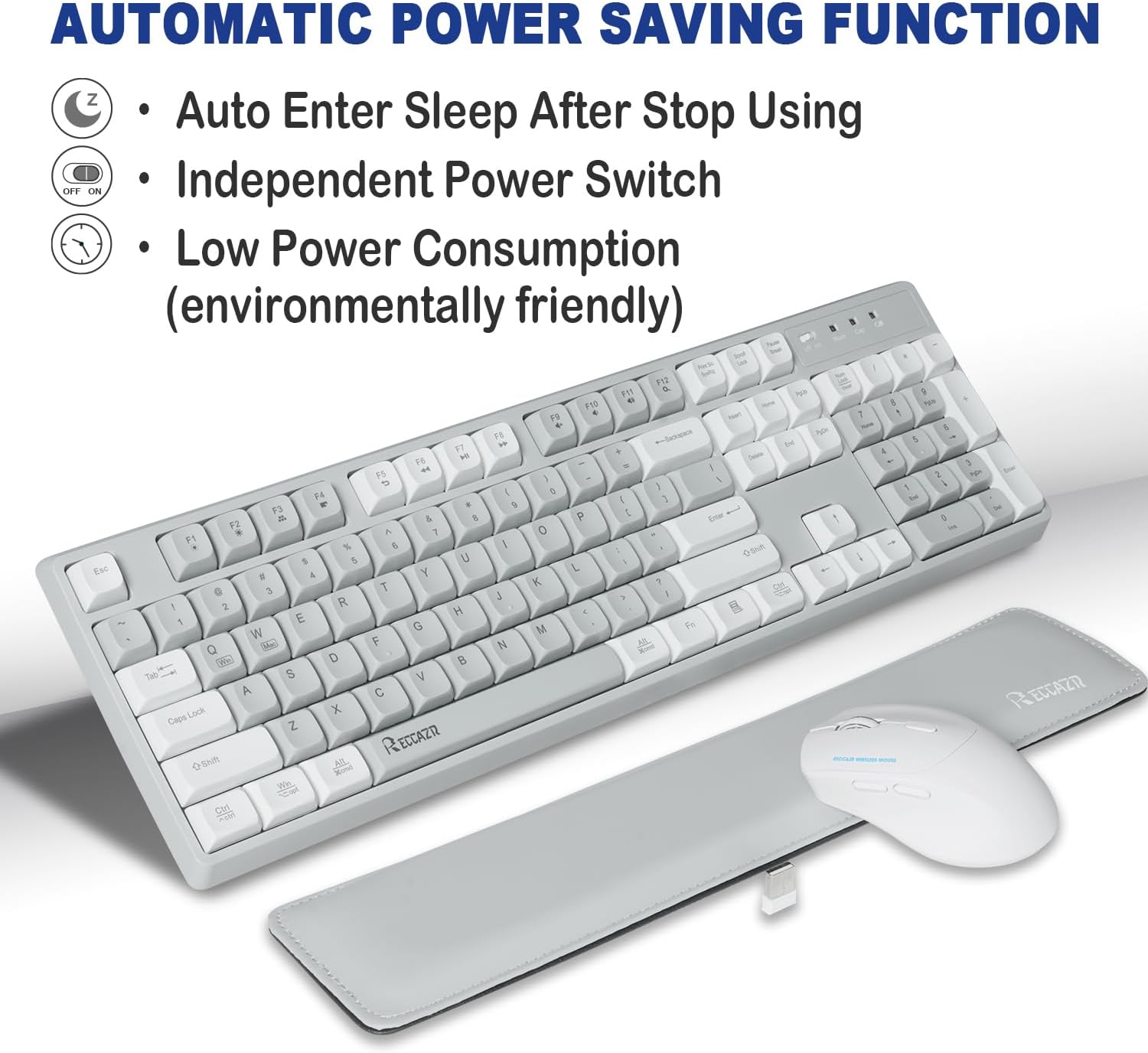
Image 4.2: Diagram illustrating the automatic power saving function with icons for sleep mode, independent power switch, and low power consumption.
4.4. Ergonomic Design and Comfort
The keyboard features stepped keycap distribution and curved concave keycaps designed to match your fingertips, promoting a comfortable typing experience. The included leather soft palm rest further reduces wrist fatigue during extended use. The mouse is ergonomically shaped for a comfortable grip and smoother movement.
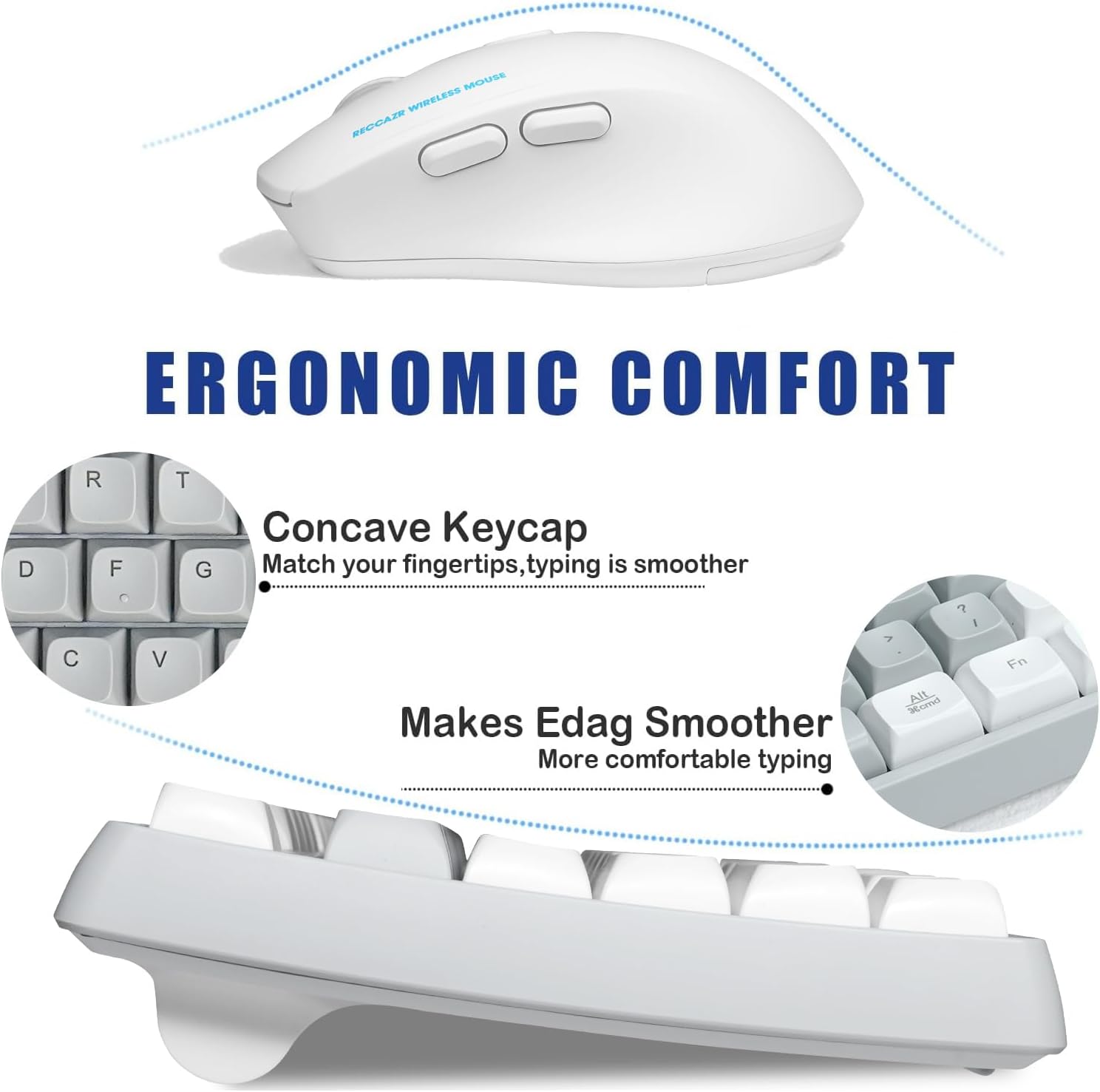
Image 4.3: Close-up view highlighting the concave keycap design and the ergonomic curve of the mouse for enhanced comfort.

Image 4.4: Comparison showing hands typing without and with the leather soft palm rest, demonstrating reduced wrist fatigue.
4.5. Quiet Clicks
The RECCAZR wireless mouse is designed with Quiet Clicks technology, providing the same tactile feedback as traditional mice but with significantly reduced click noise. This makes it suitable for environments where quiet operation is preferred, such as offices, libraries, or shared living spaces.
4.6. Compatibility
This wireless keyboard and mouse combo is compatible with a wide range of operating systems and devices, including:
- Windows (Windows 11, 10, 8, 7, XP)
- macOS (OS X Mavericks and later)
- Laptops
- Desktop Computers
- Chromebooks

Image 4.5: Visual representation of the combo's compatibility with various devices and operating systems, including Windows and macOS.
5. Maintenance
5.1. Battery Replacement
When the keyboard or mouse becomes unresponsive or exhibits delayed input, it may be time to replace the batteries. Open the battery compartment, remove the old batteries, and insert new AA batteries, ensuring correct polarity. Dispose of old batteries responsibly.

Image 5.1: Graphic indicating the long battery life of the devices, suggesting infrequent battery replacement.
5.2. Cleaning
To clean your keyboard and mouse, use a soft, damp cloth. Avoid using harsh chemicals or abrasive cleaners. The keyboard features a spill-proof design, offering protection against accidental liquid spills. However, it is not fully waterproof, so avoid submerging it in liquid.
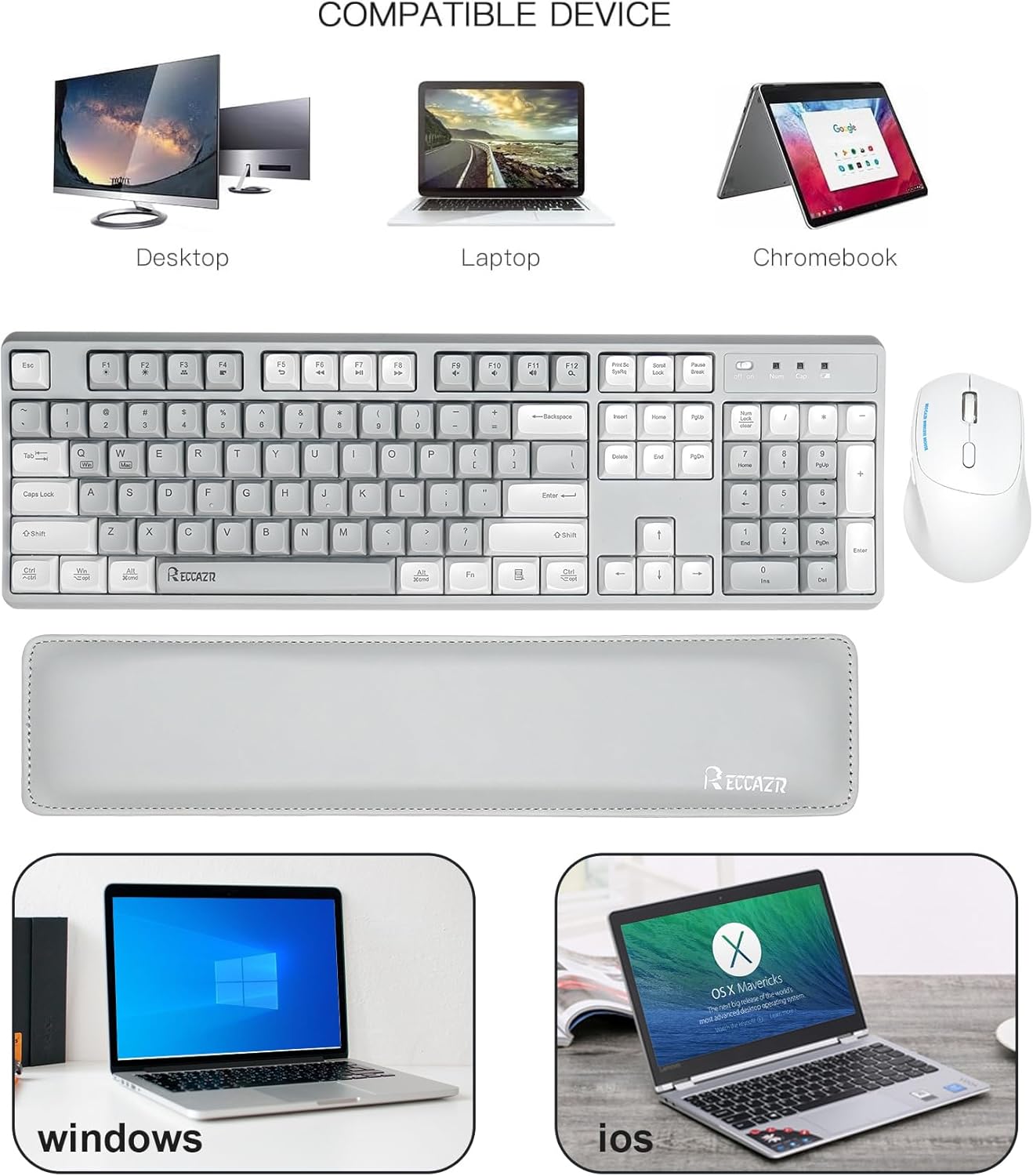
Image 5.2: Illustration of the keyboard's spill-proof design, showing water splashing over the keys.
6. Troubleshooting
- No Connection/Unresponsive Devices:
- Ensure the USB nano receiver is securely plugged into a working USB port.
- Check if the power switches on both the keyboard and mouse are in the 'ON' position.
- Replace the batteries in both devices with fresh AA batteries.
- Try plugging the USB receiver into a different USB port on your computer.
- Lagging or Delayed Input:
- Ensure the devices are within the 10-meter operating range of the receiver.
- Minimize interference from other wireless devices (e.g., Wi-Fi routers, other 2.4GHz devices).
- Replace batteries if they are low.
- Mouse DPI Not Changing:
- Ensure you are pressing the dedicated DPI button on the mouse.
- Check if the mouse has sufficient battery power.
7. Specifications
| Feature | Detail |
|---|---|
| Connectivity Technology | 2.4GHz Wireless (USB Receiver) |
| Wireless Range | Up to 10 meters (33 feet) |
| Mouse DPI Levels | 800 / 1200 / 1600 DPI (Adjustable) |
| Special Features | Ergonomic Design, Wrist Rest, Quiet Clicks, Auto Power Saving, Spill-Proof Keyboard |
| Compatible Devices | Laptop, Personal Computer (Windows, macOS, Chromebook) |
| Power Source | AA Batteries (not included) |
| Keyboard Dimensions | Approximately 439 mm x 138 mm |
| Mouse Dimensions | Approximately 112 mm x 69 mm x 41 mm |
| Item Weight | Approximately 2.07 pounds (combined) |

Image 7.1: Graphic indicating the mouse's durability with 8,000,000 keystrokes.
8. Warranty and Support
RECCAZR provides a 12-month free after-sales service for this product. If you encounter any issues or have questions during use, please contact our customer service team. We are committed to providing a satisfactory solution.
To contact support, please reach out via Amazon email. Our team is available for 24/7 support.

Image 8.1: Illustration of the RECCAZR customer service team, emphasizing 24/7 support.
Related documentsWireless Keyboard and Mouse Combo


Ask a question about this manual
Ask about setup, troubleshooting, compatibility, parts, safety, or missing instructions. Manuals+ will review the question and use this page’s manual context to help answer it.