
1. Introduction
Thank you for choosing the MSI MPG 491CQP QD-OLED Curved Gaming Monitor. This manual provides essential information for setting up, operating, and maintaining your monitor to ensure optimal performance and longevity. Please read this manual thoroughly before using the product and retain it for future reference.
2. Key Features
- OLED True Black with High HDR: Experience unparalleled contrast and vibrant colors with true black levels.
- Ultra Wide 32:9 Screen: An expansive 49-inch display with a 5120 x 1440 (DQHD) resolution for immersive viewing and enhanced productivity.
- 144Hz Refresh Rate: Enjoy smooth, fluid visuals for gaming and fast-paced content.
- HDR 400: Delivers superior brightness and contrast for a more dynamic visual experience.
- 0.03ms Response Time: Virtually eliminates motion blur for crisp, clear action.
- Super Narrow Bezel: Maximizes screen real estate for an immersive, edge-to-edge viewing experience.
- USB Type-C with 90W Power Delivery: Simplifies connectivity and powers compatible devices.

Image: The 49-inch DQHD (5120x1440) display offers significantly more screen space compared to a standard 16:9 FHD (1920x1080) display, enhancing immersion and multitasking capabilities.

Image: Visual representation of the difference between 60Hz and 144Hz refresh rates, highlighting the smoother motion provided by the 144Hz refresh rate and 0.03ms response time.

Image: The monitor features VESA Certified DisplayHDR True Black 400, ensuring deep blacks and high dynamic range for stunning visual fidelity.
3. Setup
3.1 Unpacking
Carefully remove the monitor and all accessories from the packaging. Ensure all components listed in the packing list are present and undamaged. Keep the original packaging for future transportation or service needs.
3.2 Stand Assembly
- Place the monitor face down on a soft, clean surface to prevent scratches.
- Attach the stand neck to the monitor's VESA mounting area, ensuring it clicks securely into place or is fastened with screws as per the quick start guide.
- Attach the base to the stand neck and tighten the thumb screw or screws from the bottom.
3.3 Wall Mounting (Optional)
The monitor supports VESA wall mounts (100x100mm). Remove the stand before attaching a VESA-compatible mount. Ensure the wall mount can support the monitor's weight (approximately 22.7 lbs / 10.3 kg).
3.4 Connecting Your Monitor
Connect your devices to the monitor using the appropriate cables. The monitor features multiple input options:
- HDMI: Two HDMI 2.1 ports for high-resolution and high-refresh-rate connections.
- DisplayPort: One DisplayPort 1.4a for optimal gaming performance.
- USB Type-C: One USB Type-C port with DisplayPort Alt Mode and 90W Power Delivery for single-cable connectivity with compatible laptops.
- USB Type-A: Two USB Type-A ports for connecting peripherals.
- USB Type-B: One USB Type-B port for upstream connection to enable USB Type-A ports.
- Earphone Out: One 3.5mm audio jack for headphones.

Image: Overview of the monitor's connectivity options, including HDMI, DisplayPort, USB Type-C (with 90W PD), USB Type-A, USB Type-B, and Earphone Out.

Image: The USB Type-C port provides up to 90W Power Delivery, allowing you to charge compatible devices directly from the monitor.
4. Operating Your Monitor
4.1 Power On/Off
Press the power button located on the monitor to turn it on or off. The power LED indicator will illuminate when the monitor is active.
4.2 On-Screen Display (OSD) Navigation
The monitor features an intuitive joystick control on the back for navigating the On-Screen Display (OSD) menu. Use the joystick to access various settings such as brightness, contrast, color modes, input selection, and gaming features.
4.3 Input Selection
Use the OSD menu or a dedicated input selection button (if available) to switch between connected devices (HDMI, DisplayPort, USB Type-C).
4.4 Display Modes
The monitor offers various preset display modes optimized for different content types (e.g., Gaming, Movie, Standard, sRGB). Select the mode that best suits your current activity for an enhanced visual experience.
5. Maintenance
5.1 Cleaning
- Screen: Gently wipe the screen with a soft, lint-free cloth. For stubborn marks, use a monitor-specific cleaning solution applied to the cloth, not directly to the screen.
- Body: Use a soft, dry cloth to clean the monitor's casing. Avoid abrasive cleaners or solvents.
5.2 OLED Care 2.0 (Burn-in Prevention)
Your MSI QD-OLED monitor is equipped with advanced OLED Care 2.0 technology to mitigate the risk of image retention (burn-in). This includes features like pixel shift, static image detection, and panel refresh cycles. Ensure these features are enabled in the OSD settings for optimal panel health. Avoid displaying static images for extended periods and utilize screen savers when idle.

Image: The monitor incorporates OLED Care 2.0, an advanced thermal solution designed to protect the OLED panel and prevent burn-in, ensuring long-term performance.
6. Troubleshooting
6.1 No Power
- Check if the power cable is securely connected to the monitor and the power outlet.
- Verify the power outlet is functioning by plugging in another device.
- Ensure the power button on the monitor is pressed.
6.2 No Image on Screen
- Confirm the video cable (HDMI, DisplayPort, USB-C) is securely connected to both the monitor and your source device.
- Ensure the correct input source is selected on the monitor via the OSD menu.
- Check if your source device (PC, console) is powered on and outputting a signal.
- Try a different video cable or port to rule out cable/port issues.
6.3 Flickering or Distorted Image
- Check the video cable connections.
- Ensure the display resolution and refresh rate are supported by your graphics card and the monitor.
- Disable any overclocking settings on your graphics card.
- Update your graphics card drivers.
7. Specifications
| Feature | Specification |
|---|---|
| Brand | msi |
| Model Number | MPG 491CQP QD-OLED |
| Screen Size | 49 inches |
| Resolution | 5120x1440 (DQHD) |
| Aspect Ratio | 32:9 |
| Display Type | OLED |
| Refresh Rate | 144 Hz |
| Response Time | 0.03 Milliseconds |
| Contrast Ratio | High (True Black HDR 400) |
| Brightness | 250 nits |
| Viewing Angle | 178 Degrees |
| Connectivity | 2x HDMI 2.1, 1x DisplayPort 1.4a, 1x USB Type-C (DP Alt, 90W PD), 2x USB Type-A, 1x USB Type-B, 1x Earphone Out |
| Adaptive Sync | FreeSync |
| Item Weight | 22.7 Pounds (approx. 10.3 kg) |
| Power Consumption | 55 Watts |
| Mounting Type | Wall Mount (VESA compatible) |
8. Warranty & Support
8.1 Manufacturer Warranty
This MSI monitor comes with a 2-year manufacturer warranty. Please refer to the warranty card included with your product for detailed terms and conditions.
8.2 OLED Coverage
MSI offers a 3-year coverage for OLED panels, exceeding standard coverage by including safeguards against the OLED burn-in issue. This extended coverage reflects MSI's commitment to product quality and user satisfaction.
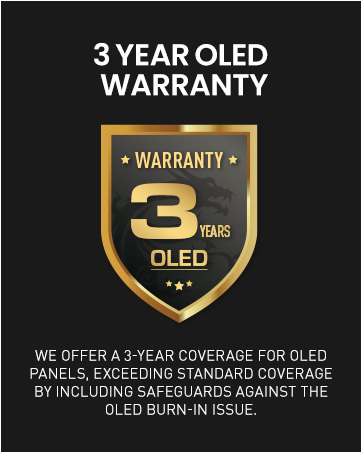
Image: MSI provides a 3-year warranty specifically for OLED panels, offering enhanced protection against potential burn-in issues.
8.3 Customer Support
For technical assistance, warranty claims, or further inquiries, please visit the official MSI website or contact MSI customer support directly. Keep your product's serial number and proof of purchase handy when contacting support.


