
1. Introduction
This manual provides essential information for setting up, operating, maintaining, and troubleshooting your MSI Vector 17 HX gaming laptop. Please read this manual thoroughly before using your device to ensure optimal performance and longevity.
The MSI Vector 17 HX is a high-performance gaming laptop designed for demanding applications and immersive gaming experiences. It features a 14th Generation Intel Core i9-14900HX processor, NVIDIA GeForce RTX 4080 graphics, and a QHD+ 240Hz display.
2. Package Contents
Before you begin, ensure all items are present in the package:
- MSI Vector 17 HX Gaming Laptop
- Power Adapter
- MSI Laptop Bag
- Quick Start Guide (if included)
3. Setup
3.1 Initial Power-On
- Connect the Power Adapter: Plug the power adapter into the laptop's DC-in port and then into a power outlet.
- Open the Display: Carefully lift the display panel.
- Power On: Press the power button, typically located above the keyboard. The laptop will boot up.
- Windows Setup: Follow the on-screen instructions to complete the Windows 11 Home setup, including language, region, network connection, and user account creation.
3.2 Connecting Peripherals
Your laptop supports various external devices:
- External Display: Connect an external monitor via the HDMI 2.1 port or a Type-C (DisplayPort) port for extended desktop or mirroring.
- USB Devices: Use the Type-A USB 3.2 Gen1/Gen2 ports or Type-C USB 3.2 Gen2 ports for mice, keyboards, external storage, and other USB accessories.
- Network: Connect to the internet via Wi-Fi 7 or the RJ45 Ethernet port for a wired connection.

Image: Side view of the MSI Vector 17 HX laptop showing various input/output ports including USB, HDMI, and power input.
4. Operating Instructions
4.1 Basic Usage
- Keyboard: The Per-Key RGB Gaming Keyboard by SteelSeries offers customizable backlighting and a comfortable typing experience. Use the function (Fn) keys in combination with F-keys for quick access to system controls like volume, brightness, and Wi-Fi.
- Touchpad: The integrated touchpad supports multi-touch gestures for navigation.
- Display: The 17.3-inch QHD+ 240Hz IPS-level display provides a high-resolution, smooth visual experience. Adjust brightness using Fn keys or Windows settings.

Image: The MSI Vector 17 HX laptop showcasing its Per-Key RGB Gaming Keyboard by SteelSeries.
4.2 MSI Center Software
The pre-installed MSI Center software allows you to monitor system performance, customize gaming modes, manage RGB lighting, and optimize various settings for your laptop. Explore its features for a personalized experience.
4.3 Audio Features
Your laptop features Nahimic by SteelSeries audio enhancement and Hi-Res Audio support for superior sound quality through headphones and speakers.

Image: An illustration highlighting the Nahimic by SteelSeries and Hi-Res Audio features of the MSI Vector 17 HX laptop.
5. Maintenance
5.1 Cleaning
- Screen: Use a soft, lint-free cloth slightly dampened with water or a screen cleaner. Avoid harsh chemicals.
- Keyboard and Chassis: Use a soft cloth to wipe surfaces. For dust in crevices, use compressed air.
- Vents: Regularly clean the cooling vents to prevent dust buildup, which can hinder airflow and cause overheating.
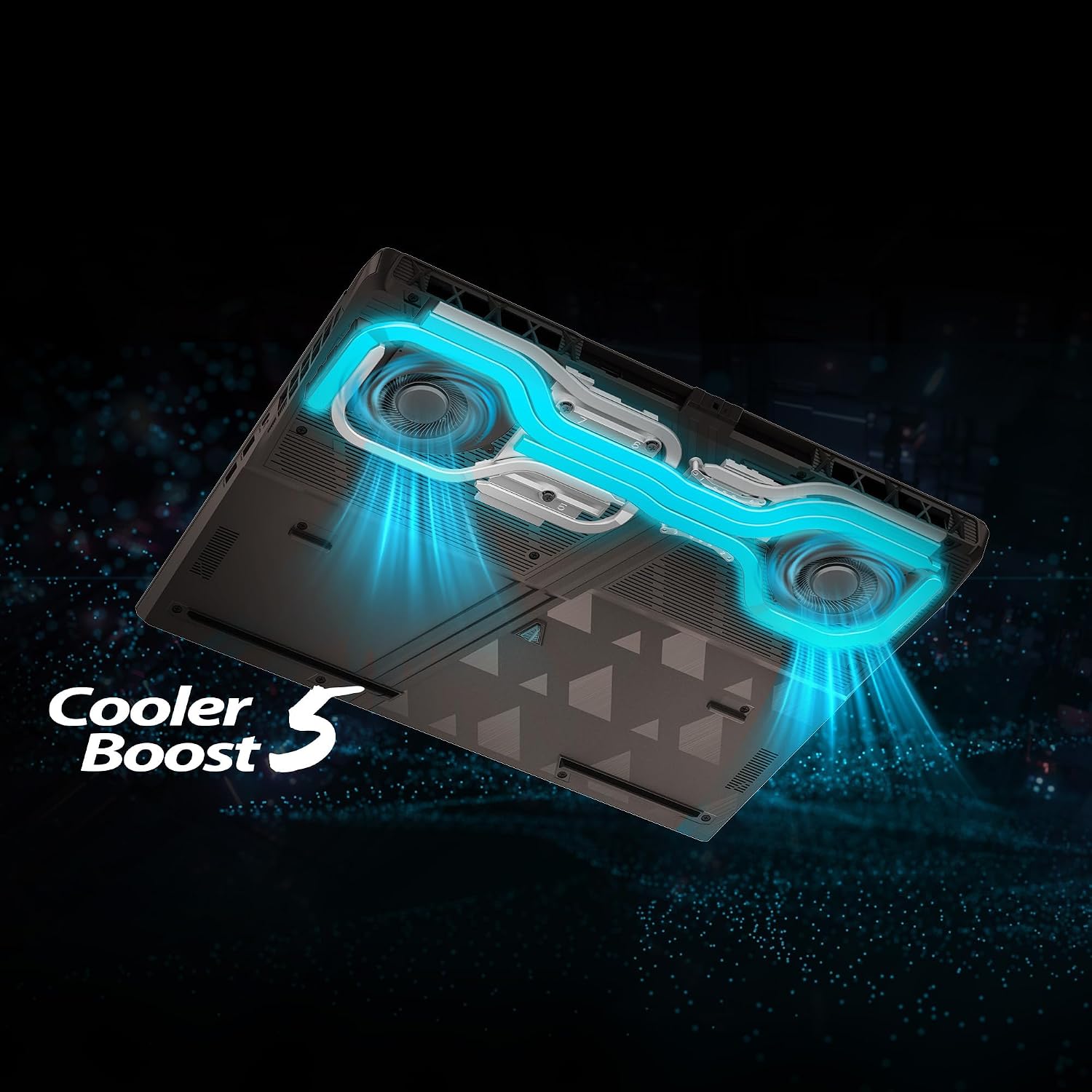
Image: An internal view of the MSI Vector 17 HX laptop's Cooler Boost 5 thermal solution, showing fans and heat pipes.
5.2 Software Updates
Regularly update your operating system (Windows 11), graphics drivers (NVIDIA), and MSI software (MSI Center) to ensure optimal performance, security, and compatibility.
5.3 Battery Care
- Avoid fully discharging the battery frequently.
- Store the laptop in a cool, dry place if not used for extended periods.
- For long-term storage, maintain the battery charge between 50% and 70%.
6. Troubleshooting
6.1 No Power / Laptop Not Turning On
- Ensure the power adapter is securely connected to both the laptop and a working power outlet.
- Verify the power outlet is functional by plugging in another device.
- If the battery is completely drained, allow it to charge for at least 15-30 minutes before attempting to power on.
6.2 Display Issues (No Image, Flickering)
- Check if the laptop is connected to an external monitor. Disconnect it to see if the internal display works.
- Adjust display brightness using the Fn keys.
- Restart the laptop. If possible, update graphics drivers.
6.3 Network Connectivity Problems
- Wi-Fi: Ensure Wi-Fi is enabled (check Fn keys or Windows settings). Restart your router/modem.
- Wired (RJ45): Check the Ethernet cable connection. Verify your network settings in Windows.
- Update network drivers if issues persist.
7. Specifications
| Feature | Detail |
|---|---|
| Model Name | Vector 17 HX |
| Model Number | A14VHG-806IN |
| Processor | 14th Generation Intel Core i9-14900HX (Up To 5.8GHz) |
| Operating System | Windows 11 Home |
| Display | 43.8cm (17.3-inch) 16:10 QHD+ (2560 x 1600), 240Hz, 100% DCI-P3, IPS-level panel |
| Memory | 32GB (16GBx2) DDR5 Dual Channel RAM (Max 96GB) |
| Storage | 2TB NVMe PCIe Gen4x4 SSD |
| Graphics | NVIDIA GeForce RTX 4080, GDDR6 12GB |
| Wireless Connectivity | Intel Killer Wi-Fi 7 BE1750(x) + Bluetooth 5.4 |
| Ports | 1x Type-C (USB3.2 Gen2 / DisplayPort), 1x Type-C (USB3.2 Gen2 / DisplayPort/ Power Delivery 3.0), 1x Type-A USB3.2 Gen1, 1x Type-A USB3.2 Gen2, 1x SD Express Card Reader, 1x HDMI 2.1 (8K @ 60Hz / 4K @ 120Hz), 1x RJ45 |
| Camera | HD type (30fps@720p), 3D Noise Reduction (3DNR) |
| Keyboard | Per-Key RGB Gaming Keyboard by SteelSeries with Copilot Key |
| Audio | Nahimic by SteelSeries, Hi-Res Audio |
| Battery | 90 Watt Hours Lithium Polymer |
| Weight | 3 Kilograms |
| Dimensions (L x W x T) | 29.7L x 38W x 2.9Th Centimeters |

Image: Close-up of an Intel Core i9 processor chip.

Image: The MSI Vector 17 HX laptop displaying a game, with the NVIDIA GeForce RTX logo prominently featured.

Image: The MSI Vector 17 HX laptop's display highlighting its 16:10 aspect ratio, QHD+ resolution, and 240Hz refresh rate, along with Matrix Display support.

Image: The MSI Vector 17 HX laptop emphasizing its Thunderbolt 4, DDR5 RAM, and PCIe Gen.5 SSD technologies.
8. Warranty and Support
8.1 Warranty Information
Your MSI Vector 17 HX laptop comes with a 2 Years On-Site warranty. On-Site Service eligibility may vary by region. The warranty covers manufacturing defects and does not cover physical damage, burn damage, or liquid damage. For detailed terms and conditions, please visit the official MSI India Website.
To validate your warranty, visit the MSI self-service portal: https://in.msi.com/support/nb

Image: MSI warranty information graphic, detailing 2 years brand warranty and self-service portal link.
8.2 Contact Support
For any queries regarding your product or warranty, you can reach MSI support through the following channels:
- Visit: More than 80 service centers across India.
- Call: +91-22-4912 5588 (9 AM to 5 PM)
- Email: indiaservicenb@msi.com
Manufacturer Contact Information: MICRO-STAR INTERNATIONAL CO., LTD, No.88, East Qianjin Road Kunshan City Jiangsu China.


