
1. Introduction
This manual provides essential information for the safe and efficient use of your MSI Stealth 16 AI Studio gaming laptop. Please read this manual thoroughly before operating the device and retain it for future reference. This laptop is designed for high-performance gaming and demanding creative tasks, featuring advanced AI capabilities and powerful hardware.
2. Setup
2.1 Unboxing and Initial Inspection
Carefully remove all components from the packaging. Verify that all items listed below are present and undamaged:
- MSI Stealth 16 AI Studio Laptop
- Power Adapter
- MSI Laptop Bag
If any item is missing or damaged, contact your retailer immediately.
2.2 Connecting the Power Adapter
Connect the power adapter to the laptop's power input port and then plug the power cord into a grounded electrical outlet. The laptop can be used while charging, but it is recommended to fully charge the battery before first use.

Image: The MSI Stealth 16 AI Studio laptop, showcasing its sleek design and vibrant display.
2.3 Initial Boot and Operating System Setup
Press the power button to turn on the laptop. Follow the on-screen instructions to complete the Windows 11 Pro setup process. This includes selecting your region, language, creating a user account, and connecting to a network.
3. Operating Instructions
3.1 Keyboard and Touchpad
The laptop features a Per-Key RGB Gaming Keyboard by SteelSeries, allowing for customizable backlighting. The touchpad supports multi-touch gestures for navigation.
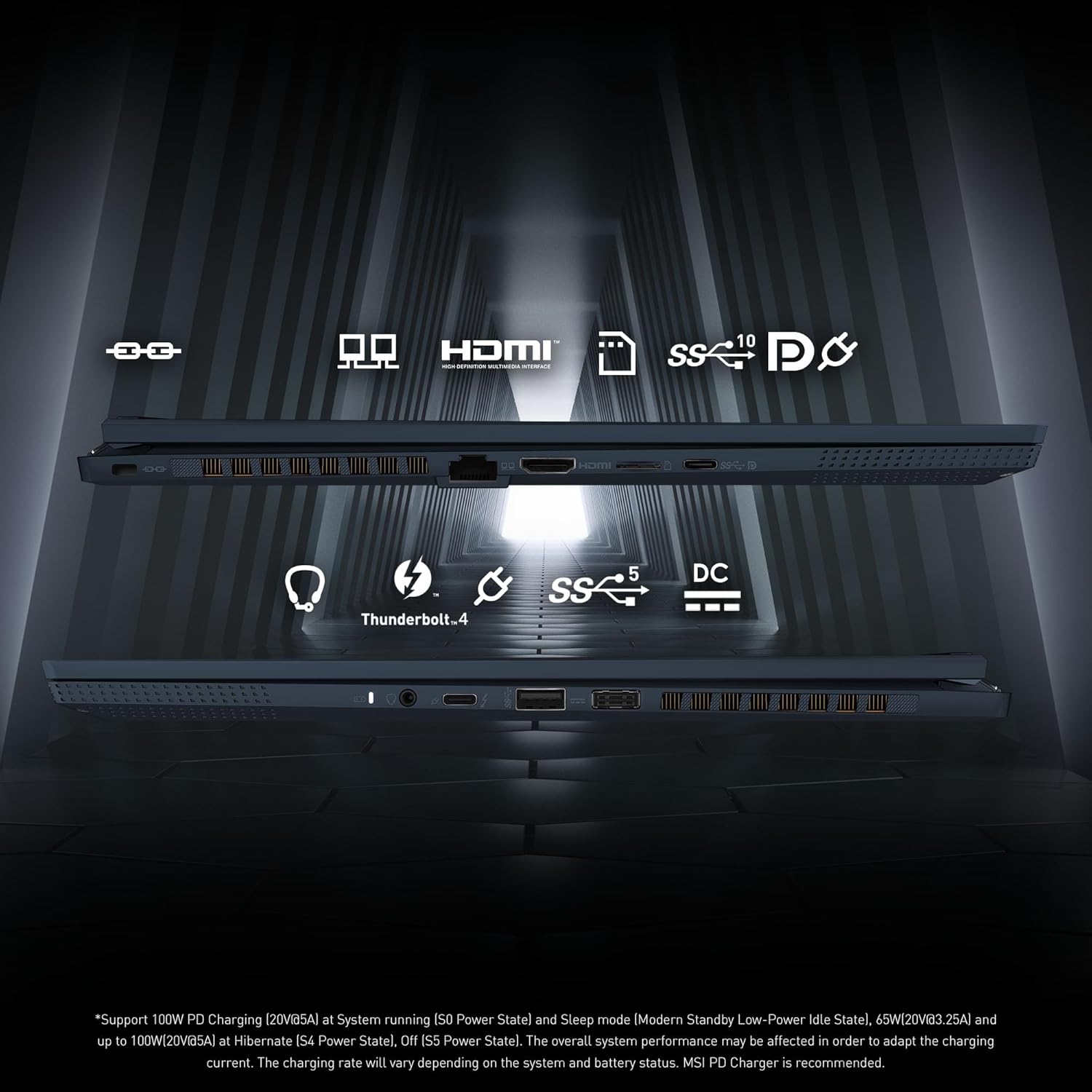
Image: The Per-Key RGB Gaming Keyboard by SteelSeries, highlighting its customizable lighting and layout.
3.2 Display
The 41cm (16-inch) QHD+ (2560 x 1600) IPS-level display offers a 240Hz refresh rate and 100% DCI-P3 color gamut for vibrant and smooth visuals.
3.3 Ports and Connectivity
The laptop is equipped with various ports for external devices and network connections:
- 1x Type-C (USB3.2 Gen2 / DisplayPort)
- 1x Thunderbolt 4 (DisplayPort/ Power Delivery 3.0)
- 1x Type-A USB3.2 Gen2
- 1x Micro SD Card Reader
- 1x HDMI 2.1 (8K @ 60Hz / 4K @ 120Hz)
- 1x RJ45 (Ethernet)

Image: A visual representation of the laptop's connectivity options, including USB-C, Thunderbolt 4, HDMI, and RJ45 ports.
3.4 Wireless Connectivity
The laptop supports Intel Killer Wi-Fi 7 BE1750(x) for high-speed wireless internet and Bluetooth 5.4 for connecting wireless peripherals.
3.5 Audio
Experience immersive audio with the Dynaudio sound system, featuring 6 speakers, Nahimic audio enhancements, and Hi-Res Audio support.

Image: The laptop's audio features, including the 6-speaker Dynaudio system, Nahimic, and Hi-Res Audio capabilities.
3.6 Camera and Security
The IR FHD type (30fps@1080p) camera with HDR and 3D Noise Reduction+ (3DNR+) supports Windows Hello for secure facial recognition login. A physical webcam shutter provides enhanced privacy.

Image: Security and privacy features, including the webcam shutter, IR camera, and Windows Hello compatibility.
4. Key Features
4.1 AI Enabled Processor
Powered by the 1st Generation Intel Core Ultra 9-185H processor, this laptop includes an integrated NPU (Neural Processing Unit) to accelerate AI programs, providing enhanced performance for AI-driven applications.
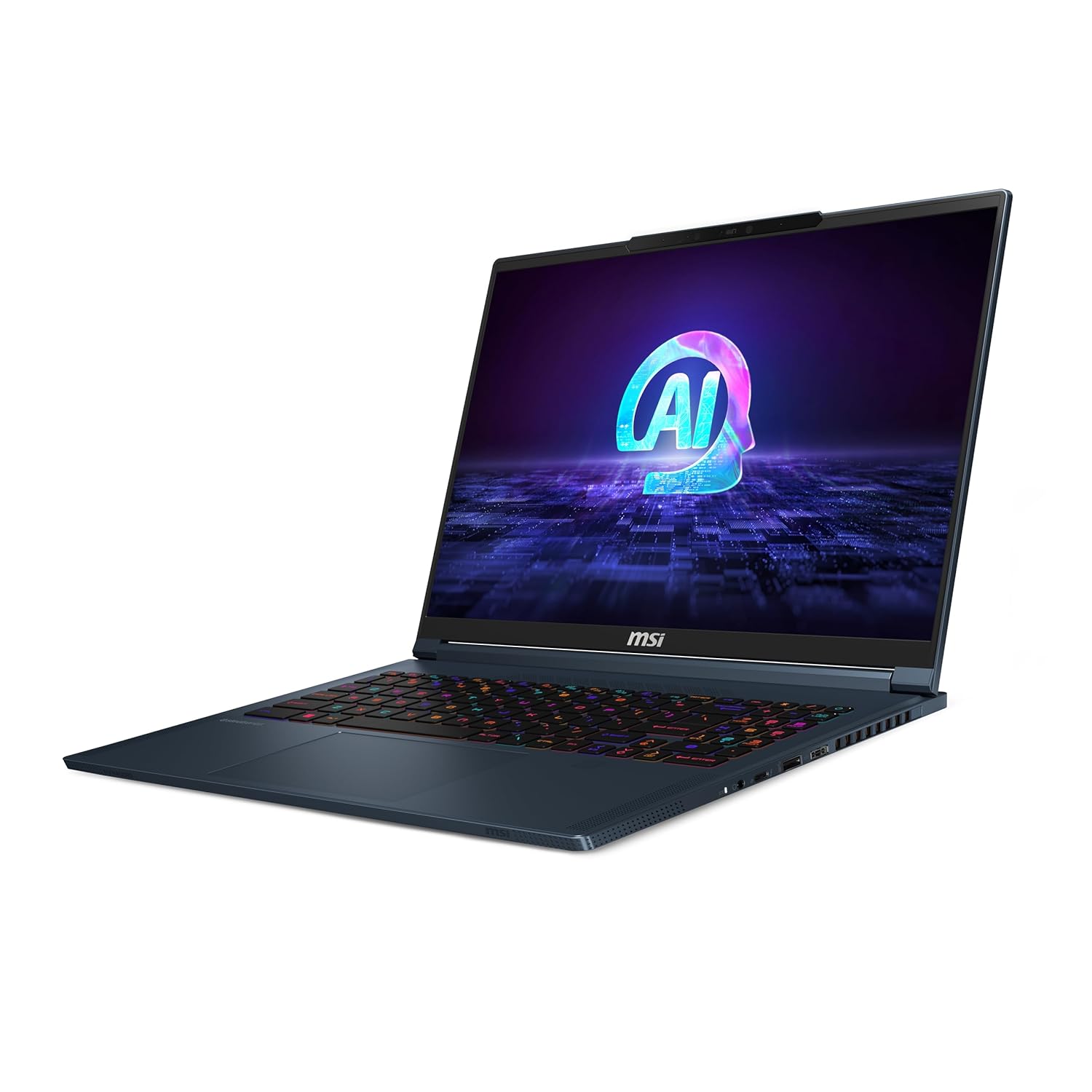
Image: The laptop featuring the Intel Core Ultra 9 processor, highlighting its AI capabilities.
4.2 NVIDIA GeForce RTX 4070 Graphics
The dedicated NVIDIA GeForce RTX 4070 GPU with 8GB GDDR6 memory delivers high-fidelity graphics and accelerated performance for gaming, content creation, and AI tasks.

Image: The laptop showcasing its NVIDIA Studio and GeForce RTX graphics capabilities.
4.3 Cooler Boost 5
The Cooler Boost 5 thermal solution features a shared-pipe design between the CPU and GPU, along with dual fans, to ensure optimal cooling performance during intensive workloads.

Image: A diagram explaining the Cooler Boost 5 technology with its shared-pipe design for efficient heat dissipation.
5. Specifications
| Feature | Specification |
|---|---|
| Brand | MSI |
| Model Name | Stealth 16 AI Studio |
| Processor | Intel 1st Gen. Ultra 9 185H (Up To 5.1GHz) |
| Operating System | Windows 11 Pro |
| Display | 41cm (16") QHD+ (2560 x 1600), 240Hz, 100% DCI-P3, IPS-level |
| Graphics Card | NVIDIA GeForce RTX 4070, GDDR6 8GB |
| RAM | 32GB (16GBx2) DDR5 Onboard Dual Channel |
| Storage | 2TB NVMe PCIe Gen4x4 SSD |
| Wireless Connectivity | Intel Killer Wi-Fi 7 BE1750(x) + Bluetooth 5.4 |
| Ports | 1x Type-C (USB3.2 Gen2 / DisplayPort), 1x Thunderbolt 4, 1x Type-A USB3.2 Gen2, 1x Micro SD Card Reader, 1x HDMI 2.1, 1x RJ45 |
| Camera | IR FHD type (30fps@1080p) with HDR, 3DNR+ |
| Keyboard | Per-Key RGB Gaming Keyboard by SteelSeries with Copilot Key |
| Weight | 1.99 Kg |
| Battery | 99.9 Watt Hours Lithium Polymer |
6. Maintenance
6.1 Cleaning Your Laptop
Regularly clean the screen with a soft, lint-free cloth and a screen-safe cleaner. Use compressed air to clear dust from keyboard keys and ventilation grilles. Avoid using harsh chemicals or abrasive materials.
6.2 Software Updates
Keep your operating system, drivers, and MSI software (e.g., MSI Center) updated to ensure optimal performance and security. Check for updates regularly through Windows Update and MSI's official website.
6.3 Battery Care
To prolong battery life, avoid fully discharging the battery frequently. If storing the laptop for an extended period, ensure the battery is charged to approximately 50-60% and store it in a cool, dry place.
7. Troubleshooting
7.1 Power Issues
- Laptop does not turn on: Ensure the power adapter is securely connected and the power outlet is functional. Try a different outlet.
- Battery not charging: Verify the power adapter is correctly connected. Check for any damage to the adapter or charging port.
7.2 Display Problems
- No display: Connect an external monitor to check if the issue is with the laptop's screen. Restart the laptop.
- Flickering or distorted display: Update your graphics drivers. Check display cable connections if using an external monitor.
7.3 Performance Issues
- Slow performance: Close unnecessary applications. Check for background processes consuming high CPU/RAM. Ensure sufficient free storage space.
- Overheating: Ensure ventilation grilles are clear of obstructions. Use MSI Center to monitor temperatures and adjust fan speeds.
8. Warranty and Support
8.1 Warranty Information
Your MSI Stealth 16 AI Studio laptop comes with a 2 Years On-Site warranty. This warranty covers manufacturing defects and does not cover physical, burn, or liquid damage. On-Site Service eligibility may vary by region. For detailed terms and conditions, please visit the official MSI India Website.
8.2 Validating Your Warranty
To validate your warranty and access self-service options, visit: https://in.msi.com/support/nb
8.3 Contact Support
For any queries regarding warranty or technical support, you can reach MSI through the following channels:
- Visit Us: More than 170 service centers across India.
- Call Us: 011 4748 4000 (9 AM to 5 PM)
- Mail Us: indiaservicenb@msi.com

Image: MSI's warranty and support contact details, including physical service centers, phone number, and email address.


