
MoKo P840401414934
MoKo Keyboard Case User Manual
For New iPad Air 13 Inch (2025/2024) & iPad Pro 12.9 Inch (2022/2021/2020/2018)
1. Product Overview
The MoKo Keyboard Case is a versatile 2-in-1 accessory designed to enhance your iPad experience. It combines a protective case with a detachable wireless Bluetooth keyboard, offering both tablet protection and laptop-like functionality.

Figure 1.1: MoKo Keyboard Case with iPad and detachable keyboard.
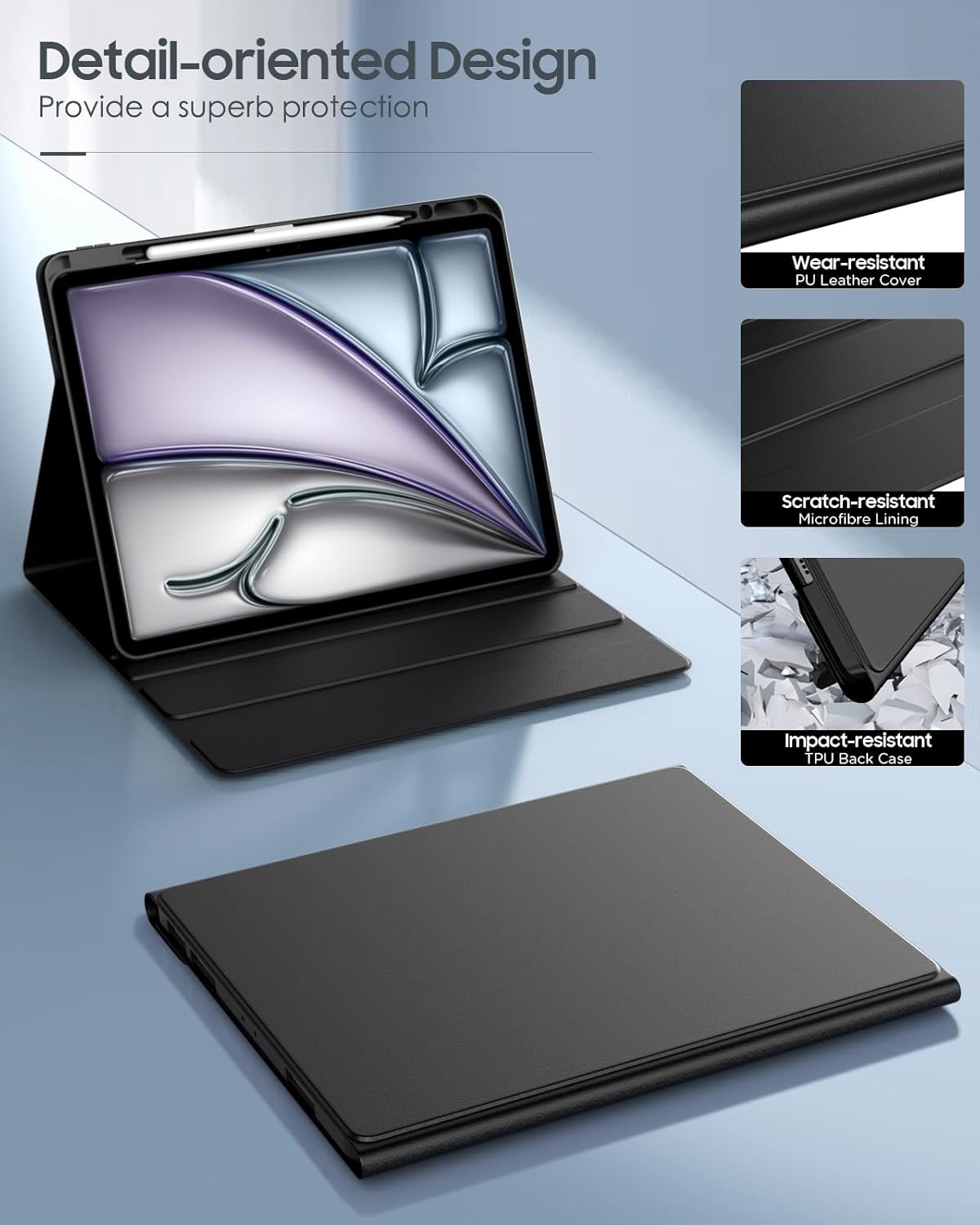
Figure 1.2: Case construction details, highlighting wear-resistant PU leather, scratch-resistant microfibre lining, and impact-resistant TPU back case.
Key Features:
- Compatibility: Designed for New iPad Air 13 Inch M3 2025 (Models: A3268, A3269, A3271), M2 2024 (Models: A2898, A2899, A2900), and iPad Pro 12.9 Inch 2022/2021/2020/2018.
- Full Protection: Constructed from soft PU leather with an anti-slip inner layer and shock-absorbing hard PC board for comprehensive device protection.
- Removable Keyboard: Magnetically detachable wireless Bluetooth keyboard for flexible use and easy conversion to a laptop setup.
- Multiple Standing Angles: Features 3 anti-slip grooves to provide various viewing and typing angles.
- Built-in Pencil Holder: Securely holds your Apple Pencil for convenient storage and access.
- Backlit Keyboard: Offers 7 colors of backlight with three adjustable brightness levels for typing in low-light conditions.
2. Package Contents
Please verify that all items are present in the package:
- 1x MoKo Keyboard Case (Black)
- 1x Removable Bluetooth Keyboard
- 1x Type-C USB Charging Cable
- 1x User Manual (this document)
Note: This product package does not include an Apple Pencil or iPad device.
3. Setup Guide
3.1. Installing Your iPad into the Case
- Gently align your iPad with the protective frame of the case.
- Press firmly around the edges of the iPad until it is securely seated within the case. Ensure all corners are properly protected.
- Verify that all ports, buttons, and camera cutouts are correctly aligned and accessible.
3.2. Charging the Keyboard
Before first use, fully charge the Bluetooth keyboard.
- Locate the Type-C charging port on the keyboard.
- Connect the provided Type-C USB charging cable to the keyboard and a compatible USB power source (e.g., computer USB port, USB wall adapter).
- The charging indicator light on the keyboard will illuminate during charging and turn off when fully charged.

Figure 3.1: Connecting the Type-C charging cable to the keyboard.
3.3. Pairing the Bluetooth Keyboard
Follow these steps to connect the keyboard to your iPad via Bluetooth:
- Ensure the keyboard is charged.
- On the keyboard, slide the power switch to the "ON" position.
- Press the "Connect" button on the keyboard. The Bluetooth indicator light will start blinking, indicating it's in pairing mode.
- On your iPad, go to Settings > Bluetooth and turn Bluetooth "On".
- Your iPad will search for available devices. Select "Bluetooth Keyboard" from the list of devices.
- Once connected, the Bluetooth indicator light on the keyboard will stop blinking and remain solid, or turn off, depending on the model.

Figure 3.2: Bluetooth pairing instructions.
4. Operating Instructions
4.1. Using the Detachable Keyboard
The keyboard is magnetically attached to the case and can be easily removed for flexible use.
- To attach: Align the keyboard with the magnetic strip inside the case. It will snap into place.
- To detach: Gently pull the keyboard away from the magnetic strip.
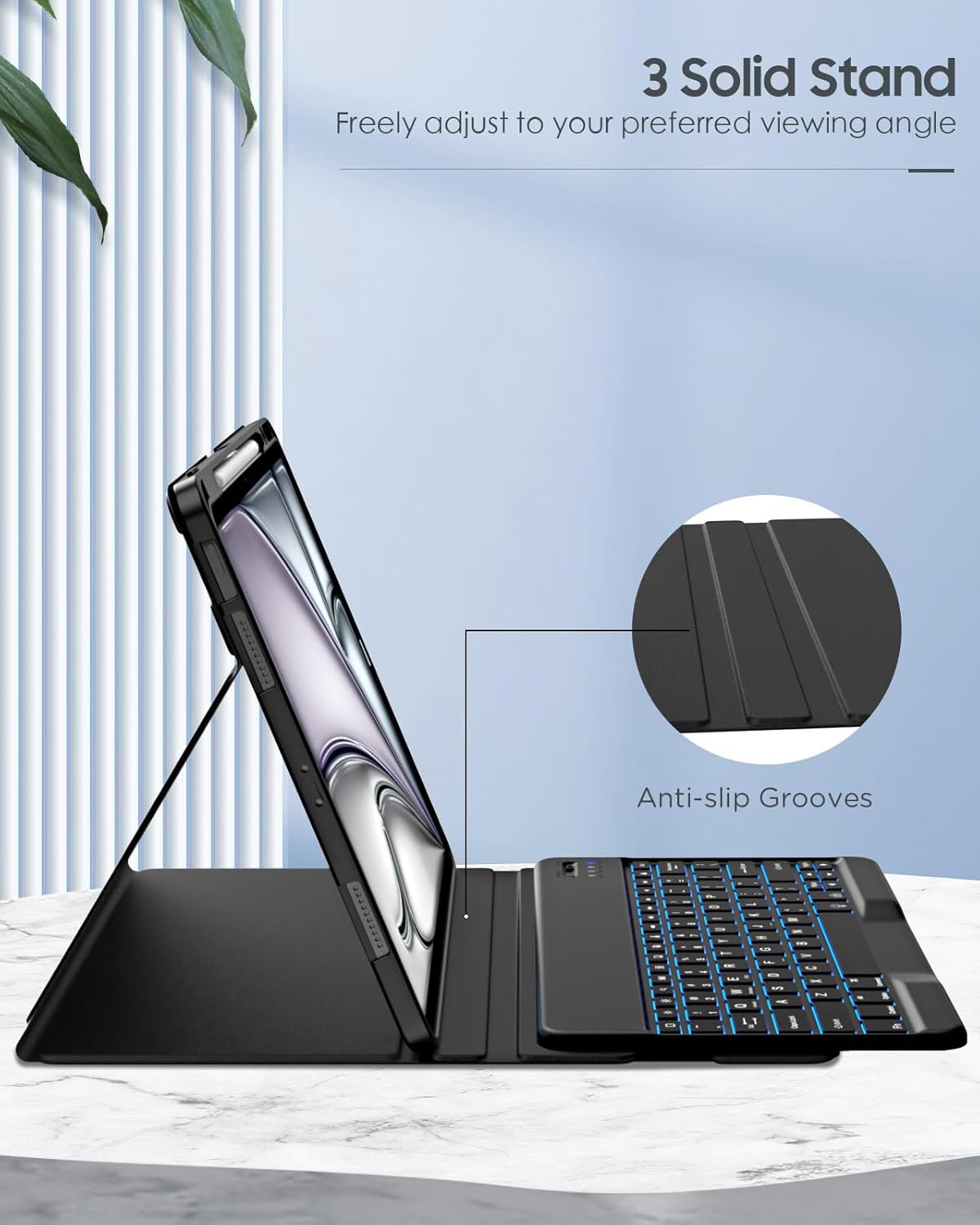
Figure 4.1: Detaching the magnetic keyboard.

Figure 4.2: Magnetic attachment points for the keyboard.
4.2. Adjusting Viewing Angles
The case features three anti-slip grooves to provide stable viewing angles for various activities.
- Place the iPad in the case.
- Fold the front cover back to form a triangular stand.
- Rest the bottom edge of your iPad into one of the three anti-slip grooves on the case to achieve your desired viewing angle.
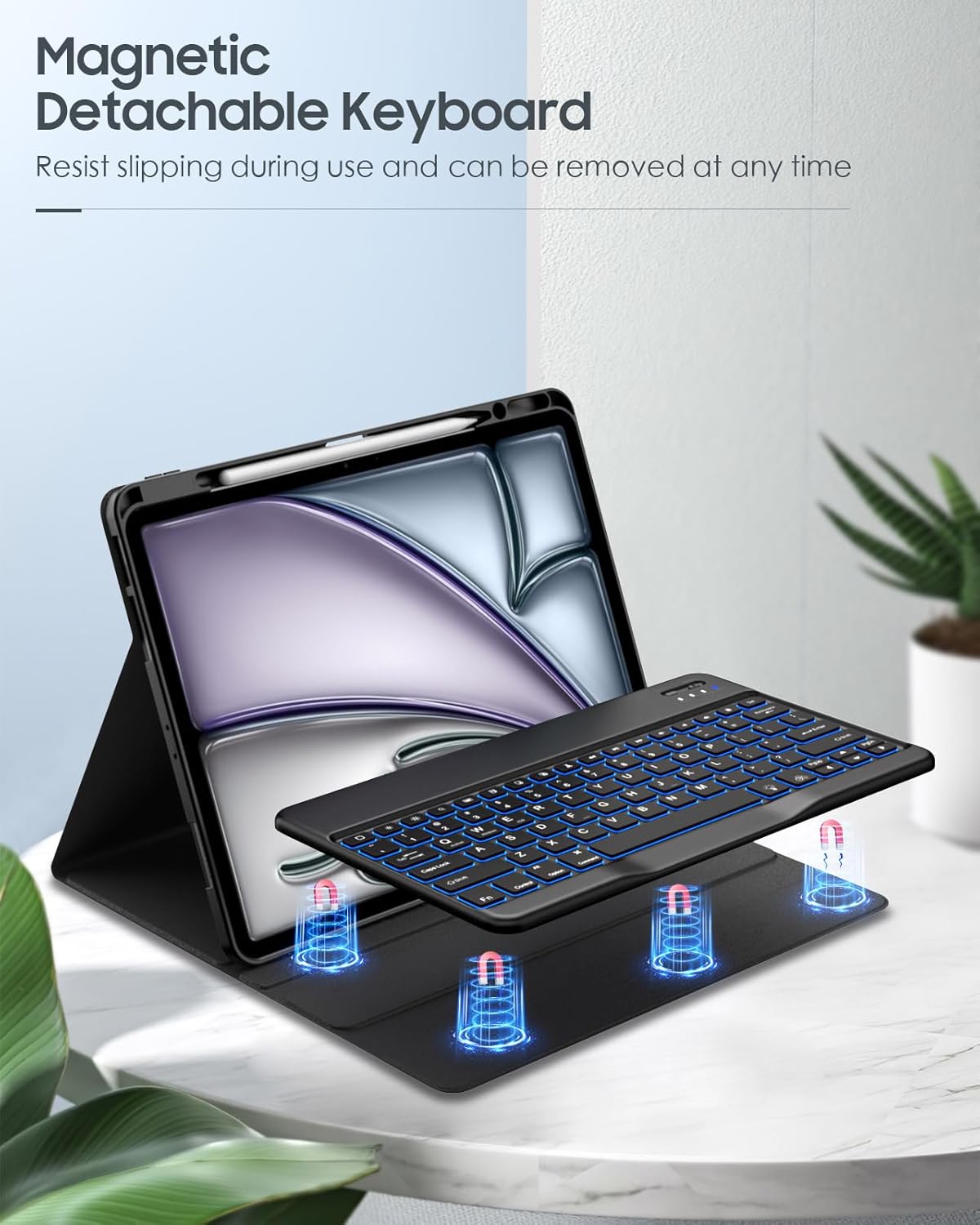
Figure 4.3: Adjusting the iPad to a preferred viewing angle using the anti-slip grooves.

Figure 4.4: Examples of stable adjustable angles.
4.3. Keyboard Backlight Control
The keyboard features 7-color backlighting with adjustable brightness.
- To change backlight color: Press the Fn + Lightbulb key combination. Repeat to cycle through colors.
- To adjust brightness: Press the Fn + Up Arrow or Down Arrow keys. There are three brightness levels.
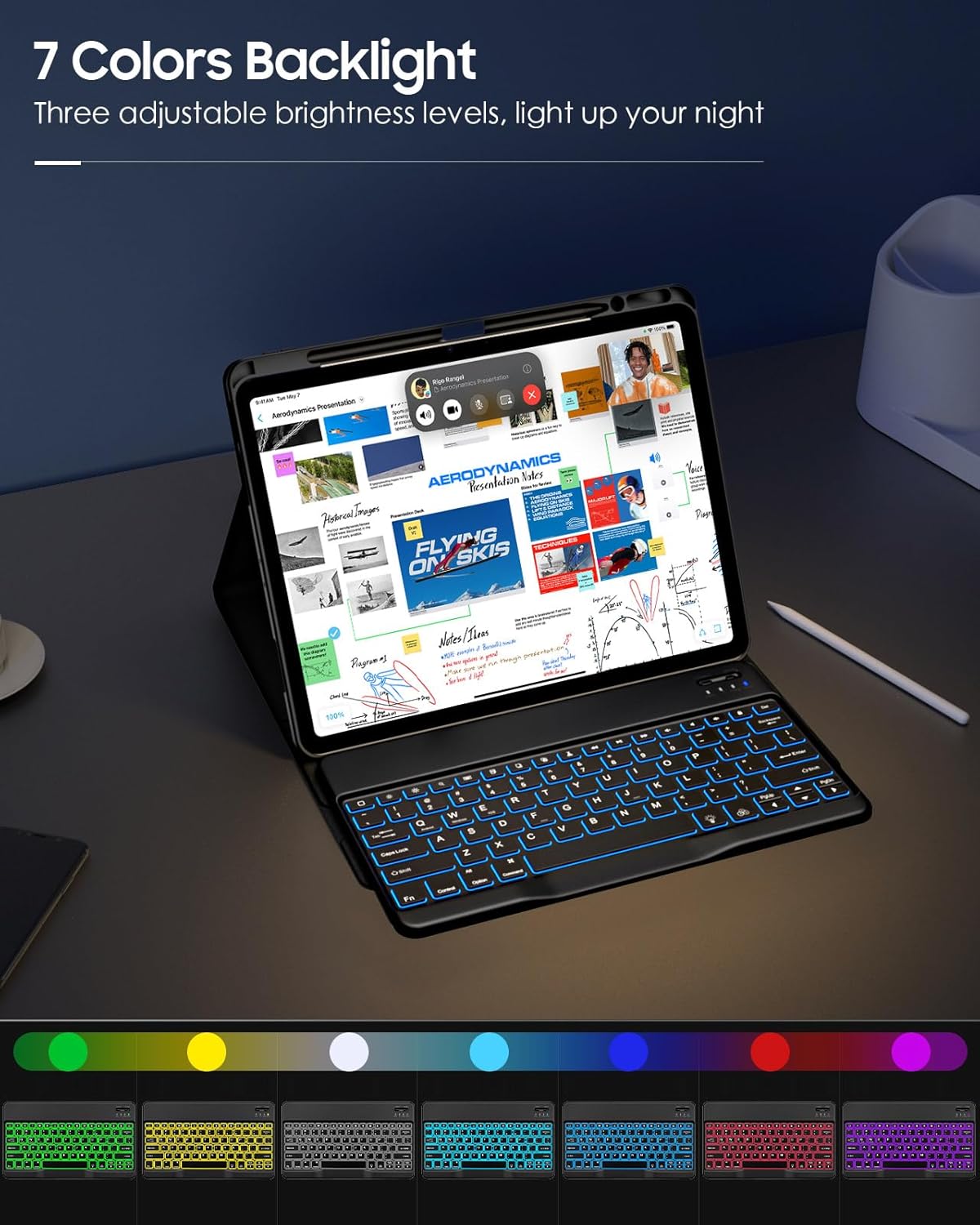
Figure 4.5: Keyboard backlight colors and controls.
4.4. Using the Built-in Pencil Holder
The case includes a dedicated slot for your Apple Pencil, ensuring it is secure and readily available.
- Insert your Apple Pencil into the designated slot on the case.
- The holder supports secure holding, magnetic attachment, and wireless charging for compatible Apple Pencils (e.g., Apple Pencil Pro & 2nd Gen, Apple Pencil USB-C).

Figure 4.6: Apple Pencil secured in the built-in holder.
5. Maintenance and Care
To ensure the longevity and optimal performance of your MoKo Keyboard Case, please follow these maintenance guidelines:
- Cleaning the Case: Wipe the exterior of the PU leather case with a soft, damp cloth. Avoid using harsh chemicals or abrasive cleaners.
- Cleaning the Keyboard: Use a soft, dry cloth to clean the keyboard surface. For dust between keys, use compressed air. Do not immerse the keyboard in water or any liquids.
- Storage: When not in use for extended periods, store the keyboard case in a cool, dry place away from direct sunlight and extreme temperatures.
- Avoid Liquids: Keep the keyboard and case away from water, coffee, and other liquids to prevent damage to electronic components.
- Handle with Care: While the case offers protection, avoid dropping or subjecting it to excessive force.
6. Troubleshooting
| Problem | Possible Cause | Solution |
|---|---|---|
| Keyboard not connecting via Bluetooth. | Keyboard battery is low; Bluetooth is off on iPad; Keyboard not in pairing mode; Interference. | Charge the keyboard fully. Ensure Bluetooth is enabled on your iPad. Press the "Connect" button on the keyboard to enter pairing mode. Move closer to the iPad and away from other wireless devices. |
| Keys are unresponsive or typing incorrectly. | Low battery; Bluetooth connection issue; Software glitch. | Recharge the keyboard. Disconnect and re-pair the Bluetooth keyboard. Restart your iPad. |
| Backlight not working. | Backlight feature is off; Low battery. | Press Fn + Lightbulb key to turn on/cycle backlight. Ensure keyboard is charged. |
| iPad does not fit securely in the case. | Incorrect iPad model; Improper installation. | Verify your iPad model matches the compatible models listed in Section 1. Re-install the iPad, ensuring it snaps into all corners. |
7. Specifications
| Feature | Detail |
|---|---|
| Brand | MoKo |
| Model Number | P840401414934 |
| Compatible Devices | iPad Air 13 Inch M3 2025 (A3268, A3269, A3271), M2 2024 (A2898, A2899, A2900); iPad Pro 12.9 Inch 2022/2021/2020/2018 |
| Connectivity | Bluetooth |
| Keyboard Layout | QWERTY |
| Material | Faux Leather (Case), PC (Back Case) |
| Special Features | Detachable Keyboard, Multi-Angle Stand, Backlit Keys, Built-in Pencil Holder, Rechargeable Keyboard |
| Product Dimensions | 28.7 x 23.7 x 2.49 cm |
| Product Weight | 779.89 g |
8. Warranty and Support
8.1. Warranty Information
MoKo products are designed and manufactured to the highest quality standards. For specific warranty details and duration, please refer to the warranty card included with your purchase or visit the official MoKo website. Keep your purchase receipt as proof of purchase for warranty claims.
8.2. Customer Support
If you encounter any issues or have questions regarding your MoKo Keyboard Case, please contact our customer support team:
- Website: www.moko.com (Please note: This is a placeholder URL, replace with actual if available)
- Email: support@moko.com (Please note: This is a placeholder email, replace with actual if available)
- Phone: Refer to your product packaging or the official website for regional contact numbers.
When contacting support, please provide your product model number (P840401414934) and a detailed description of the issue.
Related documentsP840401414934

Ask a question about this manual
Ask about setup, troubleshooting, compatibility, parts, safety, or missing instructions. Manuals+ will review the question and use this page’s manual context to help answer it.