
Daewoo D55DM54UAMSX
Daewoo D55DM54UAMSX Android TV User Manual
Model: D55DM54UAMSX
Introduction
This manual provides essential information for the safe and efficient operation of your Daewoo D55DM54UAMSX Android TV. Please read this manual thoroughly before using the product and retain it for future reference.
With its elegant design, the Daewoo D55DM54UAMSX Android TV offers a complete entertainment experience for the entire family. The image displayed on a 55-inch screen diagonal features brilliant 4K UHD resolution, Dolby Vision HDR, Super Resolution, and Micro Dimming for exceptionally high-contrast images. Thanks to the integrated triple tuner (DVB-C/-S2/-T2), you can receive television via cable or antenna directly on your device, without an additional receiver. The Android operating system elevates the smart television era, providing numerous possibilities, ease of use, and personalized app selection from the Play Store.
Safety Information
Please observe the following safety precautions to prevent electric shock, fire, or damage to the appliance.
- Do not expose the TV to rain or moisture.
- Do not open the TV casing. Refer all servicing to qualified personnel.
- Ensure proper ventilation around the TV. Do not block ventilation openings.
- Place the TV on a stable, level surface to prevent it from falling.
- Keep the TV away from direct sunlight, heat sources, and excessive dust.
- Unplug the TV from the power outlet during lightning storms or when unused for long periods.
- Keep small parts, like batteries, out of reach of children.
Product Features
Your Daewoo D55DM54UAMSX Android TV comes equipped with a range of advanced features designed to enhance your viewing experience:
- Stunning 4K UHD Display: Enjoy crisp content with brilliant 4K Ultra HD resolution. The combination of Dolby Vision / HDR 10, Super Resolution, and Micro Dimming delivers particularly high-contrast shots with realistic colors and impressive detail sharpness. Your visual experience will be incredibly realistic.
- Unlimited Android Entertainment: Immerse yourself in the diverse offerings of the Android Smart TV. Access countless applications and media libraries such as Prime Video, Netflix, DAZN, Disney+, YouTube, Twitch, ARD, ZDF, and more. (Additional subscription fees may apply when using streaming services).
- Smart Voice Control: Easily control the Smart TV with your voice via Google Assistant (an additional smart speaker may be required). Change channels, adjust volume, or open apps effortlessly.
- Google Chromecast Built-in: Easily play media from your mobile devices directly on your TV.
- Rich Connectivity: Features 3 HDMI (CEC + ARC) ports, 2 USB ports with media player, Wi-Fi, and Bluetooth for connecting game consoles, DVD players, audio devices, and more.
- Integrated Triple Tuner: Receive TV via antenna (DVB-T2), cable (DVB-C), or satellite (DVB-S2) directly on the TV, eliminating the need for an additional receiver.
- Immersive Audio: Dolby Atmos provides appropriate cinematic sound for a truly immersive experience.
- MEMC Technology: Ensures impressive picture quality with fluid movements.

Figure 1: The Daewoo D55DM54UAMSX Android TV displaying its smart interface with various streaming applications like YouTube, Prime Video, and Netflix.
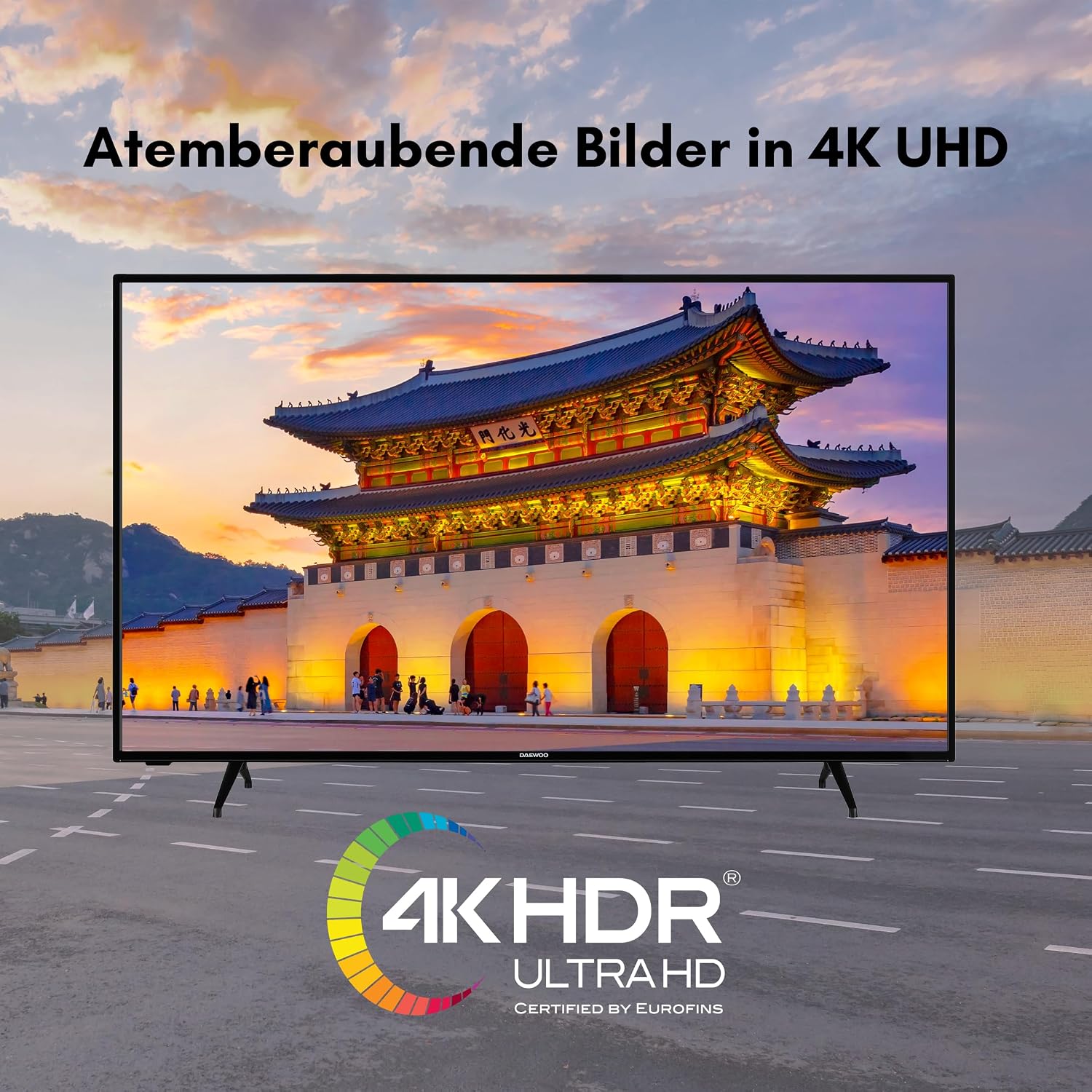
Figure 2: The television showcasing breathtaking images in 4K UHD resolution, highlighting its superior picture quality.

Figure 3: Illustration emphasizing the immersive audio and visual experiences provided by Dolby Vision and Dolby Atmos technologies.
Setup
1. Unpacking and Placement
- Carefully remove the TV from its packaging.
- Attach the TV feet securely using the provided screws, or mount the TV on a wall using a compatible VESA mount (sold separately).
- Place the TV on a stable, flat surface or wall, ensuring adequate ventilation space around the unit (at least 10 cm from walls).
2. Connecting Devices
Your TV offers various connection options for external devices:

Figure 4: An overview of all available connection ports on the Daewoo TV, including HDMI, USB, CI Slot, Antenna, LAN, Digital Audio Out, Headphones, and Bluetooth.
- HDMI: Connect Blu-ray players, game consoles, or set-top boxes to the HDMI ports. The TV has 3 HDMI ports (CEC + ARC compatible).
- USB: Insert USB drives for media playback (2 ports available).
- Antenna (RF/F): Connect your DVB-T2 antenna or cable TV signal.
- LAN: For a wired internet connection.
- Digital Audio Out: Connect to an external sound system.
- Headphones: For private listening.
- Bluetooth: Pair wireless headphones or other Bluetooth audio devices.
3. Initial Power On and Setup Wizard
- Plug the power cord into a wall outlet.
- Press the power button on the TV or remote control.
- Follow the on-screen instructions to complete the initial setup, including language selection, network connection (Wi-Fi or LAN), channel scanning, and Google account login for Android TV features.
Operating
1. Remote Control Functions
The included remote control provides full access to your TV's features. It includes dedicated buttons for popular streaming services.

Figure 5: The remote control for the Daewoo TV, featuring direct access buttons for popular apps like YouTube, Netflix, Prime Video, and Google Play.
- Power: Turn the TV on/off.
- Number Buttons: Select channels directly.
- Volume +/-: Adjust volume.
- Channel +/-: Change channels.
- Navigation (Arrow keys, OK): Navigate menus and confirm selections.
- Back/Exit: Go back or exit current menu.
- Home: Access the Android TV home screen.
- App Buttons: Direct access to YouTube, Netflix, Prime Video, and Google Play.
- Microphone Button: Activate Google Assistant for voice commands.
2. Android TV Interface
The Android TV home screen provides quick access to your favorite apps, live TV, and recommended content. You can customize the layout and add/remove apps from the Google Play Store.
- Apps: Browse and launch installed applications.
- Inputs: Switch between HDMI inputs, TV tuner, and other sources.
- Settings: Access TV settings for picture, sound, network, and system.
3. Voice Control with Google Assistant
Utilize the built-in Google Assistant for hands-free control. Press the microphone button on your remote and speak your command. For example, say "OK Google, open Netflix" or "OK Google, what's the weather?"

Figure 6: A visual representation of the TV's voice command feature, indicating seamless interaction with Google Assistant.
4. Optimal Viewing Distance
For the best viewing experience, consider the recommended distance from your TV based on its size and resolution:
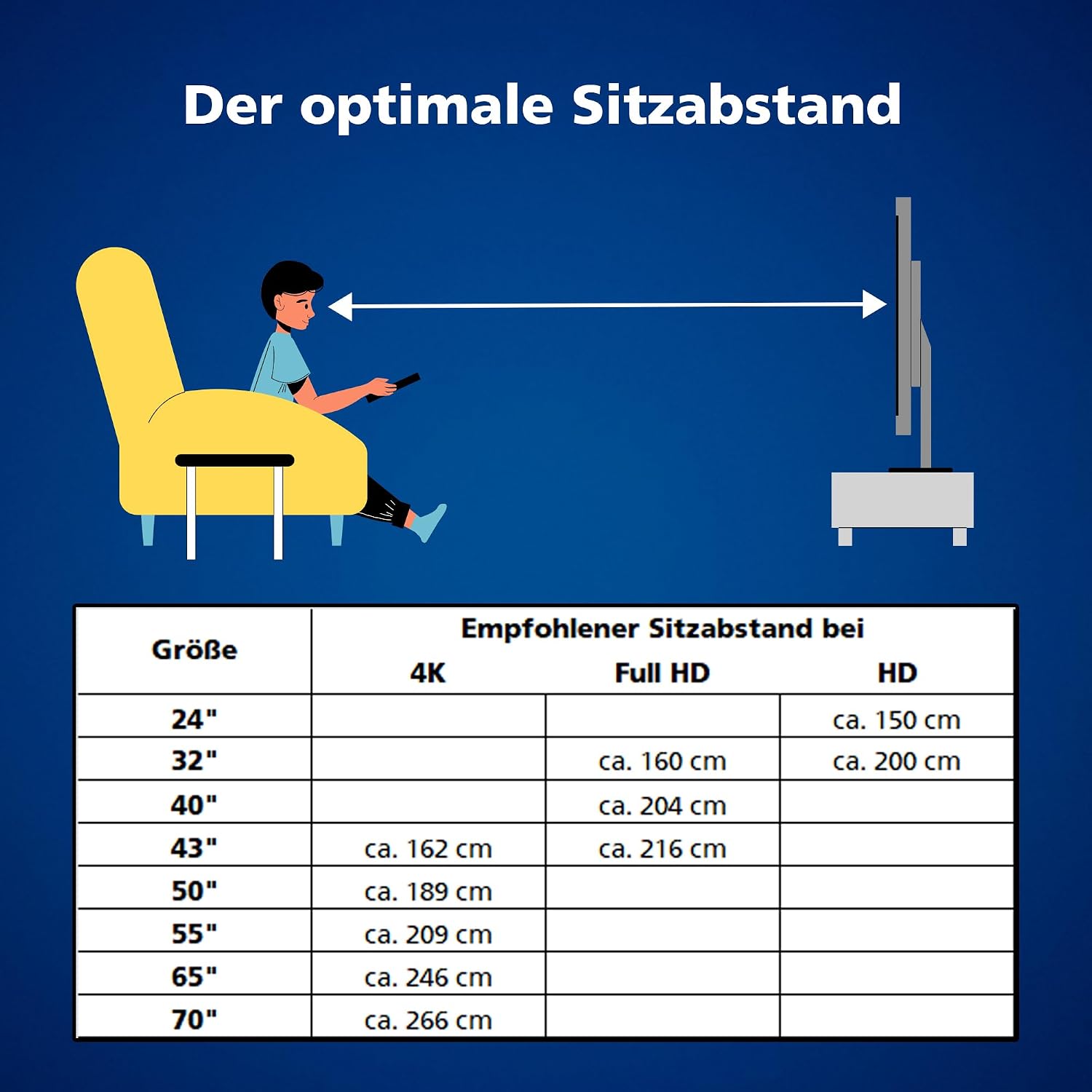
Figure 7: A table illustrating the optimal viewing distance for various TV screen sizes and resolutions (4K, Full HD, HD). For a 55" 4K UHD TV, the recommended distance is approximately 209 cm.
| Size | 4K (approx. cm) | Full HD (approx. cm) | HD (approx. cm) |
|---|---|---|---|
| 24" | 150 | ||
| 32" | 160 | 200 | |
| 40" | 204 | ||
| 43" | 162 | 216 | |
| 50" | 189 | ||
| 55" | 209 | ||
| 65" | 246 | ||
| 70" | 266 |
Maintenance
- Cleaning the Screen: Gently wipe the screen with a soft, lint-free cloth. For stubborn marks, use a screen cleaner specifically designed for TVs, applied to the cloth, not directly to the screen.
- Cleaning the Casing: Use a soft, dry cloth to wipe the TV casing. Do not use abrasive cleaners or solvents.
- Software Updates: The TV may receive automatic software updates. Ensure your TV is connected to the internet to receive these updates, which can improve performance and add new features.
- Power Management: Unplug the TV from the power outlet if you plan not to use it for an extended period.
Troubleshooting
If you encounter issues with your TV, refer to the following common solutions:
| Problem | Possible Cause | Solution |
|---|---|---|
| No power | Power cord not connected; power outlet issue. | Ensure power cord is securely plugged in. Test the outlet with another device. |
| No picture, but sound is present | Incorrect input source; loose HDMI cable. | Press the "Input" button on the remote to select the correct source. Check HDMI cable connections. |
| No sound, but picture is present | Volume too low or muted; external audio system issue. | Increase volume or unmute. Check connections to external audio devices. |
| Remote control not working | Batteries are dead or inserted incorrectly; obstruction. | Replace batteries. Ensure correct polarity. Remove any obstructions between remote and TV. |
| Cannot connect to Wi-Fi | Incorrect password; router issue; TV too far from router. | Double-check Wi-Fi password. Restart router. Move TV closer to router or use a wired connection. |
| Apps are slow or freezing | Too many apps running; low memory. | Close unused apps. Restart the TV. Clear app cache in settings. |
If the problem persists after trying these solutions, please contact customer support.
Specifications
| Feature | Detail |
|---|---|
| Brand | Daewoo |
| Model Number | D55DM54UAMSX |
| Screen Size | 55 Inches |
| Resolution | 4K UHD (3840 x 2160 pixels) |
| Display Technology | LED |
| Refresh Rate | 50 Hz |
| Operating System | Android TV |
| Special Features | Android TV, Dolby Atmos, Dolby Vision HDR, Google Play Store, Chromecast Built-in, Triple Tuner (DVB-C/-S2/-T2), MEMC, Super Resolution, Micro Dimming |
| Connectivity | 3 x HDMI (CEC + ARC), 2 x USB, Wi-Fi, Bluetooth, LAN, Digital Audio Out, Headphone Jack |
| Color | Black |
| Image Format | 16:9 |
| Product Dimensions (D x W x H) | 24.4 cm x 124.3 cm x 78.7 cm |
| Components Included | TV unit with feet, Remote control with 2 AAA batteries, User Manual |
| Energy Efficiency Class (SDR) | E |
| Energy Efficiency Class (HDR) | G |
For detailed energy information, please refer to the official EPREL database: EPREL Product Information Sheet
Warranty and Support
Your Daewoo D55DM54UAMSX Android TV is designed for reliability and performance. Please note the following regarding warranty and support:
- Spare Parts Availability: Spare parts are guaranteed to be available for 7 years from the date of market placement.
- Product Support: Minimal guaranteed product support is available for 7 years.
- Software Updates: Information regarding guaranteed software updates is not specified.
- General Warranty: Please refer to your retailer or the specific terms provided at the point of purchase for details on the general product warranty.
For further assistance or technical support, please contact your local Daewoo service center or the retailer where you purchased the product.
Related documentsD55DM54UAMSX





Ask a question about this manual
Ask about setup, troubleshooting, compatibility, parts, safety, or missing instructions. Manuals+ will review the question and use this page’s manual context to help answer it.