
1. Introduction
This manual provides essential information for the safe and efficient operation of your Next YE-43020GG4 43-inch Full HD Google Android TV. Please read this manual thoroughly before using the product and retain it for future reference.

Image 1.1: Front view of the Next YE-43020GG4 43-inch Full HD Google Android TV, showcasing its sleek design and the Google Android TV interface.
The Next YE-43020GG4 is a 43-inch Full HD (1920x1080p) LED television featuring the Google Android TV operating system. It offers a dynamic contrast enhancer for improved picture quality and integrated Wi-Fi for seamless internet connectivity. This model is designed for ease of use and provides access to a wide range of applications and streaming services.
2. Safety Information
Observe the following safety precautions to prevent damage to the TV and ensure personal safety:
- Power Supply: Connect the TV only to an AC 100-240V, 50/60Hz power source. Ensure the power cord is not damaged or pinched.
- Ventilation: Do not block ventilation openings. Allow adequate space around the TV for proper airflow to prevent overheating.
- Water and Moisture: Do not expose the TV to rain, moisture, or place objects filled with liquids on or near the TV.
- Cleaning: Unplug the TV before cleaning. Use a soft, dry cloth. Do not use liquid cleaners or aerosol sprays.
- Placement: Place the TV on a stable, level surface. If wall-mounting, ensure the mount is compatible and installed by qualified personnel.
- Lightning: During lightning storms or when unused for long periods, unplug the TV from the power outlet and disconnect the antenna cable.
- Servicing: Do not attempt to service the TV yourself. Refer all servicing to qualified service personnel.
3. Package Contents
Verify that all items are present in the package:
- Next YE-43020GG4 43-inch Full HD Google Android TV Unit
- Remote Control
- TV Stand (2 pieces)
- Power Cord
- User Manual (this document)
- Batteries for Remote Control (may vary by region)
4. Physical Features and Connections
Familiarize yourself with the physical layout and connection ports of your television.

Image 4.1: Rear view of the TV with labeled connection ports.
4.1. Rear Panel Connections
| Port | Description |
|---|---|
| HDMI 1 (ARC) | High-Definition Multimedia Interface with Audio Return Channel support. Connect external devices like Blu-ray players or soundbars. |
| HDMI 2 | High-Definition Multimedia Interface. Connect external devices. |
| USB (2x) | Universal Serial Bus ports for connecting USB storage devices (e.g., flash drives) to play media or for software updates. |
| ETHERNET | RJ45 port for wired internet connection. |
| DVB-S / DVB-S2 | Satellite input for connecting a satellite dish. |
| DVB-T / DVB-T2 | Terrestrial antenna input for connecting a digital terrestrial antenna. |
| DVB-C | Cable input for connecting to a cable TV network. |
| CI MODULE | Common Interface slot for inserting a CI+ module and smart card, typically used for encrypted digital TV services. |
| MINI AV-IN | Mini Audio/Video input for connecting older devices using an adapter cable (not always included). |
4.2. Side Profile

Image 4.2: Left side profile of the TV.

Image 4.3: Right side profile of the TV.
The slim design of the television allows for versatile placement options, whether on a stand or wall-mounted. The side profiles illustrate the minimal depth of the unit.
5. Setup
5.1. Attaching the TV Stand
- Carefully place the TV face down on a soft, flat surface (e.g., a blanket or foam) to prevent screen damage.
- Identify the left and right stand pieces.
- Align each stand piece with the corresponding screw holes on the bottom of the TV.
- Secure the stands using the provided screws. Do not overtighten.
- Carefully lift the TV to an upright position and place it on a stable surface.
5.2. Wall Mounting (Optional)
If you choose to wall-mount your TV, ensure you use a VESA-compatible wall mount kit (not included) and follow the instructions provided with the wall mount. It is recommended to have this installation performed by a qualified professional.
5.3. Connecting Power and External Devices
- Connect the power cord to the TV's power input and then to a wall outlet.
- Connect your antenna, satellite dish, or cable TV source to the appropriate input ports (DVB-T/T2, DVB-S/S2, DVB-C).
- Connect any external devices (e.g., game consoles, Blu-ray players) to the HDMI ports.
- For wired internet, connect an Ethernet cable to the ETHERNET port. For Wi-Fi, ensure your router is on and within range.
5.4. Initial Setup Wizard
- Turn on the TV using the power button on the remote control or the TV itself.
- Follow the on-screen instructions to select your language, country, and network settings (Wi-Fi or Ethernet).
- Sign in with your Google Account to access Google Play Store, Google Assistant, and other Google services.
- Complete the channel scan for terrestrial, satellite, or cable broadcasts.
6. Operating Instructions
6.1. Remote Control Overview

Image 6.1: The remote control for your Next Google Android TV, featuring quick access buttons for popular streaming services and voice control.
The remote control provides access to all TV functions. Insert two AAA batteries (not included) into the battery compartment, observing polarity.
- Power Button: Turns the TV on or off.
- Navigation Pad (Up/Down/Left/Right/OK): Navigates menus and confirms selections.
- Back Button: Returns to the previous screen.
- Home Button: Accesses the Android TV home screen.
- Volume Up/Down: Adjusts the volume level.
- Channel Up/Down: Changes TV channels.
- Netflix, YouTube, Prime Video, Google Play Buttons: Direct access to these applications.
- Google Assistant Button (Microphone Icon): Activates voice control.
6.2. Using Google Assistant

Image 6.2: Voice search functionality via the remote control, activated by the Google Assistant button.
Press the Google Assistant button on your remote and speak into the microphone to:
- Search for movies, TV shows, or information.
- Control smart home devices.
- Open applications.
- Get answers to questions.
6.3. Accessing Applications and Streaming Services
From the Android TV home screen, you can access pre-installed applications or download new ones from the Google Play Store. Use the dedicated buttons on the remote for quick access to popular streaming platforms.
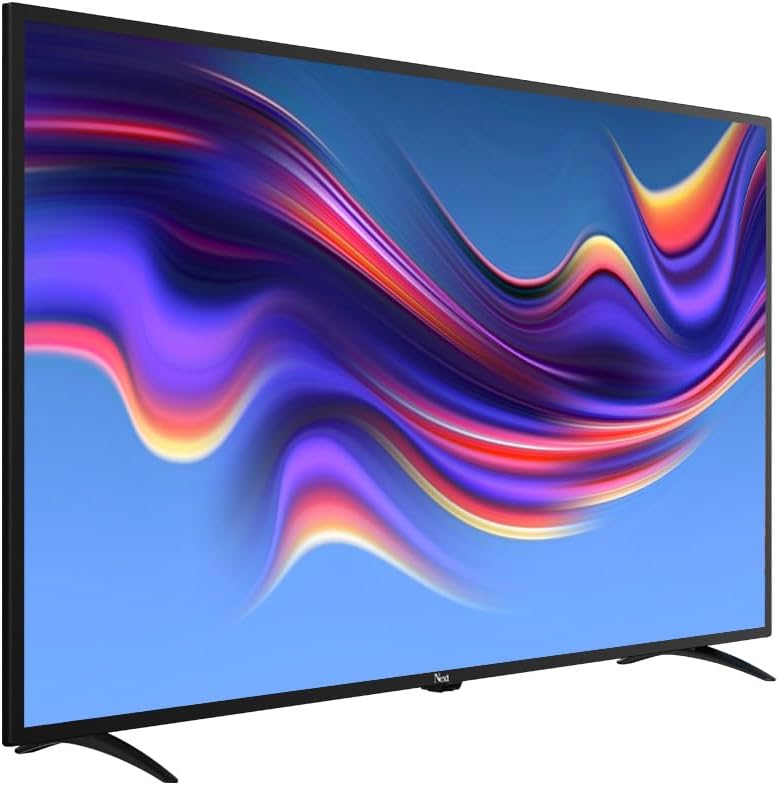
Image 6.3: The Next Google Android TV provides access to a wide range of streaming applications, enhancing your entertainment options.
7. Maintenance
7.1. Cleaning the TV
- Screen: Gently wipe the screen with a soft, lint-free cloth. For stubborn marks, slightly dampen the cloth with water or a specialized screen cleaner (ensure it's safe for LED screens) and wipe gently. Do not spray liquid directly onto the screen.
- Cabinet: Wipe the TV cabinet with a soft, dry cloth. Avoid using abrasive cleaners, waxes, or solvents.
- Before Cleaning: Always unplug the TV from the power outlet before cleaning.
7.2. Software Updates
Your Android TV may receive software updates periodically. It is recommended to keep your TV's software updated to ensure optimal performance and access to the latest features and security patches. You can usually check for updates in the TV's settings menu under "About" or "System Update."
8. Troubleshooting
Refer to the following table for common issues and their solutions:
| Problem | Possible Cause / Solution |
|---|---|
| No Power |
|
| No Picture, but Sound is Present |
|
| No Sound, but Picture is Present |
|
| Remote Control Not Working |
|
| Wi-Fi Connection Issues |
|
| Apps Crashing or Freezing |
|
9. Specifications
Technical specifications for the Next YE-43020GG4 43-inch Full HD Google Android TV:
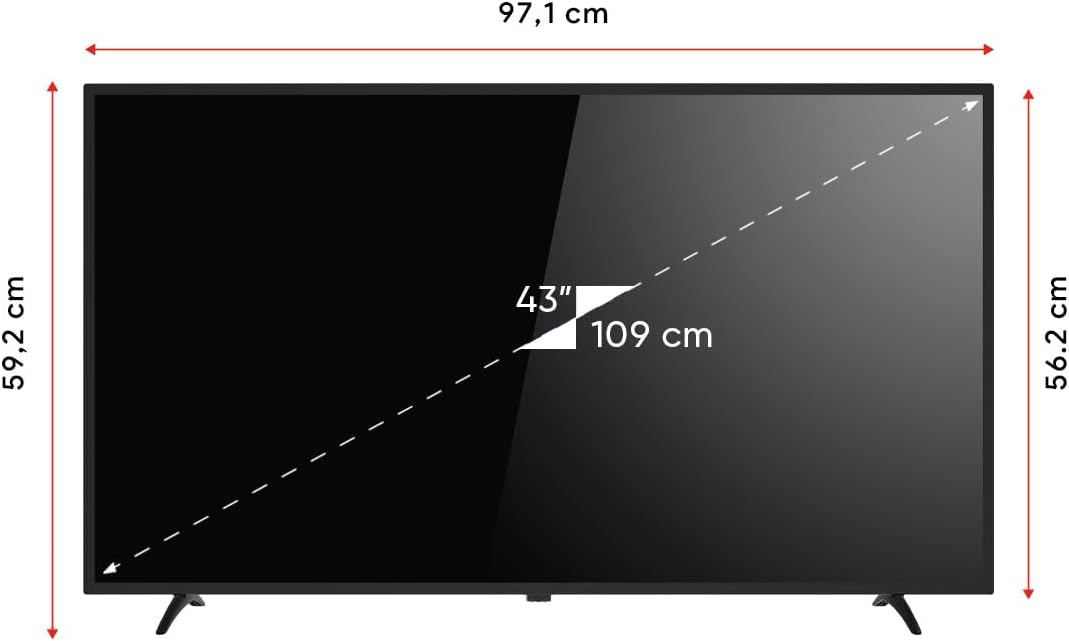
Image 9.1: Dimensions of the Next YE-43020GG4 TV.
| Feature | Detail |
|---|---|
| Model Name | YE-43020GG4 |
| Brand | Next |
| Screen Size | 43 Inches (109 cm) |
| Display Technology | LED |
| Resolution | Full HD (1920x1080p) |
| Refresh Rate | 60 Hz |
| Operating System | Google Android TV |
| Connectivity | Wi-Fi, Ethernet |
| HDMI Ports | 2 (1x ARC) |
| USB Ports | 2 |
| Aspect Ratio | 16:9 |
| Contrast Ratio | 3000:1 |
| Special Features | Dynamic Contrast Enhancer, Google Assistant |
| Product Dimensions (WxDxH) | 97.1 x 19.4 x 59.2 cm |
| Product Weight | 5.9 Kilograms |
| Model Year | 2024 |
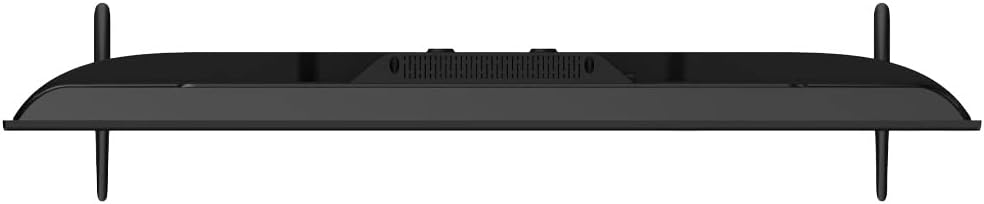
Image 9.2: EU Energy Label for the Next YE-43020GG4, indicating its energy efficiency rating and consumption.
10. Warranty and Support
10.1. Warranty Information
Your Next YE-43020GG4 television comes with a manufacturer's warranty. Please refer to the warranty card included in your product packaging for specific terms, conditions, and duration of the warranty. Keep your purchase receipt as proof of purchase for warranty claims.
10.2. Customer Support
For technical assistance, troubleshooting beyond this manual, or warranty service, please contact Next customer support. Contact details can typically be found on the manufacturer's official website or on the warranty card.
When contacting support, please have the following information ready:
- Model Name: YE-43020GG4
- Serial Number (located on the back of the TV)
- Date of Purchase
- A clear description of the issue


