
Amazon Kindle (16 GB)
Amazon Kindle (16 GB) User Manual
Model: Kindle (16 GB)
1. Introduction
Welcome to your new Amazon Kindle (16 GB). This device is designed to provide a dedicated and distraction-free reading experience. It features a compact and lightweight design, a glare-free display, adjustable front light, and extended battery life, allowing you to carry thousands of books wherever you go.

Figure 1.1: The Amazon Kindle (16 GB) device, showcasing its sleek front and back design.
2. Getting Started: Setup
Follow these steps to set up your Kindle for the first time:
- Charge Your Kindle: Connect the included USB-C cable to your Kindle and a power adapter (not included) or a computer's USB port. The charging indicator light will turn on. A full charge can take approximately 4 hours using a standard USB wall charger.
- Power On: Press and hold the power button (located on the bottom edge) for a few seconds until the Kindle logo appears.
- Select Language: Follow the on-screen prompts to select your preferred language.
- Connect to Wi-Fi: Choose your Wi-Fi network from the list and enter the password if prompted. A stable internet connection is required for initial setup and downloading content.
- Register Your Kindle: Sign in with your Amazon account credentials. If you don't have an Amazon account, you can create one during this step.
- Explore: Once registered, your Kindle is ready to use. You can browse the Kindle Store, download books, or access your existing library.
3. Operating Your Kindle
3.1 Basic Navigation
- Power Button: Press briefly to put the Kindle to sleep or wake it up. Press and hold for 7 seconds to restart.
- Touchscreen: Tap to select items, swipe left/right to turn pages, and pinch to zoom (if supported by content).
- Home Screen: Displays your current reads, recommended titles, and quick access to your library and the Kindle Store.
- Quick Actions: Swipe down from the top of the screen to access settings like Wi-Fi, Airplane Mode, Dark Mode, and adjustable front light.
3.2 Reading Books
To open a book, tap its cover on the Home screen or in your Library. While reading:
- Turn Pages: Tap the right side of the screen to go to the next page, or the left side to go back. You can also swipe left or right.
- Adjust Font and Layout: Tap the top of the screen to bring up the reading toolbar. From here, you can change font size, font style, line spacing, and margins.
- Adjust Front Light: Use the sun icon in the Quick Actions menu or reading toolbar to adjust the brightness of the front light.
- Look Up Words: Tap and hold a word to see its definition, Wikipedia entry, or translate it.
- Highlight and Notes: Tap and drag to highlight text. A menu will appear allowing you to add notes or share.

Figure 3.1: Reading on the Kindle, demonstrating the clear text display.
4. Key Features
- Lightweight and Compact Design: The Kindle (16 GB) is designed to be the lightest and most compact Kindle, making it easy to hold for extended periods and carry anywhere.
- Glare-Free Display: Enjoy reading even in bright sunlight with the 6-inch glare-free display, mimicking the look of real paper.

Figure 4.1: The Kindle's glare-free display allows comfortable reading in various environments, including outdoors.
- Adjustable Front Light: The adjustable front light allows for comfortable reading day or night. It is now 25% brighter at max setting for enhanced visibility.

Figure 4.2: The Kindle features a brighter front light and higher contrast ratio for improved readability.
- Faster Page Turns: Experience a more fluid reading experience with improved page turn speed.

Figure 4.3: The Kindle offers faster page turns for a seamless reading flow.
- Long Battery Life: A single charge can last up to 6 weeks, depending on usage, reducing the need for frequent recharging.
- 16 GB Storage: With 16 GB of storage, your Kindle can hold thousands of books, magazines, and comics, ensuring your library is always with you.
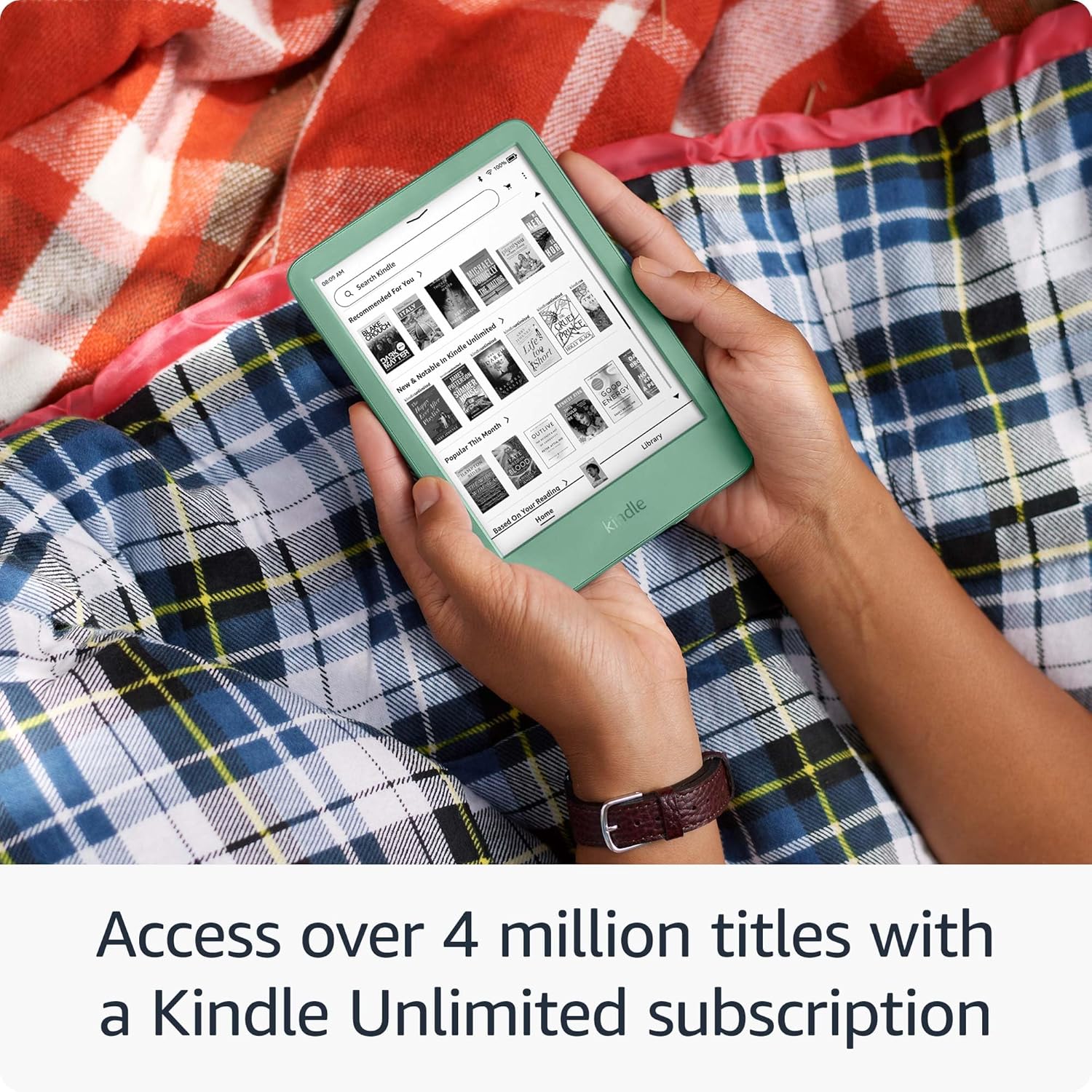
Figure 4.4: The 16 GB storage allows you to carry thousands of titles on your Kindle.
- Kindle Unlimited Access: A Kindle Unlimited subscription unlocks access to over 4 million titles and thousands of audiobooks.

Figure 4.5: Access to a vast library of books and audiobooks through Kindle Unlimited.
- Sustainable Design: This Kindle is constructed with 75% recycled plastics and 90% recycled magnesium, and features 100% recyclable device packaging.
5. Maintenance
- Cleaning: Use a soft, lint-free cloth to clean the screen and body of your Kindle. Do not use abrasive cleaners or solvents.
- Software Updates: Your Kindle will automatically download and install software updates when connected to Wi-Fi. Ensure your device is charged during updates.
- Battery Care: For optimal battery life, avoid exposing your Kindle to extreme temperatures. Charge your device regularly, but it is not necessary to fully discharge it before recharging.
- Storage Management: To free up space, you can remove downloaded books from your device. They will remain stored in your Kindle library in the cloud and can be re-downloaded at any time.
6. Troubleshooting
| Problem | Solution |
|---|---|
| Kindle not turning on or frozen | Press and hold the power button for 7 seconds until the device restarts. If it doesn't turn on, ensure it is charged. |
| Cannot connect to Wi-Fi | Ensure Wi-Fi is enabled on your Kindle. Verify your Wi-Fi password. Try restarting your Wi-Fi router. |
| Books not downloading | Check your Wi-Fi connection. Ensure your Kindle is registered to the correct Amazon account. Check for available storage space. |
| Screen is unresponsive | Perform a restart by holding the power button for 7 seconds. Ensure the screen is clean and free of debris. |
7. Specifications
- Display: 6-inch glare-free display with adjustable front light
- Storage: 16 GB
- Battery Life: Up to 6 weeks on a single charge (based on 30 minutes of reading per day with wireless off and the light setting at 13)
- Connectivity: Wi-Fi (802.11b/g/n), USB-C
- Dimensions: (Approximate, based on typical Kindle dimensions) 157.8 x 108.6 x 8.0 mm
- Weight: (Approximate, based on typical Kindle weight) 158 g
8. Warranty and Support
Your Amazon Kindle (16 GB) is covered by a limited warranty. For detailed warranty information, please refer to the warranty card included with your device or visit the official Amazon support website.
For further assistance, troubleshooting, or to contact customer support, please visit the Amazon Device Support page:
No official product videos from the seller were available for inclusion in this manual.
Related documentsKindle (16 GB)


Ask a question about this manual
Ask about setup, troubleshooting, compatibility, parts, safety, or missing instructions. Manuals+ will review the question and use this page’s manual context to help answer it.