Introduction
This manual provides detailed instructions for the setup, operation, and maintenance of your FRONTECH KB-0040 Wired Gaming Combo, which includes a 104-key RGB backlit keyboard and a 6-button optical mouse. Please read this manual carefully before using the product to ensure optimal performance and longevity.
Product Overview
The FRONTECH KB-0040 Gaming Combo is designed for an enhanced gaming and computing experience. It features a full-sized 104-key membrane keyboard with vibrant RGB backlight effects and an ergonomic optical mouse with adjustable DPI settings and multiple buttons for precise control.

Image: FRONTECH KB-0040 Wired Gaming Combo Keyboard and Optical Mouse.
Setup Instructions
- Connect the Keyboard: Locate an available USB port on your computer. Insert the USB connector of the keyboard into the USB port.
- Connect the Mouse: Locate another available USB port on your computer. Insert the USB connector of the mouse into the USB port.
- Plug & Play: The keyboard and mouse are USB Plug & Play devices. Your operating system (WindowsXP/2000/ME/VISTA/7/8/10) should automatically detect and install the necessary drivers. No additional software installation is required.
- Verify Connection: Once connected, the RGB backlights on both the keyboard and mouse should illuminate, indicating a successful connection.

Image: USB Plug & Play connection for the keyboard.
Video: Unboxing and setup demonstration of the FRONTECH KB-0040 Gaming Combo.
Operating Instructions
Keyboard Operation
- Basic Typing: Use the standard 104 keys for typing and input.
- RGB Backlight Control: To toggle the RGB backlight on or off, press the Fn key simultaneously with the Scroll Lock key.
- Adjustable Height: The keyboard features adjustable feet on the underside. Flip them out to raise the keyboard to a more comfortable typing angle.
- Multimedia Keys: The keyboard includes 12 multimedia function keys (F1-F12) for quick access to media controls and other functions. These are typically activated by pressing the Fn key in combination with the respective F-key.
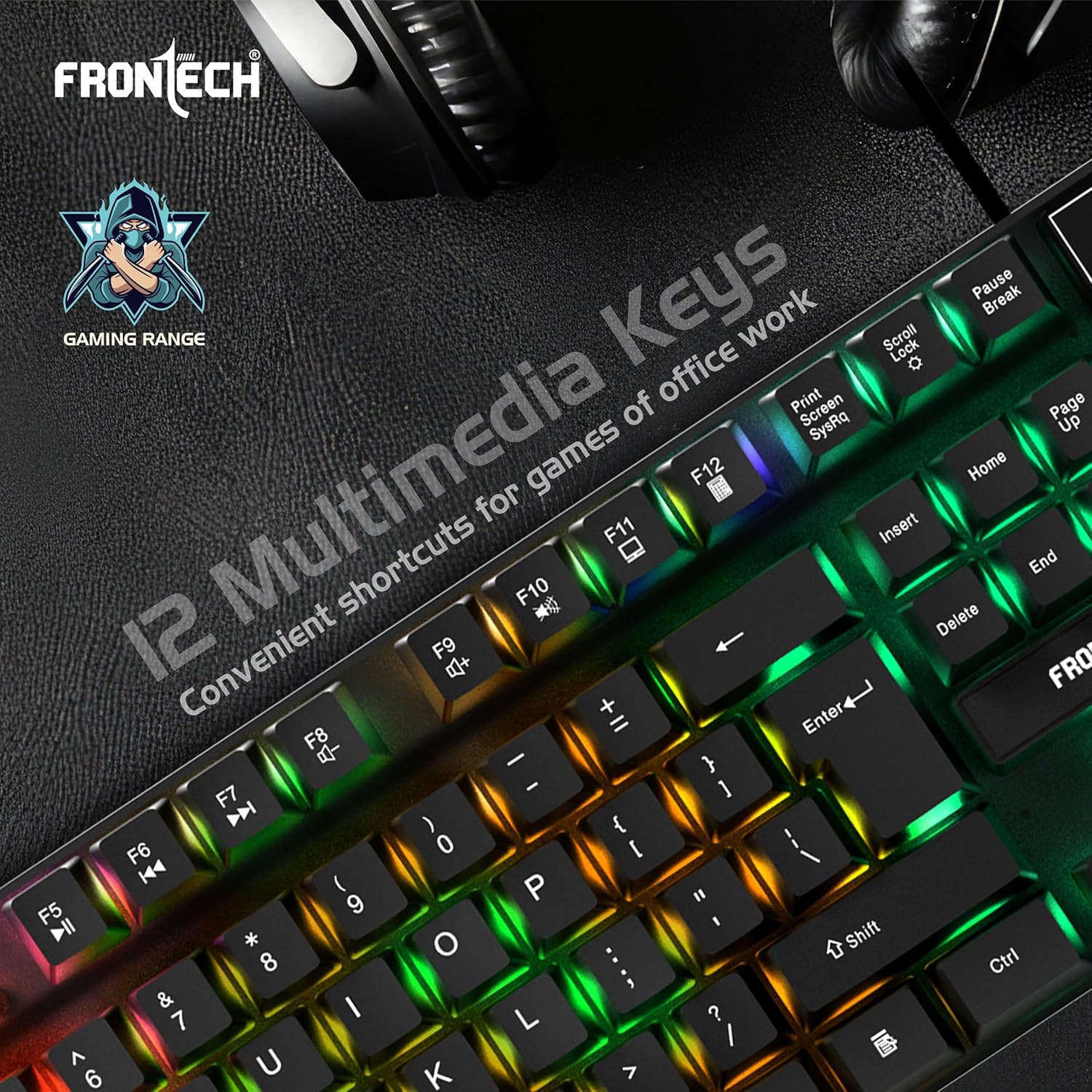
Image: Keyboard highlighting the 12 multimedia keys.

Image: Close-up of the keyboard showcasing the high-quality rainbow backlight.
Mouse Operation
- Basic Functions: Use the left and right click buttons for primary interactions. The scroll wheel allows for vertical scrolling.
- DPI Adjustment: The mouse features a dedicated DPI button (often located behind the scroll wheel) to cycle through different DPI (Dots Per Inch) sensitivity settings, typically ranging from 800 to 1600 DPI. This allows you to adjust cursor speed and precision.
- Additional Buttons: The mouse includes additional programmable buttons (e.g., forward/backward buttons on the side) for enhanced functionality in games or applications.

Image: Ergonomic design of the optical mouse with LED rainbow lighting.

Image: Diagram illustrating the 4 main buttons and DPI control on the mouse.
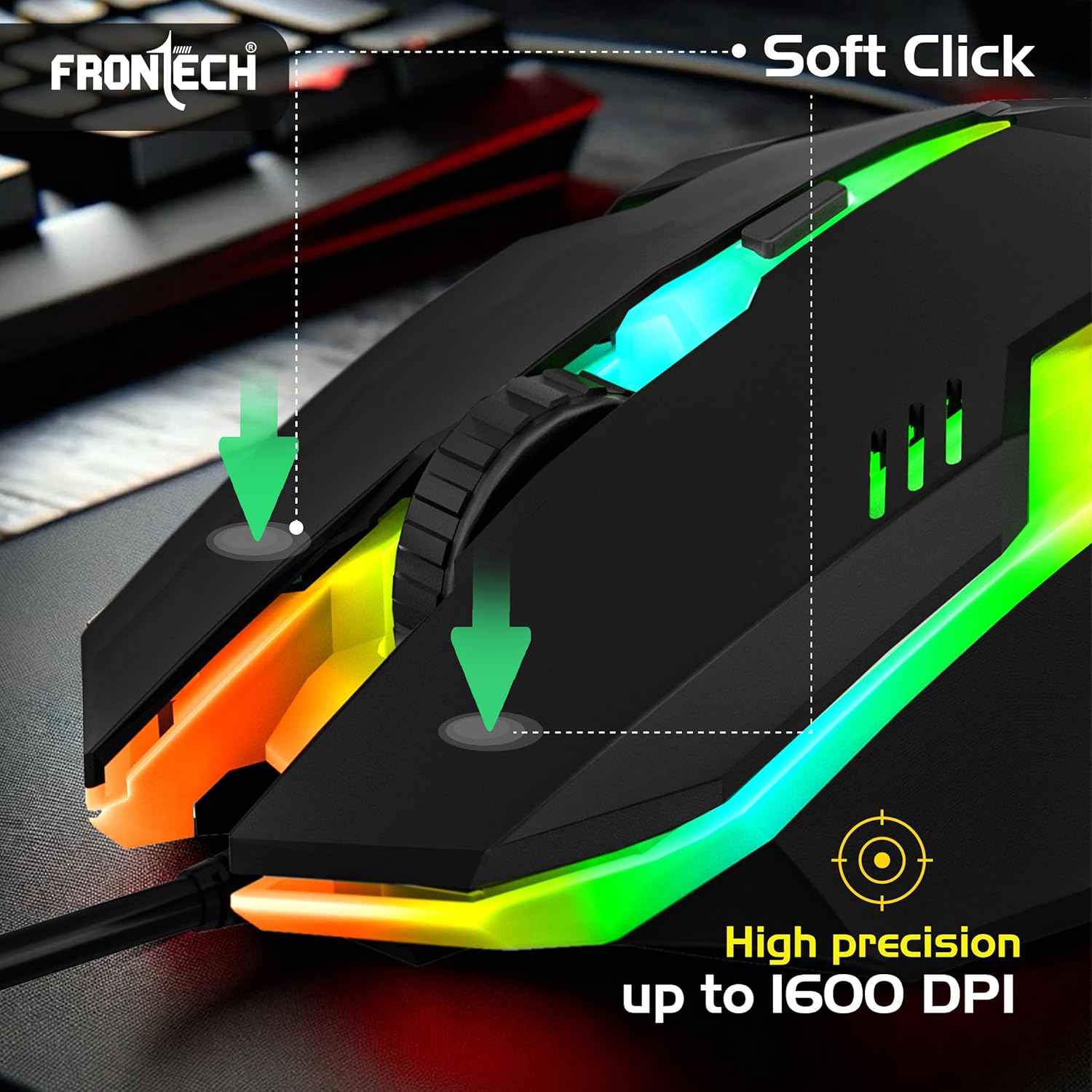
Image: Mouse highlighting soft click buttons and high precision up to 1600 DPI.
Features
- 104-key membrane keyboard layout.
- RGB backlight effects for both keyboard and mouse.
- Ergonomic and comfortable design for extended use.
- USB Plug & Play functionality, no drivers needed.
- 6-button optical gaming mouse.
- Adjustable mouse DPI resolution: 800 - 1600 DPI.
- Compatible with WindowsXP/2000/ME/VISTA/7/8/10.
Specifications
| Component | Specification |
|---|---|
| Keyboard Layout | 104 Keys |
| Keyboard Dimensions | 430.7 x 131 x 30 mm |
| Mouse Buttons | 6 Buttons |
| Mouse DPI Resolution | 800 - 1600 DPI |
| Mouse Dimensions | 126 x 70 x 40 mm |
| Cable Length (Mouse) | 1.4m (Approx) |
| Working Voltage | DC+5V tolerance: ±0.25V |
| Connectivity | USB Wired |
| Operating System | WindowsXP/2000/ME/VISTA/7/8/10 |
| Color | Black |
| Item Weight | 860 g |
Troubleshooting
- Keyboard/Mouse Not Responding:
- Ensure both USB connectors are securely plugged into your computer's USB ports.
- Try connecting the devices to different USB ports.
- Restart your computer.
- RGB Backlight Not Working (Keyboard):
- Press Fn + Scroll Lock to toggle the backlight on/off.
- Ensure the keyboard is properly connected and receiving power.
- Mouse Cursor Movement is Erratic or Slow:
- Clean the optical sensor on the underside of the mouse.
- Ensure you are using the mouse on a suitable surface (e.g., a mouse pad).
- Adjust the DPI setting using the DPI button on the mouse.
Maintenance
- Cleaning: Use a soft, dry cloth to wipe down the keyboard and mouse. For stubborn dirt, a slightly damp cloth can be used, but ensure no liquid enters the devices. Avoid harsh chemicals or abrasive cleaners.
- Storage: When not in use, store the combo in a cool, dry place away from direct sunlight and extreme temperatures.
- Cable Care: Avoid bending or twisting the cables excessively to prevent internal damage.
Warranty and Support
The FRONTECH KB-0040 Wired Gaming Combo comes with a 1 Year Limited Warranty from the date of purchase. This warranty covers manufacturing defects under normal use. It does not cover damage caused by misuse, accidents, unauthorized modifications, or normal wear and tear.
For warranty claims or technical support, please contact FRONTECH customer service through their official website or the retailer where the product was purchased. Please retain your proof of purchase for warranty validation.


