
Bmax Y13
Bmax Y13 13.3-inch Convertible Laptop User Manual
Model: Y13
Introduction
This manual provides essential information for setting up, operating, maintaining, and troubleshooting your Bmax Y13 13.3-inch Convertible Laptop. Please read this guide thoroughly to ensure proper use and to maximize the performance and longevity of your device.
Setup
Unpacking Your Device
Carefully remove all components from the packaging. The box should contain the following items:
- Bmax Y13 Laptop
- 24W DC Power Adapter with replaceable plugs (US, UK, EU standards)
- User Guide (this document)
- Guarantee Card
- Safety Document

The Bmax Y13 laptop in a convertible configuration, showcasing its flexible design.
Initial Charging and Power On
- Connect the power adapter to the laptop's charging port and then to a power outlet. Allow the laptop to charge for at least 30 minutes before first use.
- Press the power button, typically located on the side or top right of the keyboard, to turn on the laptop.
- Follow the on-screen instructions to complete the initial Windows 10 setup, including language, region, network connection, and user account creation.
Operating Instructions
Power Management
- Power On: Press the power button.
- Sleep Mode: Briefly press the power button or close the lid.
- Shut Down: Click the Start button, then Power > Shut down.
Convertible Modes
The Bmax Y13 features a 360-degree hinge, allowing it to transform into various modes:
- Laptop Mode: Standard laptop configuration for typing and productivity.
- Tent Mode: Fold the screen back to form an inverted 'V' shape, ideal for watching videos or presentations in confined spaces.
- Stand Mode: Fold the screen back further, resting the keyboard face down, suitable for touch-based interaction.
- Tablet Mode: Fold the screen completely back against the base, converting the device into a tablet for portable use.
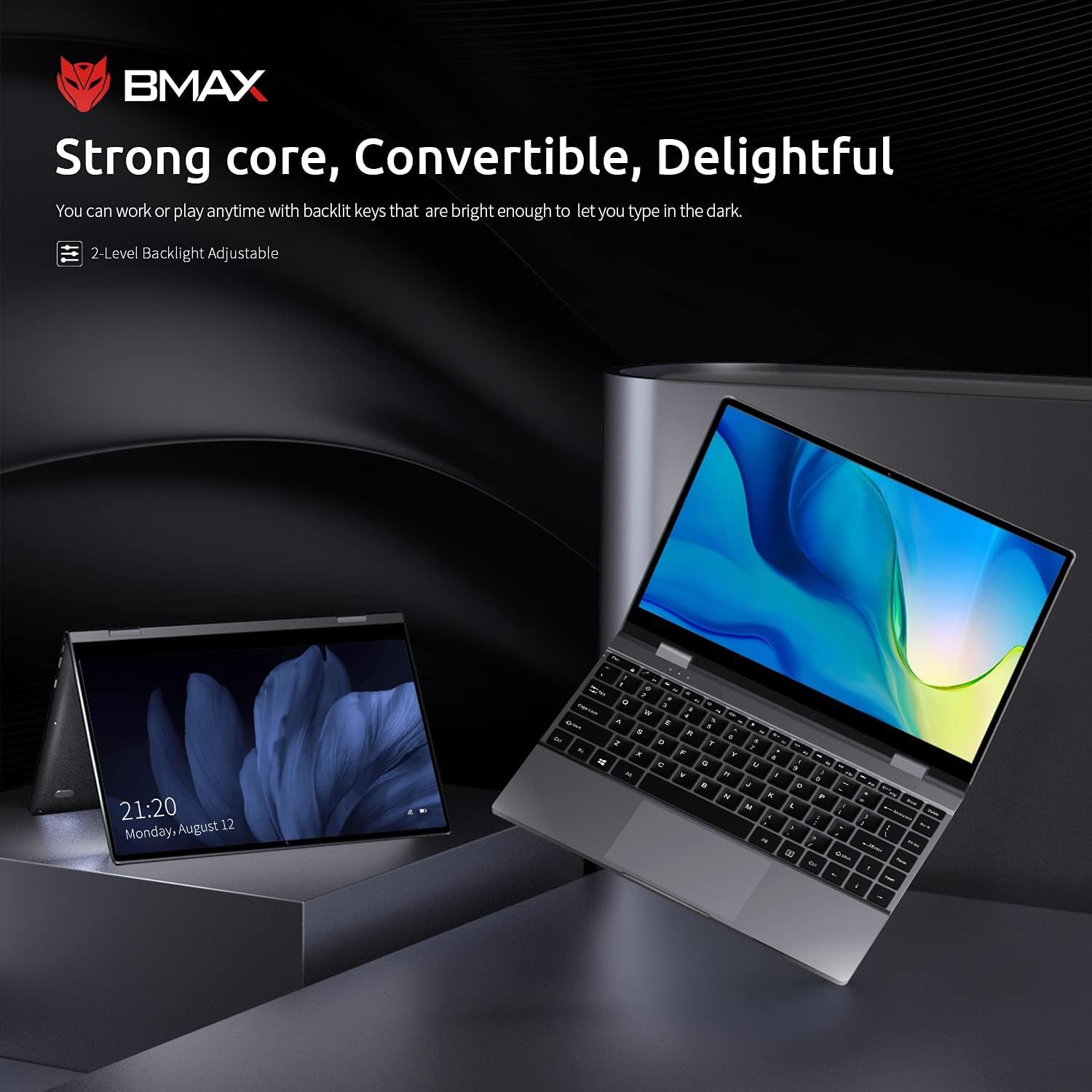
The Bmax Y13 laptop shown in both traditional laptop and tent modes, demonstrating its 2-in-1 versatility.
Touchscreen Operation
The 13.3-inch FHD IPS display supports 10-point multi-touch. Use gestures similar to a smartphone or tablet for navigation, zooming, and interaction with applications.
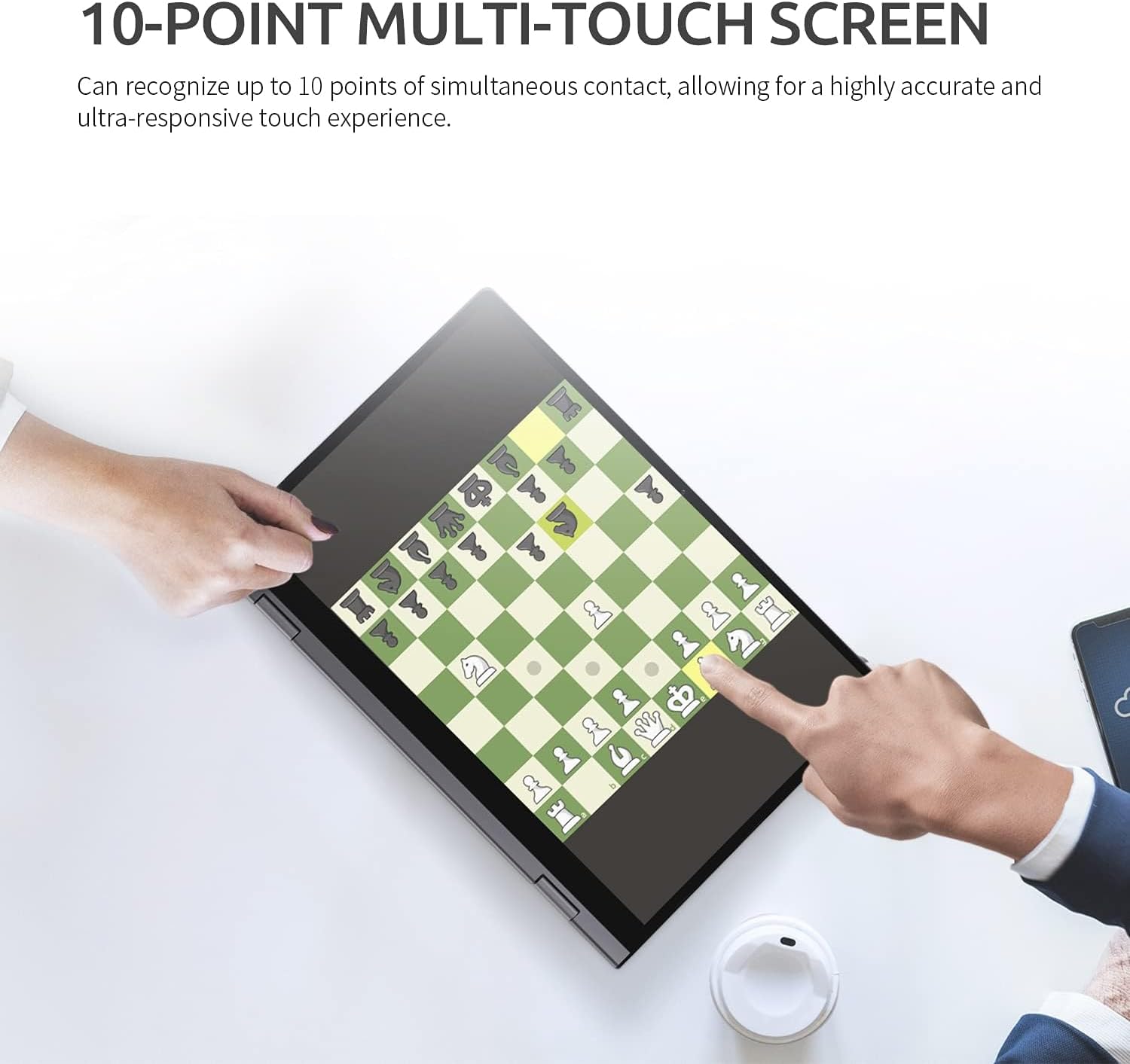
A user interacting with the Bmax Y13's 10-point multi-touch screen, playing a chess game, to demonstrate touch responsiveness.
Keyboard and Touchpad
- Backlit Keyboard: Press the Fn + F2 keys to adjust the 2-level backlight brightness or turn it off.
- Touchpad: Supports multi-touch gestures for scrolling, zooming, and other functions. Refer to Windows settings for customization.
Connecting Peripherals
The laptop is equipped with various ports:
- USB-C Ports (x2): One port supports Power Delivery, HDMI output, and USB 3.0 data transfer. The second port supports USB 3.0 data transfer.
- SD Card Reader: Insert an SD card for expanded storage or data transfer.
- Audio Combo Jack: Connect headphones or a headset with a microphone.
Wireless Connectivity
- Wi-Fi: Supports 802.11a/b/g/n/ac for high-speed wireless internet access. Configure through Windows network settings.
- Bluetooth 4.2: Connect wireless accessories such as mice, keyboards, or headphones. Enable and pair devices through Windows Bluetooth settings.
Maintenance
Cleaning Your Laptop
- Screen: Use a soft, lint-free cloth slightly dampened with water or a screen cleaner. Avoid harsh chemicals.
- Keyboard and Chassis: Use a soft, dry cloth. For stubborn dirt, a slightly damp cloth can be used, ensuring no liquid enters openings.
- Ports: Use compressed air to gently clear dust from ports.
Battery Care
- Avoid fully discharging the battery frequently.
- Do not expose the laptop to extreme temperatures.
- If storing the laptop for an extended period, ensure the battery is charged to approximately 50-70%.
General Care
- Protect the screen from scratches by closing the lid gently and avoiding placing objects on the keyboard.
- Avoid dropping or subjecting the laptop to strong impacts.
Troubleshooting
If you encounter issues with your Bmax Y13 laptop, refer to the following common problems and solutions:
- Laptop does not power on:
- Ensure the power adapter is securely connected to both the laptop and a working power outlet.
- Verify the power outlet is functional by plugging in another device.
- If the battery is completely drained, allow it to charge for a period before attempting to power on.
- Display issues (e.g., no image, flickering):
- Restart the laptop.
- Check display settings in Windows to ensure correct resolution and refresh rate.
- Touchscreen unresponsive:
- Restart the laptop.
- Ensure there are no physical obstructions or dirt on the screen.
- Check for updated touchscreen drivers in Device Manager.
- Wi-Fi or Bluetooth connectivity problems:
- Ensure Wi-Fi/Bluetooth is enabled in Windows settings.
- Restart your router/modem for Wi-Fi issues.
- Remove and re-pair Bluetooth devices.
- Update wireless drivers.
- Slow performance:
- Close unnecessary applications running in the background.
- Check available storage space; a full drive can impact performance.
- Run a virus scan.
If these steps do not resolve your issue, please refer to the support section for further assistance.
Specifications
The following table outlines the key technical specifications for the Bmax Y13 laptop:

Diagram illustrating the Intel Core m5-6Y54 processor, highlighting its role in the laptop's performance.
| Feature | Detail |
|---|---|
| Processor | Intel Core m5-6Y54 (up to 2.70GHz with Turbo Boost, 4MB Cache) |
| Operating System | Windows 10 Pro 64-bit |
| Graphics | Integrated Intel HD Graphics 515 |
| RAM | 8 GB DDR4 2133 MHz (Onboard) |
| Storage | 256 GB M.2 2280 SATA SSD |
| Display | 13.3-inch FHD (1920 x 1080) IPS Glossy Multi-touch (10-point) |
| Camera | 720p HD Camera |
| Audio | Built-in Two-channel Speaker |
| Battery Life | Up to 6 hours (FHD) |
| Dimensions (W x D x H) | 307.5 x 208 x 14.7 mm (12.1 x 8.2 x 0.6 inches) |
| Weight | 1.25 kg (2.75 lbs) |
| Connectivity | 802.11a/b/g/n/ac Wi-Fi, Bluetooth 4.2 |
| Ports | 1x USB-C (Power Delivery, HDMI, USB 3.0), 1x USB-C (USB 3.0), 1x SD Card Reader, Audio Combo Jack |

Close-up of the Bmax Y13 display, emphasizing its 13.3-inch FHD IPS panel with 10-point touch precision and thin bezel.
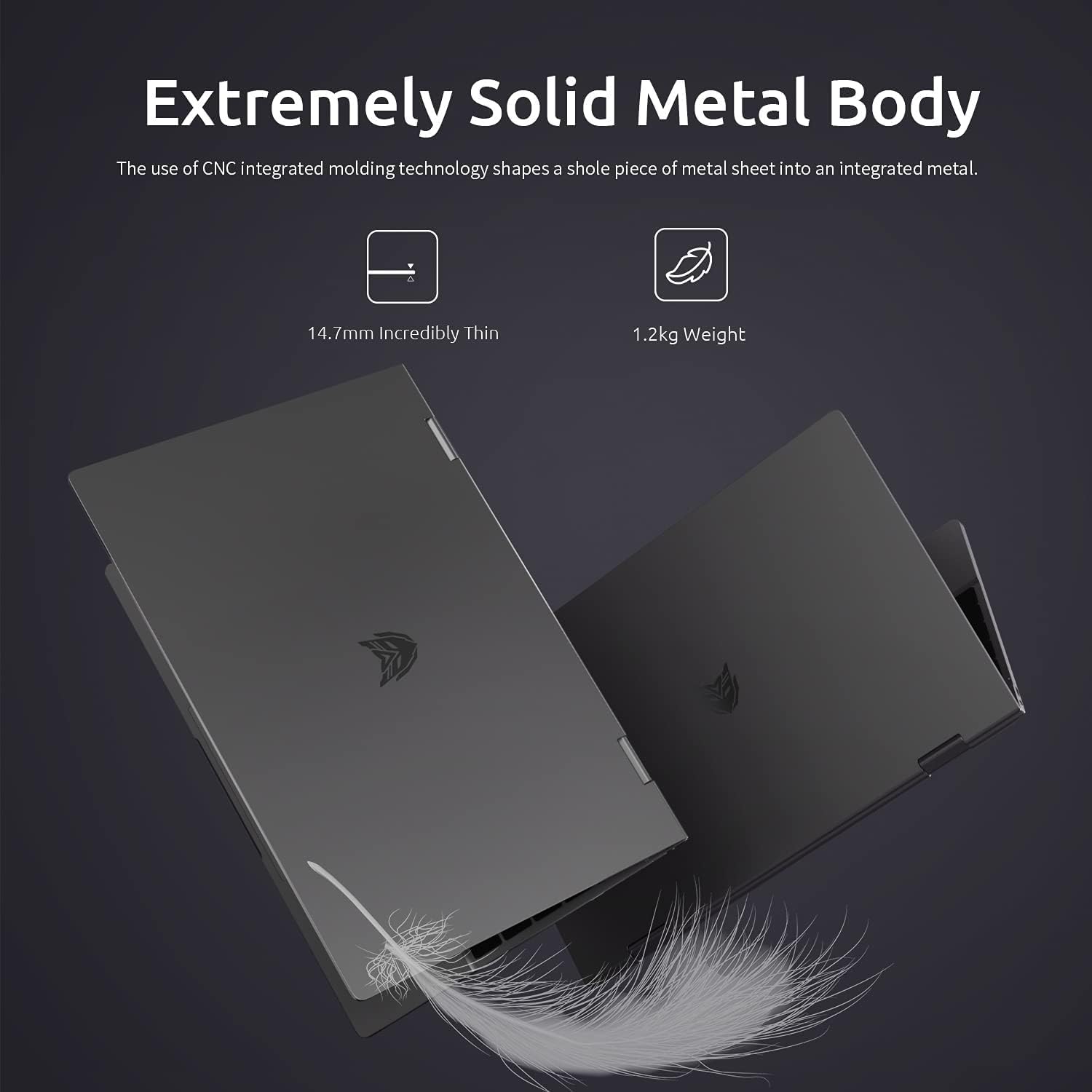
Two Bmax Y13 laptops shown from the side, illustrating their thin profile (14.7mm) and lightweight design (1.2kg).
Warranty and Support
Warranty Information
Your Bmax Y13 laptop comes with a standard manufacturer's warranty. Please refer to the included Guarantee Card for specific terms, conditions, and duration of your warranty coverage. Keep your proof of purchase for warranty claims.
Customer Support
For technical assistance, service inquiries, or further information, please visit the official Bmax website or contact their customer support channels as detailed on your Guarantee Card or product packaging. When contacting support, please have your product model (Y13) and serial number ready.
Related documentsY13

Ask a question about this manual
Ask about setup, troubleshooting, compatibility, parts, safety, or missing instructions. Manuals+ will review the question and use this page’s manual context to help answer it.