
BL Z Plus
User Manual
BL 2025 Android TV Box 12.0 (Model: Z Plus)
1. Introduction
This manual provides comprehensive instructions for the setup, operation, and maintenance of your BL 2025 Android TV Box 12.0. Please read this manual carefully before using the device to ensure optimal performance and longevity.

Image: The BL 2025 Android TV Box, its standard remote control, and the included mini wireless keyboard. The TV box features a hexagonal design with an LED light strip.
2. Package Contents
Verify that all items are present in the package:
- BL 2025 Android TV Box (Model: Z Plus)
- IR Remote Control
- Mini Wireless Keyboard
- HDMI Cable
- US Power Adapter
- User Manual (this document)

Image: A visual representation of all items included in the product package, laid out neatly around the main TV box unit.
3. Setup Guide
3.1 Connecting the TV Box
- Connect to TV: Insert one end of the provided HDMI cable into the HDMI port on the TV Box and the other end into an available HDMI input on your television.
- Connect Power: Plug the US Power Adapter into the DC port on the TV Box, then plug the adapter into a wall outlet.
- Connect to Network (Optional): For a wired connection, connect an Ethernet cable from your router to the LAN port on the TV Box. For Wi-Fi, you will configure it during initial setup.
- Insert USB Receiver for Keyboard: Locate the USB receiver for the mini wireless keyboard, typically found in the battery compartment of the keyboard. Insert this receiver into one of the USB 2.0 ports on the TV Box.
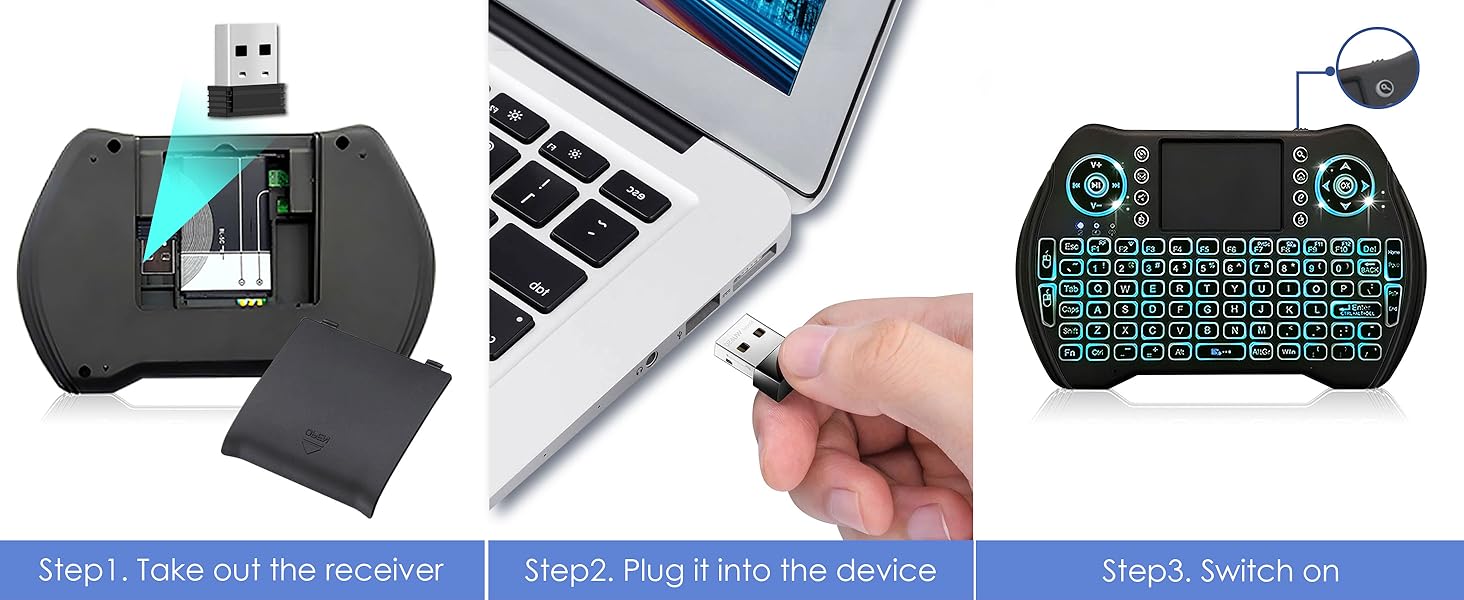
Image: Step-by-step guide showing how to remove the USB receiver from the mini keyboard, plug it into a device (like the TV box), and then switch on the keyboard.
3.2 Initial Power On and Configuration
- Power On: Turn on your television and select the correct HDMI input source. The TV Box should automatically power on and display the boot screen.
- Language Selection: Follow the on-screen prompts to select your preferred language.
- Network Connection: If not using Ethernet, select your Wi-Fi network from the list and enter the password using the remote or mini keyboard. The device supports Wi-Fi 6 (2.4G/5G Dual-band).
- Google Account: Sign in with your Google account to access the Google Play Store and other Google services. If you don't have one, you can create one.
- Time Zone: Set your correct time zone.
4. Operating Instructions
4.1 Navigating the Interface
The BL 2025 Android TV Box runs on Android 12.0 OS, providing a user-friendly interface.
- Use the directional pad on the remote control or the arrow keys on the mini keyboard to navigate through menus and select applications.
- The "OK" button (or Enter key) confirms selections.
- The "Back" button (or Esc key) returns to the previous screen.
- The "Home" button (or Home key) returns to the main home screen.

Image: The home screen of the Android 12.0 operating system, displaying common applications like Netflix, YouTube, and a file manager, indicating improved compatibility and faster performance.
4.2 Installing Applications
Access the Google Play Store from the home screen to download and install a wide variety of applications, including streaming services, games, and utilities.
- Navigate to the "Play Store" icon and select it.
- Search for desired applications using the on-screen keyboard or the mini wireless keyboard.
- Select "Install" to download and set up the application.
4.3 Media Playback and Streaming
The TV Box supports 6K Ultra HD definition with HDR10+ for a high-quality viewing experience.

Image: A visual demonstration comparing the clarity and detail of 1080P, 4K, and 6K resolutions, emphasizing the superior image quality provided by 6K Ultra HD with HDR10+.
You can stream content from installed apps like Netflix, YouTube, and others. The device also supports local media playback via USB drives or external hard disks.
4.4 Screen Sharing
Effortlessly share content from your mobile devices to your TV screen using Airplay, DLNA, or Miracast protocols.

Image: An illustration of interactive screen sharing, showing a user mirroring their smartphone content (movies, images, music, games) to a television screen through the Android TV Box, supporting Airplay, DLNA, and Miracast.
4.5 Using the Mini Wireless Keyboard
The included mini wireless keyboard provides an enhanced input experience, combining keyboard, mouse, and touchpad functionalities.
- Power On/Off: Use the power switch on the keyboard to turn it on or off.
- Typing: Use the QWERTY layout for text input.
- Touchpad: The integrated touchpad functions as a mouse for precise navigation.
- Backlight: The keyboard features 7 backlight colors. To change them, hold down the "Fn" key and scroll left or right on the touchpad.

Image: A close-up of the mini wireless keyboard, illustrating its 7-color backlight feature and providing instructions on how to activate and change the colors using the "Fn" key and touchpad.
5. Maintenance
- Cleaning: Use a soft, dry cloth to clean the exterior of the TV Box and accessories. Do not use liquid cleaners or aerosols.
- Ventilation: Ensure the TV Box is placed in a well-ventilated area to prevent overheating. Do not block ventilation openings.
- Software Updates: The device supports OTA (Over-The-Air) updates. Regularly check for and install firmware updates to ensure optimal performance and security enhancements.
- Storage: When not in use for extended periods, disconnect the power adapter and store the device in a cool, dry place.
6. Troubleshooting
| Problem | Possible Cause | Solution |
|---|---|---|
| No power/No display | Power adapter not connected; Incorrect HDMI input selected on TV. | Ensure power adapter is securely connected and plugged into a working outlet. Select the correct HDMI input on your TV. |
| Remote/Keyboard not responding | Batteries low/dead; USB receiver not plugged in; Keyboard not switched on. | Replace batteries. Ensure USB receiver is firmly inserted into a USB port on the TV Box. Turn on the mini wireless keyboard. |
| Buffering/Slow performance | Weak Wi-Fi signal; Network congestion; Too many apps running in background; Insufficient storage. | Move closer to router or use Ethernet. Close unused applications. Clear cache or uninstall unnecessary apps. Consider expanding storage with a TF card or external hard drive. |
| Cannot connect to Wi-Fi | Incorrect password; Router issue; Out of range. | Double-check Wi-Fi password. Restart your router. Ensure the TV Box is within range of your Wi-Fi network. |
7. Specifications
| Feature | Detail |
|---|---|
| Model Name | Z Plus |
| Operating System | Android 12.0 |
| Processor | Allwinner H618 Chip (Quad-core Cortex-A53 CPU, Mali-G31 GPU) |
| RAM | 4GB |
| Internal Storage | 64GB ROM |
| Expandable Storage | Supports 128GB TF card and 2TB hard disk |
| Video Output | 6K@30fps, H.265, HDR10+ |
| Wi-Fi | Wi-Fi 6 (2.4G/5G Dual-band) |
| Bluetooth | Bluetooth 5.0 |
| Ethernet | 100M LAN Port |
| USB Ports | USB 2.0 |
| Dimensions | 4.2 x 4.2 x 0.9 inches |
| Weight | 1.23 pounds |
| Special Features | OTA technology, 3D support |

Image: A detailed view of the powerful Allwinner H618 chip, highlighting its key specifications including Quad-core Cortex-A53 CPU, 4GB RAM, 64GB ROM, and support for 6K video output.

Image: An illustration detailing the advanced Wi-Fi 6 technology, showing its dual-band 2.4G/5G capabilities, alongside Bluetooth 5.0 and 100M LAN connectivity options.
8. Warranty and Support
For warranty information and technical support, please refer to the contact details provided by the seller or visit the official BL store on Amazon.
Seller: Amaminibox
Amazon Store: BL Best Android TV Box Store
For common issues, please consult the Troubleshooting section of this manual.
Related documentsZ Plus


Ask a question about this manual
Ask about setup, troubleshooting, compatibility, parts, safety, or missing instructions. Manuals+ will review the question and use this page’s manual context to help answer it.