
1. Introduction
This manual provides detailed instructions for the installation, operation, and maintenance of your QGOO AX1800 WiFi 6 USB Adapter. This device is designed to provide high-speed Wi-Fi 6 connectivity to your desktop or notebook computer, enhancing your wireless network experience with advanced features like dual-band support, high-gain antennas, and MU-MIMO technology.

Figure 1: QGOO AX1800 WiFi 6 USB Adapter. This image shows the compact black adapter with a blue USB 3.0 connector and two adjustable external antennas.
2. Key Features
- Dual Band WiFi 6 High Speed: Utilizes the latest 802.11ax technology, offering speeds up to 1200 Mbps on 5GHz and 574 Mbps on 2.4GHz. Ideal for 4K streaming, online gaming, and virtual meetings.
- High Gain & Beamforming: Equipped with dual 5dBi antennas for superior signal reception. Beamforming technology directs Wi-Fi signals towards connected devices for improved range and stability.
- Lower Latency: Incorporates OFDMA, MU-MIMO, 1024-QAM, and Target Wake Time (TWT) technologies for efficient, low-latency connectivity, reducing congestion on busy networks.
- USB 3.0 & WPA3 Security: Features a USB 3.0 interface for faster data transfer rates (up to 5Gbps) and stable network connection. Supports WPA3/WPA2/WPA/WEP security protocols for enhanced network protection.
- Hotspot Functionality: Capable of creating a Wi-Fi hotspot from your computer, providing internet access to other devices.
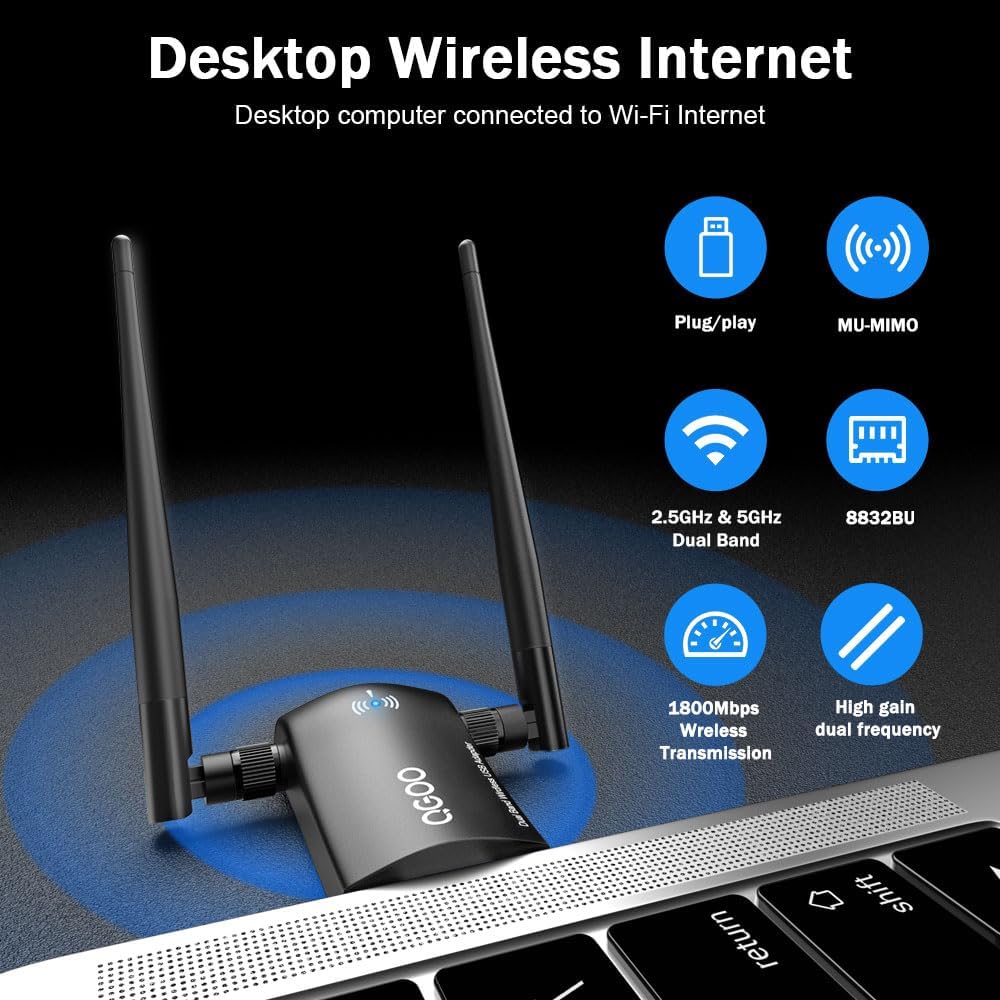
Figure 2: Overview of key features including plug-and-play functionality, MU-MIMO support, dual-band operation, 1800Mbps transmission, and high-gain antennas.

Figure 3: Dual-band capability, showing distinct 5GHz and 2.4GHz frequency signals for versatile connectivity.
3. Package Contents
Please verify that all items are present in the package:
- 1 x QGOO AX1800 WiFi 6 USB Adapter
- 1 x Driver CD/Mini USB Drive (for driver installation)
- 1 x User Manual (this document)
4. Setup and Installation
Follow these steps to install your QGOO AX1800 WiFi 6 USB Adapter:
- Prepare your Computer: Ensure your computer is powered on and running a compatible Windows operating system (Windows 11/10/8.1/8/7).
- Install Drivers:
- Insert the included Driver CD or Mini USB Drive into your computer's optical drive or USB port.
- Locate and run the setup file (e.g., "setup.exe" or "driver_installer.exe").
- Follow the on-screen prompts to complete the driver installation. If your computer does not have an optical drive or the mini USB drive is not recognized, you can download the latest drivers from the official QGOO website.
- Connect the Adapter:
- Carefully insert the QGOO AX1800 WiFi 6 USB Adapter into an available USB 3.0 port on your desktop or laptop. For optimal performance, use a USB 3.0 port (typically identified by a blue insert).
- Adjust the dual antennas to an upright position or an angle that provides the best signal reception. The antennas are multi-directional and can be rotated 180° and 360° for flexible positioning.
- Verify Installation:
- After installation, restart your computer if prompted.
- Go to your computer's network settings. The adapter should be recognized as a new wireless network device.

Figure 4: The adapter supports various Windows operating systems, including Windows 7, 8/8.1, 10, and 11.
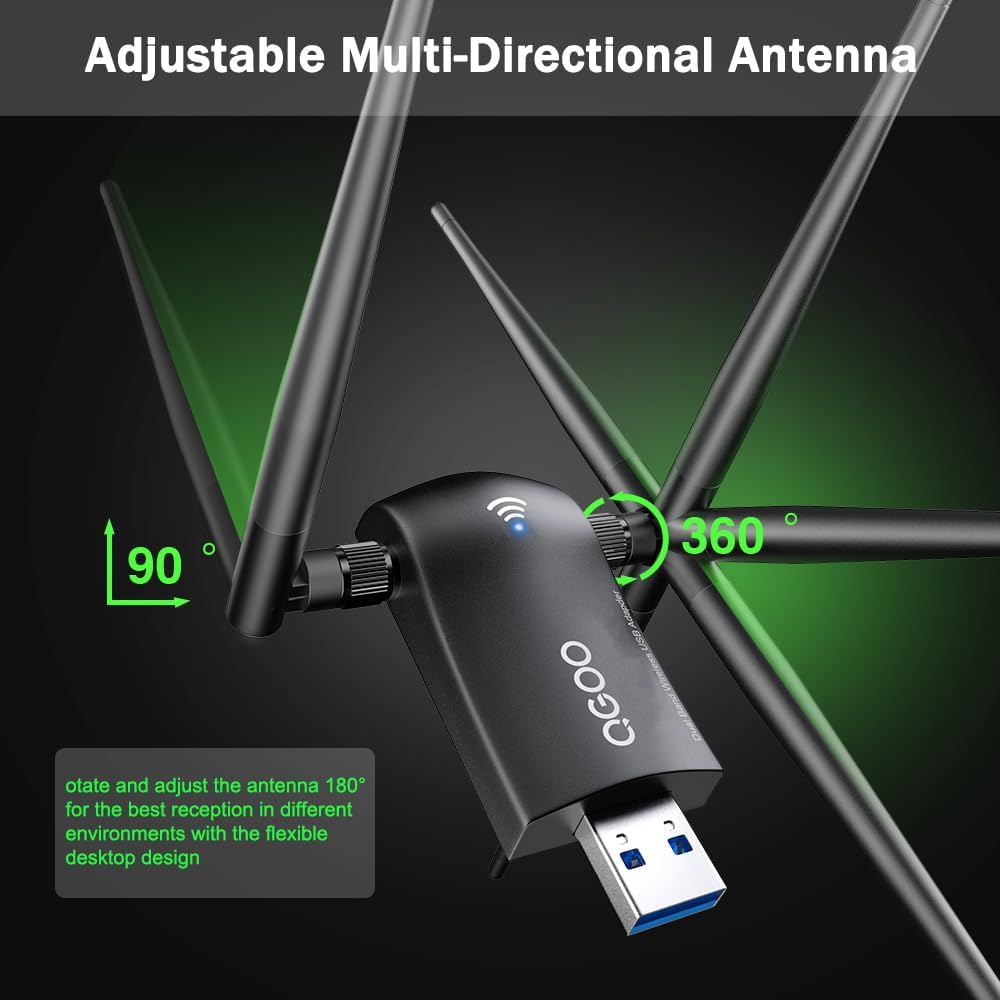
Figure 5: The adjustable multi-directional antennas can be rotated 180° and 360° for optimal signal reception.
5. Operating Instructions
Once the adapter is installed and recognized by your system, you can connect to wireless networks:
- Connect to a Wi-Fi Network:
- Click on the Wi-Fi icon in your system tray (usually in the bottom right corner of your screen).
- Select your desired Wi-Fi network from the list of available networks.
- Enter the network security key (password) if prompted.
- Click "Connect".
- Using as a Wi-Fi Hotspot:
- This adapter can be used to create a Wi-Fi hotspot. Refer to your Windows operating system's documentation for instructions on how to enable and configure Mobile Hotspot or Wi-Fi Direct features.
- Ensure your computer is connected to the internet via Ethernet or another Wi-Fi source for the hotspot to function.
6. Maintenance
To ensure optimal performance and longevity of your QGOO AX1800 WiFi 6 USB Adapter:
- Keep the adapter clean and free from dust. Use a soft, dry cloth for cleaning.
- Avoid exposing the adapter to extreme temperatures, humidity, or direct sunlight.
- Do not attempt to disassemble or repair the adapter yourself. This will void the warranty.
- Periodically check for updated drivers on the official QGOO website to ensure the best performance and compatibility.
7. Troubleshooting
If you encounter issues with your QGOO AX1800 WiFi 6 USB Adapter, refer to the following common solutions:
| Problem | Possible Cause / Solution |
|---|---|
| Adapter not recognized / No Wi-Fi networks found. |
|
| Slow Wi-Fi speeds or frequent disconnections. |
|
| Cannot connect to a specific Wi-Fi network. |
|

Figure 6: The dual high-gain antennas provide broader coverage, extending signals through walls and floors compared to standard adapters.
8. Specifications
| Feature | Detail |
|---|---|
| Model Number | XHT-6B16 |
| Wireless Standards | IEEE 802.11ax/ac/a/b/g/n |
| Wireless Speed | AX1800 (1200 Mbps on 5GHz, 574 Mbps on 2.4GHz) |
| Interface | USB 3.0 (Compatible with USB 2.0, USB 1.1) |
| Antenna Type | Dual 5dBi High-Gain Antennas |
| Wireless Security | WPA3/WPA2/WPA/WEP |
| Dimensions (Product) | 6.38 x 3.11 x 0.59 inches |
| Item Weight | 2.08 ounces |
| Compatible Operating Systems | Windows 11/10/8.1/8/7 (Not recommended for Linux/Mac) |
9. Warranty and Technical Support
QGOO provides technical support for its products. For assistance with installation, troubleshooting, or any other inquiries, please contact QGOO customer support through their official website or the contact information provided with your purchase.
Please retain your proof of purchase for warranty claims.
