
Walfront SC-1202-2D
Walfront Barcode Scanner SC-1202-2D User Manual
Model: SC-1202-2D
1. Introduction
This manual provides detailed instructions for the setup, operation, and maintenance of your Walfront SC-1202-2D Barcode Scanner. This device is a handheld wired scanner designed to efficiently read both 1D and 2D barcodes from various surfaces, including paper and digital screens. It offers a straightforward, plug-and-play solution for data entry in computer information systems.

Image 1: Front view of the Walfront SC-1202-2D Barcode Scanner, showing the scanning window and ergonomic design.
2. Package Contents
Please verify that all items listed below are included in your package. If any items are missing or damaged, please contact customer support.
- 1 x Walfront Barcode Scanner (Model: SC-1202-2D)
- 1 x USB Cable

Image 2: The included USB cable for connecting the scanner to a computer or POS system.
3. Setup Instructions
The Walfront SC-1202-2D Barcode Scanner is designed for simple plug-and-play functionality, requiring no complex driver installation.
- Connect the USB Cable: Insert the smaller end of the provided USB cable into the port located at the base of the barcode scanner.
- Connect to Computer/POS: Plug the standard USB-A end of the cable into an available USB port on your computer or Point-of-Sale (POS) machine.
- System Recognition: Your operating system should automatically detect and install the necessary drivers. This process typically takes a few moments.
- Ready for Use: Once recognized, the scanner is ready for immediate use. No additional software configuration is usually required.

Image 3: Close-up view of the USB cable properly connected to the scanner's port.
4. Operating the Barcode Scanner
The scanner is designed for intuitive operation to read various barcode types.
- Hold the Scanner: Grip the scanner comfortably in your hand.
- Aim at Barcode: Point the scanning window towards the barcode you wish to read. Ensure the entire barcode is within the scanner's field of view.
- Press the Trigger: Press the trigger button (typically located on the top or underside of the handle) to activate the scanning light.
- Successful Scan: A successful scan is usually indicated by an audible beep and/or a visual confirmation (e.g., the scanning light turning off or changing color). The scanned data will be transmitted to your connected computer or POS system as if typed via a keyboard.
- Supported Barcodes: This scanner supports both 1D and 2D barcodes, including QR codes, from both printed materials and digital screens.

Image 4: Demonstrates holding the scanner and aiming it at a barcode for scanning.
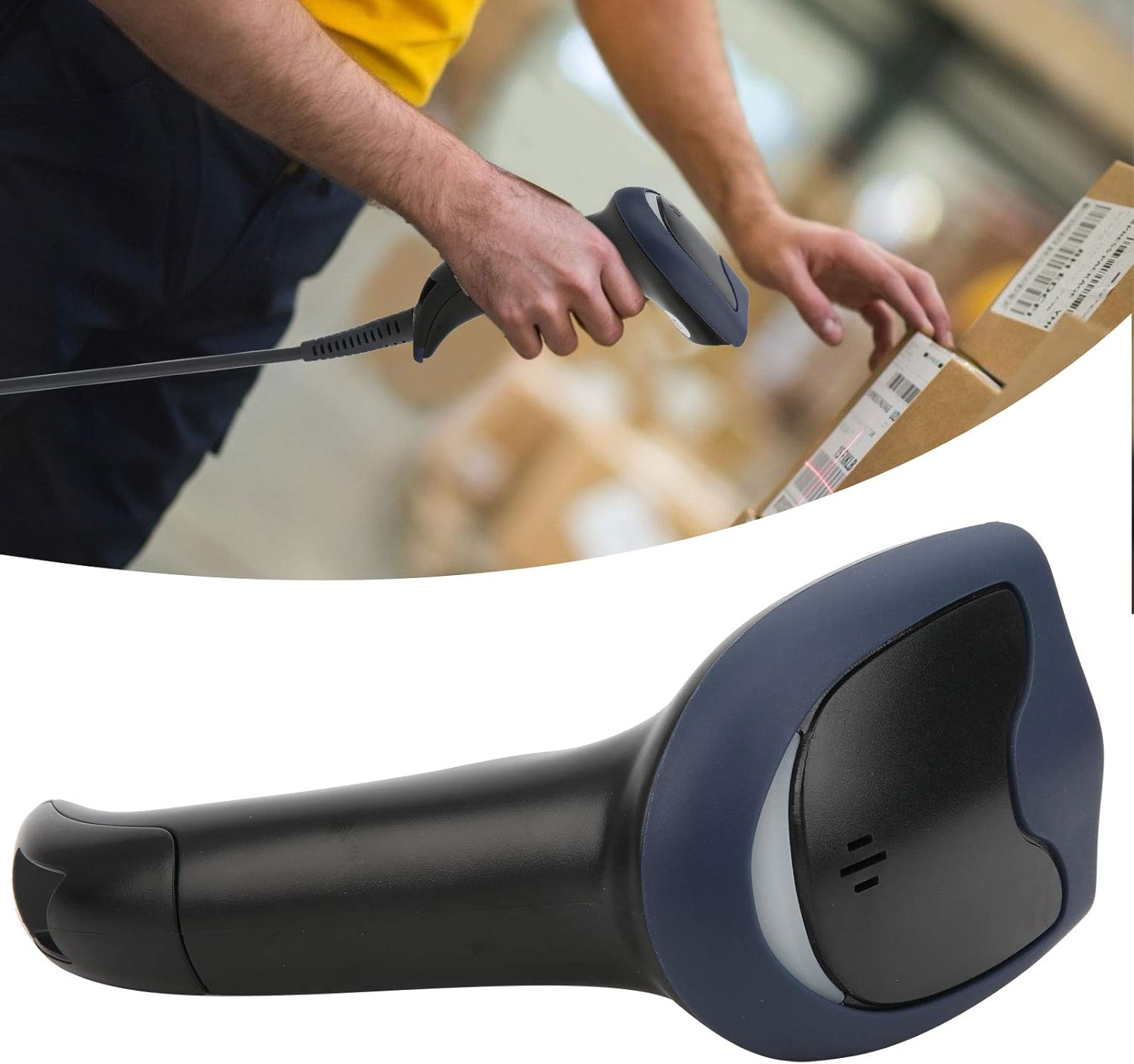
Image 5: The barcode scanner being used to scan a package, illustrating its application.
5. Maintenance and Care
To ensure the longevity and optimal performance of your barcode scanner, follow these maintenance guidelines:
- Cleaning: Regularly wipe the exterior of the scanner with a soft, damp cloth. For the scanning window, use a lint-free cloth and a mild, non-abrasive cleaner suitable for optics. Avoid harsh chemicals or abrasive materials.
- Storage: Store the scanner in a clean, dry environment away from extreme temperatures, direct sunlight, and excessive dust.
- Handling: Avoid dropping the scanner or subjecting it to strong impacts, as this can damage internal components.
- Cable Care: Do not bend or twist the USB cable excessively. Always grasp the connector when plugging or unplugging to prevent damage to the cable or port.
6. Troubleshooting
If you encounter issues with your barcode scanner, please refer to the following common problems and solutions:
- Scanner Not Responding:
- Ensure the USB cable is securely connected to both the scanner and the computer/POS system.
- Try plugging the USB cable into a different USB port on your computer.
- Restart your computer.
- Cannot Read Barcodes:
- Ensure the barcode is clean, undamaged, and clearly visible.
- Verify that the barcode is within the scanner's optimal reading distance and angle.
- Check if the scanning light activates when the trigger is pressed. If not, refer to "Scanner Not Responding."
- Ensure the barcode type is supported by the scanner (1D and 2D codes are supported).
- Incorrect Data Output:
- Confirm that your computer's input language settings match the expected output of the scanner.
- Test the scanner with a known good barcode to isolate the issue.
If these steps do not resolve the issue, please contact Walfront customer support for further assistance.
7. Technical Specifications
| Feature | Specification |
|---|---|
| Model Number | WALFRONTwsi932cr7q |
| Symbologies Supported | QR, Micro QR, PDF417, Maxicode, Data Matrix, AztecCode, UPC-E, UPC-A, EAN-8, EAN-13, Code 128/EAN-128, AIM 128, ISSN, ISBN, Code 39, Interleaved 2 of 5, ITF-6, ITF-14, Matrix 2 of 5 (European 2 of 5), Industrial 25, Standard 25, Codabar, Code 93, Code 11, Plessey, MSI-Plessey, RSS-14, RSS-Limited, RSS-Expand |
| Resolution | ≥ 4 Million |
| Depth of Field (EAN13 13mil) | 15mm-350mm |
| Depth of Field (Barcode 39 5mil) | 5mm-145mm |
| Depth of Field (PDF 417 6.67mil) | 5mm-80mm |
| Depth of Field (Data Matrix 10mil) | 5mm-73mm |
| Depth of Field (QR Barcode 15mil) | 5mm-135mm |
| Print Contrast Ratio | ≥ 20% |
| Reading Angle (Roll) | 360° |
| Reading Angle (Pitch) | ±60° |
| Reading Angle (Skew) | ±60° |
| Field of View (Horizontal) | 40° |
| Field of View (Vertical) | 45° |
| Interface | Keyboard wedge, RS-232, USB |
| Working Voltage | 5 VDC ±10% |
| Operating Current | 180mA |
| Standby Current | 55mA |
| Operating Temperature | -20°C to +60°C |
| Storage Temperature | -30°C to +70°C |
| Humidity | 5% - 90% (non-condensing) |
| Ambient Light | 0~100,000 lux (net light) |
| ESD | ±9 KV (contact discharge); ±15 KV (air discharge) |
| Item Weight | 8.3 ounces |
| Package Dimensions | 7.87 x 4.33 x 3.54 inches |
| Manufacturer | WALFRONT |
8. Warranty and Support
For information regarding warranty coverage, technical support, or service inquiries, please refer to the documentation provided with your purchase or contact Walfront customer service directly.
You can often find support contact details on the manufacturer's official website: Walfront Store on Amazon.
Ask a question about this manual
Ask about setup, troubleshooting, compatibility, parts, safety, or missing instructions. Manuals+ will review the question and use this page’s manual context to help answer it.