
1. Product Overview
The ZTE MC888 ULTRA is a high-performance 5G WiFi home router designed to provide fast, stable, and extensive wireless connectivity. Featuring a powerful Qualcomm SDX62 chipset and a high-gain antenna, it supports up to 256 simultaneous users and delivers peak data rates of up to 6Gbps, making it ideal for demanding home and small office environments.
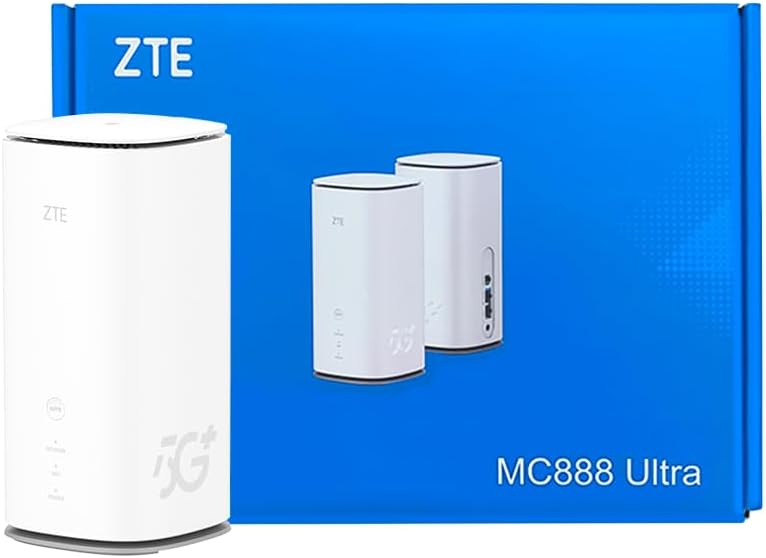
Figure 1.1: ZTE MC888 ULTRA Router and Retail Box
This image displays the ZTE MC888 ULTRA 5G WiFi Home Router alongside its product packaging, highlighting its sleek white design and the prominent 5G+ branding.
Key Features
- 5G WiFi Router: Maximum data rate of 6Gbps, providing a smoother and more stable connection.
- High Gain Antenna: Boosts signal strength and coverage for a strong and stable WiFi connection throughout your home.
- Connect 256 Users: Supports up to 256 users simultaneously, suitable for large households with multiple devices.
- Qualcomm SDX62 Chipset: Ensures fast and reliable performance for smooth network operation.
- Gigabit Ethernet Ports: Includes 1x 2.5GE RJ45 port and 1x GE RJ45 port for fast wired connections to devices like desktops, laptops, and gaming consoles.
2. Package Contents
Please verify that all items are present and in good condition upon opening the package.
- 1x ZTE MC888 Ultra (White)
- 1x Power Supply
- 1x Quick Start Guide
3. Initial Setup
3.1 Inserting the SIM Card
- Ensure the router is powered off.
- Locate the SIM card slot, typically at the bottom or rear of the device.
- Insert a standard Nano-SIM card into the slot with the gold contacts facing down and the notched corner aligned correctly. Push until it clicks into place.
3.2 Powering On
- Connect the provided power adapter to the router's power input port.
- Plug the power adapter into a suitable electrical outlet.
- The router will automatically power on. Wait for the indicator lights to stabilize, typically indicating a successful connection to the 5G network.
3.3 Connecting Devices
You can connect devices to the MC888 ULTRA via Wi-Fi or Ethernet cable.
Wi-Fi Connection:
- On your device (smartphone, laptop, tablet), search for available Wi-Fi networks.
- Select the network name (SSID) printed on the label at the bottom of your router.
- Enter the Wi-Fi password (Wi-Fi Key) also found on the router's label.
NFC One-Touch Networking:
The MC888 ULTRA supports NFC for quick Wi-Fi connection. Enable NFC on your smartphone and simply tap it against the router's NFC area to connect to the Wi-Fi network without manually entering the password.

Figure 3.1: NFC One-Touch Connection
This image illustrates a hand holding a smartphone, tapping it against the ZTE MC888 ULTRA router, demonstrating the NFC one-touch networking feature for easy Wi-Fi connection.
Ethernet Connection:
- Connect one end of an Ethernet cable to one of the Gigabit Ethernet ports on the back of the router.
- Connect the other end of the Ethernet cable to the Ethernet port on your device (e.g., PC, gaming console).
4. Operation
4.1 Wi-Fi Connectivity and Performance
The MC888 ULTRA supports Wi-Fi 6E with a peak data rate of 6Gbps, ensuring high-speed wireless performance. Its advanced antenna system provides broad coverage and stable connections for up to 256 connected devices.
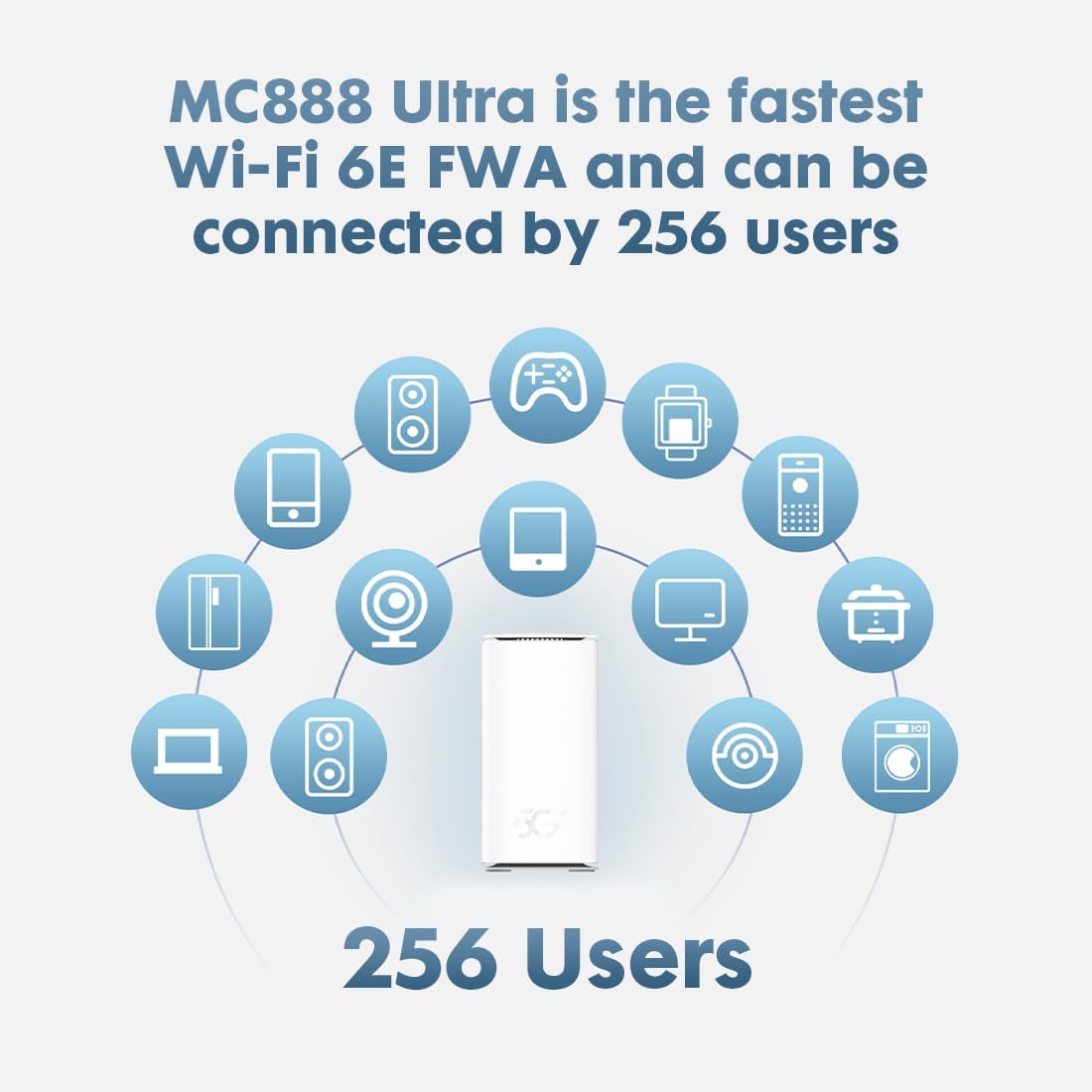
Figure 4.1: Support for 256 Users
This diagram illustrates the ZTE MC888 ULTRA's capability to connect up to 256 users simultaneously, represented by various device icons surrounding the router.
4.2 Wired Connections
Utilize the 2.5 Gigabit Ethernet port for ultra-fast wired connections to devices requiring maximum bandwidth, such as high-end gaming PCs or network-attached storage (NAS). The additional Gigabit Ethernet port provides reliable connectivity for other wired devices.

Figure 4.2: Ethernet Ports and Data Rate
This image highlights the rear view of the ZTE MC888 ULTRA router, showcasing its 2.5GE and GE RJ45 ports, and emphasizes its 6Gbps peak data rate capability.
4.3 Router Management Interface
To access advanced settings and manage your network, open a web browser on a connected device and enter the router's default IP address (usually 192.168.0.1 or 192.168.1.1). Log in using the default username and password found on the router's label or in the Quick Start Guide. From here, you can configure Wi-Fi settings, view connected devices, set up parental controls, and more.
5. Maintenance and Care
- Placement: Place the router in a central location, away from obstructions, large metal objects, and other electronic devices that may cause interference.
- Cleaning: Use a soft, dry cloth to clean the router's exterior. Do not use liquid cleaners or aerosols.
- Firmware Updates: Regularly check for and install firmware updates through the router's management interface. Updates can improve performance, add new features, and enhance security.
- Restarting: If you experience network issues, try restarting the router by unplugging the power adapter for 10 seconds and then plugging it back in.
6. Troubleshooting
This section addresses common issues you might encounter with your ZTE MC888 ULTRA router.
| Problem | Possible Cause | Solution |
|---|---|---|
| No Internet Connection | SIM card not inserted correctly or not activated; Network signal issues; Router not connected to power. | Ensure SIM card is properly inserted and active. Check network signal strength via router interface. Verify power connection and restart router. Contact your mobile network provider if issues persist. |
| Slow Wi-Fi Speed | Router placement; Interference from other devices; Too many connected devices; Outdated firmware. | Relocate router to a central, open area. Minimize interference from other electronics. Limit the number of active devices or upgrade your data plan. Update router firmware. |
| Ethernet Port Not Working | Faulty cable; Incorrect port usage; Hardware issue. | Try a different Ethernet cable. Ensure you are using the correct port (2.5GE or GE). If only one port is affected, try the other. If both fail, contact customer support. |
| Cannot Access Router Management Page | Incorrect IP address; Device not connected to router Wi-Fi/Ethernet; Incorrect login credentials. | Verify the router's IP address (usually 192.168.0.1 or 192.168.1.1). Ensure your device is connected to the router's network. Double-check username and password. Restart router and device. |
| Router Power Issues | Incorrect power adapter; Loose connection. | Ensure you are using the original power adapter supplied with the MC888 ULTRA (2A output). Check that the power cable is securely connected to both the router and the power outlet. |
7. Technical Specifications
| Feature | Specification |
|---|---|
| Model Name | MC888 Ultra |
| Brand | ZTE |
| Connectivity Technology | 5G |
| Wireless Communication Standard | 802.11b (Wi-Fi 6E) |
| Frequency Band Class | Dual-Band (5 GHz) |
| Peak Data Rate | 6Gbps |
| Max Connected Users | 256 |
| Antenna Gain | Up to 10dBi (High Gain) |
| Chipset | Qualcomm SDX62 |
| Ethernet Ports | 1x 2.5GE RJ45, 1x GE RJ45 |
| Color | White |
| Item Weight | 760 g |
| Package Dimensions | 24.4 x 18.5 x 11.4 cm |
8. Warranty Information
The ZTE MC888 ULTRA router typically comes with a standard manufacturer's warranty. Please refer to the warranty card included in your product packaging or visit the official ZTE website for detailed warranty terms and conditions, including coverage period and service procedures.
9. Customer Support
For further assistance, technical support, or service inquiries, please contact ZTE customer support through their official website or the contact information provided in your product documentation. Ensure you have your product model number (MC888 Ultra) and serial number ready when contacting support.


