Introduction
This user manual provides detailed instructions for the KeySonic KSKM-8200M-RF Wireless Desktop Set, which includes a full-size keyboard and a wireless mouse. Designed for seamless integration with Windows operating systems, this set offers a comfortable and efficient user experience with its ergonomic design and reliable 2.4 GHz wireless connection.
Please read this manual thoroughly before using the product to ensure proper setup, operation, and maintenance.

Image: The KeySonic KSKM-8200M-RF wireless keyboard and mouse set, showcasing its sand/cream multi-color design.
Setup
Package Contents
- KeySonic KSKM-8200M-RF Wireless Keyboard
- KeySonic Wireless Mouse
- USB Receiver (typically stored in the mouse battery compartment)
- 2 x AA Batteries (pre-installed or included)
- User Manual (this document)
Initial Setup
- Insert Batteries: Ensure the included AA batteries are correctly inserted into both the keyboard and the mouse. The battery compartments are usually located on the underside of each device.
- Locate USB Receiver: The small USB receiver is often stored inside the mouse's battery compartment for safe keeping during transport. Remove it carefully.
- Connect USB Receiver: Plug the USB receiver into an available USB port on your personal computer.
- Power On Devices: Turn on the keyboard and mouse using their respective power switches (if available). The devices should automatically connect to the receiver.
- Driver Installation: For most Windows operating systems, the necessary drivers will install automatically. Wait for the installation to complete before use.
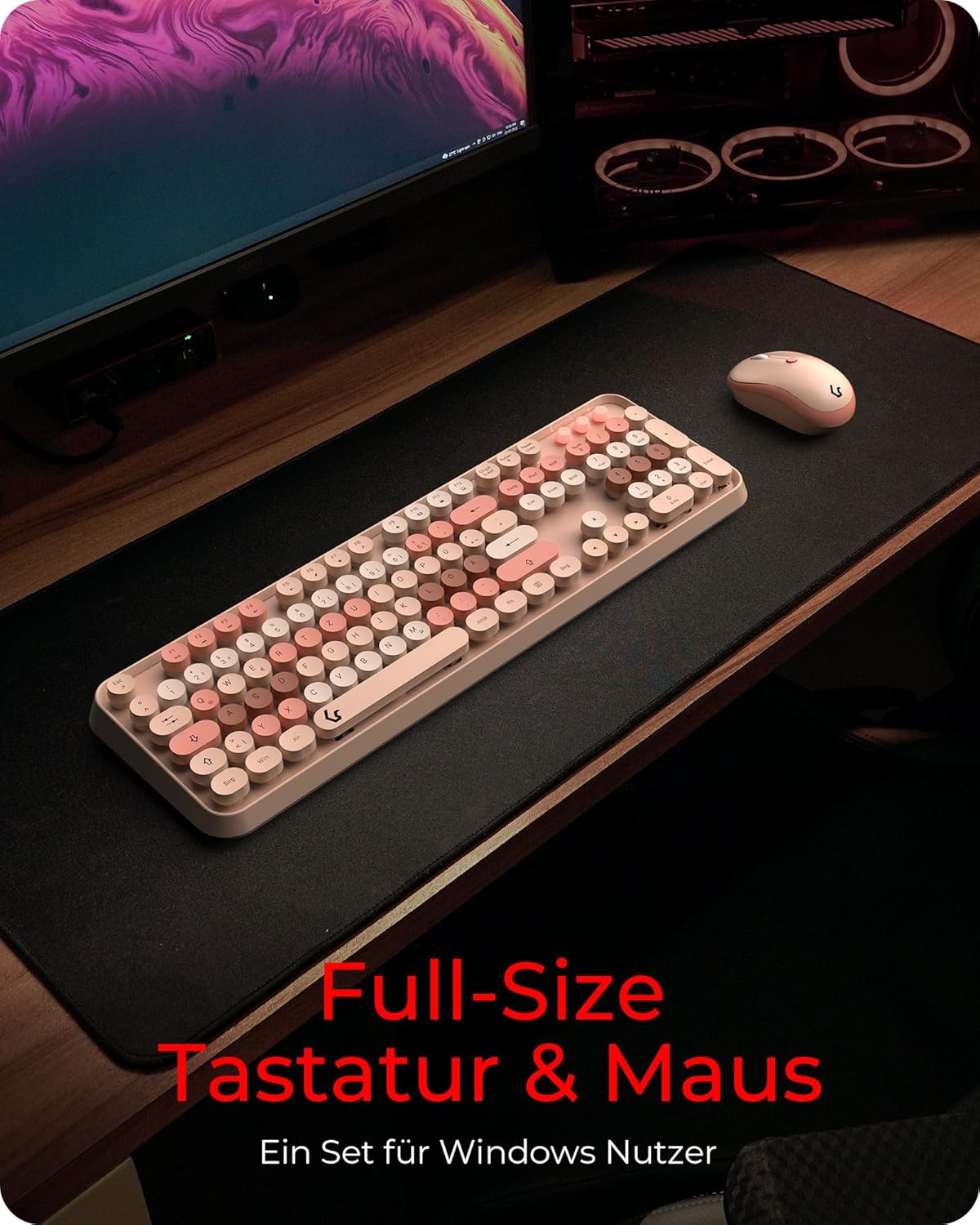
Image: The KeySonic KSKM-8200M-RF desktop set positioned on a desk, ready for use after setup.
Operating Instructions
Keyboard Functions
- Full-Size Layout: The keyboard features a standard full-size layout, providing all necessary keys for general computing purposes.
- Centered Keystroke: The round keycaps are designed to ensure a centered and precise keystroke, enhancing typing accuracy and ergonomics.
- Silent Competency: Utilizing Rubberdome key technology, the keyboard offers a smooth and quiet typing experience, reducing noise in your workspace.
- Multimedia Keys: Dedicated or function-key combined multimedia controls (e.g., volume, play/pause) are integrated for convenient media management. Refer to the key legends for specific functions.

Image: A close-up view of the KeySonic keyboard, highlighting the round, multi-colored keycaps designed for centered keystrokes.

Image: A user demonstrating typing on the KeySonic keyboard, illustrating its quiet operation and comfortable design.
Mouse Functions
- Ambidextrous Design: The mouse is designed for comfortable use by both left and right-handed users.
- DPI Adjustment: The mouse features adjustable DPI (Dots Per Inch) settings, allowing you to customize cursor sensitivity for different tasks and individual working pace. A dedicated DPI button is usually located near the scroll wheel.
- Wireless Connectivity: Both the keyboard and mouse utilize a reliable 2.4 GHz wireless connection, providing flexibility and freedom of movement up to a certain range from the USB receiver.
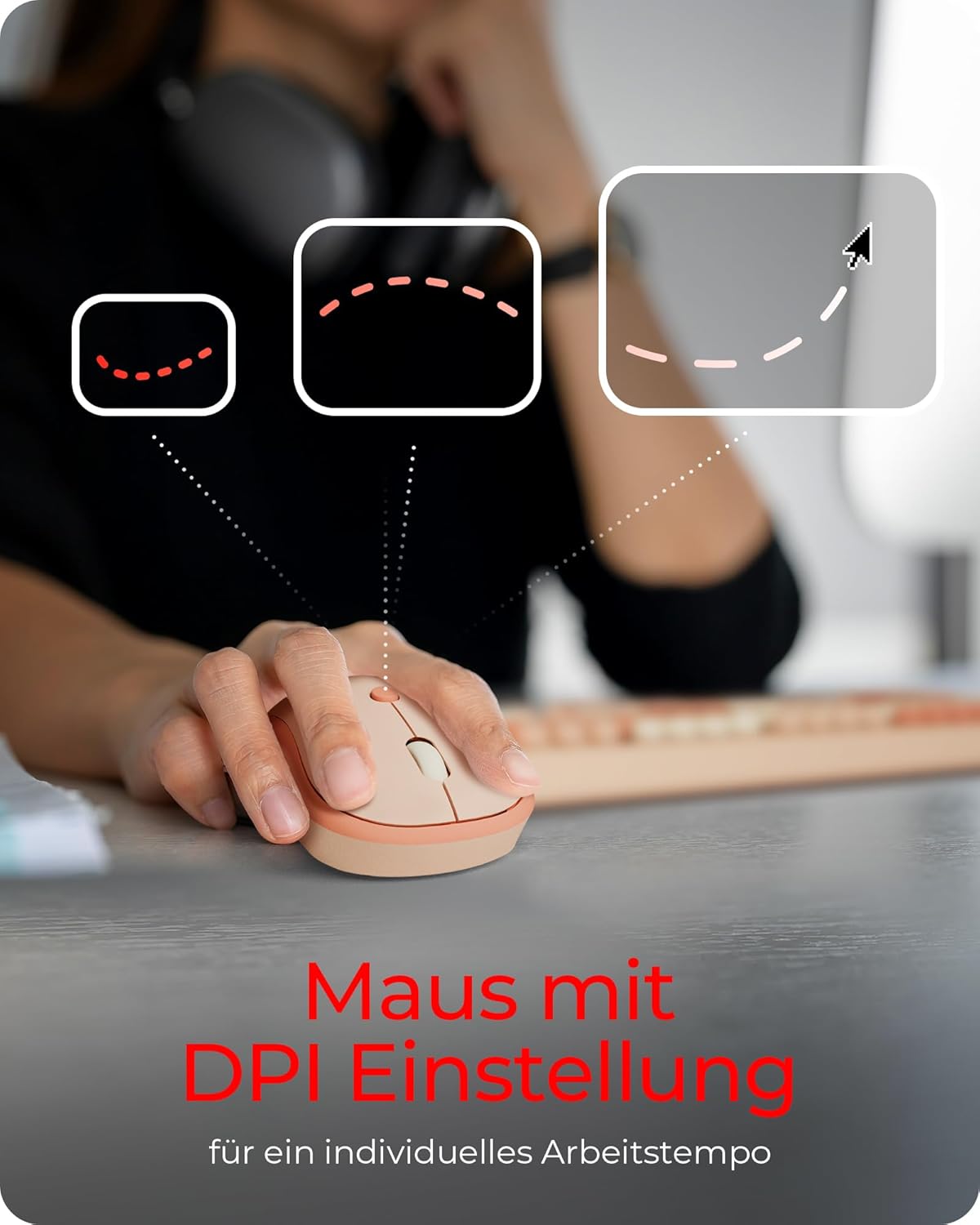
Image: A hand resting on the KeySonic mouse, with graphics illustrating the concept of DPI adjustment for personalized cursor speed.

Image: The KeySonic keyboard and mouse placed on a couch, demonstrating the flexibility and range offered by its 2.4 GHz wireless connection.
Maintenance
To ensure the longevity and optimal performance of your KeySonic Desktop Set, follow these maintenance guidelines:
- Cleaning: Regularly clean the keyboard and mouse with a soft, dry, lint-free cloth. For stubborn dirt, slightly dampen the cloth with water or a mild, non-abrasive cleaner. Avoid excessive moisture.
- Battery Replacement: When the devices show signs of low power (e.g., erratic cursor movement, unresponsive keys), replace the AA batteries in both the keyboard and mouse. Ensure correct polarity when inserting new batteries.
- Storage: When not in use for extended periods, turn off the devices to conserve battery life. Store them in a cool, dry place away from direct sunlight and extreme temperatures.
- USB Receiver: Keep the USB receiver free from dust and debris. When transporting the mouse, store the receiver in its dedicated slot within the mouse's battery compartment.
Troubleshooting
If you encounter issues with your KeySonic Desktop Set, please refer to the following common problems and solutions:
| Problem | Possible Cause | Solution |
|---|---|---|
| Keyboard/Mouse not responding | Low batteries, USB receiver disconnected, device not powered on, interference. | Replace batteries. Ensure USB receiver is securely plugged in. Turn on devices. Move closer to the receiver or away from other wireless devices. |
| Erratic cursor movement | Low mouse battery, dirty optical sensor, unsuitable surface. | Replace mouse battery. Clean the optical sensor on the mouse's underside. Use a mouse pad or a smooth, non-reflective surface. |
| Keys not registering | Low keyboard battery, debris under key, software issue. | Replace keyboard battery. Gently clean around the affected key. Restart your computer. |
| Wireless connection issues | Distance from receiver, interference, receiver fault. | Ensure devices are within range (typically up to 10 meters). Minimize interference from other 2.4 GHz devices. Try a different USB port. |
If the problem persists after trying these solutions, please contact customer support.
Specifications
| Feature | Detail |
|---|---|
| Model | KSKM-8200M-RF |
| Brand | Keysonic |
| Connectivity Technology | 2.4 GHz Wireless (USB Receiver) |
| Compatible Devices | Personal Computer |
| Operating System Compatibility | Windows |
| Keyboard Type | Wireless Full Keyboard |
| Keyboard Key Technology | Rubberdome |
| Mouse Hand Orientation | Ambidextrous |
| Power Source | Battery Powered |
| Batteries Required | 2 x AA (included) |
| Color | Sand/Cream |
| Product Dimensions (L x W x H) | 14.1 x 45.3 x 3.7 cm |
| Item Weight | 990 g |
| Special Feature | Ergonomic |
Warranty and Support
KeySonic products are manufactured to high-quality standards. For information regarding warranty coverage, terms, and conditions, please refer to the warranty card included with your product or visit the official Keysonic website.
For technical support, troubleshooting assistance beyond this manual, or inquiries about replacement parts, please contact Keysonic customer service through their official support channels. Keep your purchase receipt and product model number (KSKM-8200M-RF) handy when contacting support.


