
1. Overview
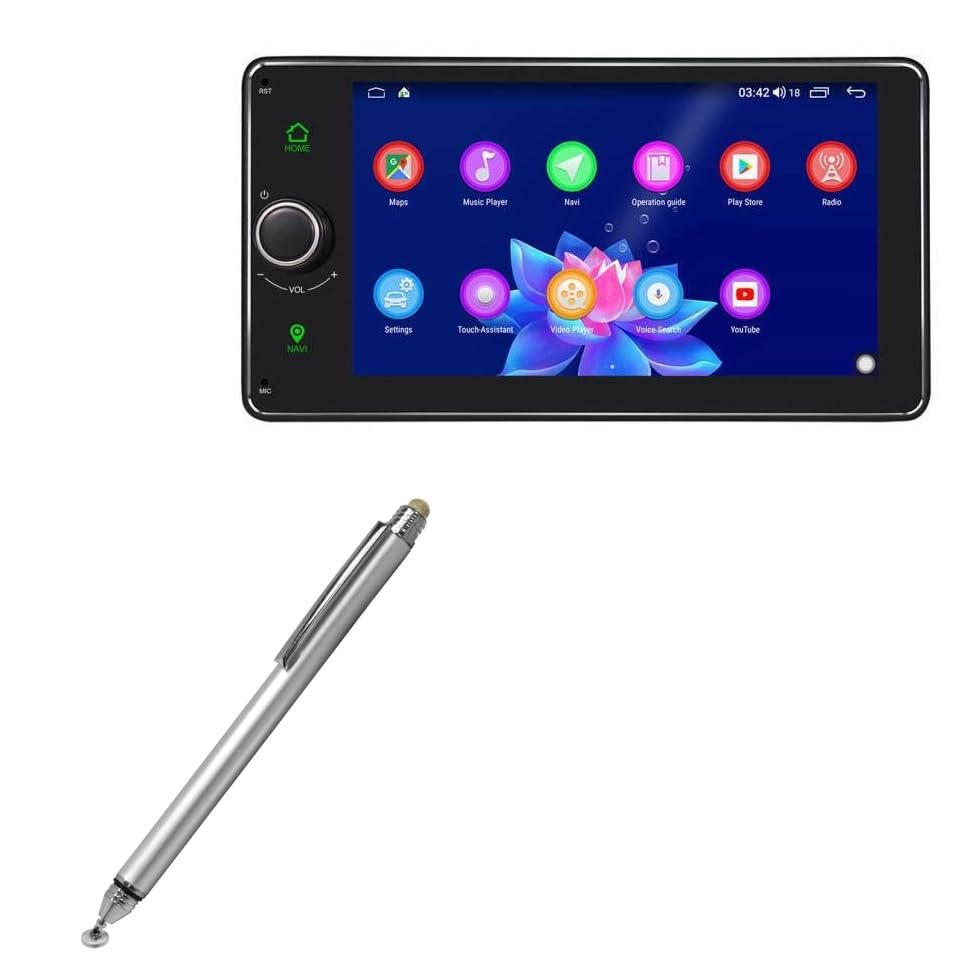
The BoxWave DualTip Capacitive Stylus is designed for precise interaction with capacitive touchscreens, such as the JOYING Car Stereo JY-UQS04N4G-B. It features two distinct tips: a FiberMesh tip for a soft, cushioned feel and a FineTouch disc tip for pinpoint accuracy. This stylus requires no pairing or batteries, offering immediate usability.
2. Setup
The DualTip Capacitive Stylus is ready for use directly out of its packaging. No software installation, Bluetooth pairing, or charging is required. Simply remove the stylus from its packaging.
2.1 Protecting the FineTouch Disc Tip
The FineTouch disc tip is protected by a threaded cap. To use this tip, unscrew the cap. When not in use, replace the cap to prevent damage to the disc.

3. Operating Instructions
The DualTip Capacitive Stylus offers versatile interaction with your touchscreen device using its two distinct tips.

3.1 Using the FiberMesh Tip
The FiberMesh tip provides a smooth, soft interaction, ideal for general navigation, tapping, and swiping. It offers a comfortable feel and is highly durable. Simply touch the FiberMesh tip to your device's screen as you would with your finger.
3.2 Using the FineTouch Disc Tip
The FineTouch disc tip is designed for enhanced precision. The clear disc allows you to see the exact point of contact on the screen, making it suitable for detailed drawing, writing, or selecting small icons. Ensure the protective cap is removed before use. Hold the stylus at a comfortable angle and touch the disc to the screen. The disc is designed to articulate, maintaining full contact with the screen for consistent input.

4. Maintenance
Proper care will extend the life and performance of your stylus.
- Cleaning the Tips: Gently wipe the FiberMesh tip and the FineTouch disc with a soft, dry, lint-free cloth. Avoid using abrasive materials or harsh chemicals.
- Protecting the Disc Tip: Always replace the threaded cap over the FineTouch disc tip when the stylus is not in use to prevent bending or damage to the disc.
- Storage: Store the stylus in a clean, dry place away from extreme temperatures. The built-in metal clip can be used to secure the stylus to a pocket or case.
5. Troubleshooting
If you encounter issues with your stylus, refer to the following common solutions:
- Stylus Not Responding:
- Ensure your device's screen is clean and free of smudges or debris.
- Check the stylus tip for any visible damage or foreign particles.
- Verify that your device's touchscreen is functioning correctly with a finger.
- Inaccurate Input:
- For the FineTouch disc tip, ensure the disc is flat against the screen and not bent.
- Clean both the stylus tip and the device screen thoroughly.
- Stylus Feels Loose:
- Ensure the threaded cap is securely fastened when protecting the disc tip.
6. Specifications
| Item Weight | 1.3 ounces |
| ASIN | B0CTJ8VNTJ |
| Date First Available | June 8, 2023 |
| Manufacturer | BoxWave |
7. Warranty Information
This BoxWave product is covered by the manufacturer's standard warranty. For specific details regarding warranty coverage, duration, and terms, please refer to the warranty documentation included with your purchase or visit the official BoxWave website. Keep your proof of purchase for warranty claims.
8. Customer Support
For technical assistance, product inquiries, or support, please contact BoxWave customer service. You can typically find contact information on the product packaging, the official BoxWave website, or through the retailer where the product was purchased.
Visit the BoxWave Amazon Store for more information and products.