
1. Introduction
Thank you for choosing the RALAN Wireless Controller. This controller is designed to provide a versatile and immersive gaming experience across multiple platforms, including PlayStation 4, PlayStation 3, Nintendo Switch, PC, iOS, and Android devices. It features a six-axis somatosensory sensor, double vibration motors, customizable macro programming, and a precise touchpad, enhancing your gameplay.

Image 1: The RALAN Wireless Controller demonstrating compatibility with PS4, Switch, PC, iOS, and Android platforms.
2. Package Contents
- 1x RALAN Wireless Controller
- 1x USB Charging Cable
- 1x User Manual
3. Controller Layout
Familiarize yourself with the buttons and features of your RALAN Wireless Controller:
- Directional Pad (D-Pad): For directional input.
- Left/Right Analog Sticks: For precise movement and camera control.
- Action Buttons (Triangle, Circle, Cross, Square): For in-game actions.
- SHARE Button: For sharing gameplay content (PS4).
- OPTIONS Button: For in-game menus and options.
- PS Button (Home Button): To power on/off the controller, access system menus.
- Touch Pad: Interactive surface for specific game functions.
- L1/R1 Buttons: Shoulder buttons.
- L2/R2 Triggers: Analog triggers.
- M1/M2 Back Buttons: Customizable macro buttons.
- Headphone Jack: For audio output and microphone input.
- USB Port: For charging and wired connection.
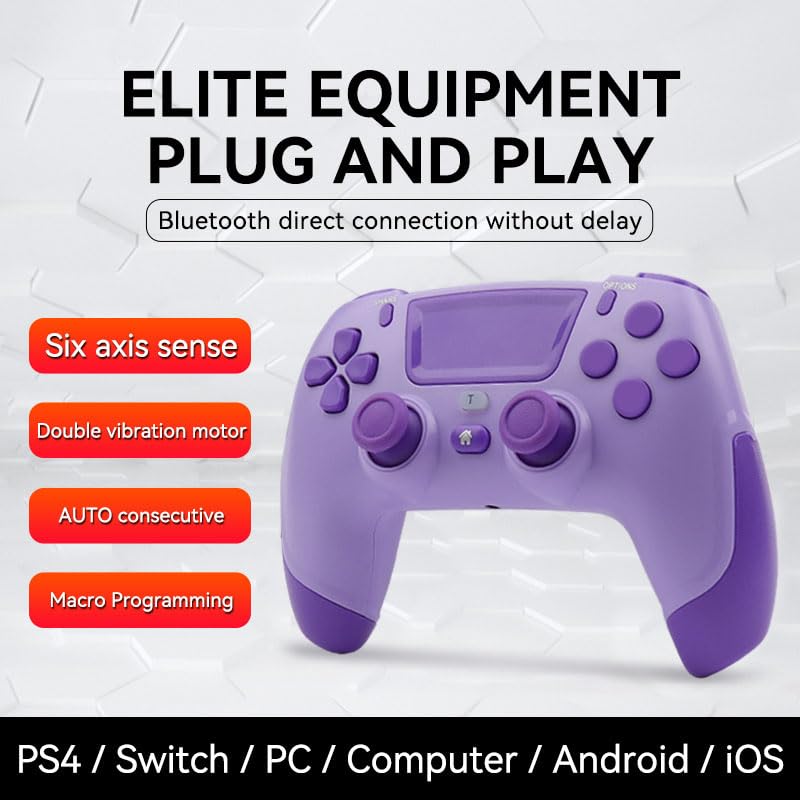
Image 2: Front view of the RALAN Wireless Controller, highlighting key features such as six-axis sense, double vibration, AUTO consecutive function, and macro programming.
4. Setup and Connection
4.1 Charging the Controller
Before initial use, fully charge the controller. Connect the supplied USB charging cable to the controller's USB port and the other end to a USB power source (e.g., console, PC, USB wall adapter). The indicator light will show charging status and turn off when fully charged.
4.2 Connecting to PlayStation 4 (PS4) / PlayStation 3 (PS3)
- Connect the controller to your PS4/PS3 console using the USB charging cable.
- Press the PS button on the controller. The controller will pair with the console.
- Once paired, you can disconnect the USB cable for wireless play.
4.3 Connecting to Nintendo Switch
- On your Nintendo Switch, go to the HOME Menu.
- Select Controllers > Change Grip/Order.
- Press and hold the Home button + Y button on the RALAN controller simultaneously until the indicator lights start flashing.
- Once connected, the indicator light will become solid.
4.4 Connecting to PC
- Wired Connection: Connect the controller to your PC using the USB cable. The PC should automatically detect and install the necessary drivers.
- Bluetooth Connection: Ensure your PC has Bluetooth enabled. Go to Bluetooth settings, search for new devices, and select the RALAN Wireless Controller to pair.
4.5 Connecting to iOS / Android Devices
- Enable Bluetooth on your iOS or Android device.
- On the RALAN controller, press and hold the Home button + A button (for Android HID mode) or Home button + X button (for iOS MFI mode) until the indicator lights flash.
- Search for the controller in your device's Bluetooth settings and select it to pair.
5. Operating Instructions
5.1 Power On/Off
- Power On: Press the PS button once.
- Power Off: Press and hold the PS button for approximately 10 seconds, or disconnect it from the console/device. The controller will automatically power off after a period of inactivity.
5.2 Six-Axis Somatosensory Control
The controller features a high-precision six-axis sensor for somatosensory control. This allows for fine-tuning and assists in fast target locking in FPS games, and provides a sense of steering control in racing games, enhancing immersion.

Image 3: The RALAN Wireless Controller illustrating the six-axis somatosensory control feature, which provides enhanced precision and immersion in games.
5.3 Double Vibration Motor
Equipped with double vibration motors, the controller provides tactile feedback during gameplay, reacting to in-game events like collisions, explosions, or specific actions, increasing the realism of your gaming experience.
5.4 Macro Programming (M1/M2 Back Buttons)
The M1 and M2 back buttons can be customized to map other key values, allowing for easy output of complex operations or continuous moves with a single press. Up to 12 action combos can be customized.
- Enter Programming Mode: Press and hold the SHARE button + M1/M2 button simultaneously until the indicator light flashes rapidly.
- Record Macro: Press the sequence of buttons you wish to program (e.g., R1, R2, Square).
- Save Macro: Press the M1/M2 button again to save the recorded sequence. The indicator light will stop flashing and become solid.
- To clear a macro, repeat the programming steps without pressing any buttons after entering programming mode, then press the M1/M2 button to save.
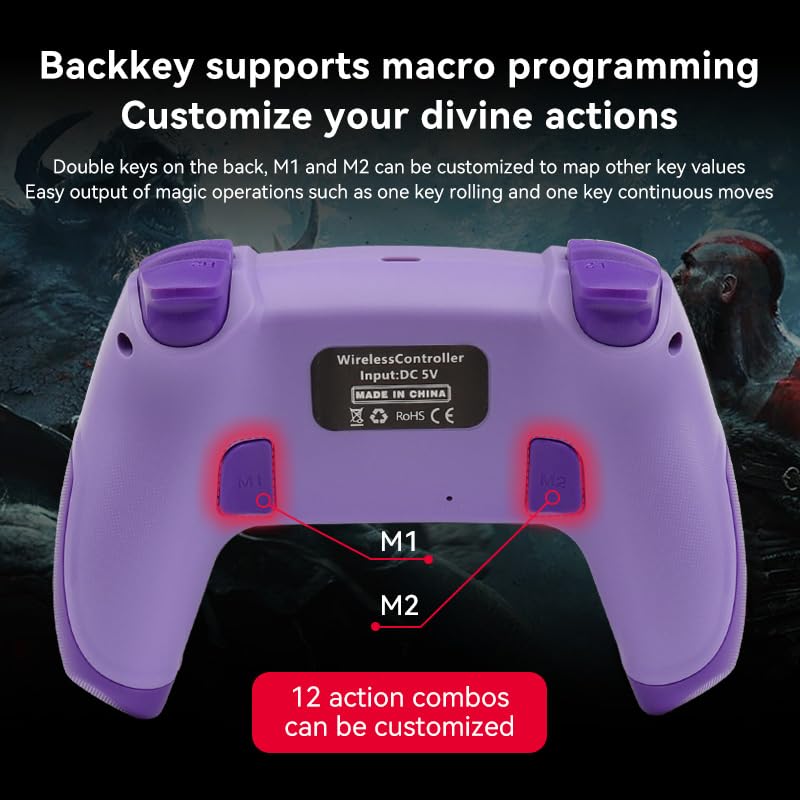
Image 4: Rear view of the RALAN Wireless Controller, showing the M1 and M2 customizable back buttons for macro programming.
5.5 AUTO Consecutive (Turbo) Function
The controller supports an AUTO consecutive function, also known as Turbo. This allows a button to be repeatedly pressed automatically as long as it is held down. Consult your game's settings or the controller's specific documentation for activation methods, as this can vary.
5.6 Touch Pad and Headphone Jack
- Touch Pad: The integrated touch pad can be used for navigation, gestures, or specific in-game interactions, depending on the game and platform.
- Headphone Jack: Plug in a compatible 3.5mm headset for in-game audio and voice chat (functionality may vary by platform and game).
6. Maintenance
- Cleaning: Use a soft, dry cloth to clean the controller. Avoid using harsh chemicals or abrasive materials.
- Storage: Store the controller in a cool, dry place away from direct sunlight and extreme temperatures.
- Battery Care: To prolong battery life, avoid fully discharging the controller frequently. Charge it regularly, even if not in use for extended periods.
- Avoid Drops: Protect the controller from drops and impacts, which can damage internal components.

Image 5: Close-up of the RALAN Wireless Controller's ergonomic design and anti-skid texture for comfortable grip and sweat resistance.
7. Troubleshooting
- Controller not connecting: Ensure the controller is charged. Try re-pairing the controller by following the connection steps for your specific platform. Restart your console/device and the controller.
- Buttons unresponsive: Check if the controller is properly connected. If wired, try a different USB port or cable. If wireless, ensure it's charged and within range. A factory reset (if available, usually a small reset button on the back) might resolve the issue.
- Charging issues: Ensure the USB cable is securely connected to both the controller and the power source. Try a different USB cable or power adapter.
- Input lag/disconnections: Ensure there are no strong wireless interferences nearby. Move closer to the console/device.
8. Specifications
| Feature | Description |
|---|---|
| Model Number | RALAN |
| Input Voltage | DC 5V |
| Connectivity | Bluetooth Wireless, USB Wired |
| Compatibility | PS4, PS3, Nintendo Switch, PC, iOS (MFI Mode), Android (HID Mode) |
| Key Features | Six-Axis Somatosensory Control, Double Vibration Motors, Macro Programming (M1/M2), AUTO Consecutive (Turbo), Touch Pad, 3.5mm Headphone Jack |
9. Warranty and Support
This product comes with a standard manufacturer's warranty. Please refer to the warranty card included in your package for specific terms and conditions. For technical support or inquiries, please contact your retailer or the manufacturer's customer service.
