
Introduction
The TOWODE Home Security System is a comprehensive Wi-Fi enabled alarm solution designed to safeguard your home, office, apartment, business, or factory. This DIY kit provides intelligent security management through the Tuya App, offering remote control, instant alerts, and expandability to fit various security needs. It operates exclusively on 2.4 GHz Wi-Fi networks.
Package Contents
Upon opening the package, verify that all components are present and undamaged:
- 1 x Indoor/Outdoor Weatherproof Siren (120dB)
- 1 x Power Plug
- 2 x Remote Controllers
- 4 x Door Window Sensors

Image: Overview of the TOWODE Home Security System kit, showing the main siren unit, power adapter, two remote controls, and four door/window sensors.
Product Features
- Comprehensive Protection: Includes a loud siren, remote controls, and door/window sensors for complete home security.
- Smart Management: Control and monitor your system remotely via the Tuya App (Android/iOS) over a 2.4 GHz Wi-Fi connection.
- Instant Alerts: Receive immediate notifications on your smartphone and trigger a 120 dB siren when sensors detect an intrusion.
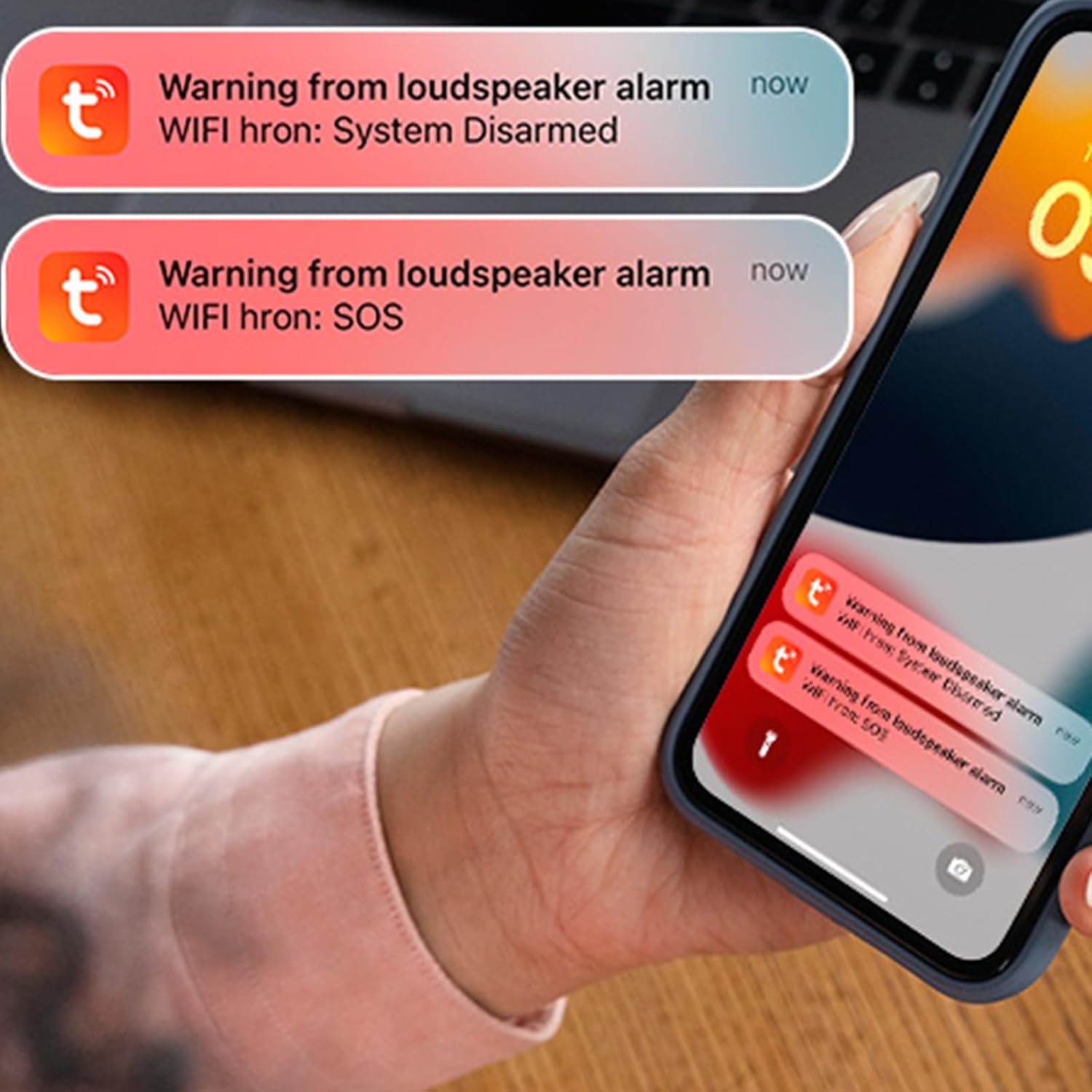
Image: A smartphone displaying push notifications for "Warning from loudspeaker alarm" and "SOS" alerts, demonstrating the instant alert feature.
- Scalable System: Supports up to 20 remote controls and 30 additional sensors (motion, water leakage, smoke, etc.) operating on 433MHz (eV1527 wireless code).

Image: An illustration demonstrating the expandability of the system, allowing users to add various types of sensors and remote controls to customize their security setup.
- Voice Control: Compatible with Alexa and Google Assistant for convenient arming, disarming, and mode setting via voice commands.
- Long Wireless Range: Sensors and siren can communicate effectively up to 300 feet in open areas.

Image: A cross-section view of a house showing the effective wireless communication range of up to 300 feet between the alarm system components.
Setup Guide
1. Download and Install the Tuya Smart App
Search for "Tuya Smart" in your smartphone's app store (Google Play for Android or Apple App Store for iOS) and install the application. Register for a new account or log in if you already have one.
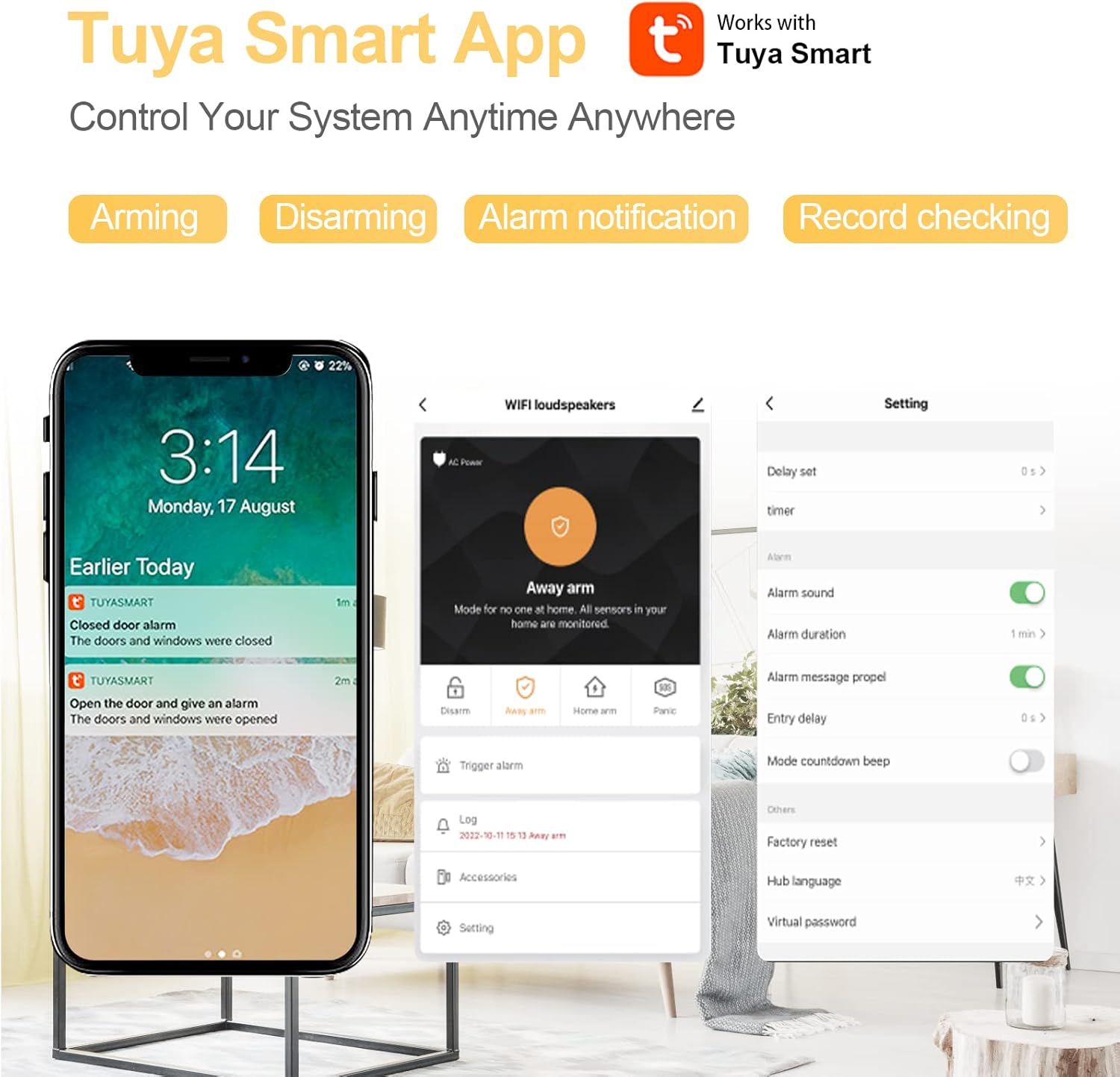
Image: A smartphone screen displaying the Tuya Smart App interface, highlighting its capabilities for controlling the security system.
2. Connect to 2.4 GHz Wi-Fi Network
Ensure your smartphone is connected to a 2.4 GHz Wi-Fi network. This system is not compatible with 5 GHz networks. If your router broadcasts both frequencies, ensure you select the 2.4 GHz option.

Image: A visual guide detailing the steps to connect the security system to a 2.4 GHz Wi-Fi network using the Tuya Smart App, including necessary phone settings.
- Plug in the WiFi loudspeaker siren.
- Open the Tuya Smart App.
- Tap "Add Device" or the "+" icon.
- Follow the in-app instructions to add the siren. This typically involves putting the siren into pairing mode (refer to the siren's indicator lights for status) and entering your Wi-Fi password.
- Ensure Bluetooth and Location Services are enabled on your phone for easier device discovery.
3. Install Door/Window Sensors
The door/window sensors consist of two parts: a main transmitter unit and a magnetic stripe. They should be installed on doors or windows so that the two parts are aligned and within 1 cm of each other when the door/window is closed.
- Clean the surface where you intend to install the sensors.
- Use the provided double-sided adhesive tape to attach the main transmitter unit to the door/window frame and the magnetic stripe to the door/window itself. Ensure the alignment marks on both parts face each other.
- When the door or window opens, the two parts separate, triggering the alarm.

Image: A detailed diagram illustrating the components and dimensions of the door/window magnetic sensor.
4. Pair Remote Controllers
The included remote controllers are pre-paired with the system. If you need to add new remotes or re-pair existing ones, refer to the Tuya App's accessory management section for specific instructions.
- Lock Button: Sets the system to Arming mode.
- Unlock Button: Disarms the system.
- SOS Button: Triggers an emergency call/alarm.
- Ring Button: Activates a "Di Di" sound (chime).
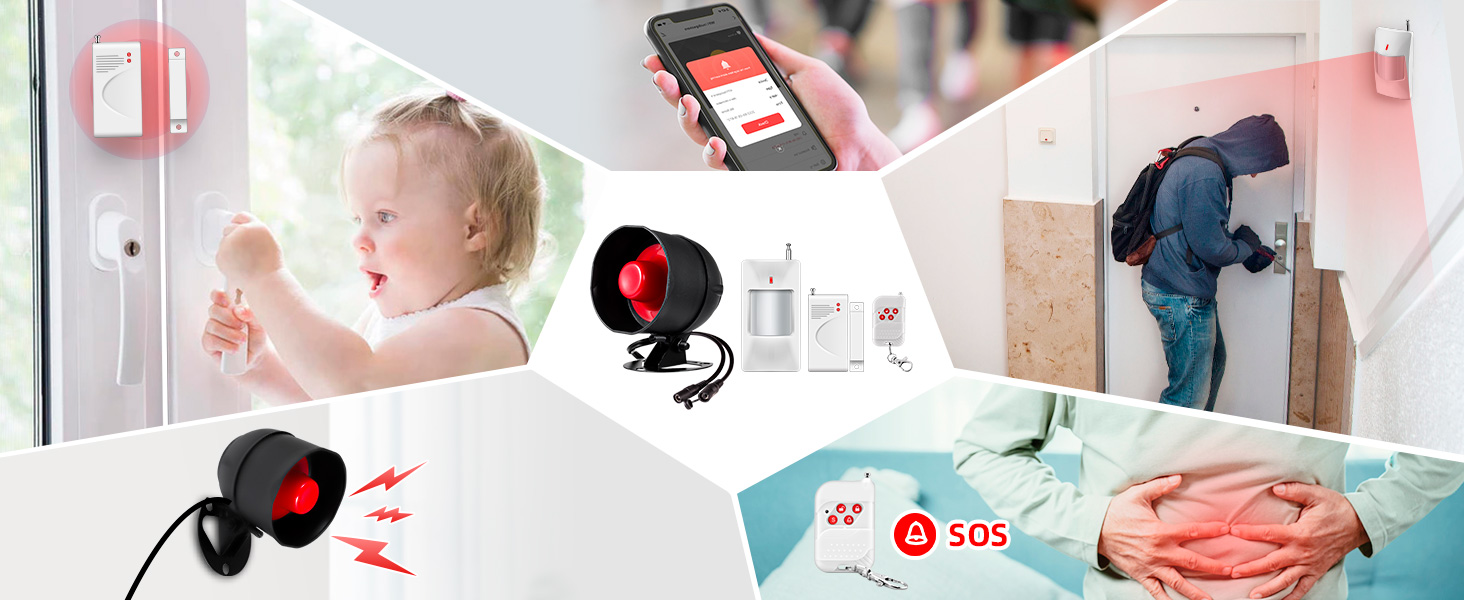
Image: An illustration of the remote control, highlighting the functions of each button for system operation.
Operating Instructions
Security Modes
The system offers various security modes to suit your needs:
- Arm (Away Arm): All sensors are active. Triggers an alarm if any sensor detects an intrusion. Use when leaving the premises.
- Disarm: All sensors are inactive. The alarm will not sound. Use when you are home and want to move freely.
- Home Arm: Typically activates perimeter sensors (e.g., door/window sensors) while allowing movement within the interior. Consult the Tuya App for specific sensor configurations in Home Arm mode.
- Panic: Immediately triggers the siren and sends notifications regardless of the system's arming status. Use in emergencies.
Image: A smartphone screen displaying the main control interface of the Tuya Smart App, showing the options to Disarm, Away Arm, Home Arm, and Panic.
Using the Tuya App
The Tuya App provides full control over your security system:
- Change Security Modes: Tap the respective buttons (Disarm, Away Arm, Home Arm, Panic) on the main screen.
- Manage Accessories: Add, remove, or configure additional sensors and remote controls under the "Accessories" or "Settings" menu.
- View Logs: Check the history of alarm events and system status changes.
- Adjust Settings: Customize alarm sound, duration, entry/exit delays, and other system parameters.
Voice Control (Alexa/Google Assistant)
To enable voice control, link your Tuya Smart account with your Amazon Alexa or Google Assistant app. Once linked, you can use commands such as:
- "Alexa, arm [system name]."
- "Hey Google, disarm [system name]."
- "Alexa, set [system name] to home mode."
Maintenance
Sensor Battery Replacement
The door/window sensors are powered by 23A 12V batteries. A low voltage indicator light on the sensor will illuminate when the battery needs replacement.
- Carefully open the sensor casing.
- Remove the old 23A 12V battery.
- Insert a new 23A 12V battery, ensuring correct polarity.
- Close the sensor casing securely.

Image: An illustration of the door sensor and its battery compartment, indicating the 23A 12V battery and the low voltage indicator light.
Cleaning
Wipe the siren and sensors with a soft, dry cloth. Do not use abrasive cleaners or solvents, as they may damage the devices.
Troubleshooting
| Problem | Possible Cause | Solution |
|---|---|---|
| Siren not connecting to Wi-Fi. | Incorrect Wi-Fi frequency (5 GHz), wrong password, weak signal, or siren not in pairing mode. | Ensure your router is broadcasting a 2.4 GHz network and your phone is connected to it. Double-check the Wi-Fi password. Move the siren closer to the router. Re-enter pairing mode on the siren. |
| Sensors not triggering alarm. | Low battery in sensor, improper installation (gap too wide), or system is disarmed. | Check sensor battery and replace if low. Re-align sensor parts to be within 1 cm when closed. Ensure the system is armed (Away Arm or Home Arm). |
| False alarms. | Sensor misalignment, environmental factors (e.g., strong vibrations, pets for motion sensors if added), or faulty sensor. | Re-check sensor alignment. If using motion sensors, ensure they are placed away from heat sources or areas with frequent pet movement. If problem persists, contact support. |
| Remote control not working. | Out of range, low battery, or not paired correctly. | Ensure you are within range of the siren. Replace the remote control battery. Re-pair the remote control via the Tuya App. |
Specifications
| Feature | Detail |
|---|---|
| Brand | TOWODE |
| Model Number | 4 |
| Connectivity Technology | Wireless (Wi-Fi 2.4 GHz, 433MHz for sensors) |
| Compatible Devices | Smartphone (Android, iOS) |
| Control Method | App, Remote, Voice (Alexa, Google Assistant) |
| Noise Level | 120 dB |
| Power Source | Siren: Power Plug (220 Volts); Sensors: Battery Powered (23A 12V) |
| Item Dimensions (L x W x H) | 5.5 x 2.09 x 3 inches (Siren) |
| Item Weight | 1.37 pounds (Total kit) |
| Max Remote Controls Supported | 20 |
| Max Sensors Supported | 30 |
| Recommended Use | Indoor |
Warranty and Support
For warranty information, technical support, or any inquiries regarding your TOWODE Home Security System, please refer to the contact information provided with your purchase or visit the official TOWODE website. Ensure you have your model number (Model: 4) and purchase details ready when contacting support.
Online Resources: For additional guides and FAQs, please visit the TOWODE Store on Amazon.