
ANTELA F1MWs202-EU
ANTELA Matter Smart Plug 16A 3680W Instruction Manual
Model: F1MWs202-EU | Brand: ANTELA
1. Introduction
Thank you for choosing the ANTELA Matter Smart Plug. This smart plug allows you to control your devices remotely, monitor energy consumption, and integrate with various smart home ecosystems like Apple Home, Alexa, Google Home, and SmartThings. Please read this manual carefully before use to ensure proper operation and safety.

Image 1.1: ANTELA Matter Smart Plug (Front View)
This image shows the ANTELA Matter Smart Plug, highlighting its compact design and the power button with an integrated LED indicator.
2. Safety Information
To ensure safe operation, please observe the following:
- The smart plug is constructed from V0 flame-retardant materials for enhanced safety.
- Do not disassemble or modify the device.
- Avoid exposing the device to water or humid environments.
- Do not exceed the maximum load of 16A / 3680W.
- Operate within the specified temperature range (up to 35°C).
- Keep out of reach of children.
3. Package Contents
The package includes:
- 1 x ANTELA Matter Smart Plug
- 1 x User Manual (this document)
4. Product Specifications
| Model Number | F1MWs202-EU |
| Product Dimensions | 5.5 x 5.5 x 8 cm |
| Weight | 110 g |
| Current Rating | 16 Ampere |
| Operating Voltage | 250 Volt |
| Wattage | 3680 Watt |
| Connectivity Protocol | Wi-Fi (2.4GHz only) |
| Control Method | App, Voice |
| Material | V0 Fire-retardant material |
| International Protection Rating | IP20 |
| Certifications | CE, RoHS, WEEE |

Image 4.1: Smart Plug Dimensions
This image illustrates the physical dimensions of the ANTELA Smart Plug, showing its length and width for reference.
5. Setup Instructions
5.1. Requirements
- 2.4GHz Wi-Fi Network: The smart plug requires a 2.4GHz Wi-Fi network for connection. 5GHz networks are not supported.
- Compatible Hub: A Matter-compatible hub is required for full functionality and integration with smart home ecosystems.
- For Apple Users: iOS, iPadOS 16.1 (or higher) and a hub such as Apple TV 4K (2nd or 3rd generation), HomePod, or HomePod mini.
- For Android Users: Android 8.1 or higher and a hub such as Samsung SmartThings Hub v3, Alexa Echo (4th generation), Google Nest Hub (2nd generation), Nest Hub Max, or Nest Wifi Pro.
- Smart Life or Tuya Smart APP: Download the Smart Life or Tuya Smart application from your device's app store. Note: The Tuya Smart APP on Android currently does not support Matter.

Image 5.1: Compatible Smart Home Hubs
This image displays a selection of compatible hubs for Matter devices, including Amazon Alexa, Apple HomeKit, and Google Home devices, along with their respective operating system requirements.
5.2. Initial Setup and Pairing
- Plug In: Insert the ANTELA Smart Plug into a standard wall outlet.
- Reset Device: Press and hold the LED switch button on the smart plug for 5-10 seconds until the LED light starts blinking. This indicates the device is in pairing mode.
- Open App: Open the Smart Life or Tuya Smart APP on your smartphone or tablet.
- Add Device: In the app, follow the instructions to add a new device. You can typically scan the QR code located on the product or manually search for the device.
- Connect to Wi-Fi: Select your 2.4GHz Wi-Fi network and enter the password.
- Complete Pairing: Once connected, the LED light on the smart plug will stop blinking and remain solid. The device will appear in your app.
- Integrate with Smart Home Ecosystem (Optional): To use with Apple Home, Alexa, Google Home, or SmartThings, follow the specific integration steps within your chosen smart home app, usually by scanning the Matter QR code again or linking accounts.
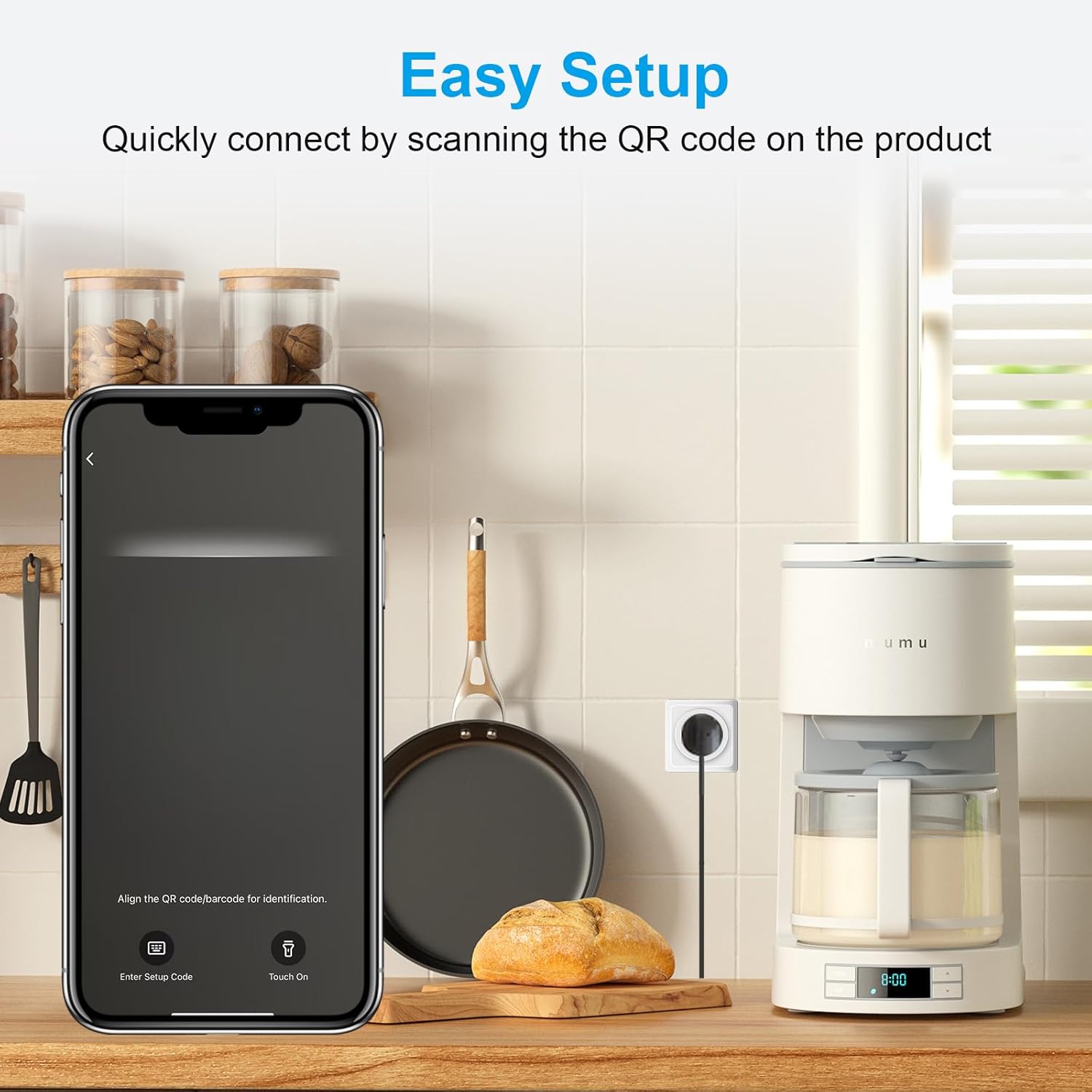
Image 5.2: Easy Setup via QR Code
This image demonstrates the quick connection process by scanning the QR code on the product using a smartphone application, showing a coffee maker plugged into the smart plug.
6. Operating Instructions
6.1. Basic ON/OFF Control
- Manual Control: Press the physical button on the smart plug to manually turn the connected device ON or OFF.
- App Control: Use the Smart Life or Tuya Smart APP to remotely turn the smart plug ON or OFF from anywhere.

Image 6.1: Remote Control via App
This image shows a person using a smartphone to remotely control a lamp connected to the smart plug, illustrating the convenience of app-based control.
6.2. Energy Monitoring
The Smart Life APP allows you to monitor the electricity consumption of devices connected to the smart plug. You can view energy usage data hourly, daily, weekly, or monthly.
- Open the Smart Life APP.
- Select your ANTELA Smart Plug from the device list.
- Navigate to the "Energy Monitor" or "Usage" section to view real-time and historical power consumption data.

Image 6.2: Energy Monitoring Interface
This image displays the energy monitoring interface within the Smart Life app, showing a graph of electricity usage over time, with a lamp in the background.
6.3. Scheduling and Timers
Automate your devices by setting schedules and timers through the Smart Life APP.
- Open the Smart Life APP and select your smart plug.
- Go to the "Schedule" or "Timer" section.
- Set specific times for the plug to turn ON or OFF. You can create daily, weekly, or one-time schedules.
- Save your settings.

Image 6.3: App Scheduling Interface
This image shows a user contemplating scheduling options on their smartphone, with a visual representation of setting ON/OFF times for the smart plug.
6.4. Voice Control
Control your smart plug using voice commands with compatible smart assistants like Alexa, Google Assistant, and Siri (via HomeKit).
- Ensure your smart plug is successfully integrated with your chosen smart home ecosystem (Apple Home, Alexa, Google Home).
- Use commands such as:
- "Hey Siri, turn on my bedroom light."
- "Alexa, turn on my bedroom light."
- "Hey Google, turn on my bedroom light."

Image 6.4: Voice Control Example
This image illustrates voice control in action, showing speech bubbles with commands for Siri, Alexa, and Google Assistant to turn on a bedroom light connected to the smart plug.
7. Maintenance
- Clean the smart plug with a dry, soft cloth. Do not use liquid cleaners.
- Ensure the plug is disconnected from the power outlet before cleaning.
- Store in a cool, dry place when not in use for extended periods.
8. Troubleshooting
| Problem | Possible Cause | Solution |
|---|---|---|
| Smart plug not connecting to Wi-Fi. | Incorrect Wi-Fi band (5GHz instead of 2.4GHz), incorrect password, too far from router. | Ensure your router is broadcasting a 2.4GHz network. Verify Wi-Fi password. Move the smart plug closer to the router. Perform a reset (hold button 5-10 seconds). |
| Device not responding to app/voice commands. | No internet connection, smart plug offline, incorrect integration with smart assistant. | Check your home internet connection. Verify the smart plug's status in the app. Re-link the smart plug with your smart assistant (Alexa, Google Home, HomeKit). |
| Energy monitoring shows 0 or incorrect data. | App synchronization issue, device not fully supported for power readings in certain ecosystems (e.g., Home Assistant via Matter). | Ensure you are using the Smart Life APP for energy monitoring, as specified. Some third-party integrations might have limitations. Check for app updates. |
| LED light not blinking during reset. | Button not held long enough, device malfunction. | Press and hold the button firmly for the full 5-10 seconds. If the issue persists, contact customer support. |
9. Warranty and Support
ANTELA products come with a standard manufacturer's warranty. For specific warranty details, please refer to the documentation provided with your purchase or contact your retailer.
If you encounter any issues or have questions regarding your ANTELA Matter Smart Plug, please contact our customer support team. We aim to respond to inquiries within 24 hours.
Contact Information: Please refer to the contact details provided on the product packaging or the official ANTELA website.
Related Documents - F1MWs202-EU
 |
ANTELA Smart Plug Quick User Guide A concise guide to installing and using the ANTELA Smart Plug, covering app registration, device configuration, usage scenarios, parameters, and voice control integration with Amazon Alexa and Google Assistant. |
 |
ANTELA Smart Bulbs Quick User Guide Comprehensive guide to setting up and using ANTELA Smart Bulbs. Learn about app installation, device registration, Wi-Fi configuration, smart control with voice assistants like Alexa and Google Assistant, and troubleshooting common issues. |
 |
ANTELA WiFi Camera Quick Start Guide & Setup Learn how to set up your ANTELA WiFi camera with this quick manual. Covers app download, network configuration, Alexa integration, and troubleshooting for your indoor PTZ camera. |
 |
ANTELA Smart Security Camera Instruction Manual Comprehensive instructions for setting up and using the ANTELA Smart Security Camera, including app connection, Wi-Fi setup, cloud storage, and troubleshooting. |
 |
EU-verklaring inzake gegevens transparantie voor ANTELA slimme stopcontacten/schakelaars Deze kennisgeving beschrijft de EU-verklaring inzake gegevens transparantie voor ANTELA slimme stopcontacten en schakelaars, met details over gegevensverzameling, opslag, gebruik, gebruikersrechten en deelpraktijken door Hangzhou Mango Network Technology Co, LTD. |
 |
Informativa sulla Trasparenza dei Dati per Prese/Interruttori Intelligenti ANTELA Dettagli sulla gestione dei dati raccolti dai prodotti ANTELA (prese/interruttori intelligenti), inclusi tipi di dati, conservazione, utilizzo e diritti dell'utente secondo il Regolamento UE. |