
Introduction
Thank you for choosing the Akko AG325W Wireless Gaming Mouse. This manual provides detailed instructions for setting up, operating, and maintaining your mouse to ensure optimal performance and longevity. The AG325W offers versatile connectivity with both 2.4G wireless and Bluetooth modes, adjustable DPI settings, and a comfortable ergonomic design, making it suitable for various computing tasks and gaming.

Image: Top view of the Akko AG325W Wireless Gaming Mouse, showcasing its sleek black design and central scroll wheel and DPI button.
Package Contents
Please verify that all items are present in your package:
- Akko AG325W Wireless Gaming Mouse
- USB 2.4G Receiver
- USB Charging Cable (Type-C)
- User Manual (this document)

Image: The Akko AG325W mouse positioned next to its USB 2.4G wireless receiver.
Setup Instructions
1. Charging the Mouse
Before first use, it is recommended to fully charge the mouse. Connect the provided USB charging cable to the mouse's Type-C port and the other end to a USB power source (e.g., computer USB port, USB wall adapter). The mouse's indicator light will show charging status.
2. Connecting via 2.4G Wireless Mode
- Locate the USB 2.4G receiver. It is typically stored in a compartment on the bottom of the mouse.
- Remove the receiver from its storage slot.
- Plug the USB receiver into an available USB port on your computer.
- Turn on the mouse using the switch on the bottom. Select the "2.4G" mode.
- The mouse should automatically connect to your computer.

Image: The underside of the Akko AG325W mouse, showing the circular compartment where the USB 2.4G receiver is stored.
3. Connecting via Bluetooth Mode
- Turn on the mouse using the switch on the bottom. Select the "BT" (Bluetooth) mode.
- On your computer or device, open Bluetooth settings.
- Search for new devices. The mouse should appear as "Akko AG325W" or similar.
- Select the mouse to pair. Follow any on-screen prompts if a pairing code is required (usually not for mice).
- Once paired, the mouse is ready for use.
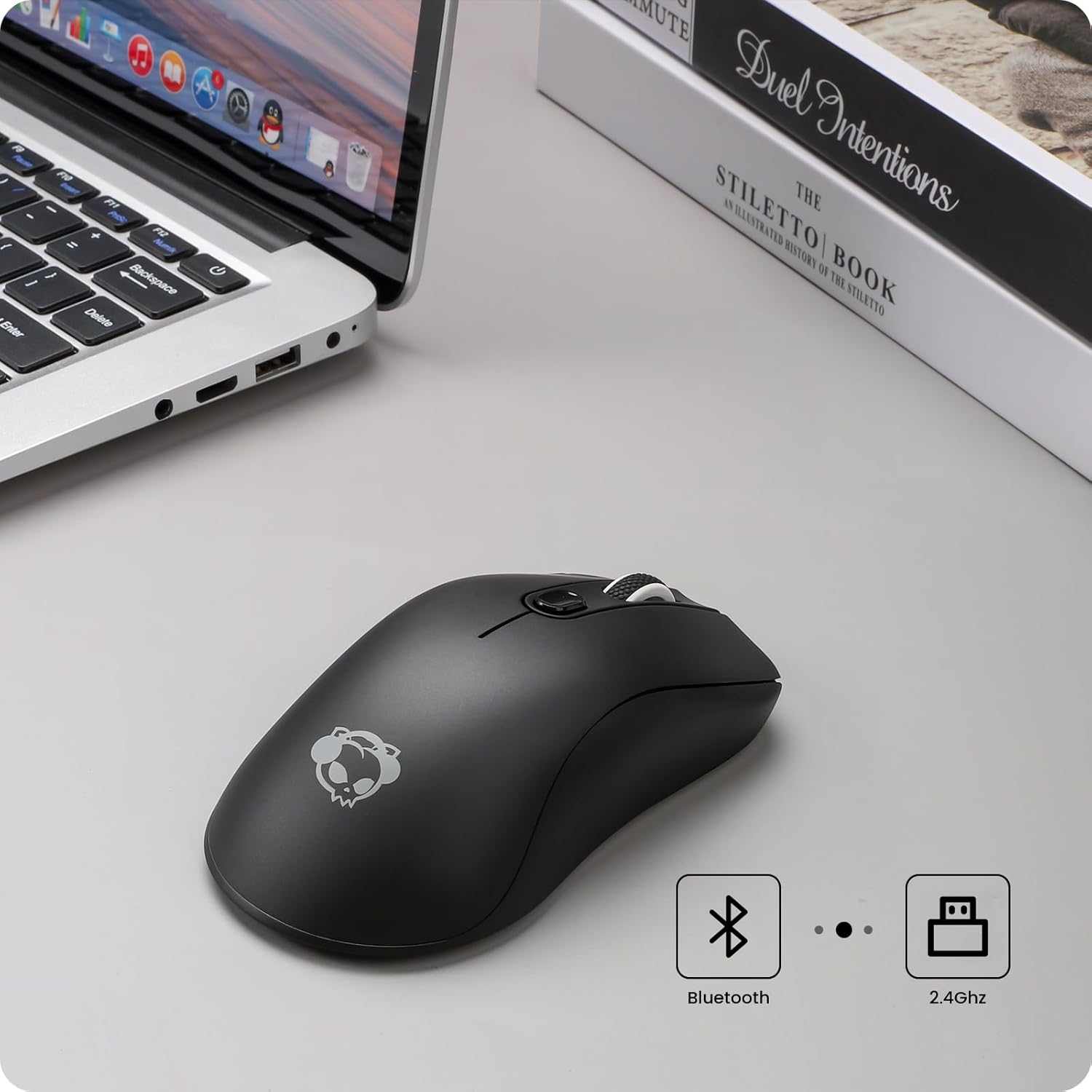
Image: The Akko AG325W mouse on a desk next to a laptop, with icons indicating Bluetooth and 2.4GHz wireless connectivity.
Operating Instructions
DPI Adjustment
The Akko AG325W mouse features 3 adjustable DPI (Dots Per Inch) levels, allowing you to change cursor sensitivity on the fly. To cycle through the DPI settings, simply press the dedicated DPI button located behind the scroll wheel.
- 800 DPI: Suitable for precise tasks or slower cursor movement.
- 1200 DPI: Standard setting for general use.
- 1600 DPI: Ideal for faster cursor movement, common in gaming or large displays.

Image: An illustration showing the Akko AG325W mouse and an arrow pointing to the DPI button, with a graph depicting the three adjustable DPI levels (800, 1200, 1600).
Button Functions
The mouse is equipped with standard buttons for intuitive control:
- Left Click Button: Primary action.
- Right Click Button: Secondary action/context menu.
- Scroll Wheel: Scrolls content up/down. Can also be pressed for middle-click functionality.
- DPI Button: Cycles through DPI settings (800/1200/1600).
- Side Buttons (Forward/Backward): Typically used for navigation in web browsers or file explorers.
Ergonomics and Grip Styles
The Akko AG325W is designed with an ergonomic shape to provide a comfortable fit for various hand sizes and grip styles, reducing fatigue during extended use.

Image: Diagrams illustrating three common mouse grip styles: Palm Grip, Fingertip Grip, and Claw Grip, demonstrating how the mouse accommodates each.
Maintenance
Battery Charging
The Akko AG325W mouse is equipped with a rechargeable Lithium Ion battery. To charge, connect the USB-C cable to the mouse and a power source. A small LED indicator on the mouse will typically illuminate while charging and turn off when fully charged. For optimal battery life, avoid completely draining the battery frequently.
Cleaning
To maintain the mouse's appearance and functionality, clean it regularly:
- Use a soft, lint-free cloth slightly dampened with water or a mild cleaning solution.
- Avoid using harsh chemicals, abrasive cleaners, or excessive moisture.
- Clean the optical sensor on the bottom of the mouse periodically to ensure accurate tracking.
Troubleshooting
| Problem | Possible Cause | Solution |
|---|---|---|
| Mouse not responding (2.4G) | Low battery; USB receiver not plugged in; Incorrect mode selected; Interference. | Charge the mouse; Ensure receiver is securely plugged in; Set mouse switch to "2.4G"; Try a different USB port; Move closer to the receiver; Reduce other wireless interference. |
| Mouse not responding (Bluetooth) | Low battery; Bluetooth not enabled on device; Not paired; Incorrect mode selected. | Charge the mouse; Enable Bluetooth on your device; Re-pair the mouse in Bluetooth settings; Set mouse switch to "BT". |
| Cursor movement is erratic or "drifting" | Dirty optical sensor; Uneven surface; Software issues. | Clean the optical sensor on the bottom of the mouse; Use on a clean, flat mouse pad or surface; Restart your computer. |
| Mouse goes to sleep too quickly / requires click to wake | Power saving feature. | This is a design feature to conserve battery. A click is required to wake the mouse. Consider adjusting power settings on your operating system if available, though direct mouse settings are not provided. |
| No precise battery indicator | Design limitation. | The mouse uses a simple LED for charging status (on while charging, off when full). Monitor battery life by charging regularly or observing performance degradation. |
Specifications
| Feature | Detail |
|---|---|
| Model | AG325W |
| Connectivity | 2.4G Wireless, Bluetooth |
| DPI Levels | 800 / 1200 / 1600 (Adjustable) |
| Movement Detection Technology | Optical |
| Switches | Kailh GM 8.0 BLACK MAMBA Switches |
| Switch Lifespan | Over 80 million cycles |
| Battery Type | 1 Lithium Ion battery (included) |
| Compatibility | Mac/Win (PCs, Laptops, iPads, Macbooks) |
| Item Weight | 6.4 ounces (approx. 181g) |
| Dimensions (L x W x H) | Approx. 125mm x 67mm x 37mm (4.92 x 2.64 x 1.46 inches) |
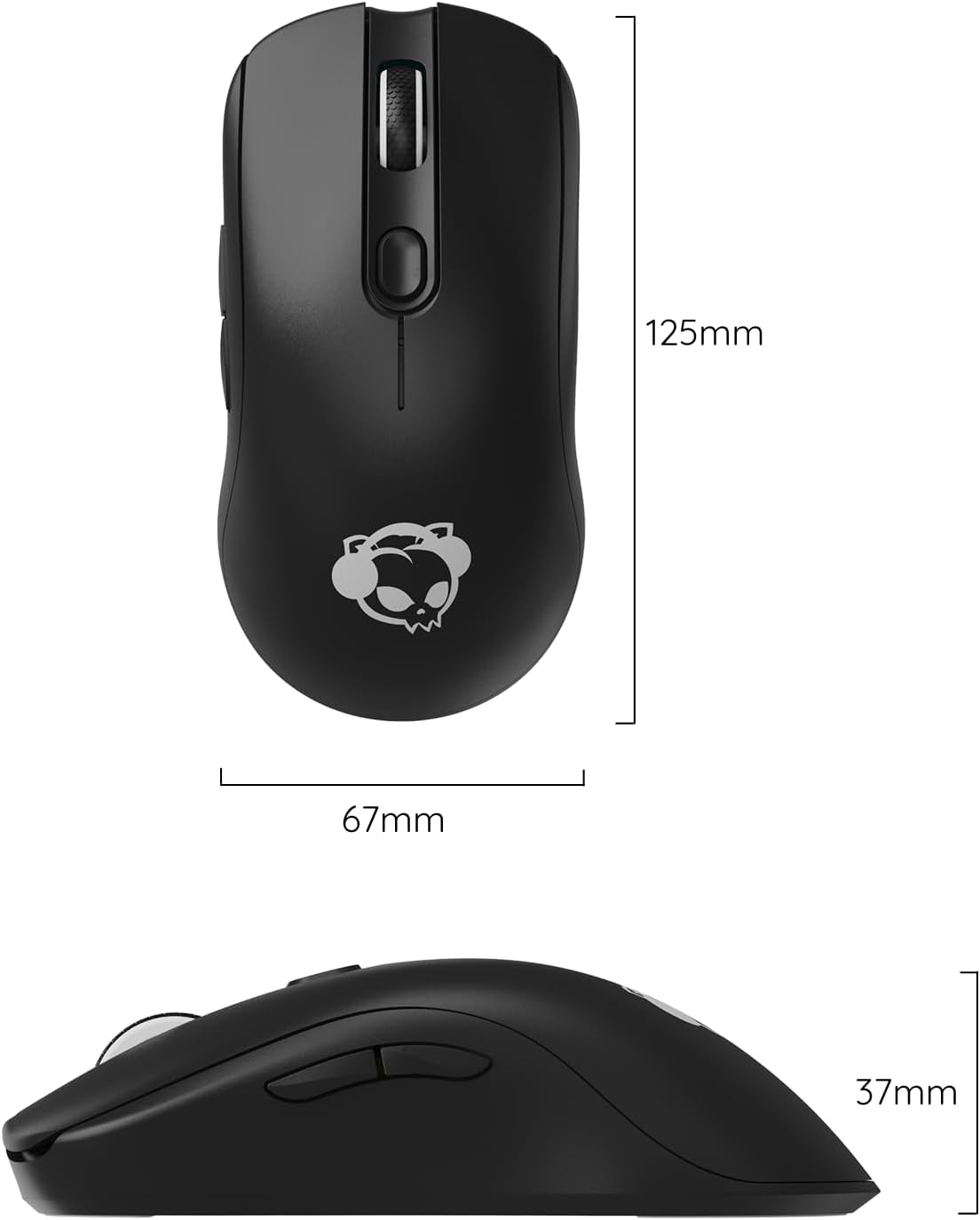
Image: Technical drawing showing the dimensions of the Akko AG325W mouse: 125mm length, 67mm width, and 37mm height.
Warranty and Support
Akko products are manufactured to high quality standards. For specific warranty information, please refer to the warranty card included with your product or visit the official Akko website. If you encounter any issues or require technical assistance, please contact Akko customer support through their official channels. Keep your purchase receipt as proof of purchase for warranty claims.
Official Akko Website: www.akkogear.com


