
1. Introduction
This manual provides detailed instructions for the setup, operation, and maintenance of your ESR Rebound 360 Series Keyboard Case for iPad Pro 13-inch (M5/M4, 2025/2024). Please read this manual thoroughly to ensure proper use and to maximize the functionality of your device.

Image 1.1: The ESR Rebound 360 Series Keyboard Case with an iPad Pro 13-inch, showcasing its detachable design and various components.
2. Compatibility
The ESR Rebound 360 Series Keyboard Case is specifically designed for the following iPad models:
- iPad Pro 13-inch (M5, 2025) - Model Numbers: A3360, A3361, A3362
- iPad Pro 13-inch (M4, 2024) - Model Numbers: A2925, A2926, A3007
This case is not compatible with iPad Pro 12.9-inch (6th/5th/4th/3rd Gen) or any other iPad models. Please verify your iPad model number before use.
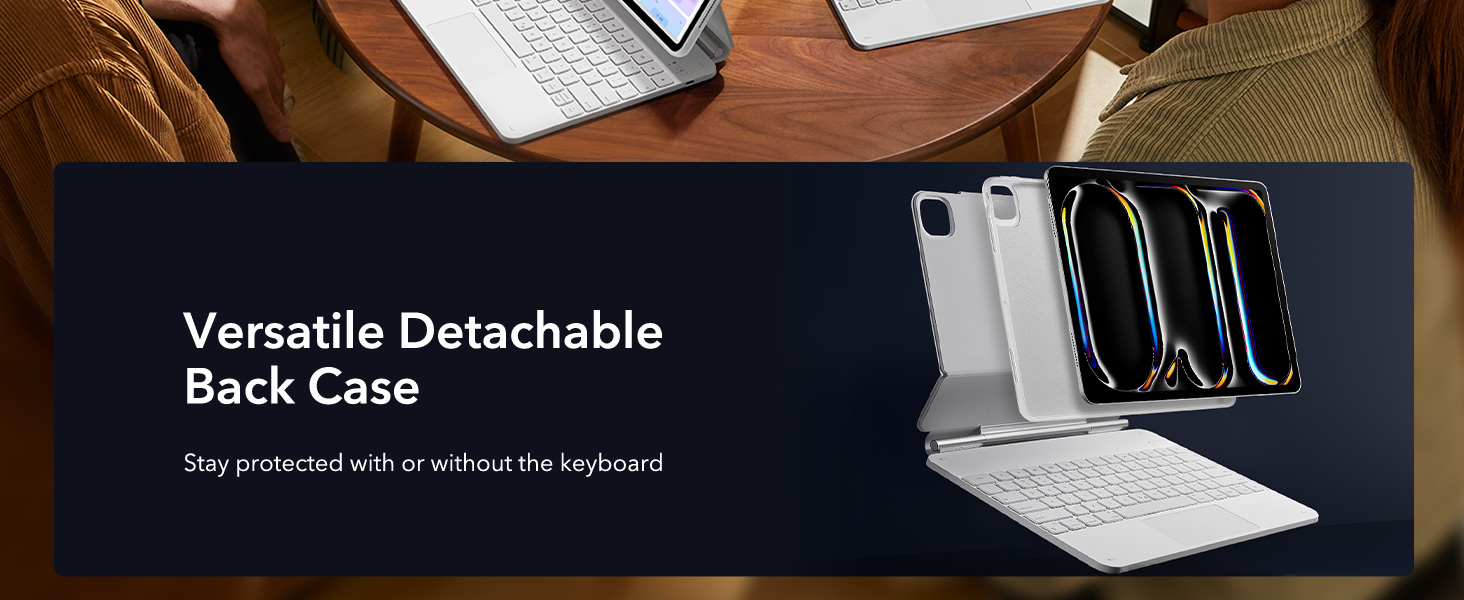
Image 2.1: Visual guide illustrating compatible iPad Pro 13-inch models and how to locate your iPad's model number for verification.
3. Package Contents
Ensure all items are present in the package:
- ESR Rebound 360 Series Back Case
- Floating Cantilever Stand with Integrated Keyboard
- USB-C Charging Cable (for keyboard)
- User Manual (this document)
4. Setup
4.1 Attaching the iPad
- Gently place your compatible iPad Pro 13-inch into the ESR Rebound 360 Series Back Case. Ensure the camera cutout and ports align correctly.
- The back case features strong magnets that securely attach to the floating cantilever stand. Align the iPad (within its back case) with the magnetic area on the stand until it snaps into place.

Image 4.1: The iPad Pro 13-inch being magnetically secured to the keyboard's floating cantilever stand, demonstrating the strong magnetic lock.
4.2 Connecting the Keyboard (Bluetooth Pairing)
- Ensure the keyboard is charged (refer to Section 6 for charging instructions).
- Turn on the keyboard using the power switch, usually located on the side or back of the keyboard. An indicator light will typically flash to show it's in pairing mode.
- On your iPad, go to Settings > Bluetooth.
- Turn on Bluetooth. Your iPad will search for available devices.
- Select "ESR Keyboard" (or a similar name) from the list of devices.
- Follow any on-screen prompts to complete the pairing process. Once paired, the indicator light on the keyboard will typically turn solid or off.
5. Operating Instructions
5.1 Using the Magnetic Stand and View Modes
The floating cantilever stand allows for versatile viewing angles and modes:
- Typing Mode: Open the case to position the iPad at an optimal angle for typing, similar to a laptop. This mode often provides a raised screen view for improved ergonomics.
- Viewing Mode: Adjust the angle to comfortably watch videos or presentations.
- Browsing Mode: Position the iPad for easy touch interaction and browsing.
- Portrait Mode: The detachable back case allows for easy reorientation of the iPad into portrait mode for activities like FaceTime or reading documents.

Image 5.1: Demonstrates the versatility of the stand, showing the iPad in typing, viewing, and browsing orientations for different tasks.

Image 5.2: A user typing on the keyboard case, highlighting the ergonomic raised screen view compared to a normal view.
5.2 Detachable Back Case
The iPad is housed in a detachable back case, providing full-body protection even when separated from the keyboard. This allows for hands-on use of the iPad without the keyboard, while maintaining protection.

Image 5.3: The detachable back case, illustrating how the iPad remains protected even when removed from the keyboard base.
5.3 Trackpad Functions
The extended multi-touch trackpad supports various gestures for efficient navigation:
- Click: Single tap or press for selection.
- Scroll: Two-finger swipe up or down.
- Zoom: Pinch with two fingers.
- Go Home: Swipe up with three fingers.
- App Switcher: Swipe up with three fingers and pause.

Image 5.4: A close-up of the trackpad, demonstrating common multi-touch gestures for navigation and control.
5.4 Keyboard Backlight
The keyboard features an adjustable backlight. Use the dedicated function keys (refer to the keyboard layout) to cycle through different colors and brightness levels to suit your environment.
5.5 Pencil Holder
A secure magnetic clasp is integrated into the case to hold your Apple Pencil, ensuring it stays protected and charged when not in use. The clasp also helps keep the case closed.

Image 5.5: A detailed view of the magnetic clasp designed to securely hold and protect the Apple Pencil.
6. Charging and Battery Life
The keyboard has its own internal battery. To charge, connect the provided USB-C cable to the keyboard's charging port and a power source. The keyboard's battery level can be monitored via the iPad's native battery widget.
Estimated battery life:
- Standby: Up to 1 year
- Day Use (2 hours/day, backlight off): Up to 3 months
- Night Use (2 hours/day, backlight on): Up to 1 week
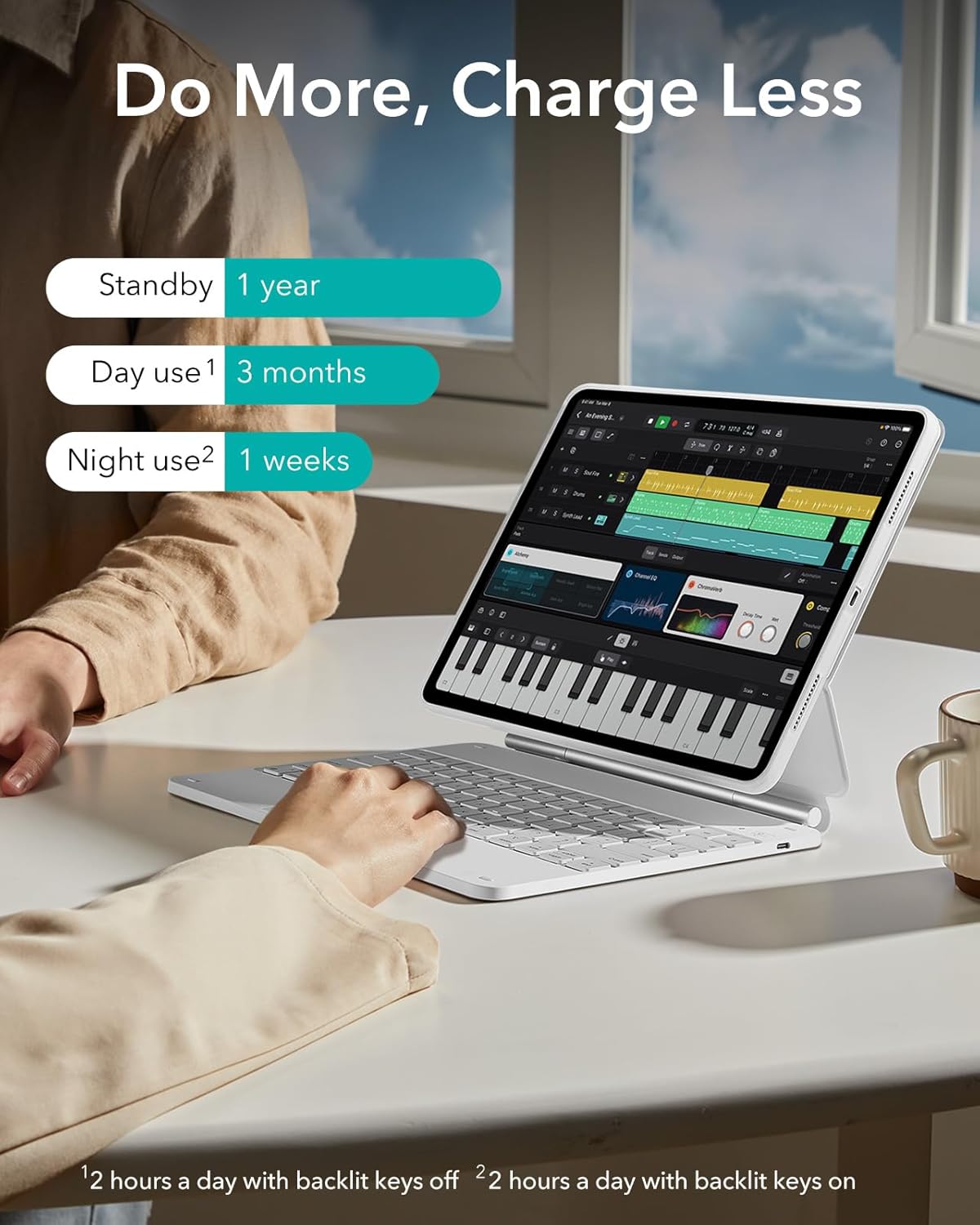
Image 6.1: Infographic detailing the estimated battery life under various usage scenarios for the keyboard.
7. Maintenance
To ensure the longevity and performance of your keyboard case:
- Keep the case clean by wiping it with a soft, damp cloth. Avoid harsh chemicals.
- Do not expose the keyboard to extreme temperatures or direct sunlight for prolonged periods.
- Avoid spilling liquids on the keyboard.
- Regularly clean the trackpad surface to maintain responsiveness.
8. Troubleshooting
8.1 Keyboard Not Connecting via Bluetooth
- Ensure the keyboard is powered on and charged.
- Turn off and on the keyboard.
- On your iPad, go to Settings > Bluetooth, forget the device if previously paired, and attempt to re-pair.
- Restart your iPad.
8.2 Trackpad or Keys Not Responding
- Check the keyboard's battery level.
- Ensure the Bluetooth connection is stable.
- Clean the trackpad surface for any obstructions.
- Restart the keyboard and iPad.
8.3 iPad Not Magnetically Attaching Securely
- Ensure the iPad is correctly seated within the back case.
- Verify that no foreign objects are between the back case and the magnetic stand.
- Confirm your iPad model is compatible with this case (refer to Section 2).
9. Specifications
| Brand | ESR |
| Model Number | B0B1HSKH9F |
| Compatible Devices | iPad Pro 13-inch (M5/M4, 2025/2024) |
| Material | Polycarbonate |
| Item Weight | 3.26 pounds |
| Package Dimensions | 12.91 x 9.53 x 1.22 inches |
| OS Compatibility | iOS |
10. Warranty and Support
ESR provides a comprehensive 12-month warranty for this product, covering manufacturing defects and malfunctions under normal use. Additionally, lifetime support is available for all customers.
For detailed setup videos, frequently asked questions (FAQs), or personalized assistance, please visit the official ESR support website or contact customer service.
Contact information and support resources can typically be found on the ESR brand store or product packaging.


