
Nulea RT02
Nulea Ergonomic Keyboard User Manual
Model: RT02
Introduction
This user manual provides comprehensive instructions for the setup, operation, maintenance, and troubleshooting of your Nulea RT02 Ergonomic Keyboard. Please read this manual thoroughly before using the product to ensure optimal performance and longevity.
Package Contents
- Nulea Ergonomic Keyboard x 1
- User Manual x 1
Setup
Follow these steps to set up your Nulea Ergonomic Keyboard:
- Unpack the Keyboard: Carefully remove the keyboard and all accessories from the packaging.
- Connect to Computer: The Nulea RT02 keyboard uses a wired USB-C connection. Plug the USB-C cable from the keyboard into an available USB port on your computer (Laptop, Gaming Console, or PC).
- Driver Installation: The keyboard is plug-and-play and typically does not require additional driver installation for basic functionality on Windows and Mac operating systems. Your system should automatically recognize the device.
- Adjust Tilt Legs: The keyboard features 4 foldable tilt legs. You can adjust the keyboard's tilt angle by setting up the front, back, or both-side legs to achieve your preferred ergonomic position. This helps in maintaining a natural wrist posture.
- Positioning: Place the keyboard on a flat, stable surface. The split and splayed design is intended to promote natural arm and hand positioning, keeping hands in line with shoulders.
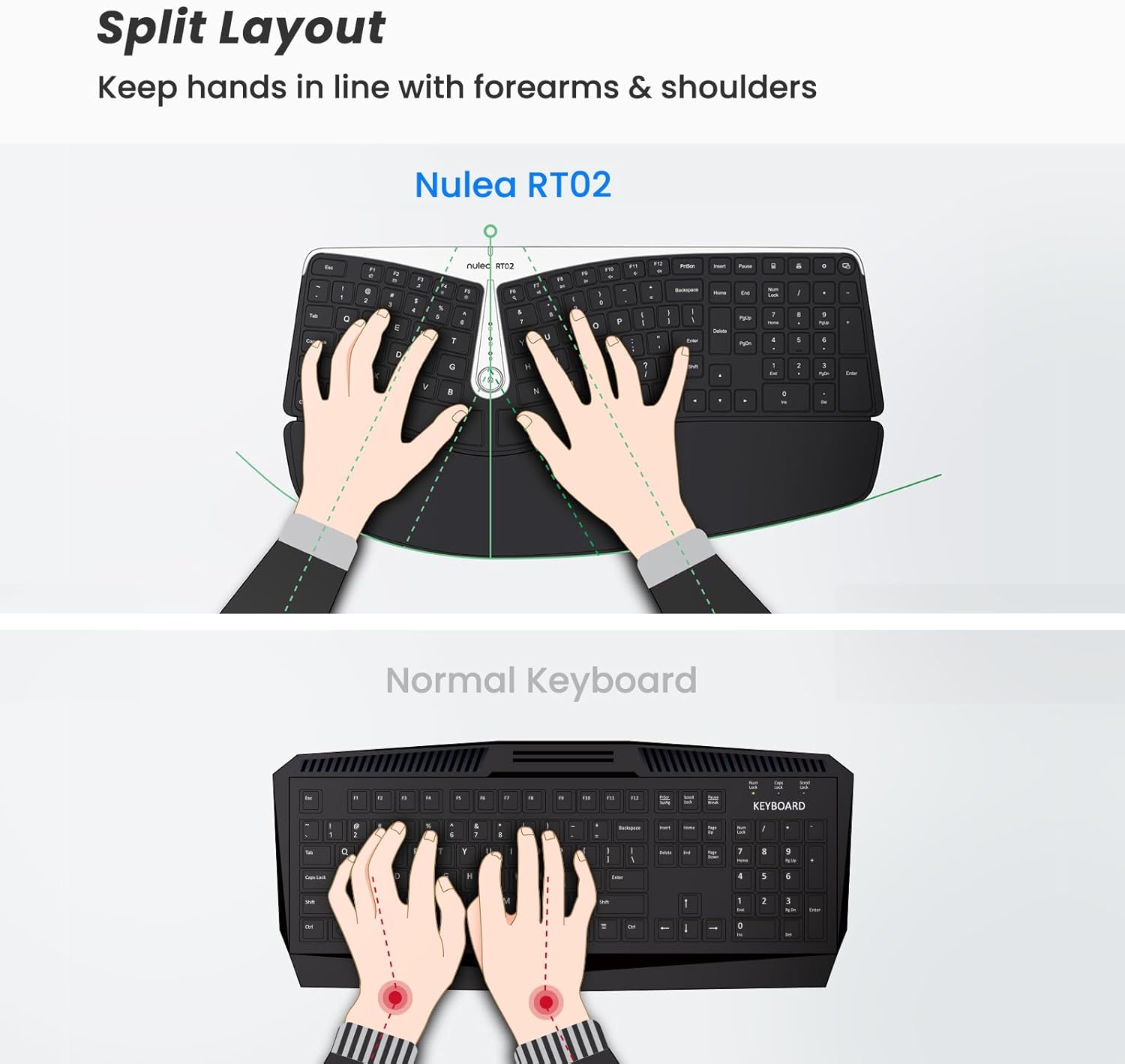
Figure 1: Split Layout for Natural Hand Positioning. This image illustrates how the split design of the Nulea RT02 keyboard helps maintain proper alignment of hands with forearms and shoulders, reducing strain compared to a traditional keyboard.
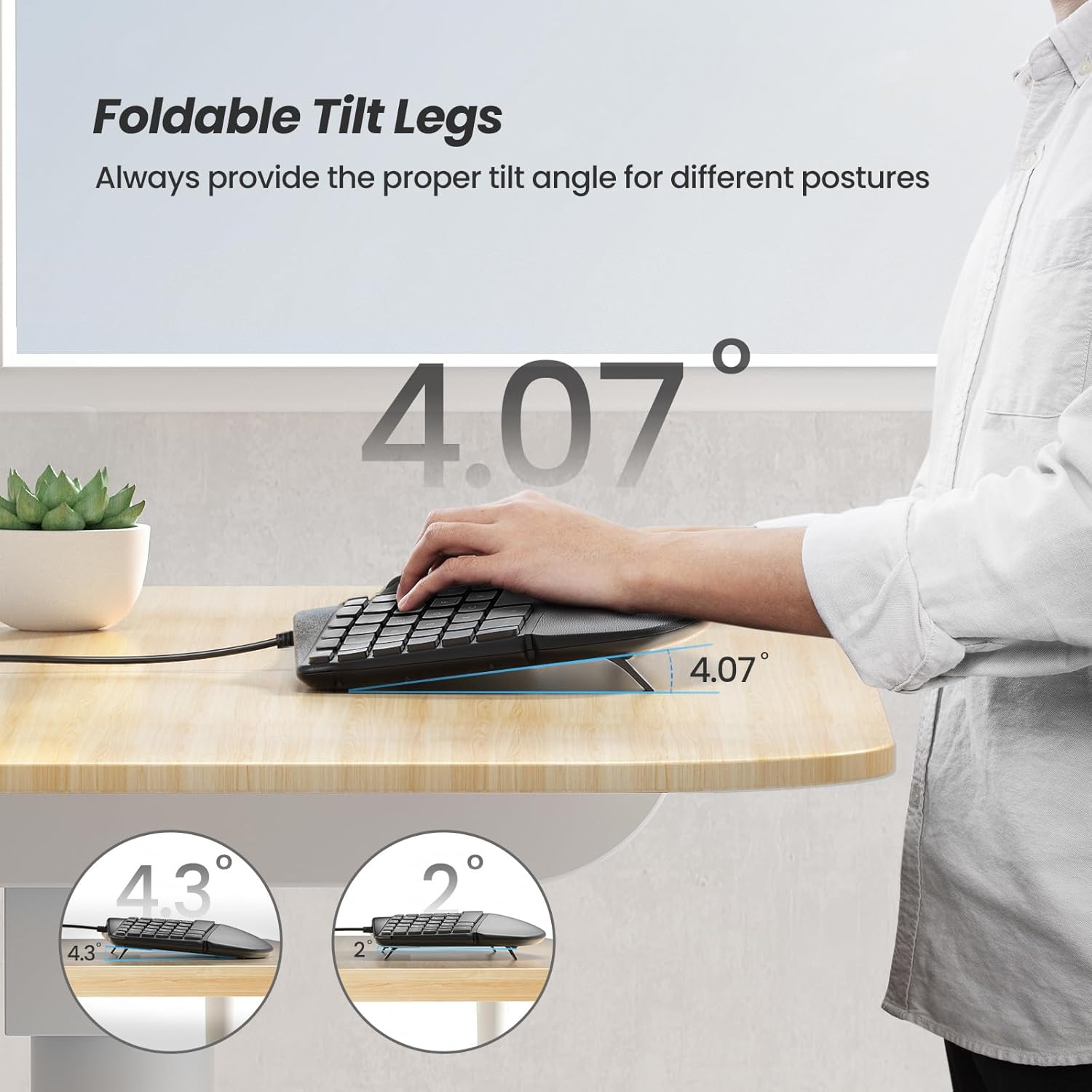
Figure 2: Adjustable Foldable Tilt Legs. This image demonstrates the four foldable tilt legs that allow users to customize the keyboard's angle for different postures, enhancing wrist support and comfort.
Operating Instructions
The Nulea RT02 Ergonomic Keyboard is designed for comfortable and efficient typing. Here are key operational aspects:
Basic Typing
The keyboard features a standard 107-key layout. The split keyset and tented structure are designed to reduce forearm pronation and promote a natural typing posture. The keys are responsive for a tactile and comfortable typing experience.
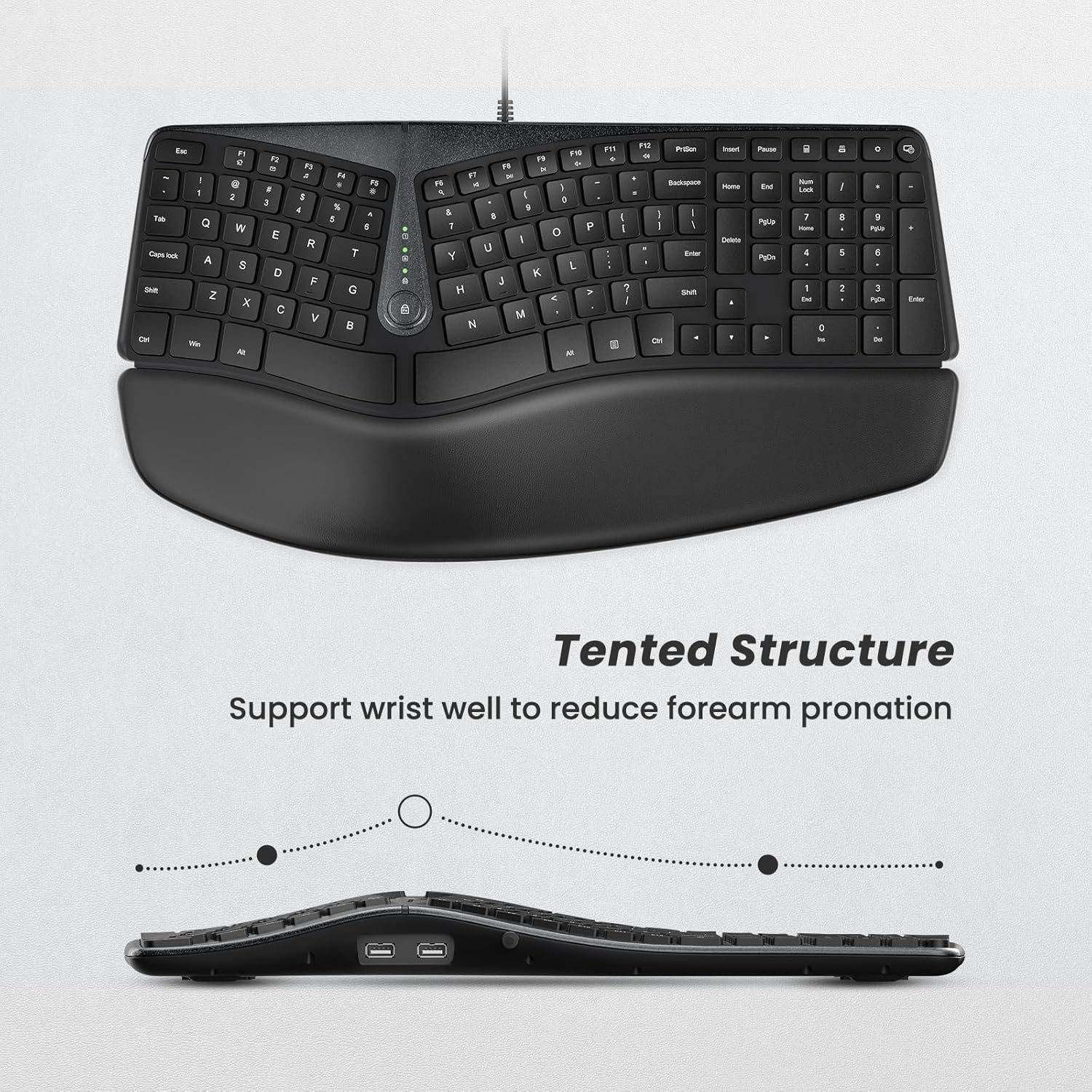
Figure 3: Tented Structure. This image provides a side view of the keyboard, highlighting its tented structure which supports the wrist and helps reduce forearm pronation during typing.
Pillowed Palm Rest
The integrated palm rest features a large surface with skin-touching PU leather and memory foam. This provides support for your palms and wrists, reducing pressure on the median nerve and minimizing tension during extended use.

Figure 4: Pillowed Palm Rest in Use. This image shows a user's hands comfortably resting on the soft, plush palm rest, demonstrating how it reduces wrist extension and provides support.
Multimedia and Shortcut Keys
The keyboard includes 17 multimedia shortcut keys for quick access to common functions. These keys enhance efficiency by allowing control over media playback, volume, and other system functions directly from the keyboard.
Built-in USB Ports
Two extra USB ports are integrated into the keyboard. These ports can be used for connecting or charging other devices such as a mouse, headphones, or USB dongles. They also support data transfer, making them suitable for portable external hard drives, eliminating the need for an external USB hub.

Figure 5: Dual USB Ports. This image clearly displays the two built-in USB ports on the keyboard, illustrating their use for connecting a mouse or other peripherals, enhancing connectivity options.
Maintenance
Proper maintenance ensures the longevity and optimal performance of your Nulea Ergonomic Keyboard:
- Cleaning: Use a soft, dry cloth to wipe down the keyboard surface regularly. For deeper cleaning, slightly dampen the cloth with water or a mild, non-abrasive cleaner. Avoid excessive moisture.
- Keycap Cleaning: For cleaning between keys, use compressed air to remove dust and debris.
- Palm Rest Care: The PU leather palm rest can be wiped with a damp cloth. Avoid harsh chemicals that may damage the material.
- Storage: When not in use for extended periods, store the keyboard in a clean, dry environment away from direct sunlight and extreme temperatures.
- Avoid Spills: Liquid spills can damage the internal components. In case of a spill, immediately disconnect the keyboard from your computer and allow it to dry completely before reconnecting.
Troubleshooting
If you encounter issues with your Nulea Ergonomic Keyboard, refer to the following common troubleshooting steps:
| Problem | Possible Cause | Solution |
|---|---|---|
| Keyboard not responding | Loose USB connection, faulty USB port, driver issue. | Ensure the USB-C cable is securely plugged into both the keyboard and the computer. Try a different USB port. Restart your computer. |
| Keys not working or typing incorrectly | Debris under keycap, software conflict, keyboard settings. | Clean around the affected keys with compressed air. Check your computer's keyboard settings. Test the keyboard on another computer if possible. |
| USB ports on keyboard not working | Insufficient power, device incompatibility, cable issue. | Ensure the connected device does not draw too much power. Try a different device. Verify the keyboard's main USB connection is stable. |
| Ergonomic discomfort persists | Incorrect posture, improper tilt angle, prolonged use. | Adjust the tilt legs to find a more comfortable angle. Ensure your chair and desk height are ergonomically set. Take regular breaks. |
If the problem persists after trying these steps, please contact Nulea customer support for further assistance.
Specifications
| Feature | Detail |
|---|---|
| Model Number | RT02 |
| Product Dimensions | 17 x 2.24 x 10.94 inches (43.18 x 5.69 x 27.79 cm) |
| Item Weight | 2.77 pounds (1.26 kg) |
| Connectivity | Wired USB-C |
| Number of Keys | 107 |
| Special Features | Split Keyset Design, Pillowed Wrist Rest, Hotkeys and Media Keys, Built-in 2 USB Ports, Adjustable Tilt Legs |
| Compatible Devices | Laptop, Gaming Console, PC (Windows, Mac) |
| Material | Polyurethane (PU) for palm rest |
| Color | B-Black |
Warranty and Support
Nulea products are designed for reliability and performance. For warranty information and customer support, please refer to the warranty card included with your product or visit the official Nulea website. You can also find additional support resources and FAQs on their website.
For direct assistance, please contact Nulea customer service through the contact information provided on the product packaging or their official website.
Related documentsRT02


Ask a question about this manual
Ask about setup, troubleshooting, compatibility, parts, safety, or missing instructions. Manuals+ will review the question and use this page’s manual context to help answer it.