
RECCAZR MK30 (B0CTG3S91X)
RECCAZR Wireless Keyboard and Mouse Combo User Manual
Model: MK30 (ASIN: B0CTG3S91X)
Brand: RECCAZR
1. Introduction
Thank you for choosing the RECCAZR Wireless Keyboard and Mouse Combo. This product offers a seamless and efficient computing experience with its 2.4Ghz wireless connection, silent operation, and ergonomic design. It is designed for compatibility with both Windows and Mac operating systems, featuring a convenient built-in phone/tablet holder and adjustable mouse DPI settings for personalized use. This manual provides detailed instructions for setup, operation, maintenance, and troubleshooting to ensure optimal performance.
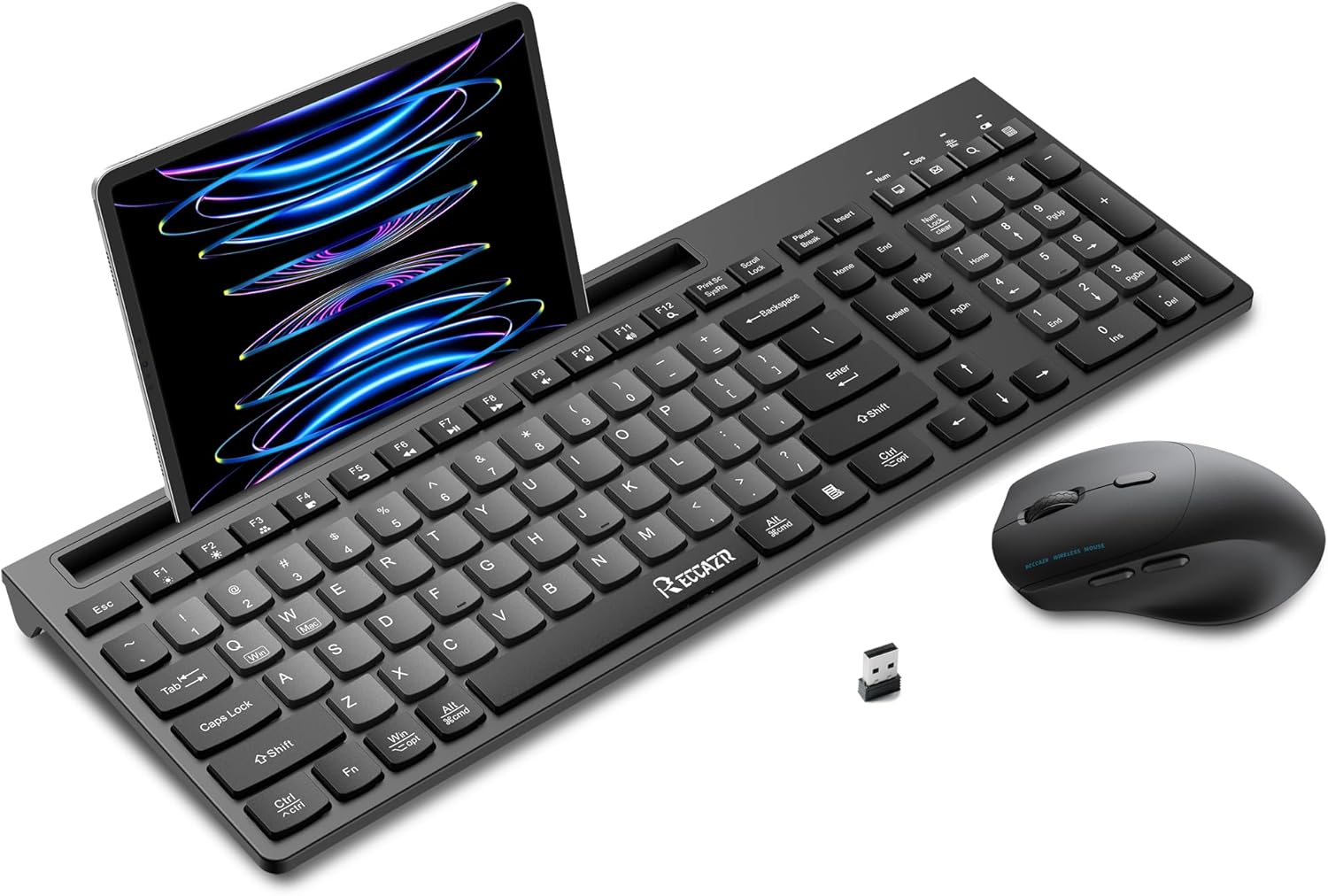
Image: The RECCAZR Wireless Keyboard and Mouse Combo, showcasing the keyboard with a tablet in its integrated holder, the wireless mouse, and the compact USB receiver.
2. Package Contents
Please check the package contents to ensure all items are present:
- 1 x RECCAZR Wireless Keyboard
- 1 x RECCAZR Wireless Mouse
- 1 x USB Nano Receiver (stored in the mouse battery compartment)
- 1 x User Manual
3. Setup Guide
3.1 Battery Installation
The keyboard and mouse require AA batteries (not included).
- For the Keyboard: Open the battery compartment cover on the back of the keyboard. Insert 2 x AA batteries, ensuring correct polarity (+/-). Close the cover.
- For the Mouse: Open the battery compartment cover on the bottom of the mouse. Insert 1 x AA battery, ensuring correct polarity (+/-). The USB nano receiver is typically stored here; remove it before inserting the battery if present. Close the cover.

Image: Detailed view of the keyboard's underside, highlighting the battery slot and ON/OFF switch for proper battery installation.
3.2 Connecting the USB Nano Receiver
The keyboard and mouse share a single USB nano receiver.
- Locate the USB nano receiver, usually stored in the mouse's battery compartment.
- Plug the USB nano receiver into an available USB port on your computer (desktop, laptop, etc.).
- Turn on the keyboard and mouse using their respective ON/OFF switches. The devices are plug-and-play and should connect automatically within a few seconds. No additional drivers or software are required.
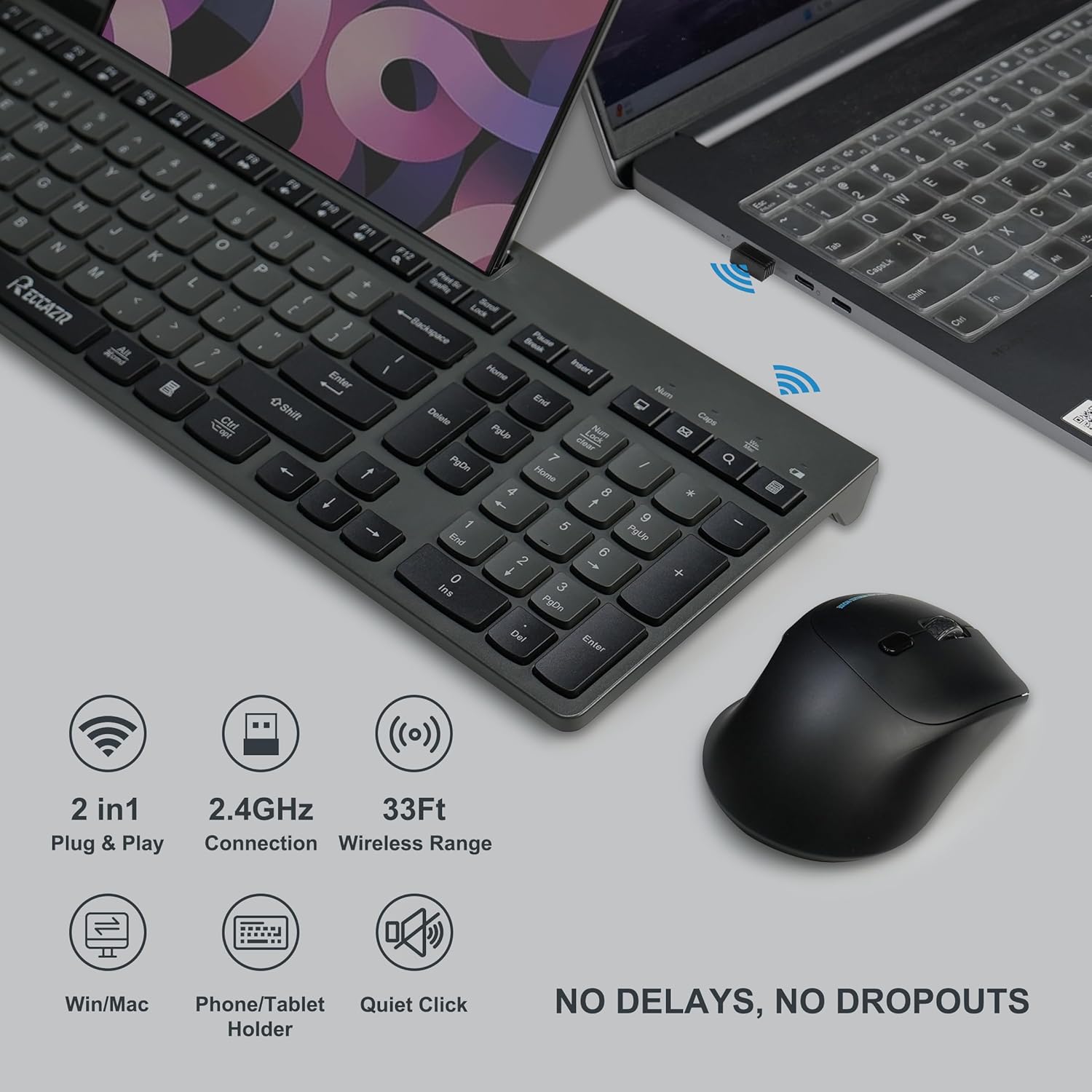
Image: Visual representation of the 2.4GHz wireless connection, emphasizing the plug-and-play functionality and 33ft wireless range.
4. Operating Instructions
4.1 Dual-System Layout (Windows/Mac)
The keyboard supports both Windows and Mac operating systems. Use the following key combinations to switch modes:
- Windows Mode: Press Fn + Q. The power indicator light will remain off or in its default state.
- Mac Mode: Press Fn + W. The power indicator light will turn green to confirm Mac mode activation.
4.2 Mouse DPI Adjustment
The wireless mouse features 3 adjustable DPI levels (800-1200-1600) to suit your preference for cursor sensitivity. To adjust DPI, press the DPI button located on the top of the mouse, usually behind the scroll wheel. Each press cycles through the available DPI settings.

Image: Diagram illustrating the 3 adjustable DPI settings (800, 1200, 1600) for the wireless mouse.
4.3 Smart Power Management
Both the keyboard and mouse are equipped with an auto-sleep function to conserve battery life:
- Keyboard: Enters sleep mode after 5 seconds of inactivity.
- Mouse: Enters sleep mode after 15 minutes of inactivity.
- Both devices will also enter sleep mode if the USB receiver is unplugged or the connected PC is shut down.
To wake the devices, simply press any key on the keyboard or click any button on the mouse.

Image: Illustration of the smart power management feature, showing the 5-second auto-sleep for the keyboard and 15-minute auto-sleep for the mouse.
4.4 Built-in Phone/Tablet Holder
The keyboard features an integrated slot designed to hold your smartphone or tablet, providing a convenient viewing angle while you work. The holder size is approximately 9.85 x 0.5 inches.

Image: The keyboard with a tablet and a phone securely placed in its built-in holder, demonstrating its utility.
4.5 Quiet and Effortless Typing
The keyboard and mouse are designed with a silent structure, reducing typing and clicking noise by up to 90%. This makes them ideal for quiet environments such as offices, libraries, or late-night use.

Image: A visual emphasizing the quiet operation of the keyboard and mouse, with a sleeping baby in the background, suggesting minimal disturbance.

Image: A close-up view of the keyboard keys, illustrating the silent structure designed for reduced noise during typing.
4.6 Multimedia Keys
The keyboard includes a full set of function keys (F1-F12) that can be used as multimedia keys when pressed in combination with the Fn key. These keys provide quick access to functions like volume control, media playback, and more, designed for convenience with your laptop or PC.

Image: An overhead view of the keyboard, highlighting the row of multi-function multimedia keys (F1-F12) and their associated icons.
5. Maintenance
5.1 Cleaning
To maintain the cleanliness and functionality of your keyboard and mouse:
- Use a soft, dry cloth to wipe down the surfaces.
- For stubborn dirt, slightly dampen the cloth with water or a mild, non-abrasive cleaner. Avoid excessive moisture.
- Do not use harsh chemicals, solvents, or abrasive cleaning agents.
5.2 Battery Replacement
When the low battery indicator lights up or performance degrades, replace the batteries as described in Section 3.1. Always use fresh AA batteries.
5.3 Spill-Resistant Design
The keyboard features a spill-resistant design with drain holes to help protect against accidental liquid spills. While this design offers protection, it is not fully waterproof. In case of a spill, immediately disconnect the keyboard, turn it upside down to drain liquid, and allow it to dry completely before re-using.

Image: The keyboard being splashed with water, visually representing its spill-resistant design feature.
6. Troubleshooting
| Problem | Possible Cause | Solution |
|---|---|---|
| Keyboard/Mouse not responding |
|
|
| Lag or delayed response |
|
|
| Mouse cursor erratic or not moving smoothly |
|
|
7. Specifications
| Feature | Detail |
|---|---|
| Connectivity Technology | 2.4Ghz Wireless (USB Receiver) |
| Wireless Range | Up to 10m (33ft) |
| Keyboard Battery | 2 x AA (not included) |
| Mouse Battery | 1 x AA (not included) |
| Mouse DPI Levels | 800 / 1200 / 1600 DPI (Adjustable) |
| Compatibility | Windows 2000/ME/XP/7/8/9/10/11, Mac OS, Laptop, Personal Computer |
| Special Features | Phone/Tablet Holder, Silent Keys/Clicks, Auto Power Saving, Spill-Resistant Design |
| Keyboard Dimensions | Approx. 417.27 x 145.82 x 23.65 mm (16.43 x 5.74 x 0.93 inches) |
| Mouse Dimensions | Approx. 112 x 69 x 41 mm (4.41 x 2.72 x 1.61 inches) |
| Item Weight | 2.35 pounds (combined) |

Image: Technical drawing displaying the precise dimensions of both the RECCAZR wireless keyboard and mouse.

Image: Visual representation of the product's strong compatibility with various operating systems, including Windows, Mac, Chrome OS, and Linux.
8. Warranty and Support
RECCAZR provides a 12-month free after-sales service for this product. If you encounter any issues or have questions during use, please do not hesitate to contact us.
Contact Information:
- Please contact us via Amazon email for prompt assistance.
- Our customer service team is available for 24 hours, 365 days support.
We are committed to providing a satisfactory solution to any problems you may experience.

Image: Graphic indicating the RECCAZR Service Team offers 24 hours, 365 days support for customer inquiries and issues.
Ask a question about this manual
Ask about setup, troubleshooting, compatibility, parts, safety, or missing instructions. Manuals+ will review the question and use this page’s manual context to help answer it.